[Zoom] Where to Find Your Zoom Meeting or Webinar Panelist Link
Written By Team Streamalive
Last updated 7 months ago
When scheduling a Zoom session in StreamAlive, you’ll be prompted to enter your meeting link or panelist link depending on whether it’s a meeting or webinar.
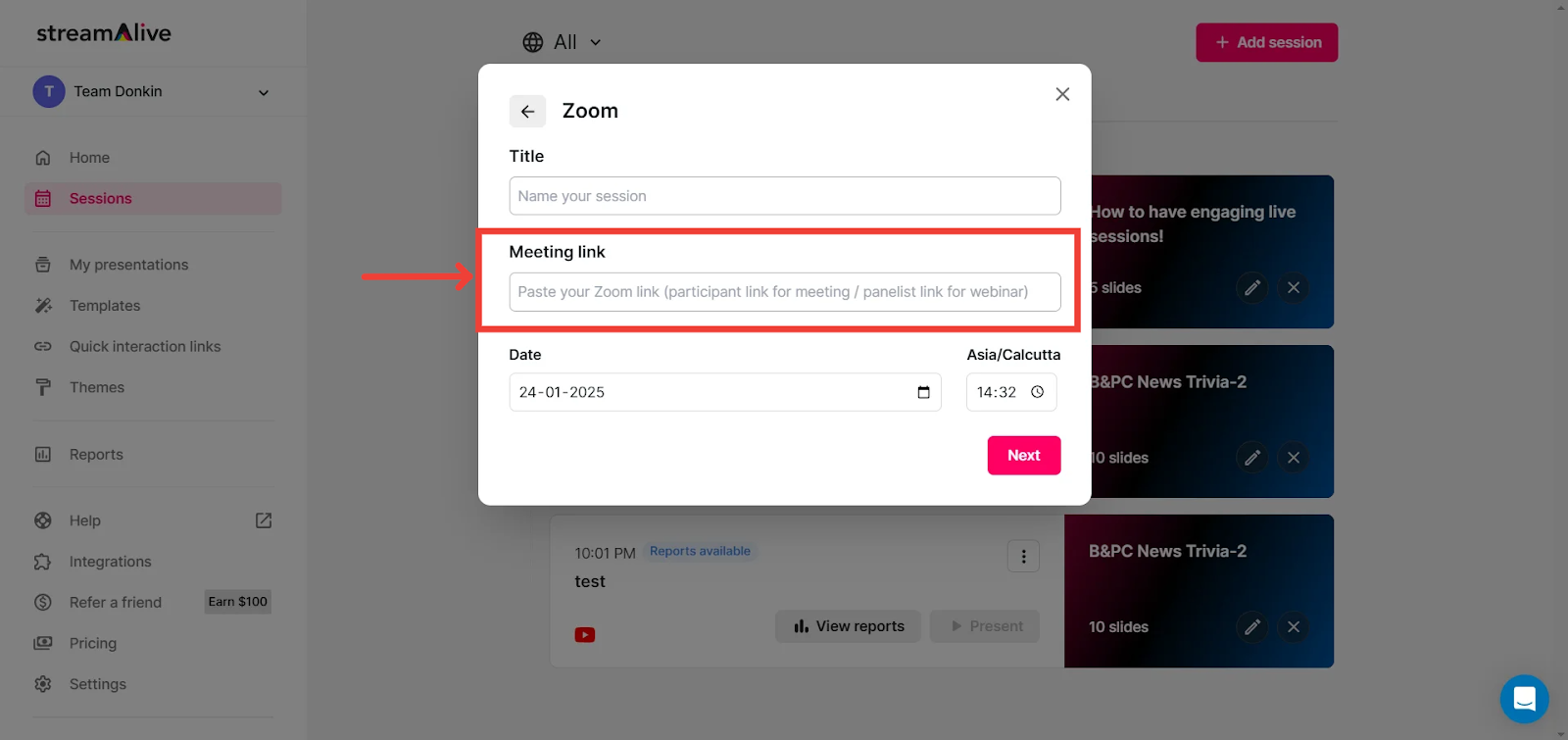
This link is essential for StreamAlive’s bot to connect to the correct session and enable its powerful interaction features.
If you’re unsure where to find your Zoom link or what it looks like, don’t worry, this guide is here to help.
Let’s get started and find that link so you can deliver an engaging and interactive session!
Before jumping into the help doc, please note that:
Meetings/Webinars with Registration:
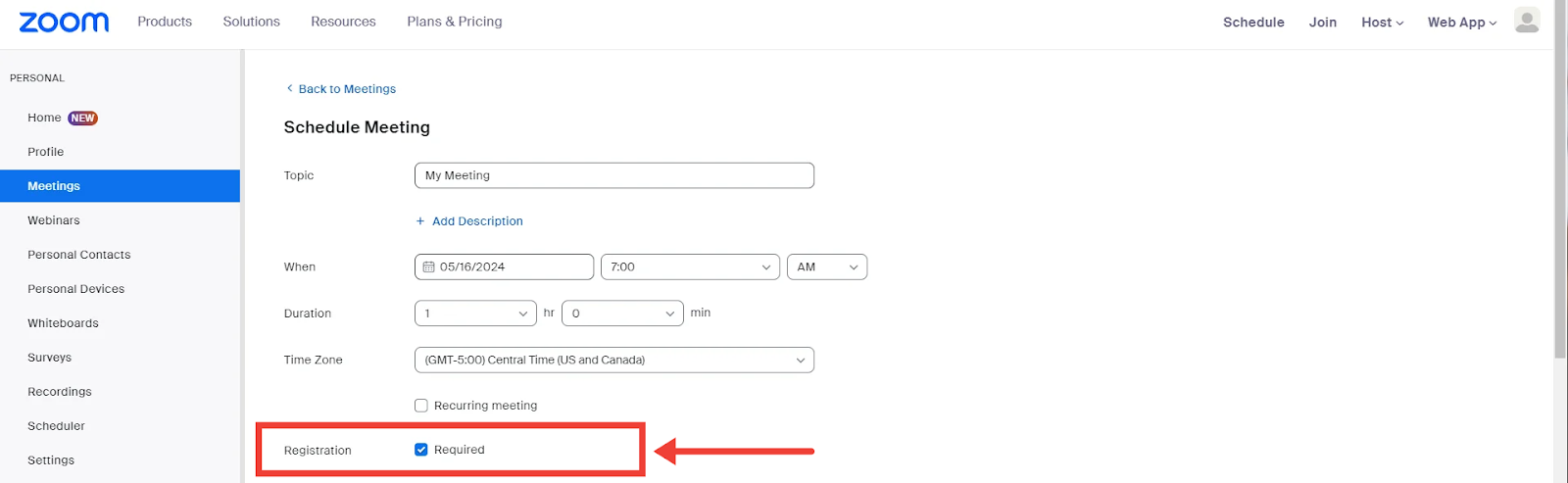
👤 If You Are the Host
When connecting StreamAlive to your own Zoom meeting or webinar, it’s important to use the correct type of link:
For Zoom Meetings:
Always use the meeting link (the standard join URL).
👉 If your session requires registration, do NOT use the registration link; use the meeting link instead.For Zoom Webinars:
You must use the panelist link to connect to StreamAlive.
👉 This applies even if registration is enabled.
🙋 If You Are NOT the Host
You can still connect StreamAlive to a Zoom session as an attendee.
If the meeting/webinar requires registration, use the link from your registration confirmation email.
This link will include a
tkparameter in the URL, which is required for access.
Example:https://us06web.zoom.us/w/12345678910?tk=XXXX...
👉 Make sure you use this personalized link, as standard join links may not work for registered sessions.
The Zoom meeting link must include the password if the meeting is password-protected. The meeting link should be in this format:
https://zoom mtg link?pwd=passcode
With these in mind, let us look at how we can find the meeting links:
Zoom Meeting Link
From the Zoom Website:
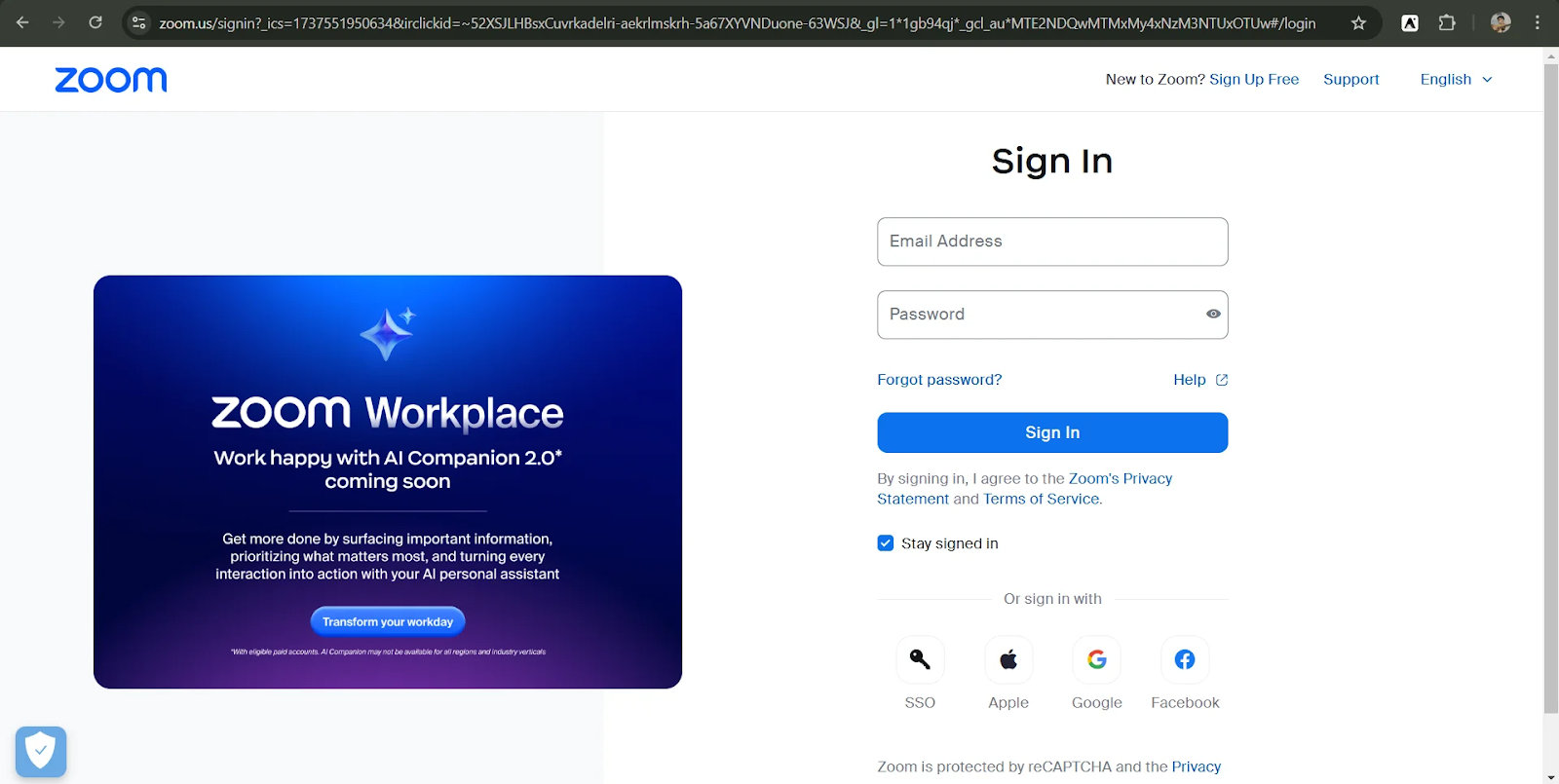
Sign in to your Zoom account
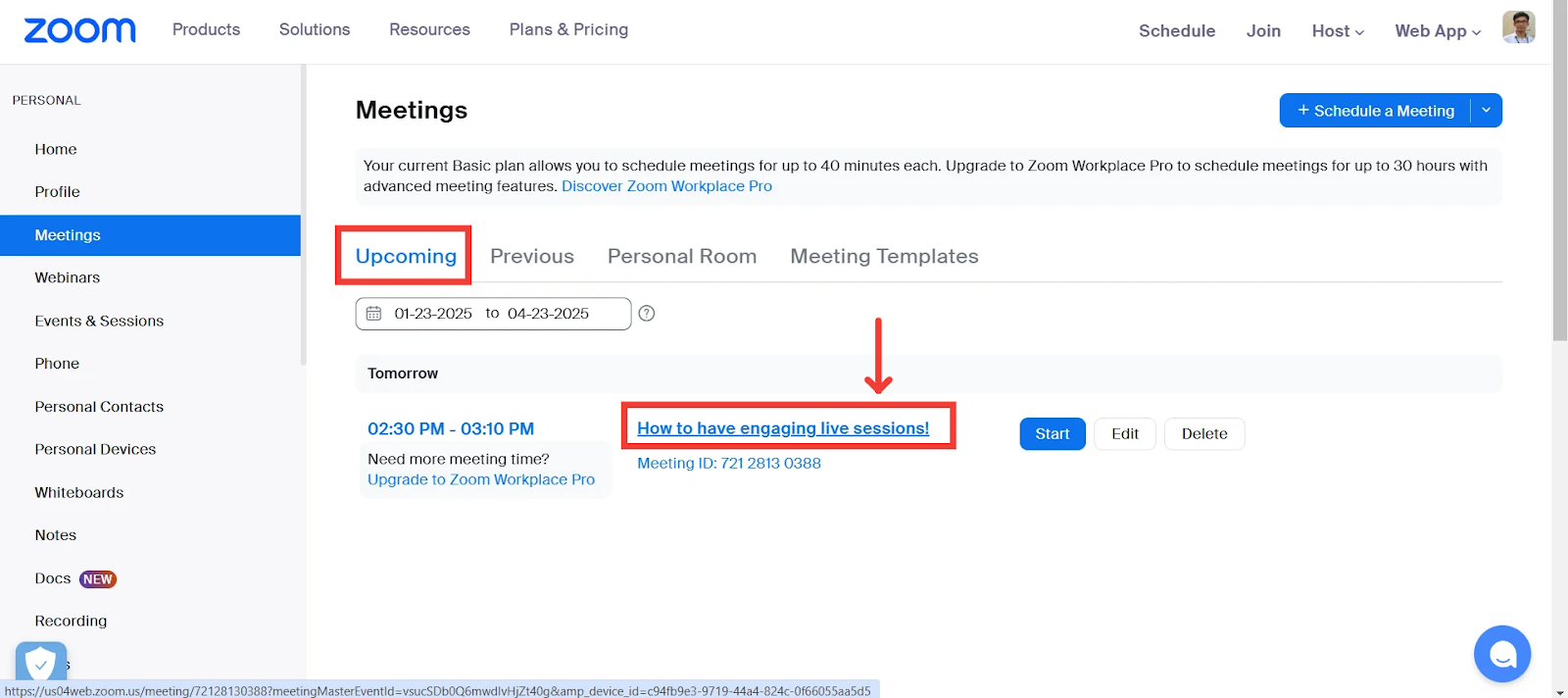
Navigate to the “Meetings” tab.
The meetings tab allows you to manage all of your meetings.
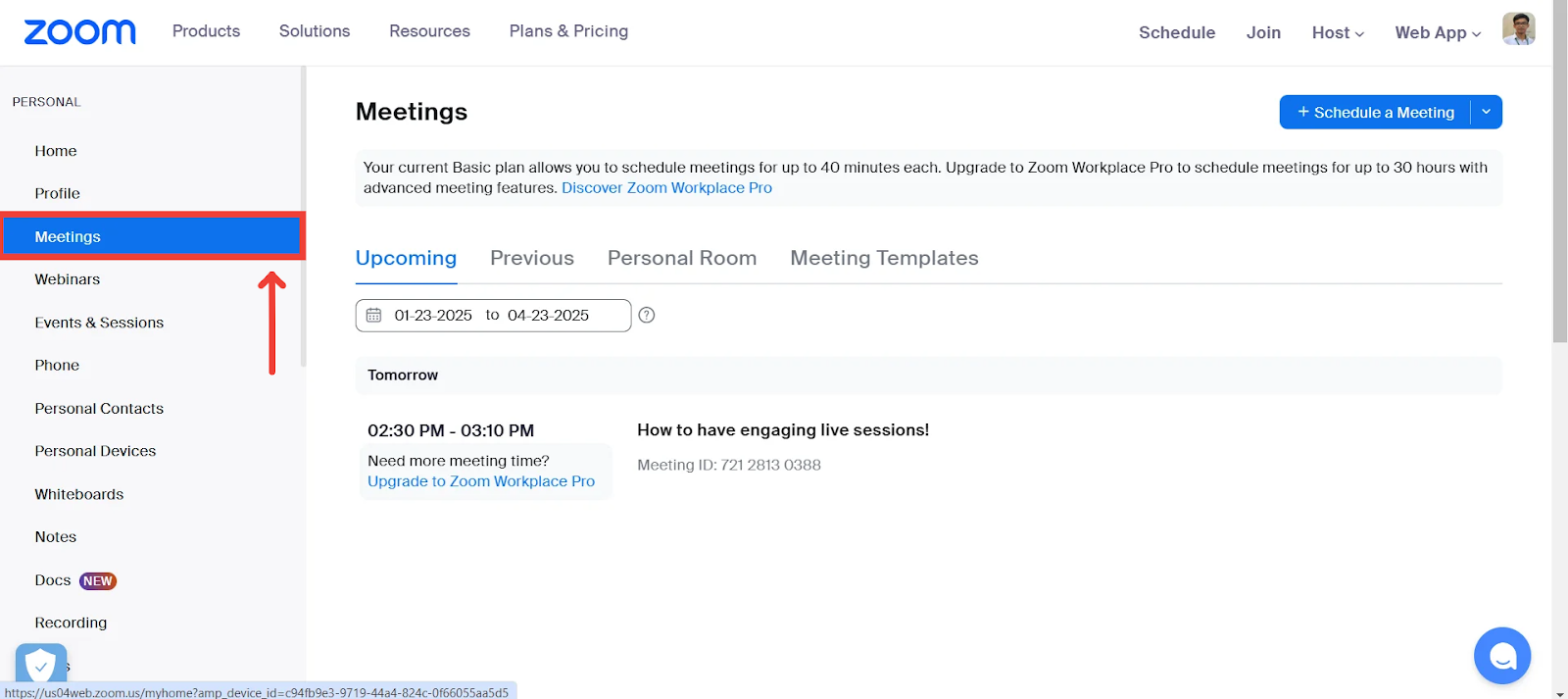
Click on Upcoming.
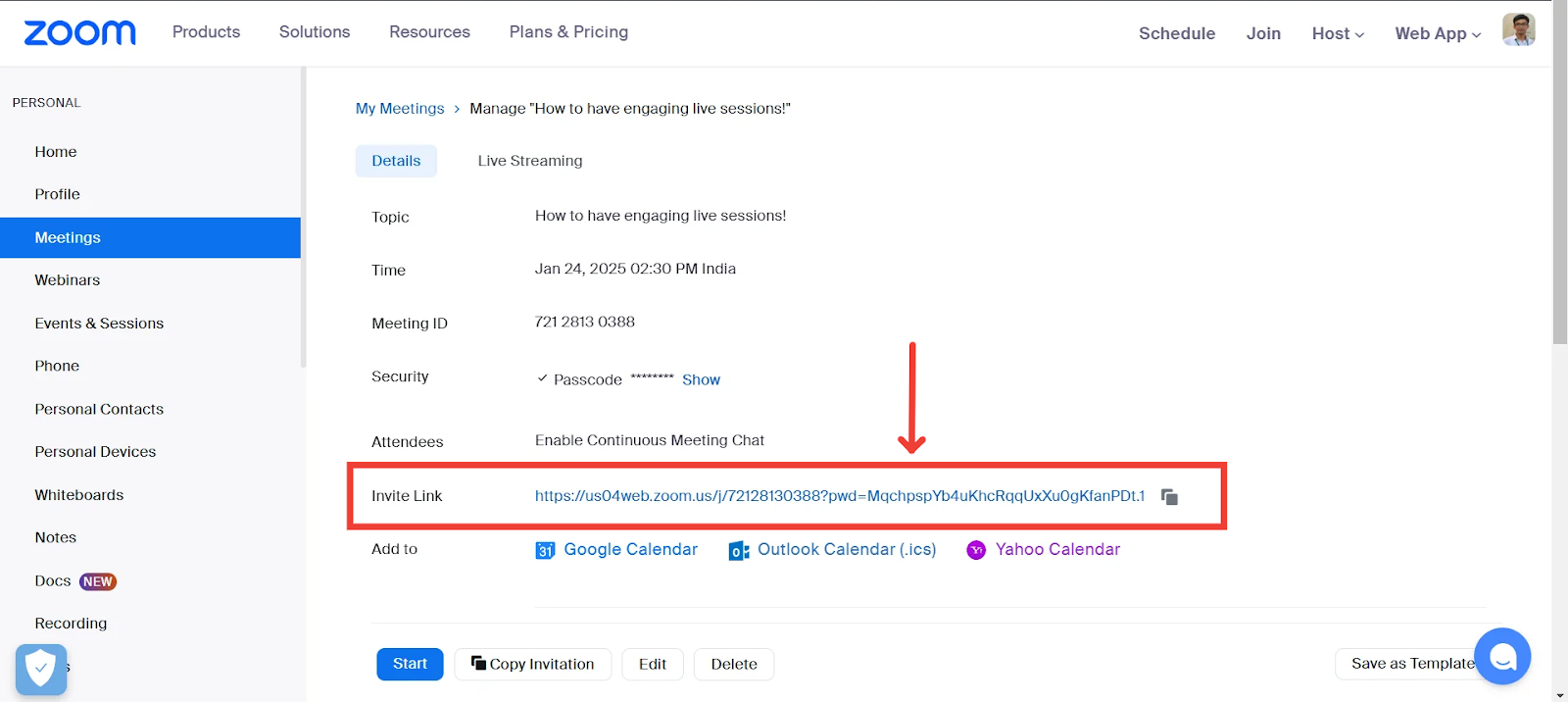
All your future scheduled meetings will be listed here. Search for the required meeting. Once found, click on its title to see the meeting details.
Search for “Invite Link” and copy it
From the Zoom Client
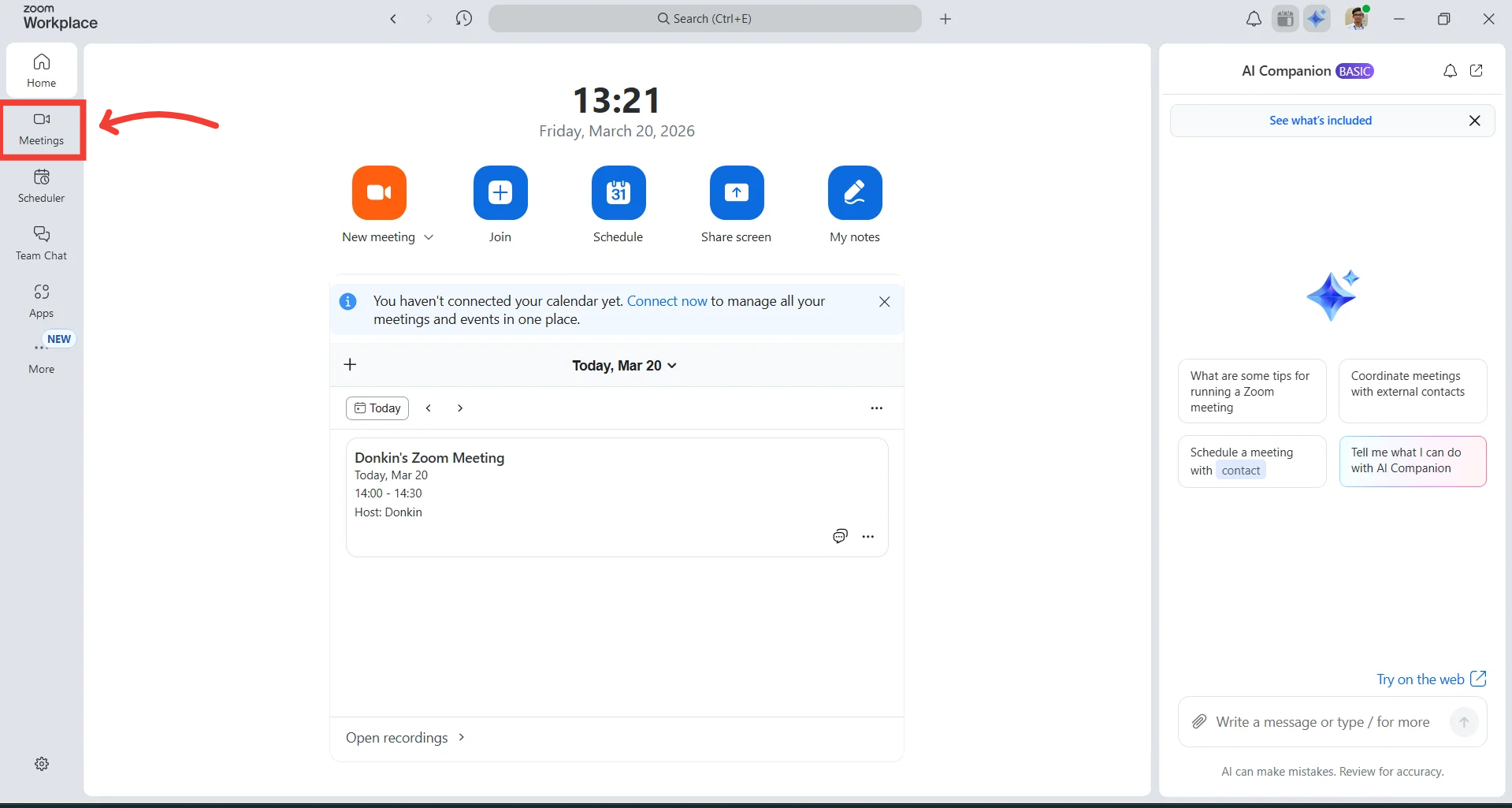
On the home page of the Zoom client, click on the “Meetings” tab on the horizontal bar menu.
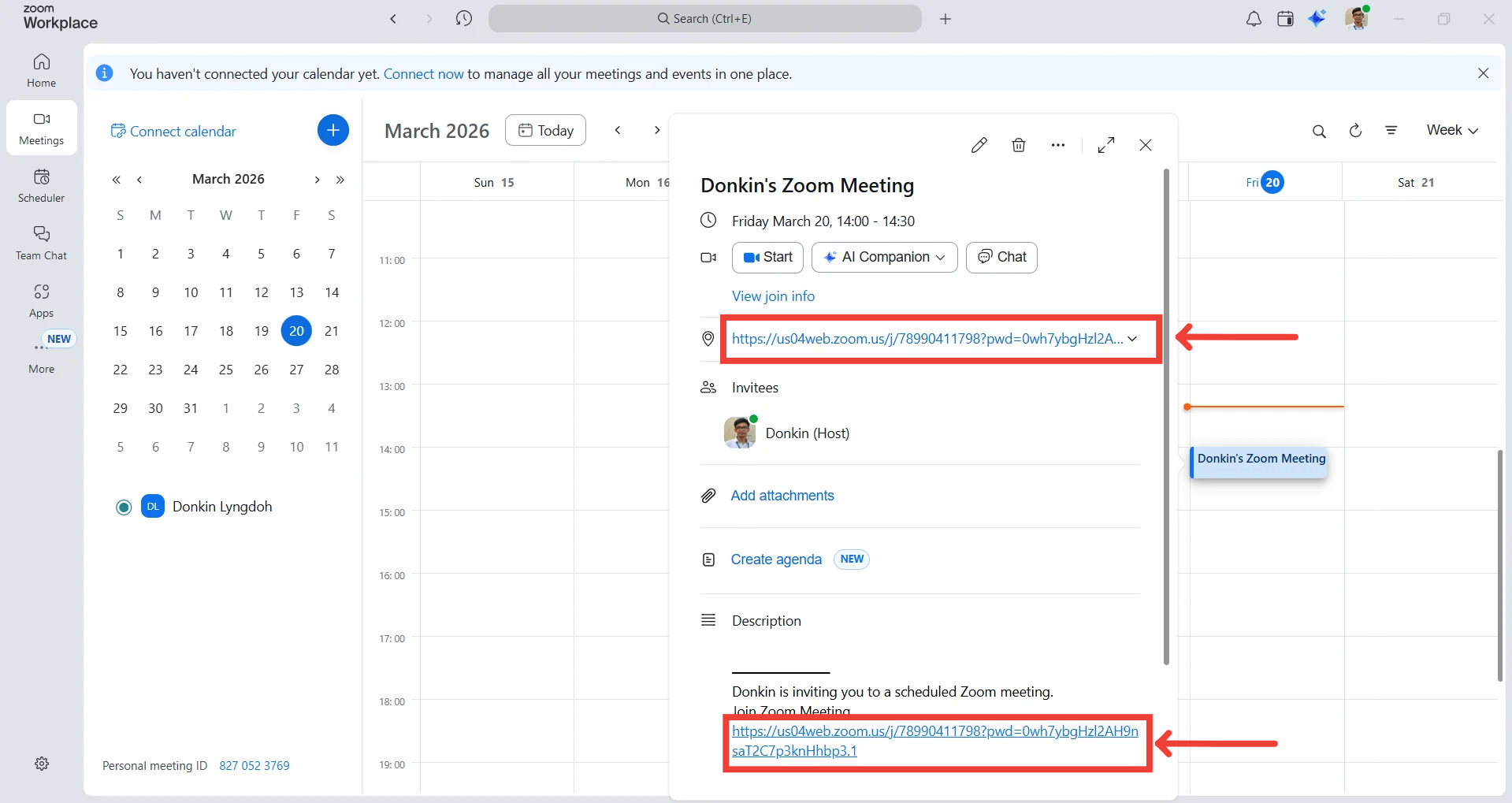
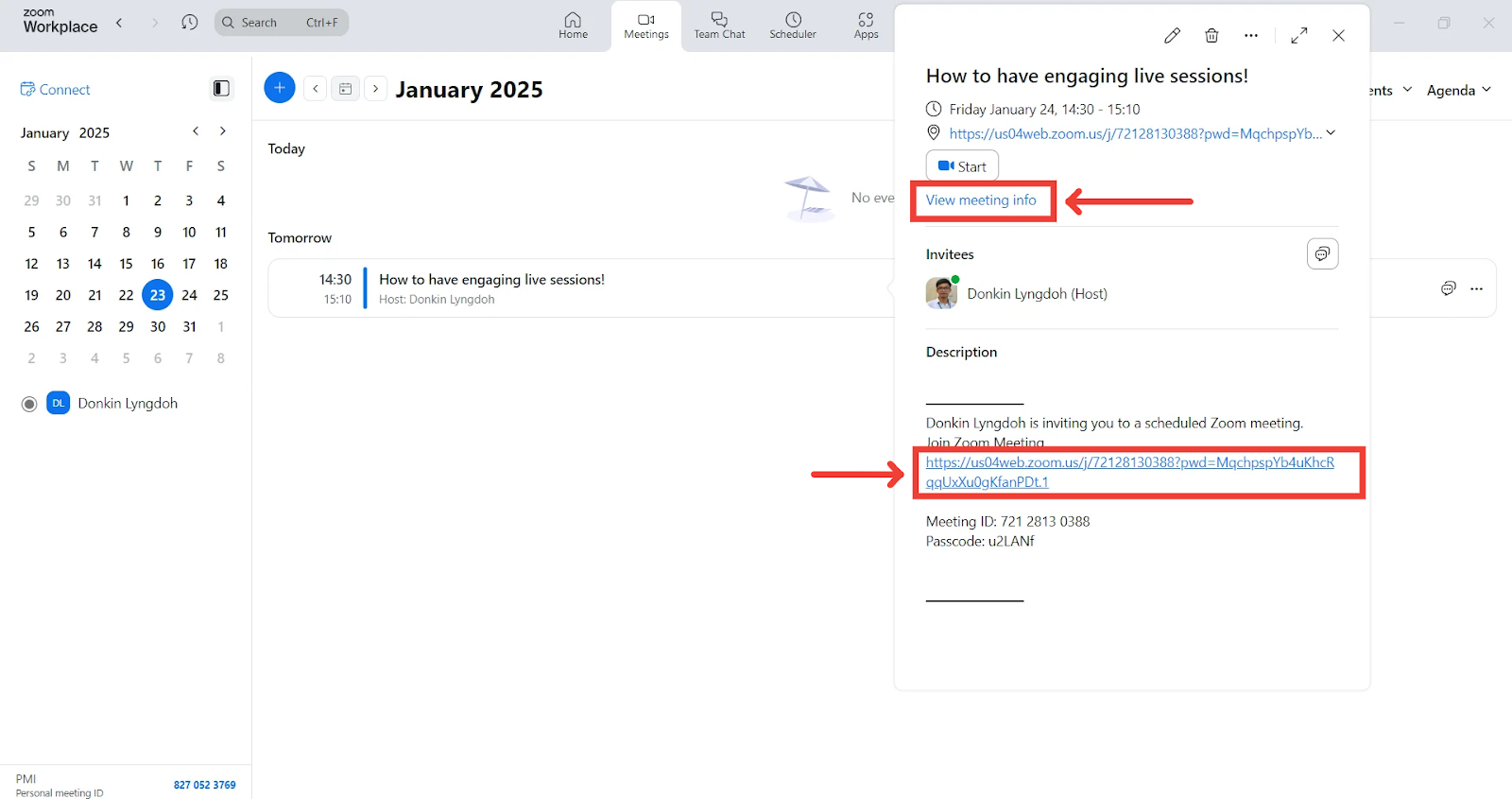
Find and click on the required meeting
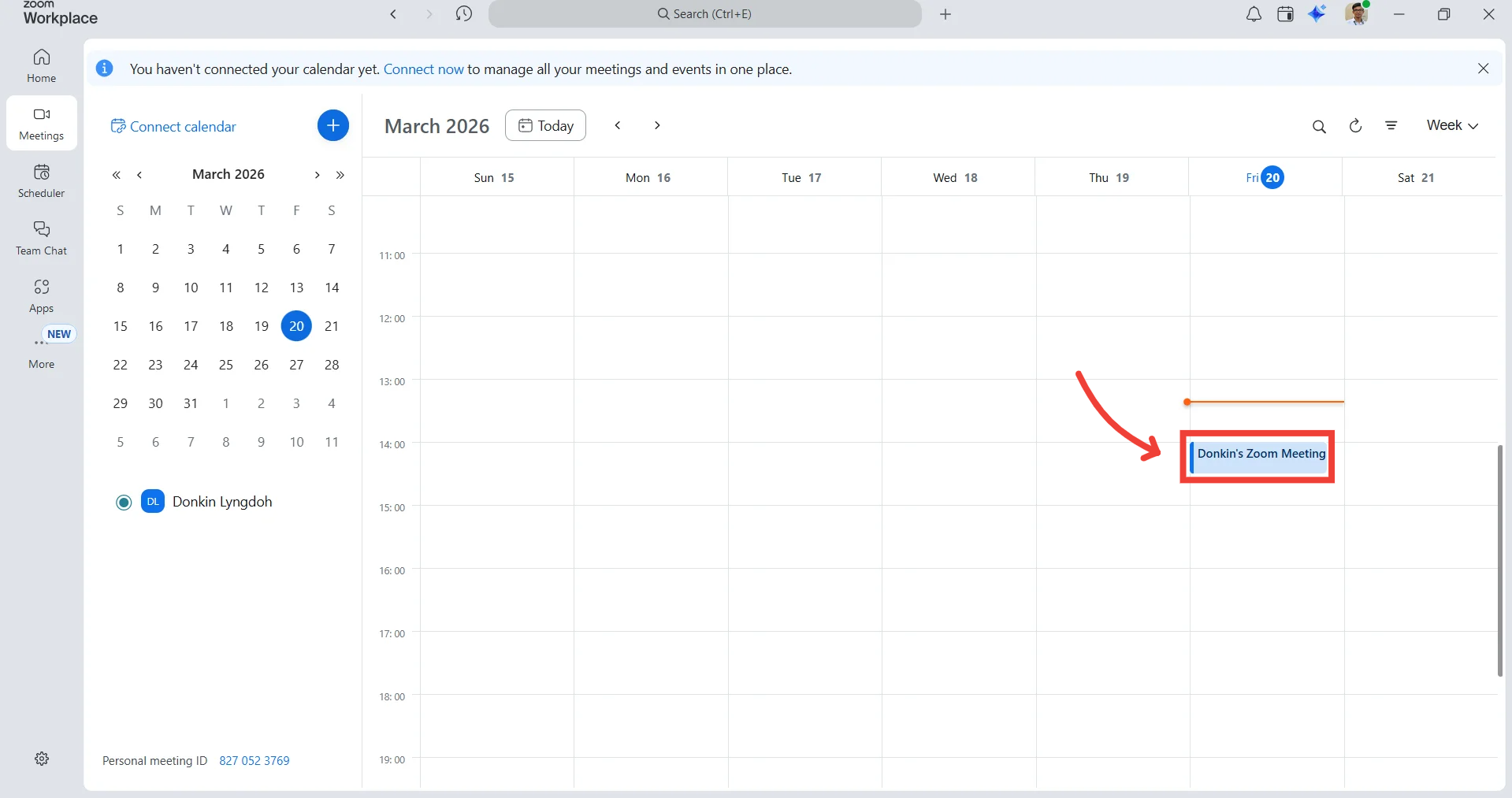
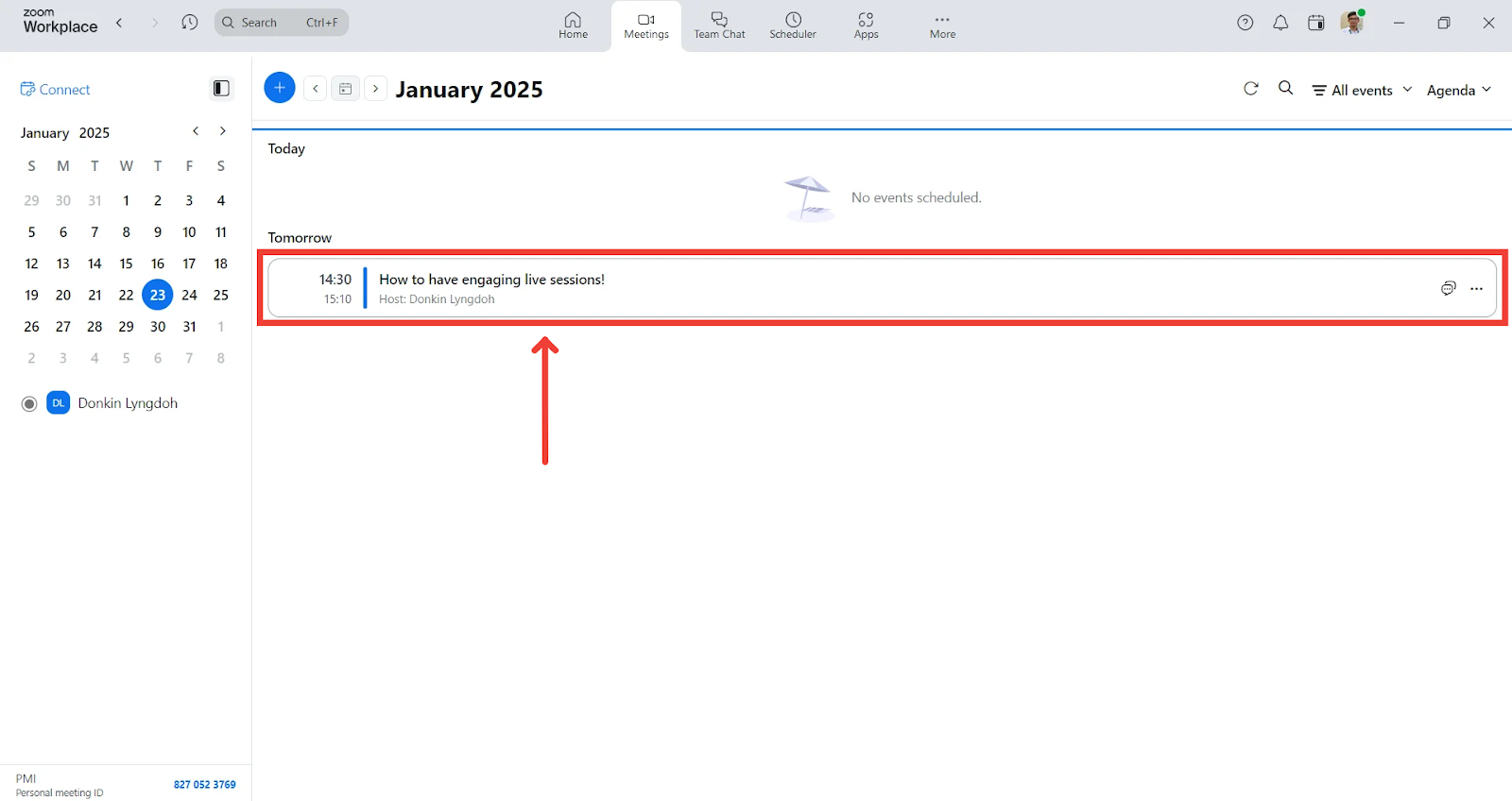
You can find the meeting link in the location section or under the description.
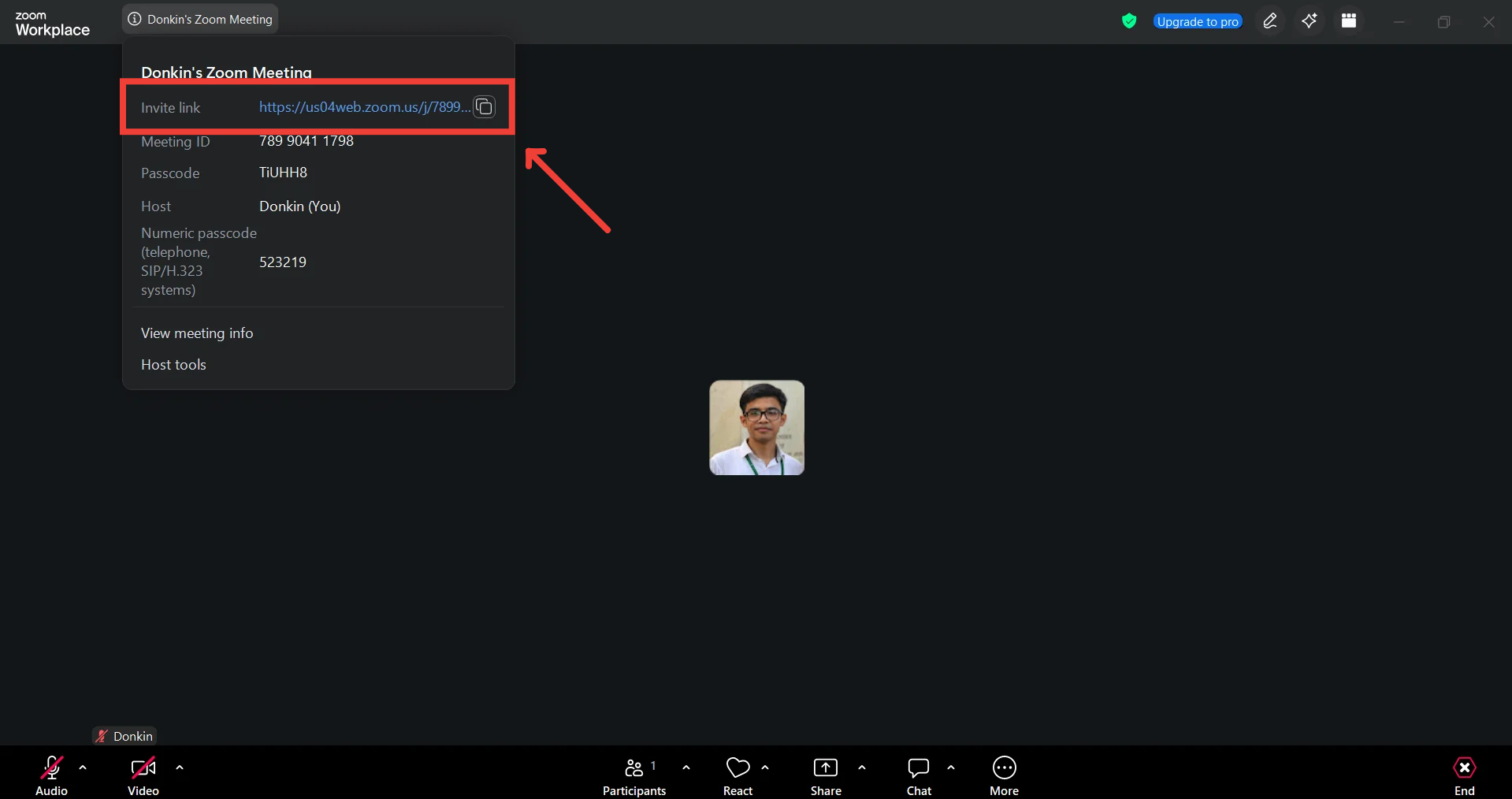
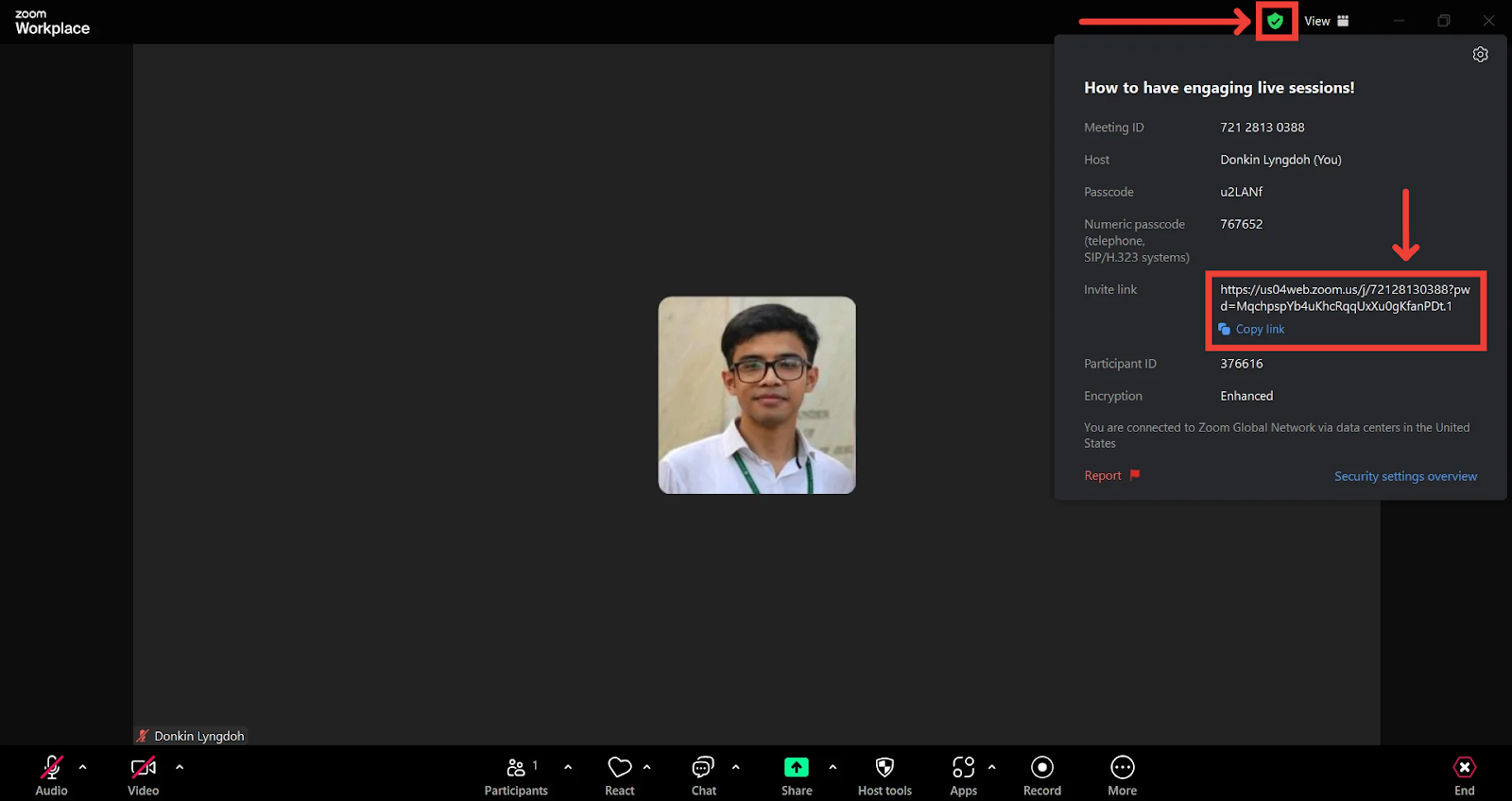
During the meeting:
Click on the “Zoom Meeting Information” icon in the top left corner of the screen.
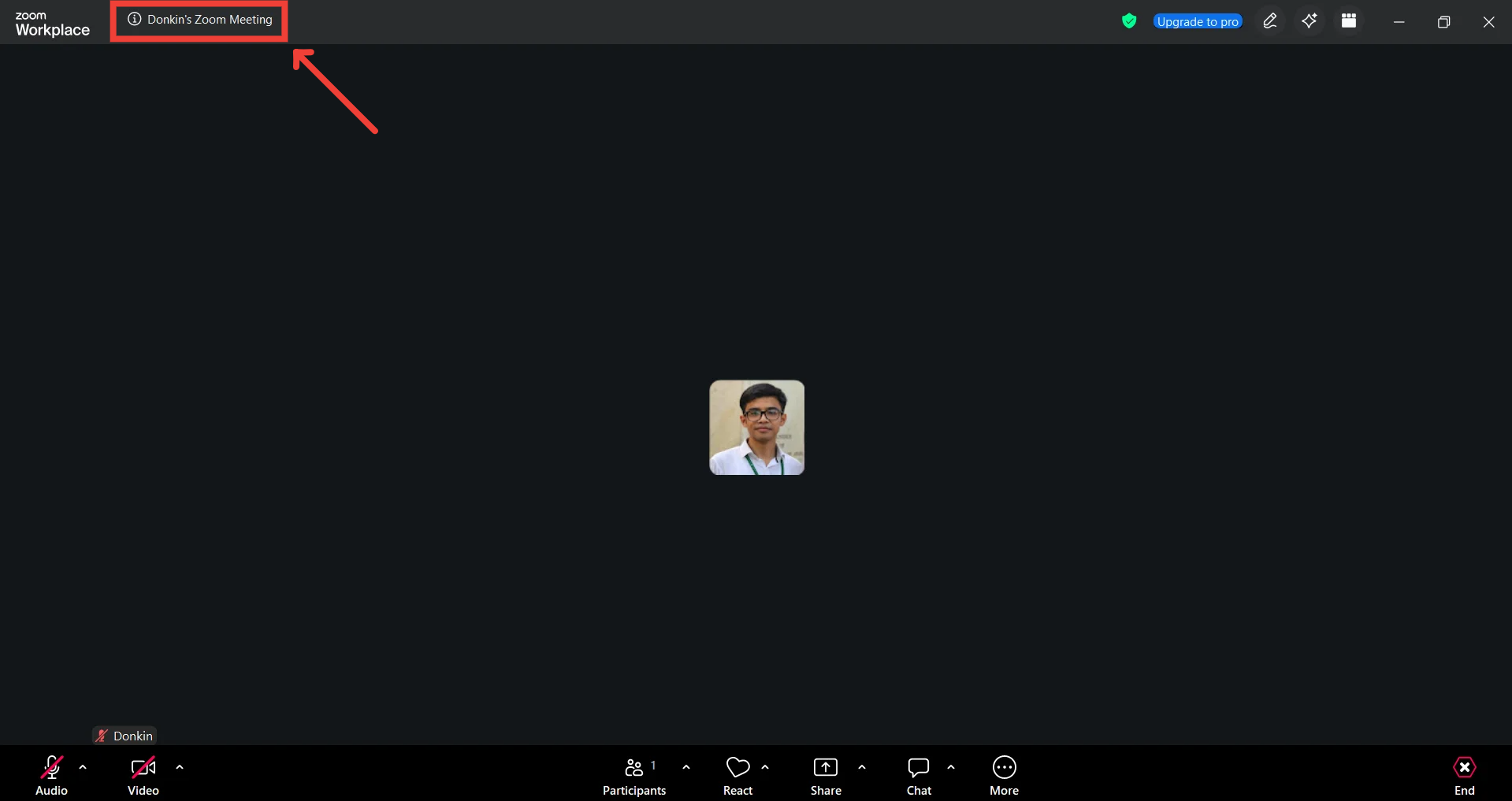
A pop-up will appear listing the meeting information.
Click on the Copy Link button under the meeting link to copy it.
Zoom Webinar Panelist Link
Here is how you can find the panelist link:
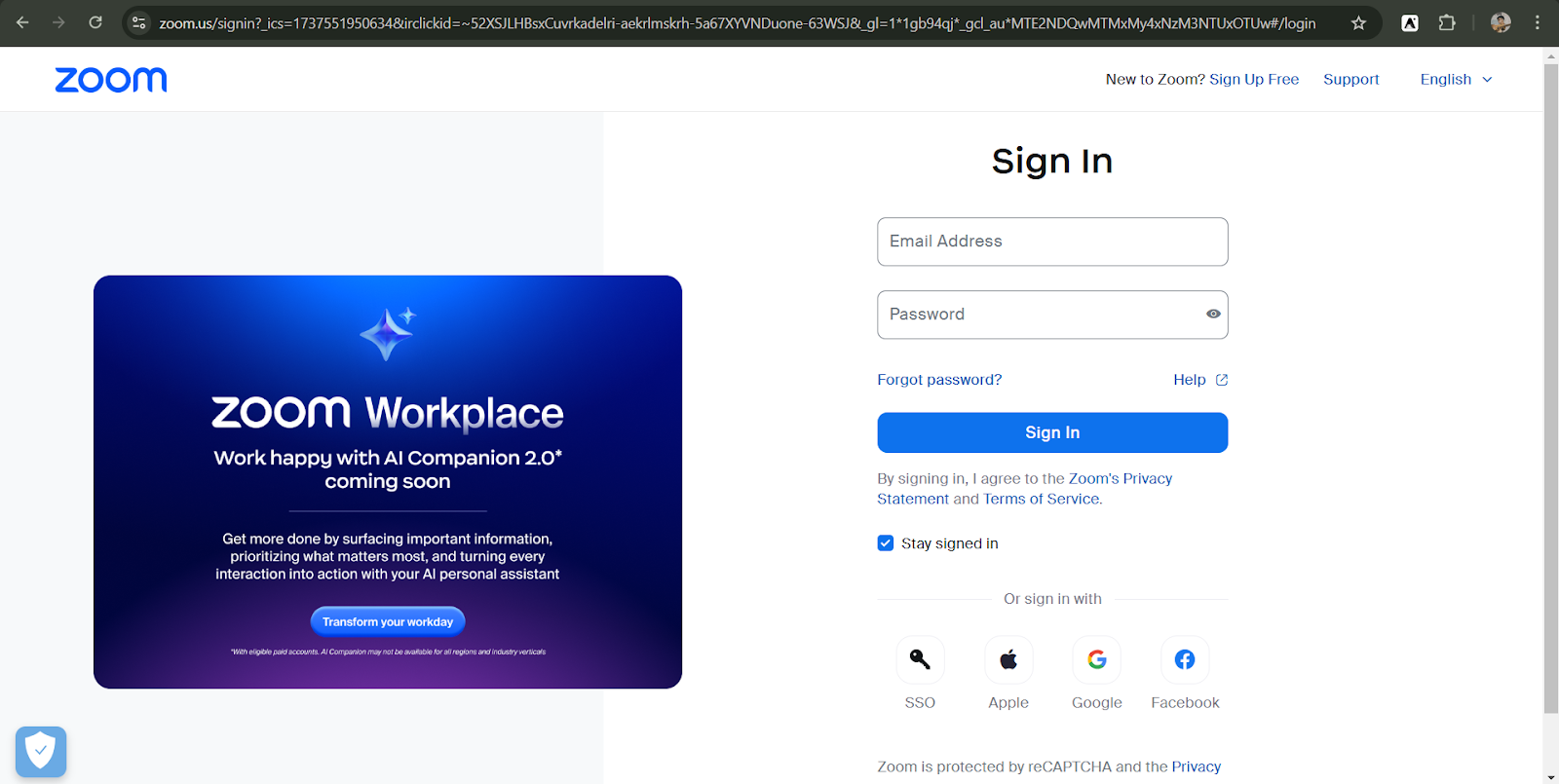
Go to zoom.us/signin
Fill in your login details and click on Sign in
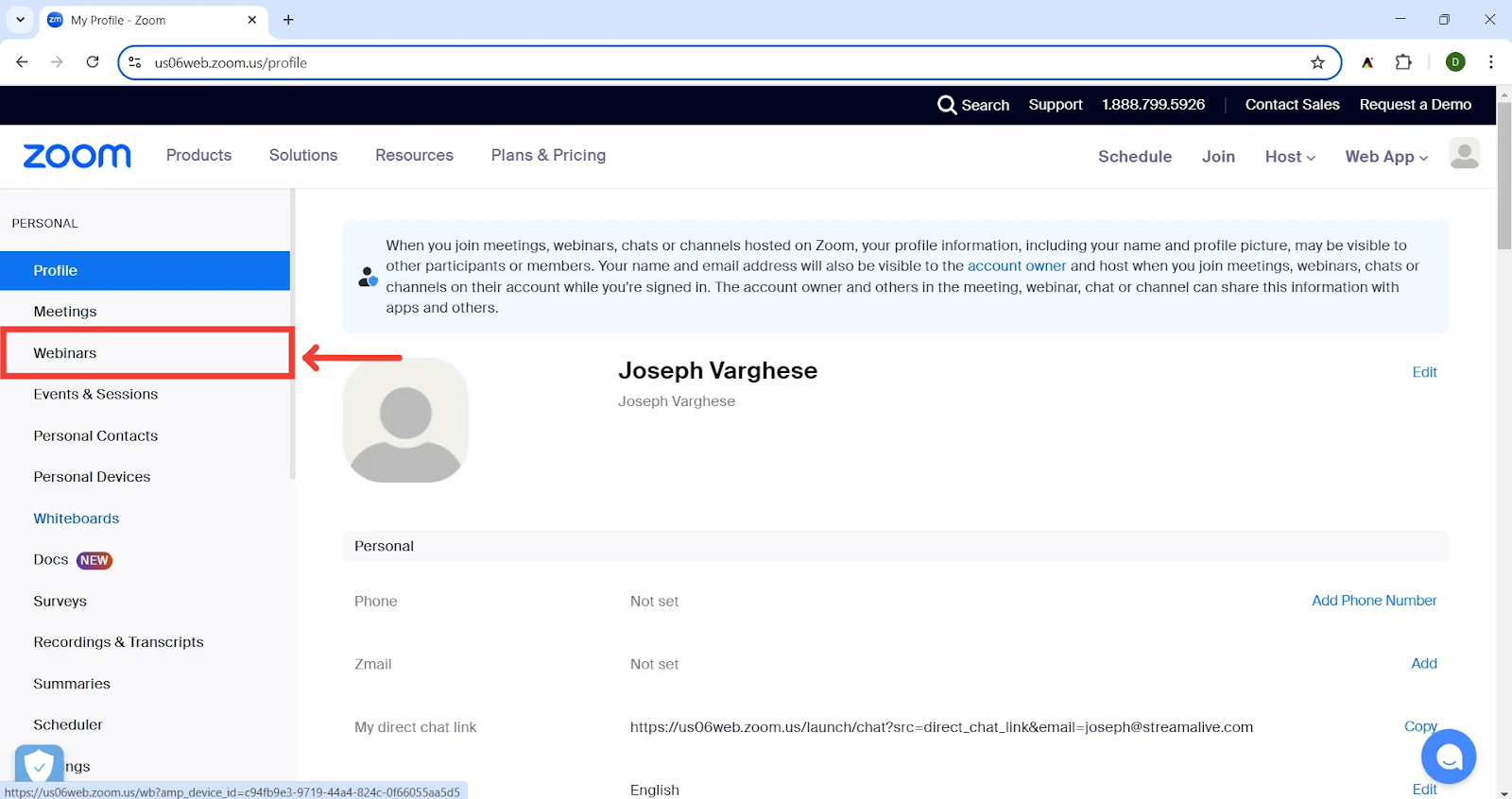
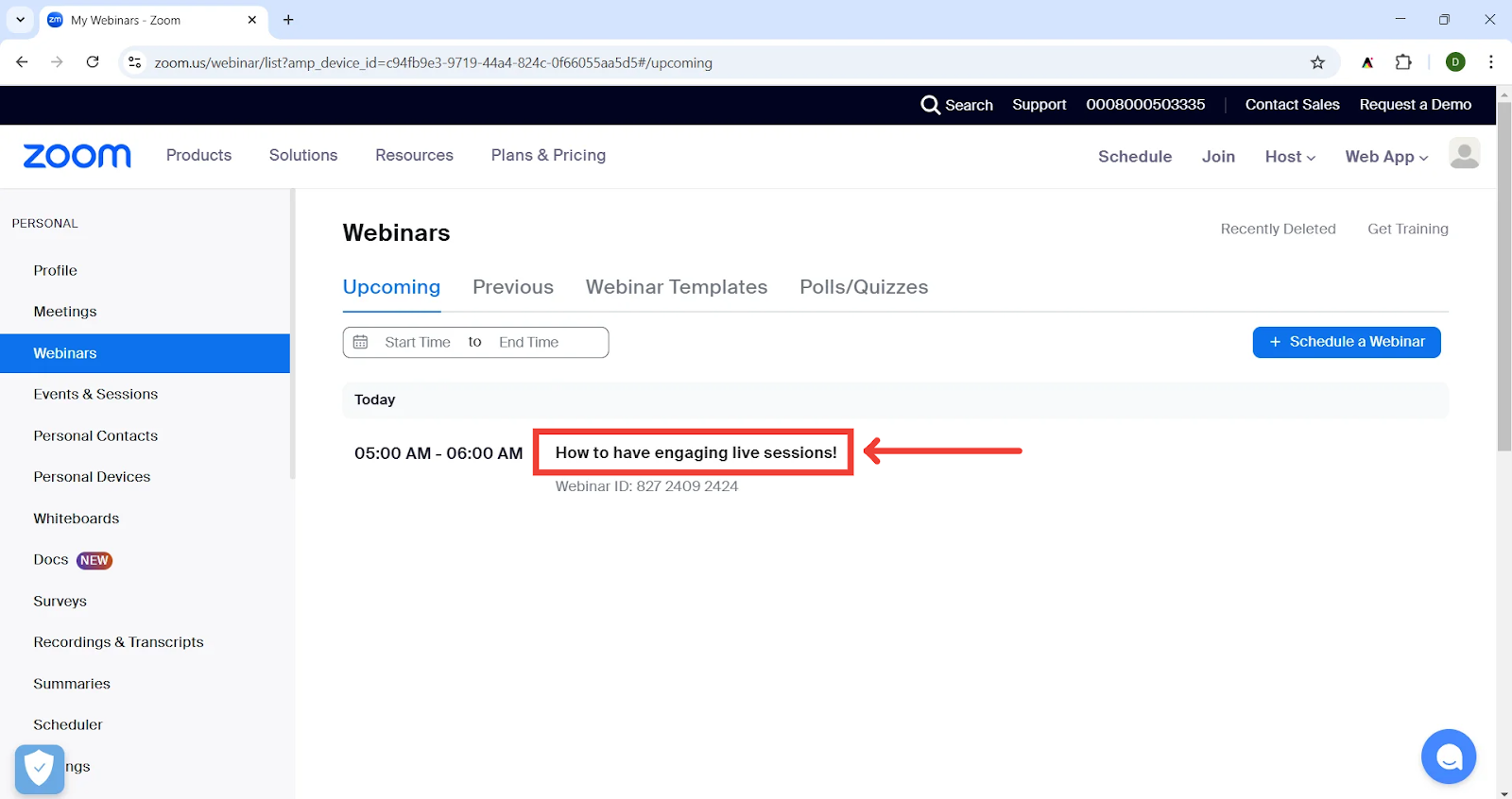
Go to the Webinar tab
Find your upcoming webinar and click on the title to open up its details
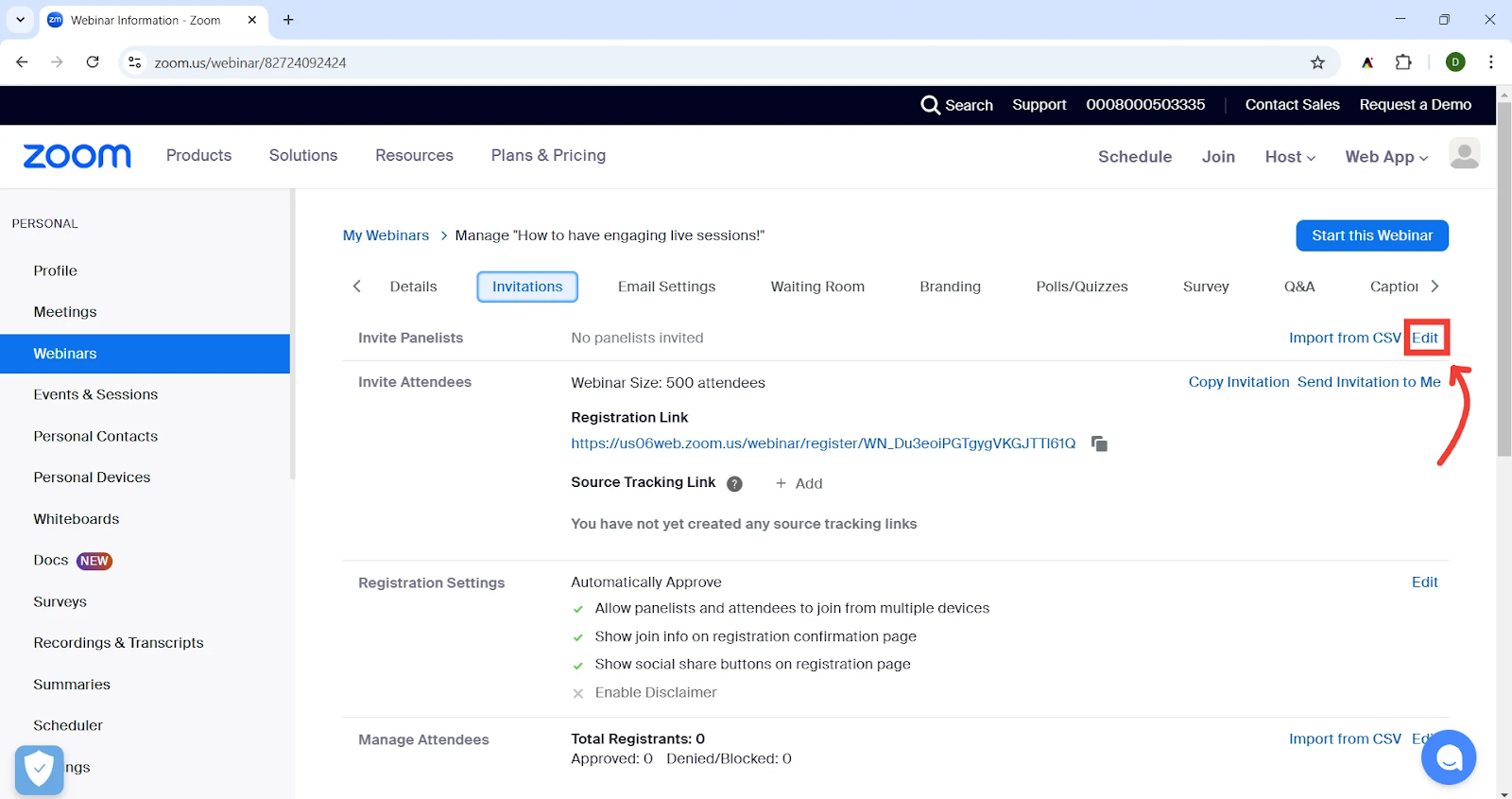
Go to the invitations tab and click on Edit in the Invite Panelists section
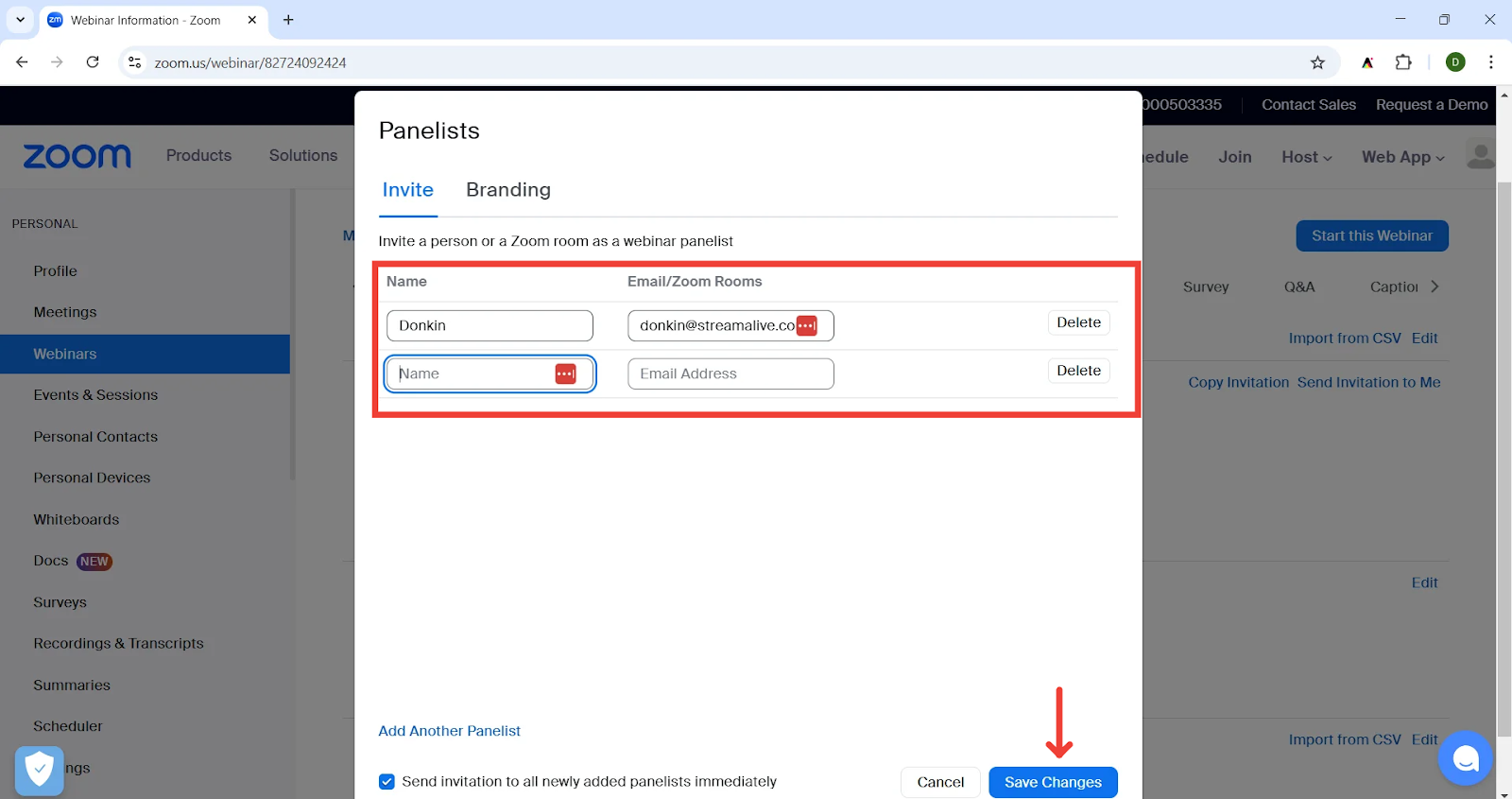
Add the email that you want to receive the panelist link and click on Save Changes
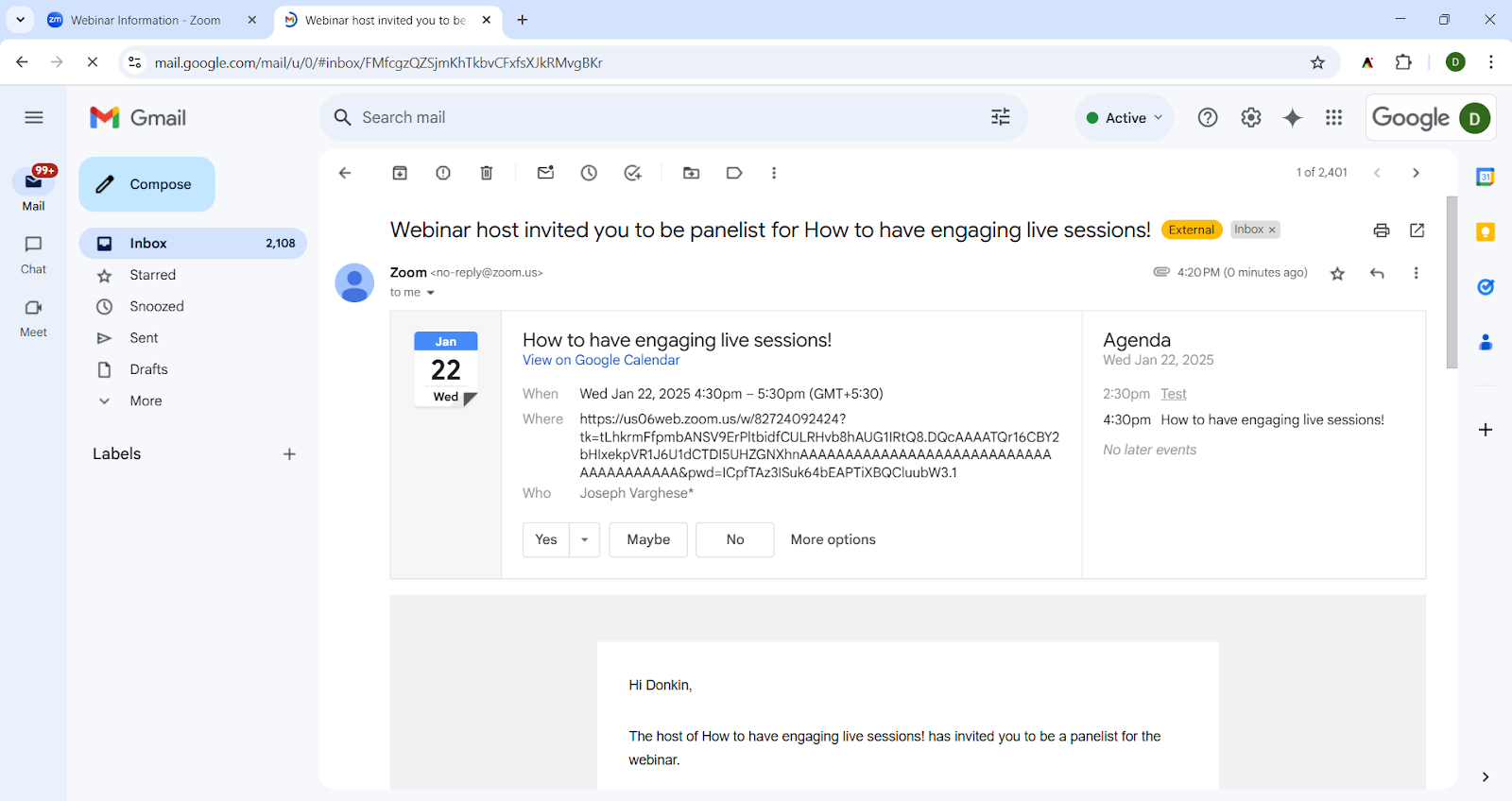
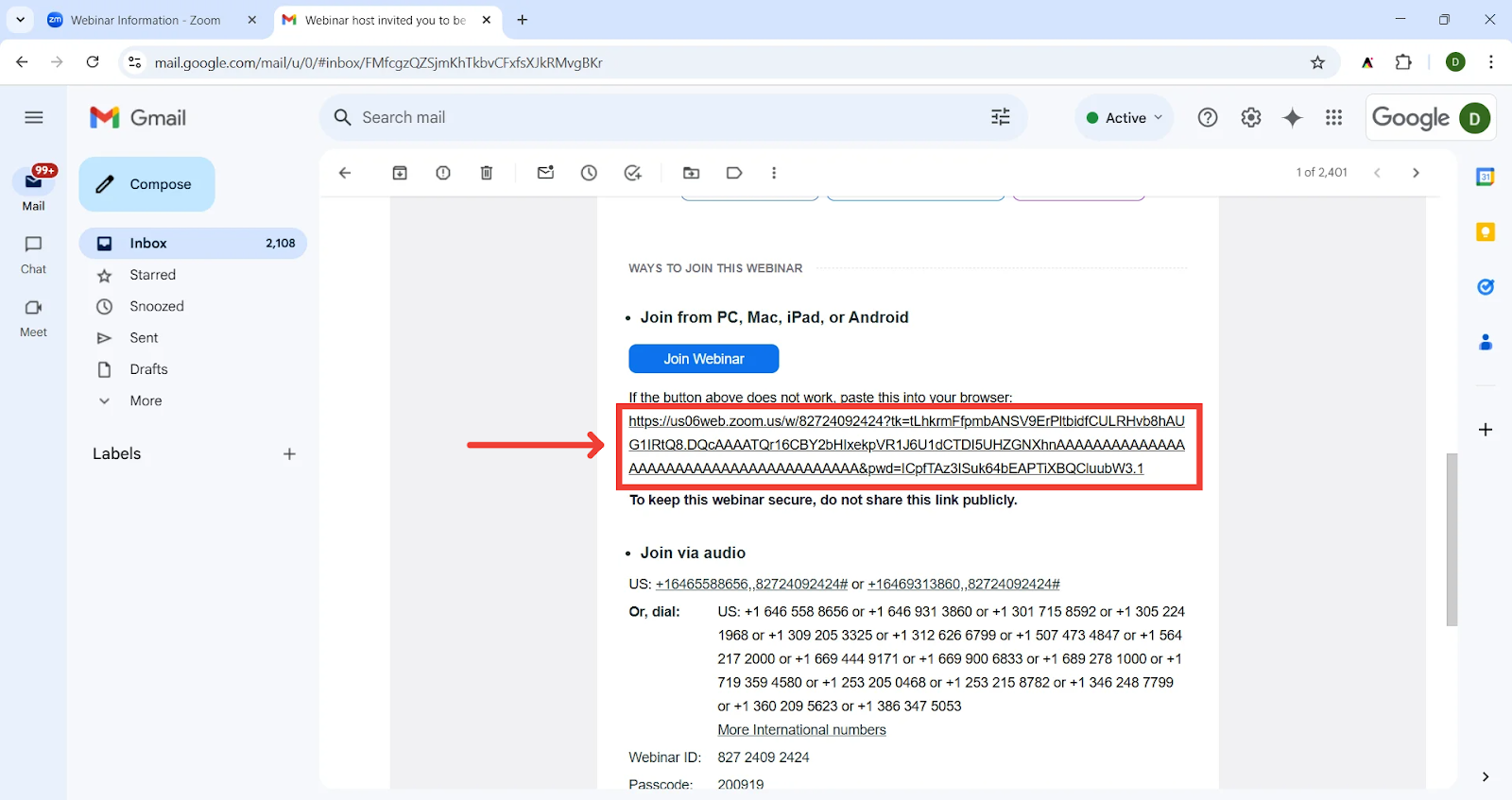
Find the email that has been sent and copy the panelist link as shown in the images.
Was this helpful?
Still need help? Ask the team