Using StreamAlive with PowerPoint in Zoom and Microsoft Teams
Written By Team Streamalive
Last updated 2 months ago
If you're running your slide deck from PowerPoint while presenting in Zoom or Microsoft Teams, the PowerPoint view you use matters. StreamAlive interactions are built to run in PowerPoint's Slideshow view. Running one from Presenter View, or from PowerPoint Live in Teams, can cause the interaction to display incorrectly or not update at all.
Important: If you're presenting with StreamAlive in PowerPoint:
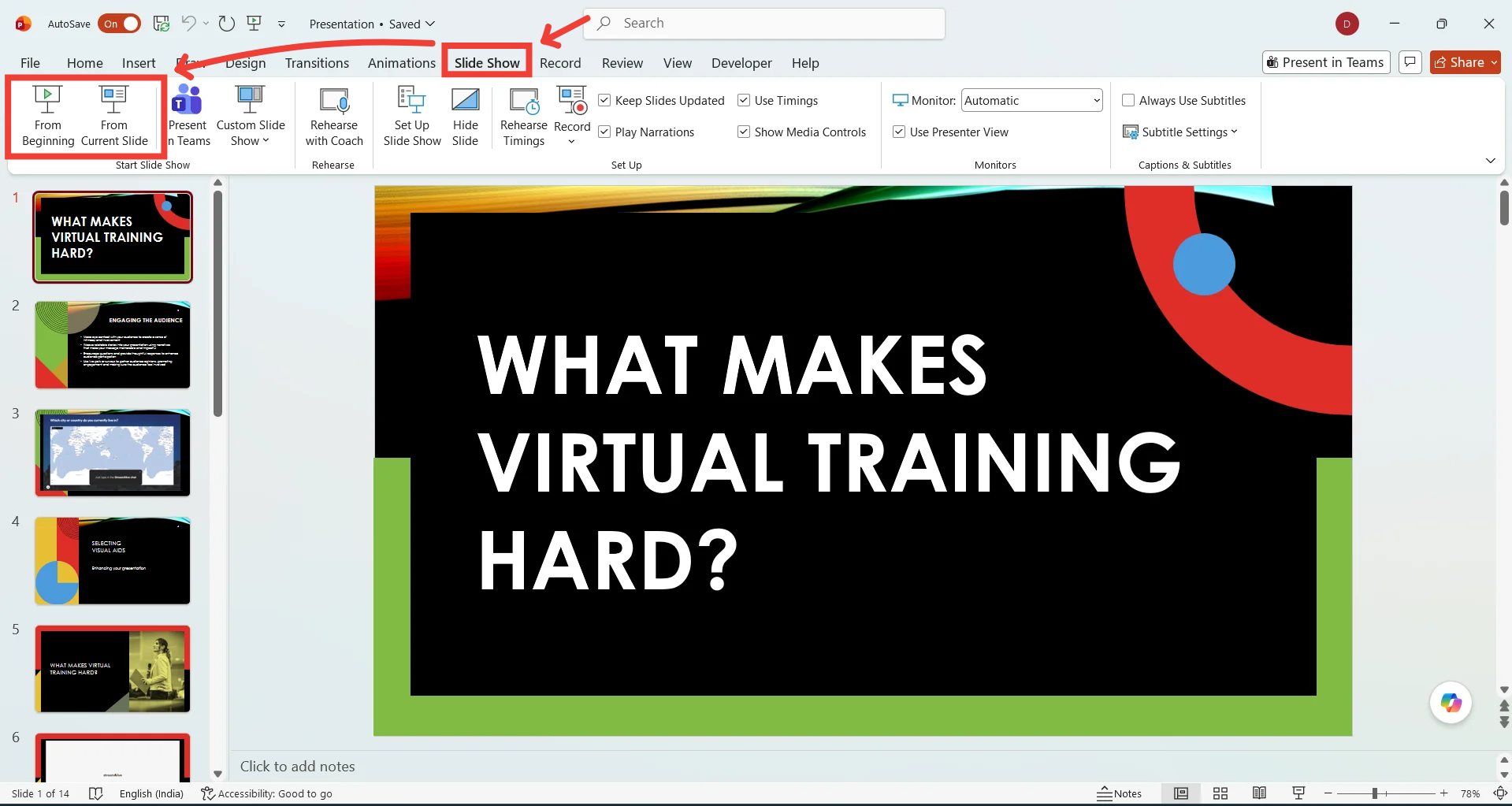
Use Slideshow view when running StreamAlive interactions

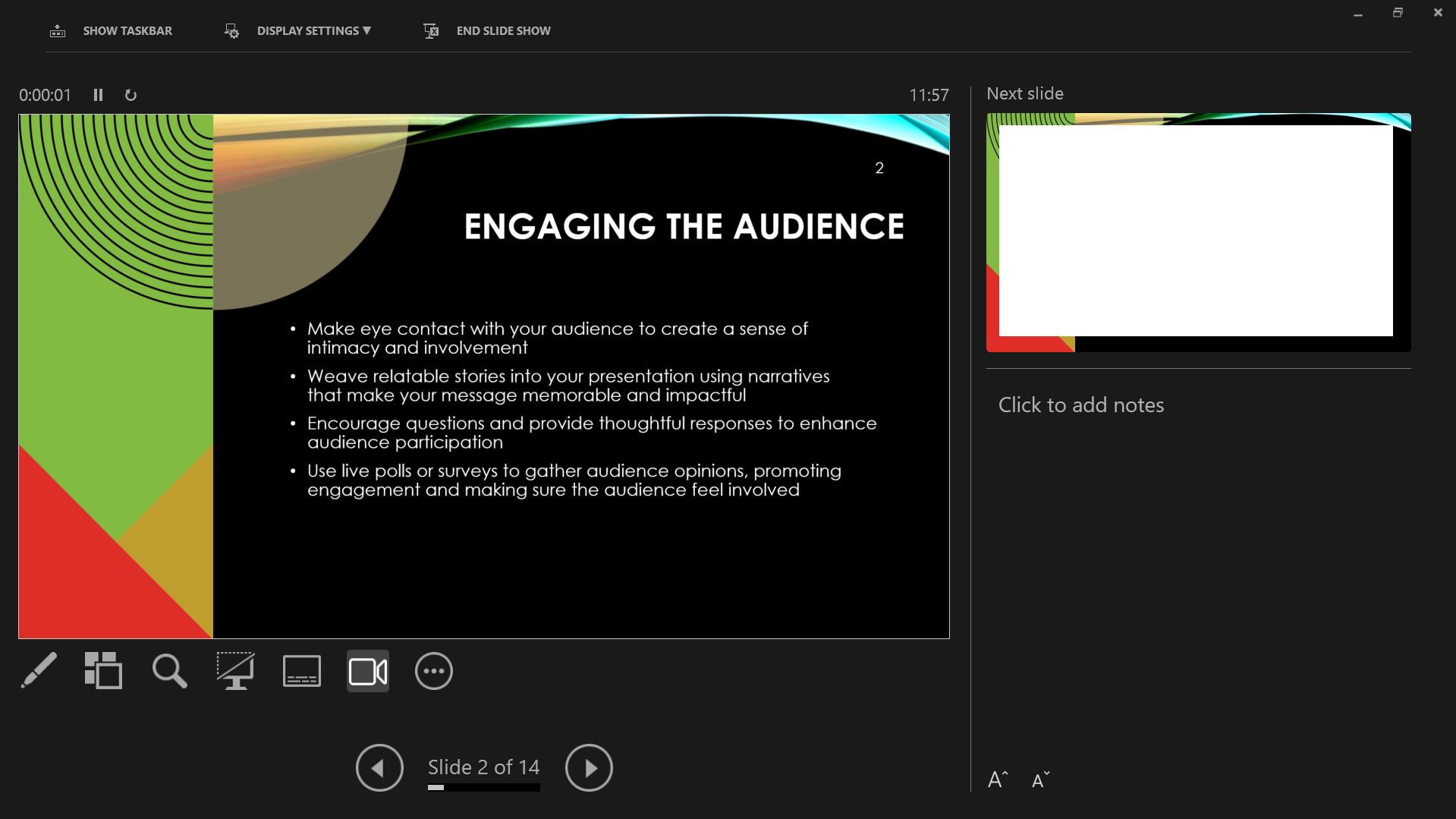
Don't rely on Presenter View to run interactions
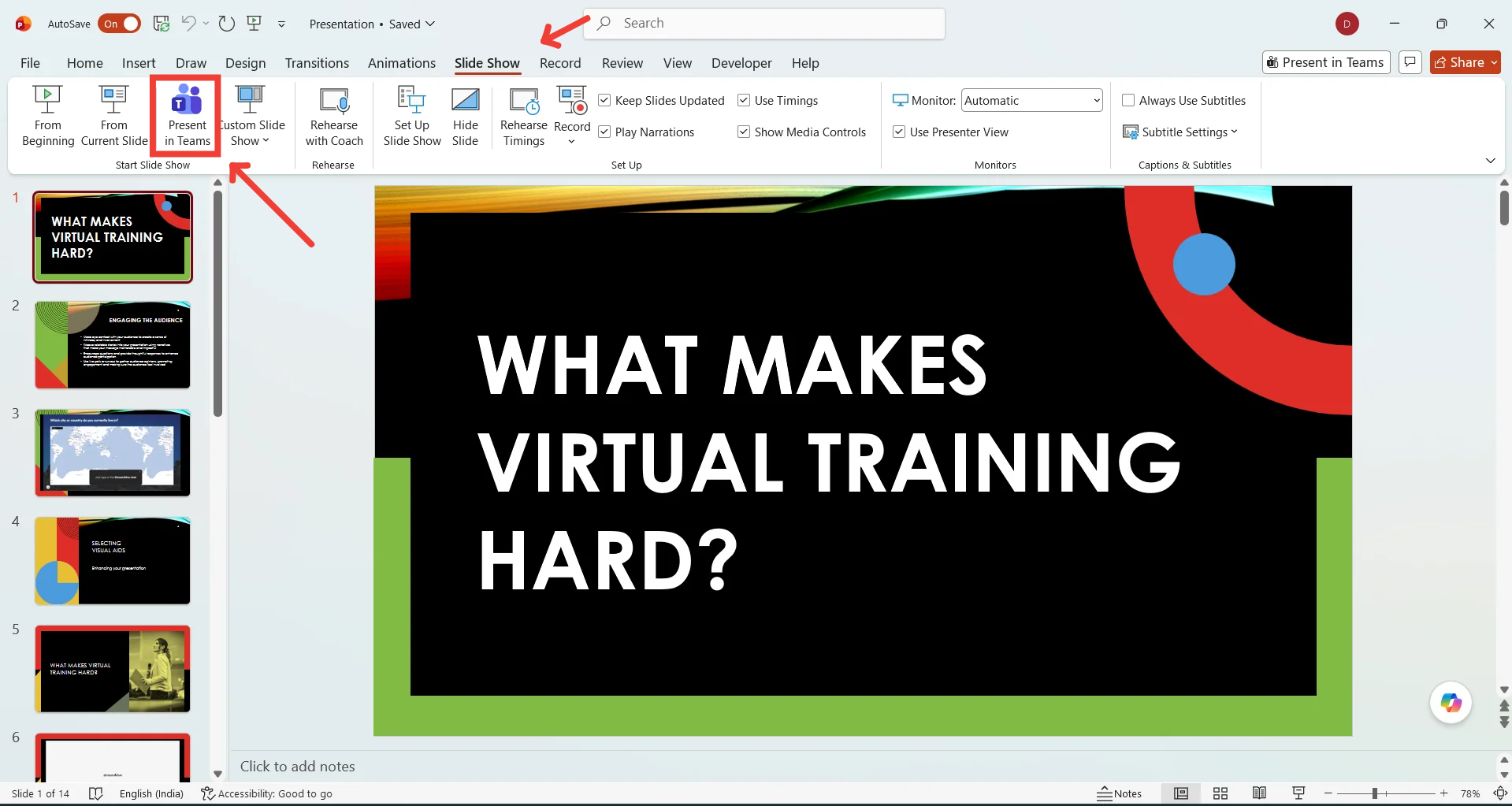
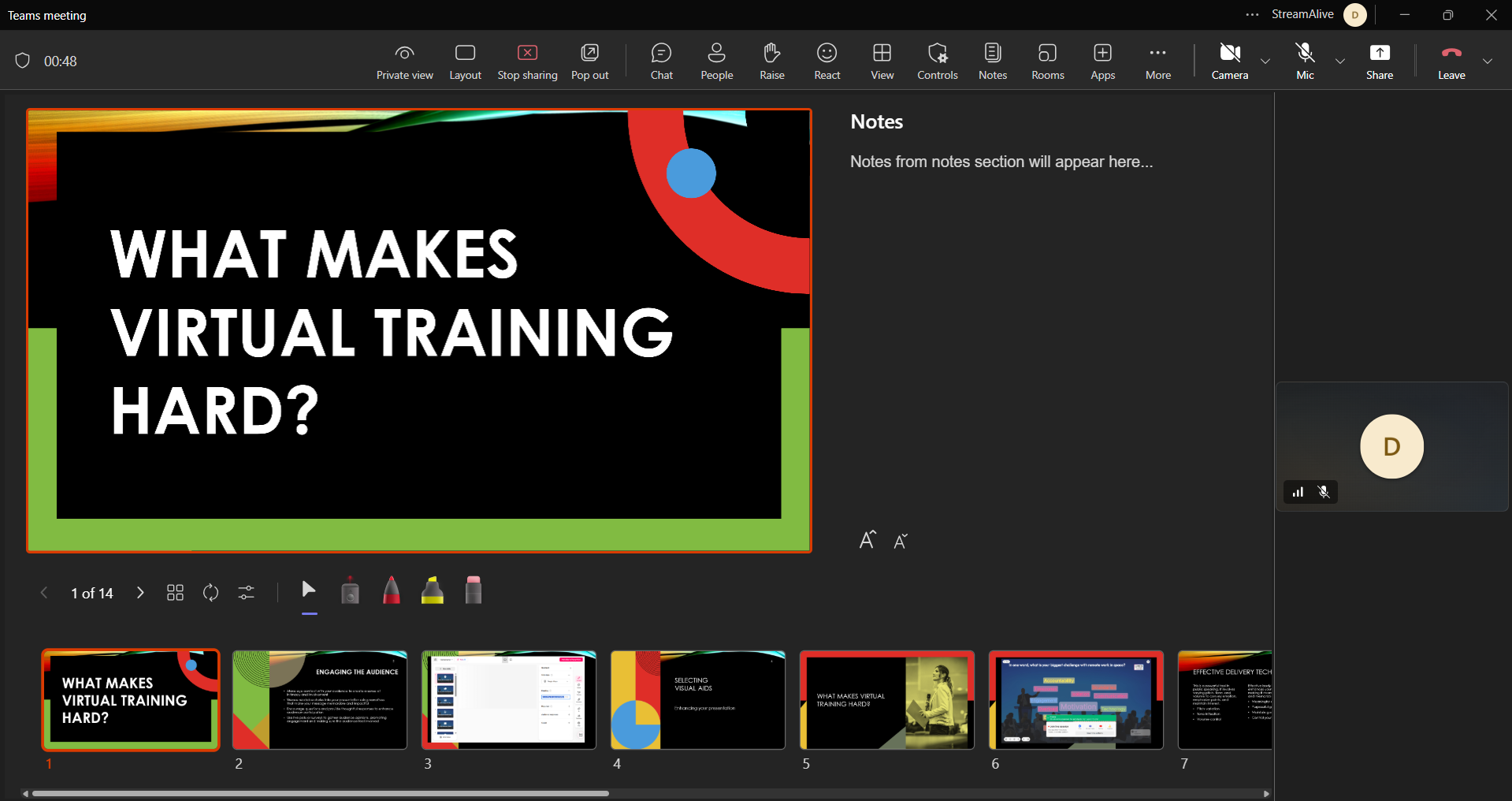
In Microsoft Teams, don't use PowerPoint Live with StreamAlive
Recommended setup
This is the simplest way to make sure your interactions work as expected:
Open your presentation in PowerPoint.
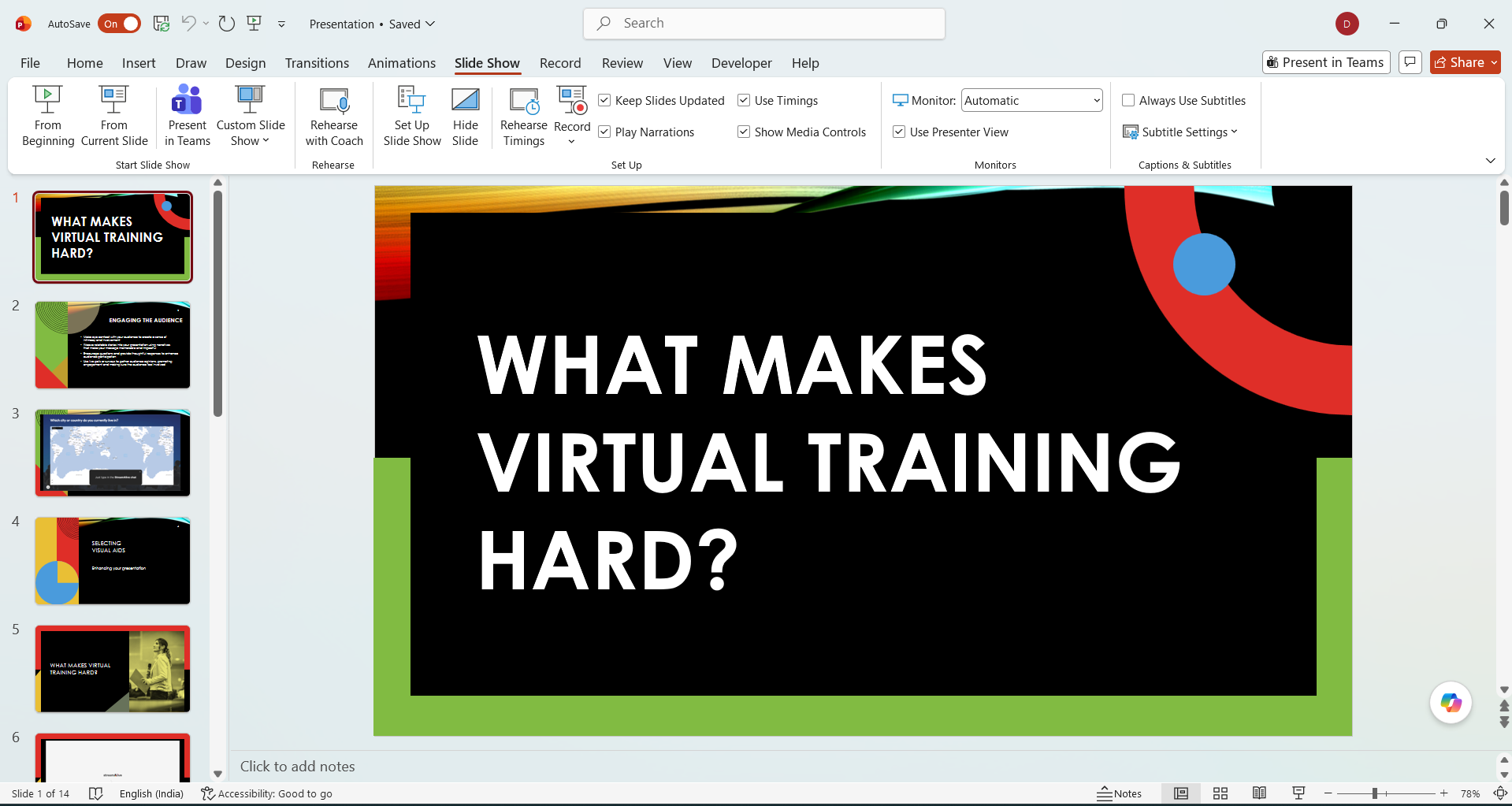
Start the deck in Slideshow view.
Share that slideshow window in Zoom, Teams, or whichever platform you're presenting on.
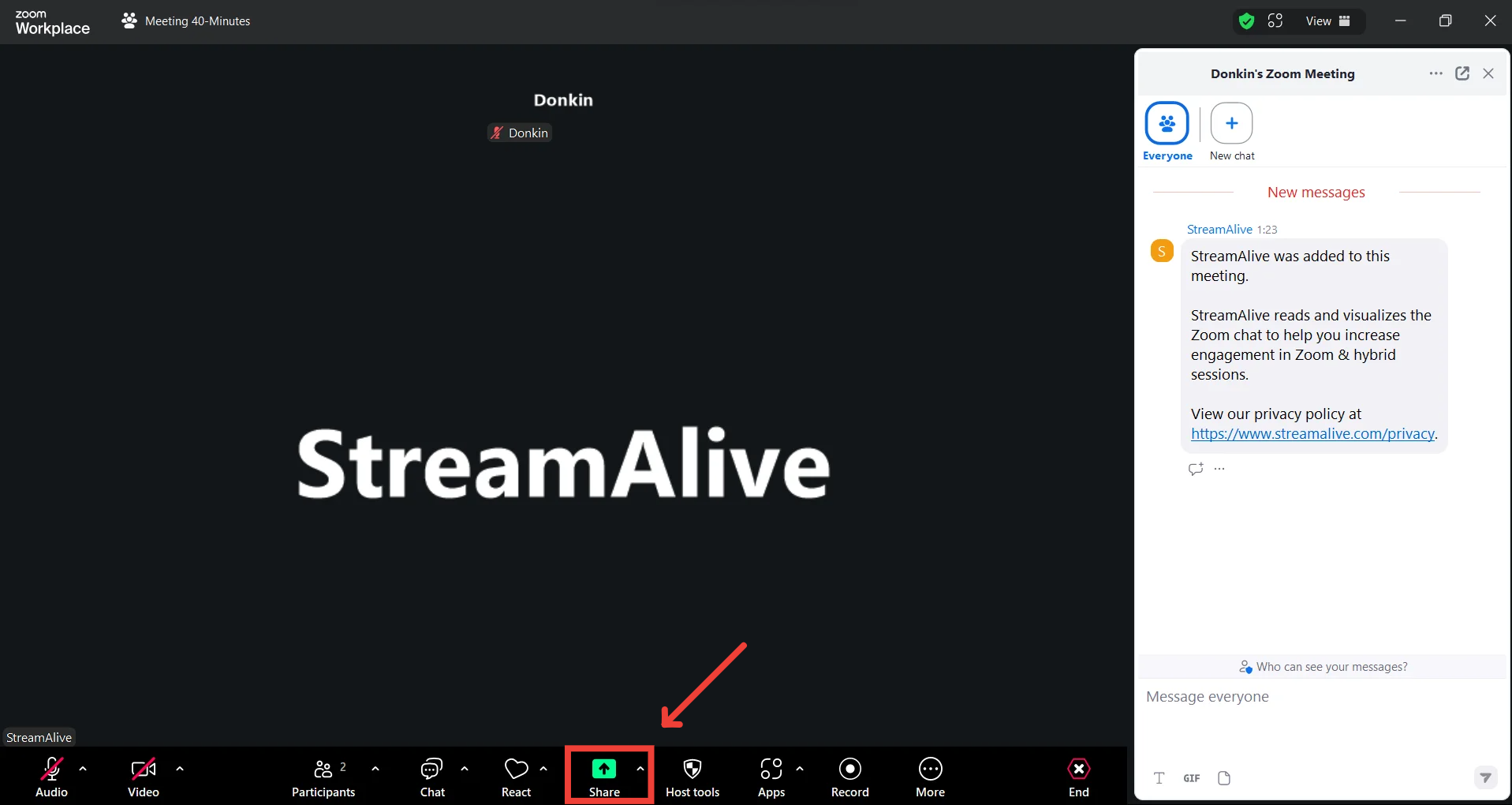
Run your StreamAlive interactions from the slideshow.
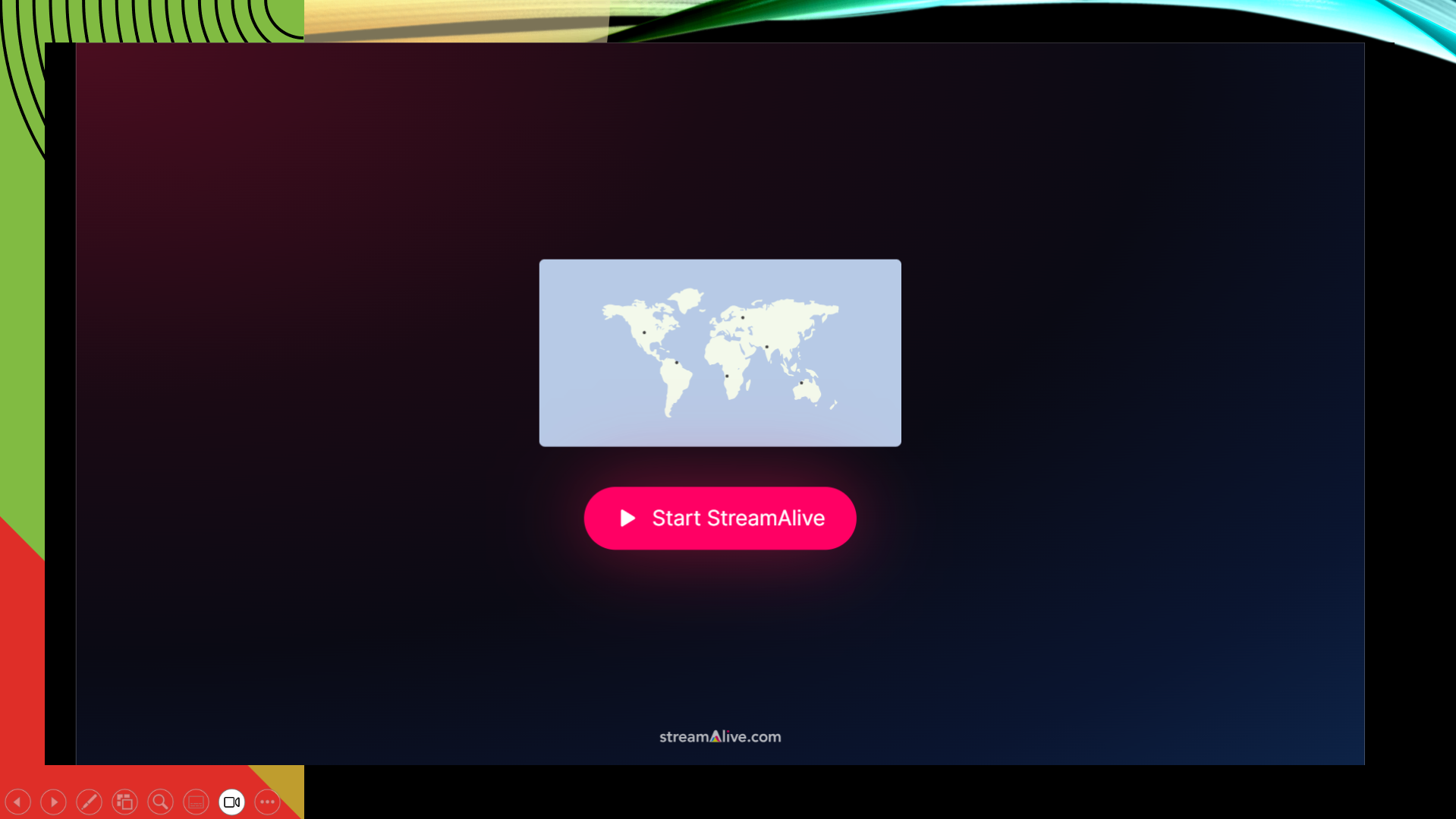
Slideshow view is the safest recommendation, since it's the only mode where StreamAlive interactions are guaranteed to display and update correctly.
If you present from Presenter View
Some presenters like to run their talk from Presenter View so they can see speaker notes and the upcoming slide. That's fine for the rest of your talk, but StreamAlive interactions only work properly in Slideshow view.
Note: If you use Presenter View for your talk, switch to Slideshow view before running an interaction, then switch back to Presenter View once it's done.
Using StreamAlive with Microsoft Teams
If you're presenting in Microsoft Teams, there's one extra thing to watch for:
Don't use PowerPoint Live with StreamAlive — interactions won't run correctly when the deck is being played inside Teams itself.
Instead, open your presentation in PowerPoint and start it in Slideshow view, just like you would for Zoom.
Share that slideshow window (or your full screen) into your Teams meeting.
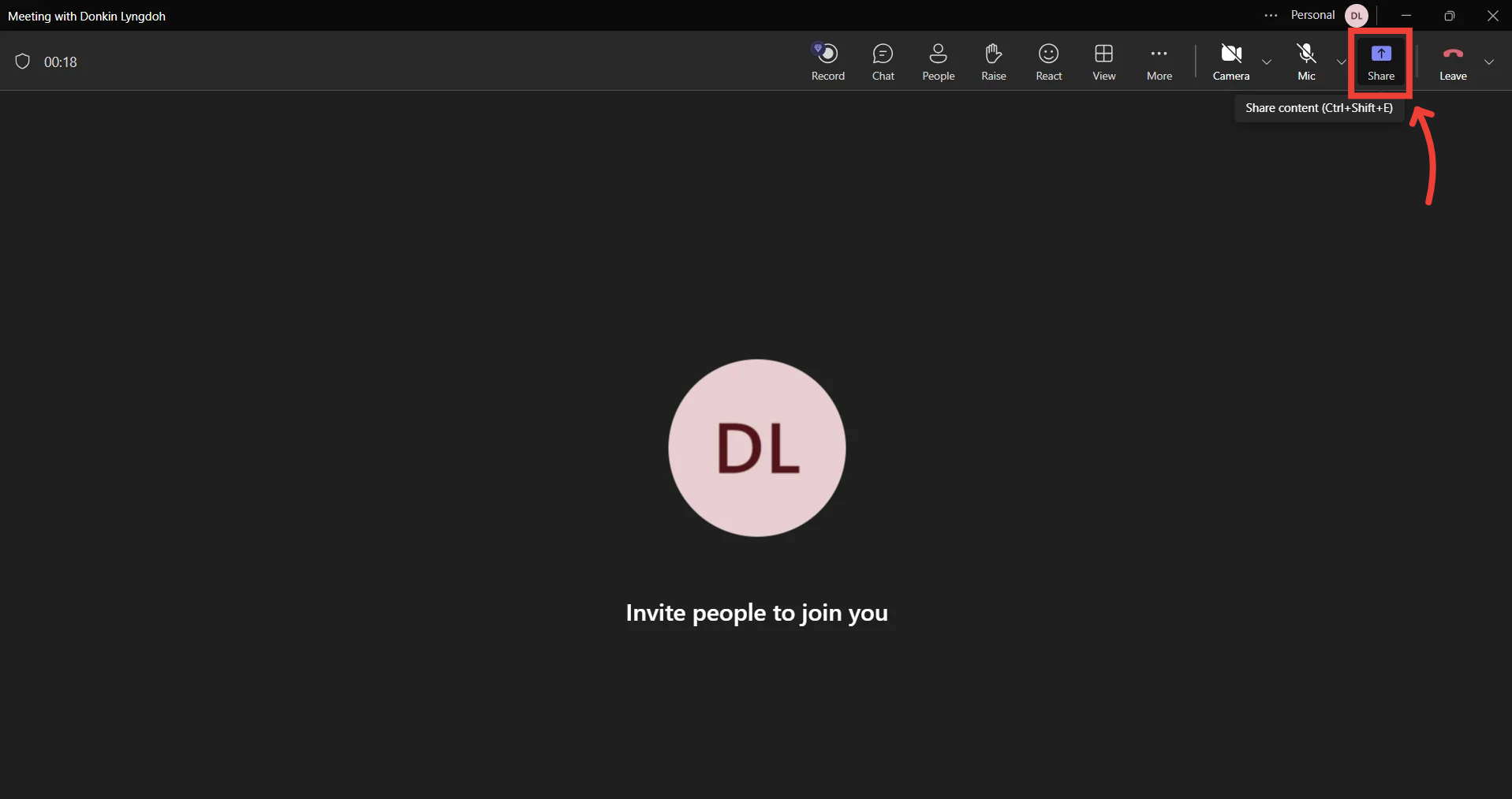
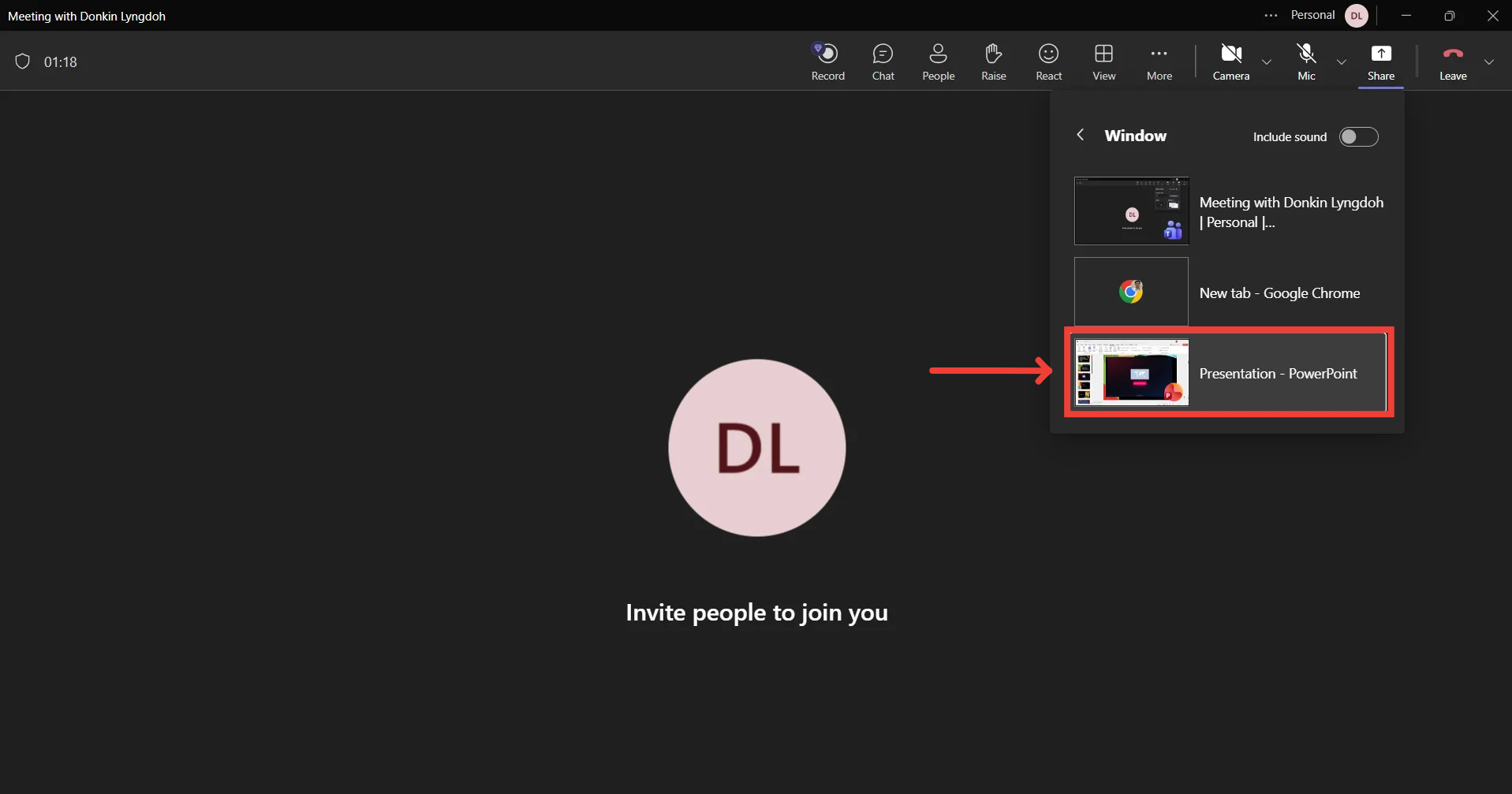
This gives you the same reliable setup in Teams as you'd get presenting through Zoom.
Leave room to navigate
If a StreamAlive interaction is set to cover the entire slide, you may have trouble getting to your presentation controls while it's running. Leave enough space on the slide, or in your layout, so you can still navigate the deck during an interaction.
And that's it! Once you're presenting from Slideshow view, your StreamAlive interactions will run and update exactly as expected. 🎉
Related articles
Was this helpful?
Still need help? Ask the team