Using the StreamAlive PowerPoint Add-in
Written By Donkin Lyngdoh
Last updated 10 months ago
NOTE: Supports PowerPoint version 16.100.00 and above only
Before reading this, please install the StreamAlive PPT Add-in. Read this help doc to go through the process
With the StreamAlive PowerPoint Add-in installed, you can embed live interactions directly into your slides. You can add single interactions or bring in slides from full StreamAlive presentations you created on the web app.
Accessing the StreamAlive Add-in
The first thing that you have to do is open up the StreamAlive Add-in.
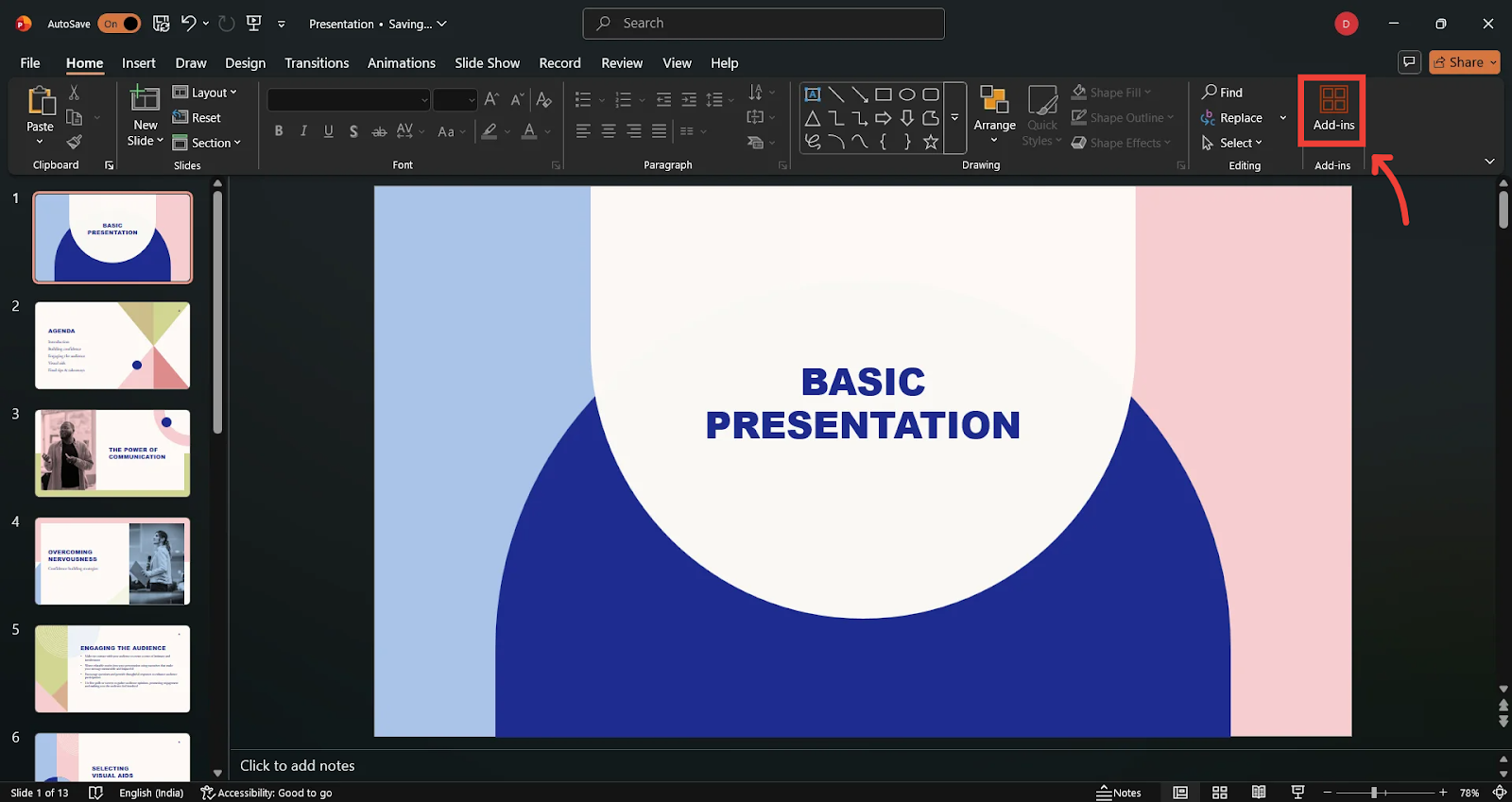
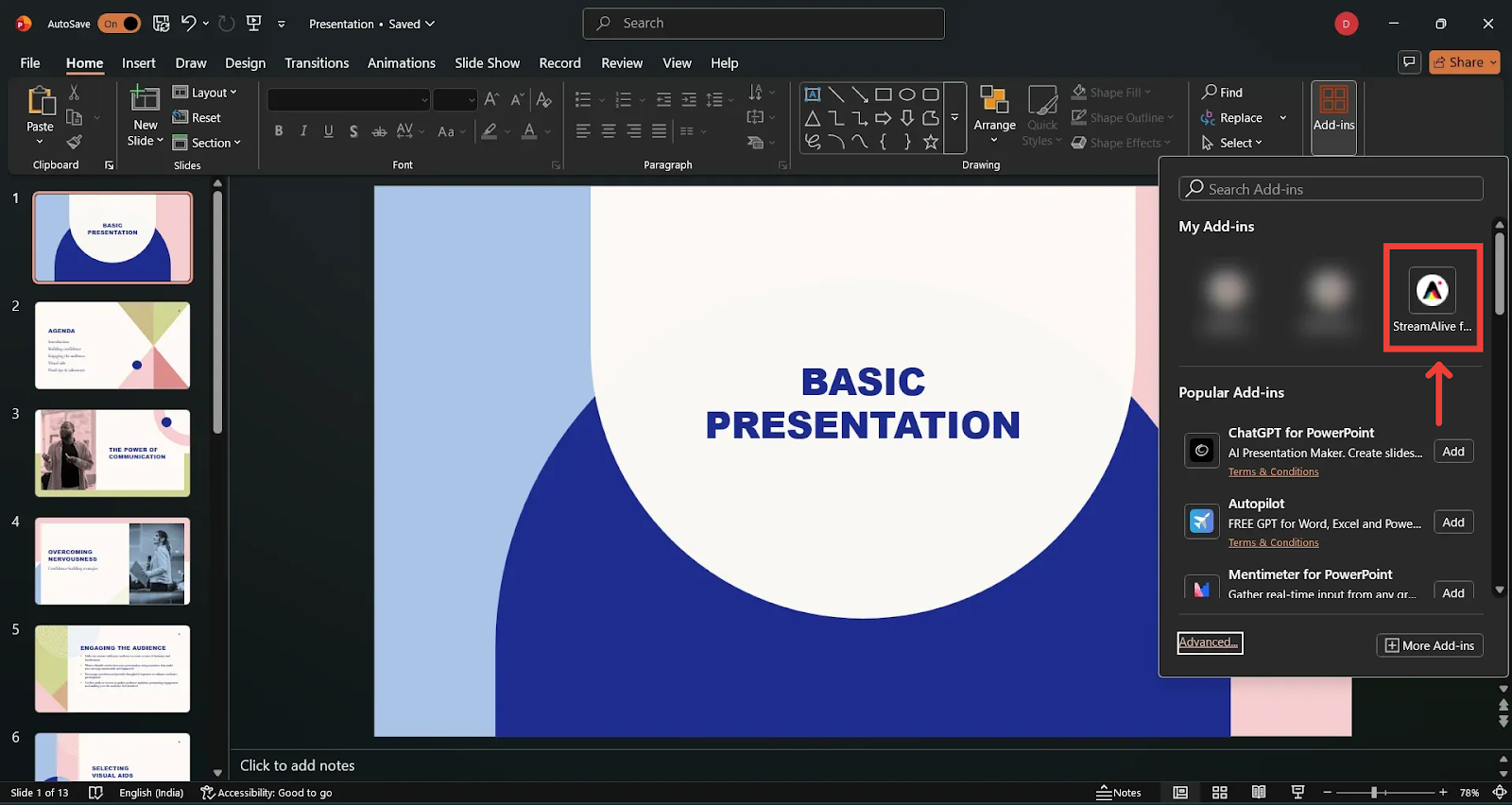
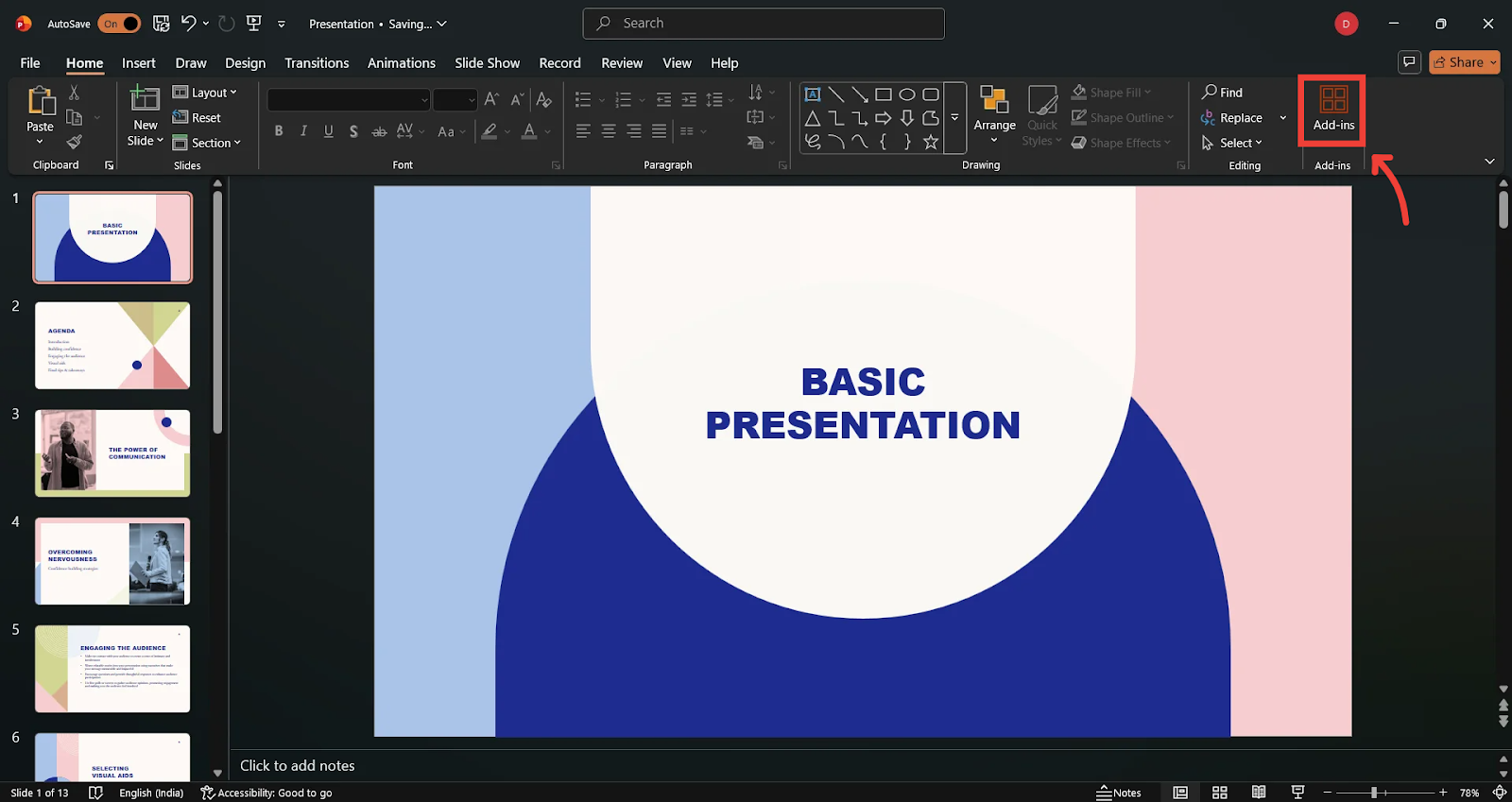
Go to the Home tab and click on Add-ins and you’ll find the StreamAlive add-in listed there.
The StreamAlive interface will then be embedded in the current active slide, and the login window will appear on your slide.
If you already have an account, log in.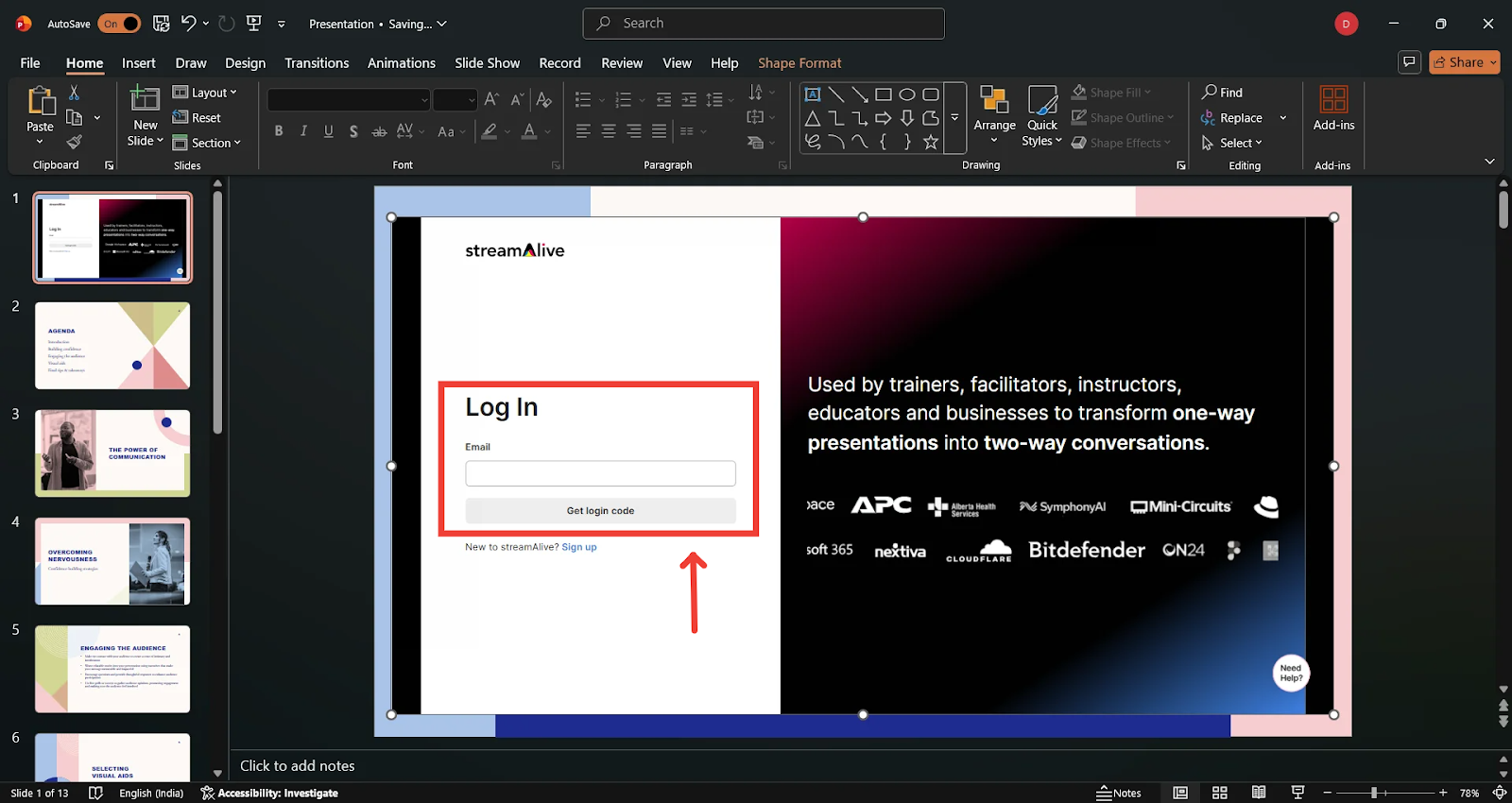
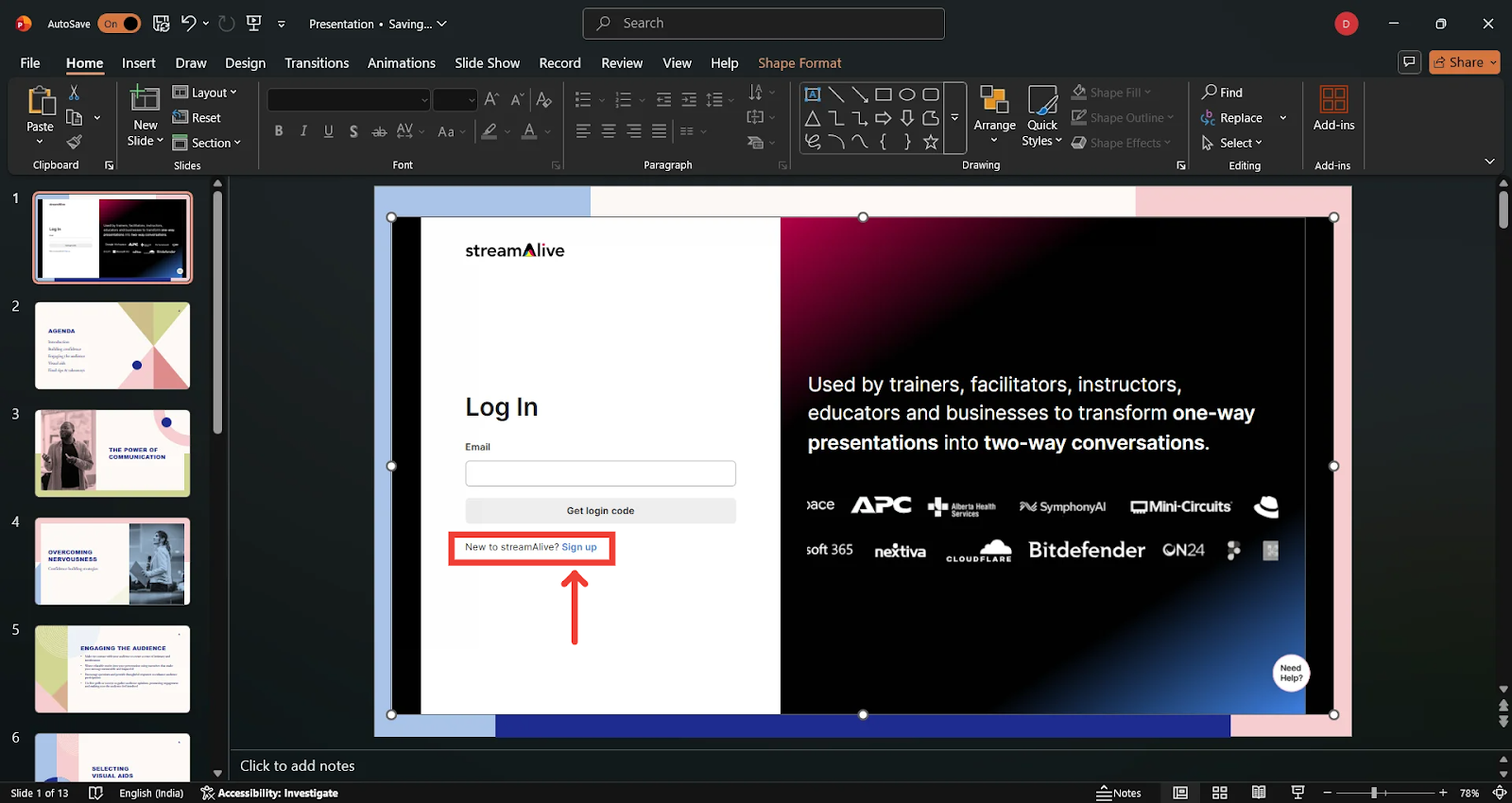
If you’re new, click Sign Up, create your account, then log in through the add-in.
Once logged in, you can add StreamAlive elements to an existing slide or to a new one.
Adding StreamAlive Interactions to Your Slide Deck
StreamAlive lets you add interactions in two different ways:
Option 1: Add a Single Interaction
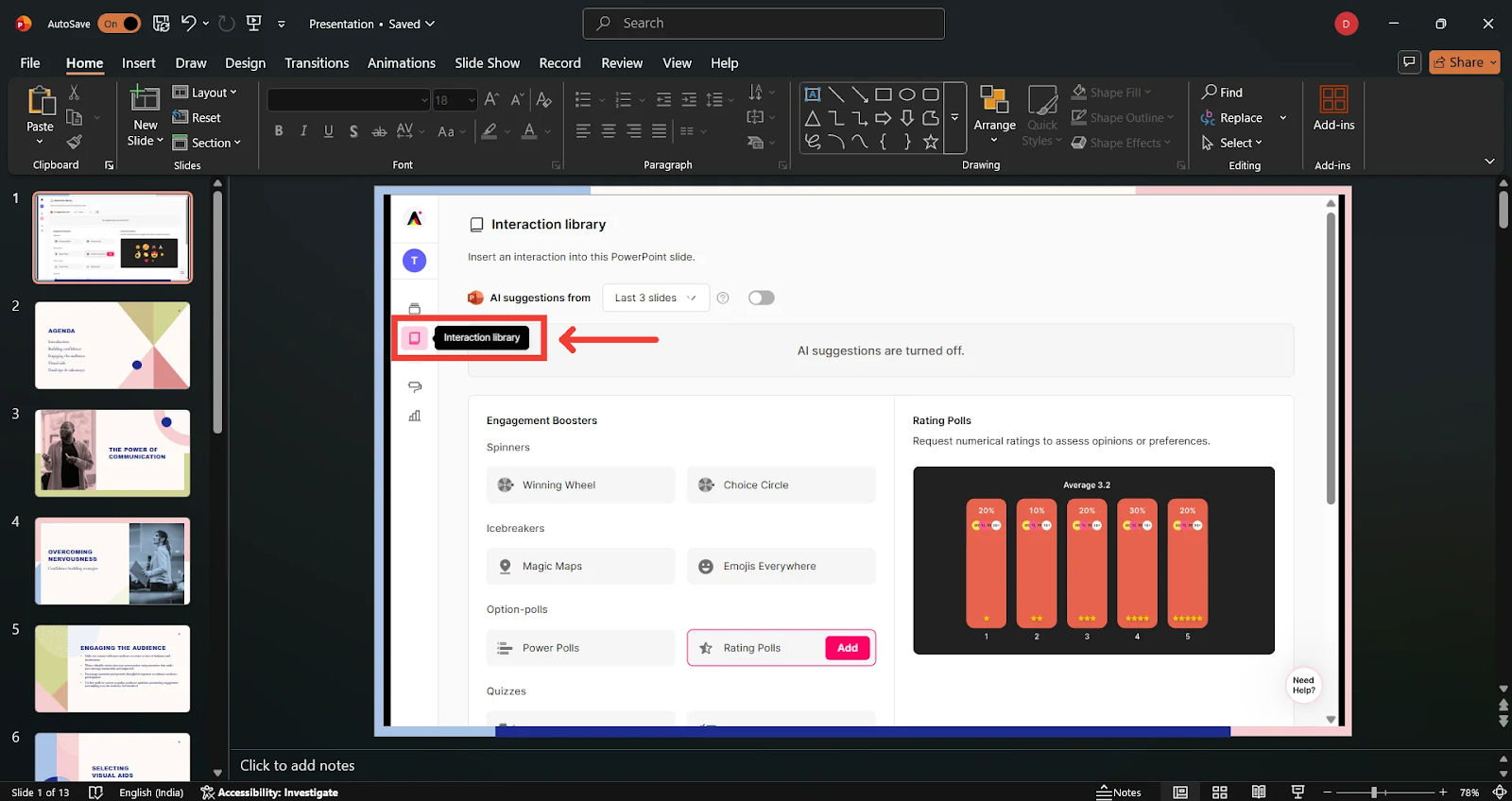
Go to the Interactions panel on the left side and choose a single interaction (e.g., Poll, Magic Map, Wonder Words).
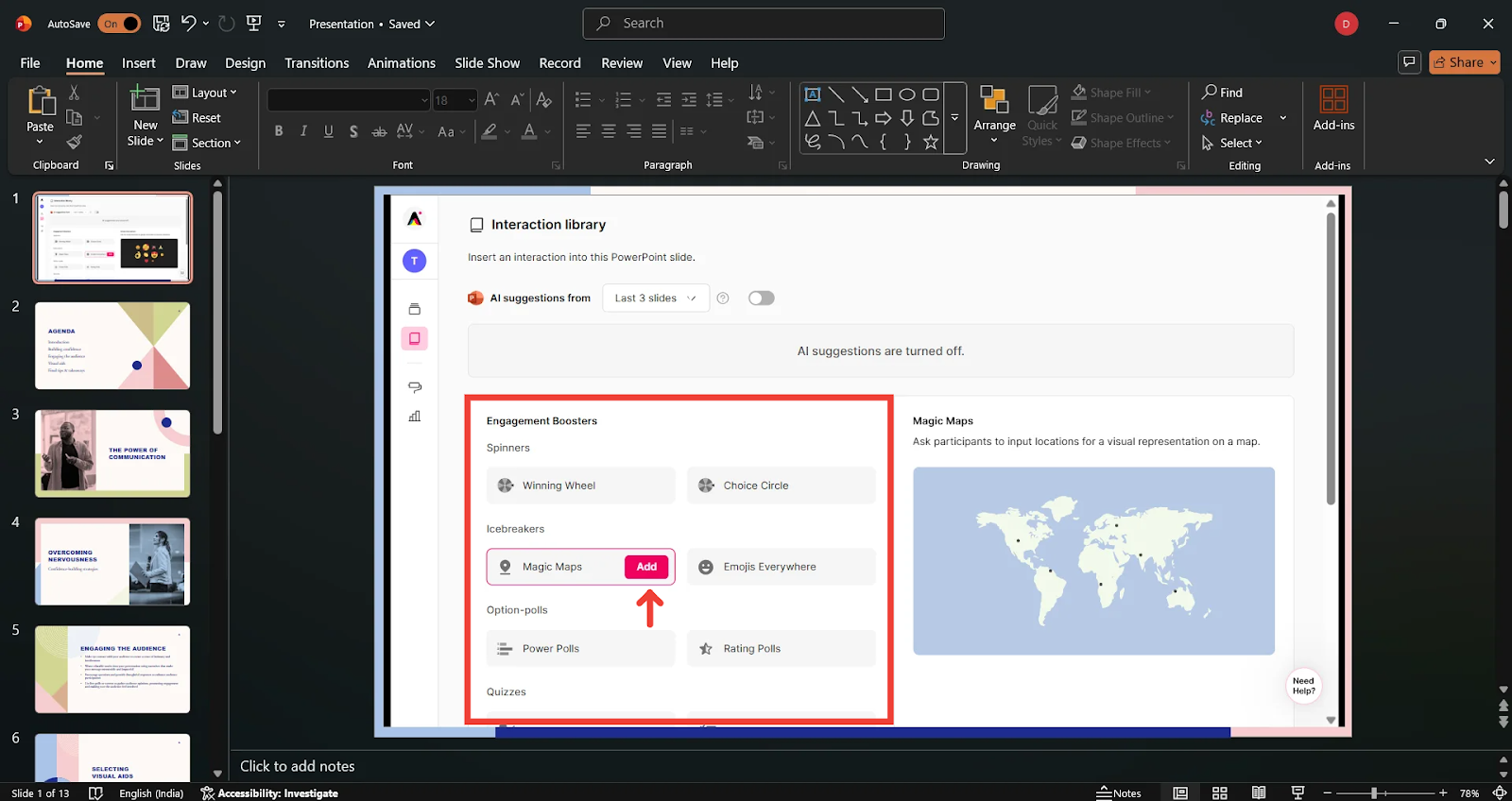
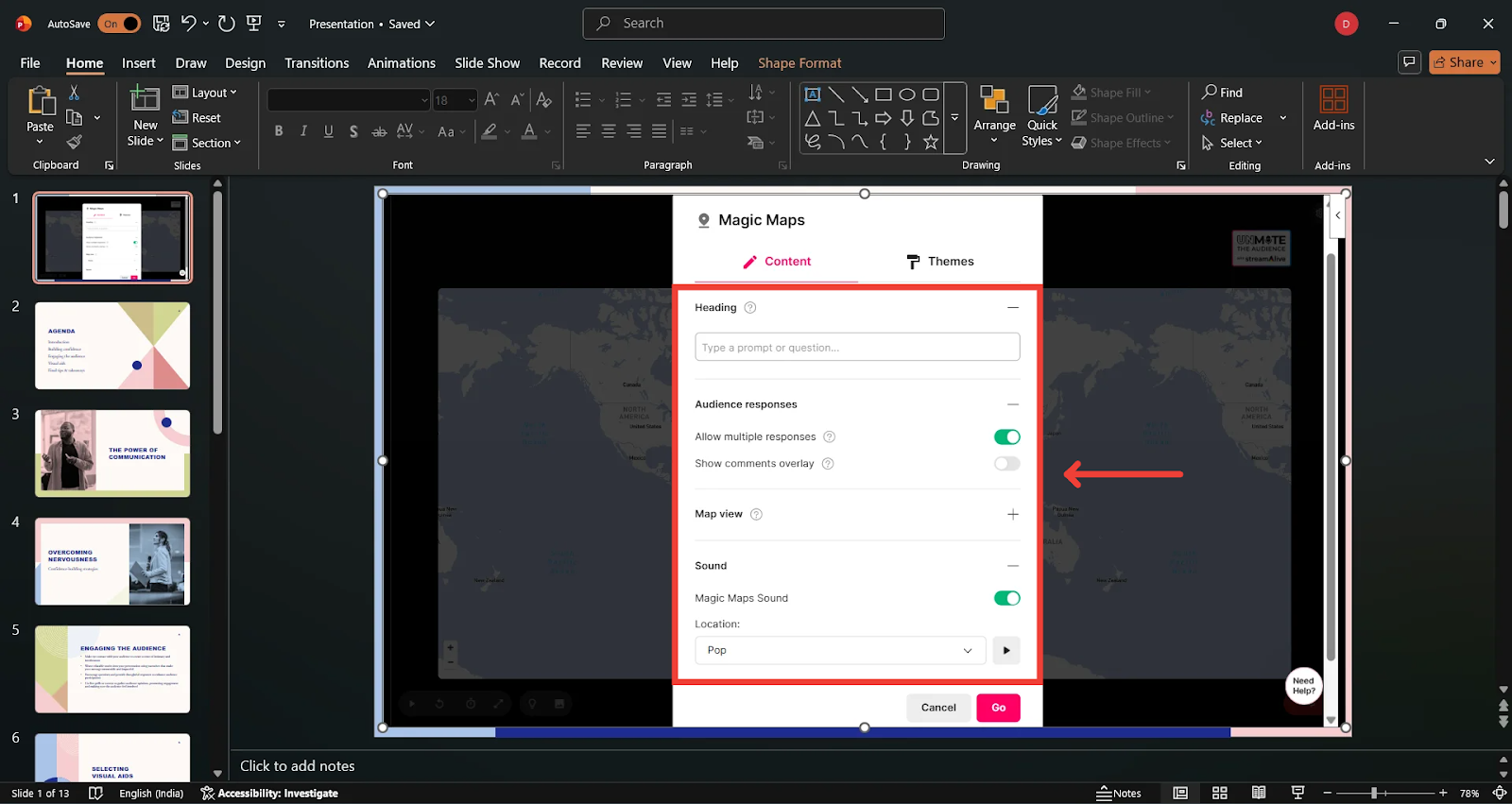
You’ll then be asked to:
Edit the heading/question and configure your interaction’s settings
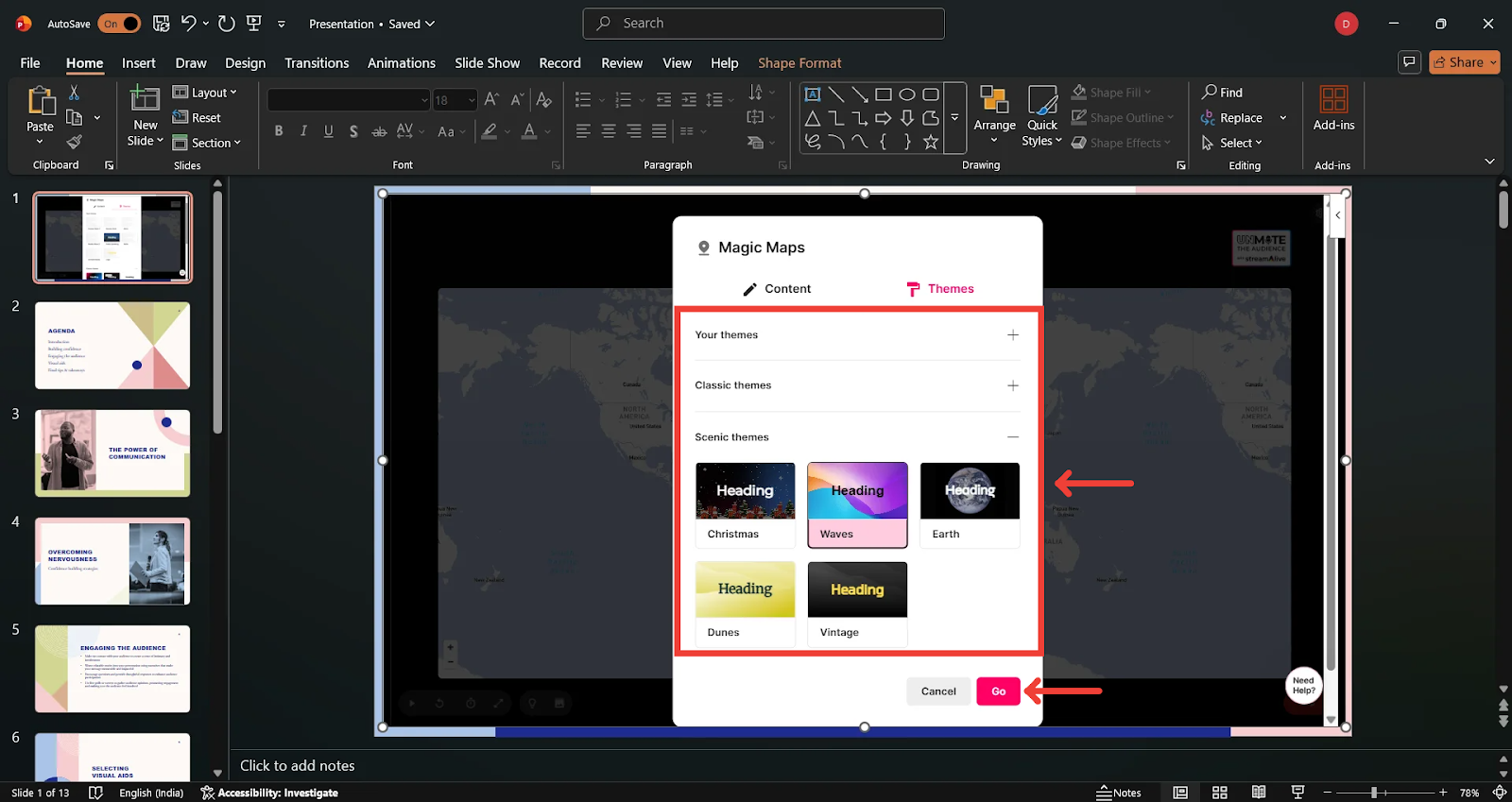
Choose from StreamAlive’s default/pre-created themes and click on Go
However, single interactions have limited design control compared to pre-made presentations.
Option 2: Use a Pre-Existing StreamAlive Presentation
A pre-existing StreamAlive presentation is a presentation that you’ve already created inside StreamAlive’s web platform before opening PowerPoint. It contains the interactions you’ve planned, such as polls, quizzes, word clouds, maps, emoji interactions, and more, along with their:
Headings and questions
Custom designs and themes
Interaction settings
Transitions
When you open this presentation inside the PowerPoint add-in, you can embed its interactions directly into your PPT slides.
Click here to learn how to create a StreamAlive Presentation through the StreamAlive WebApp
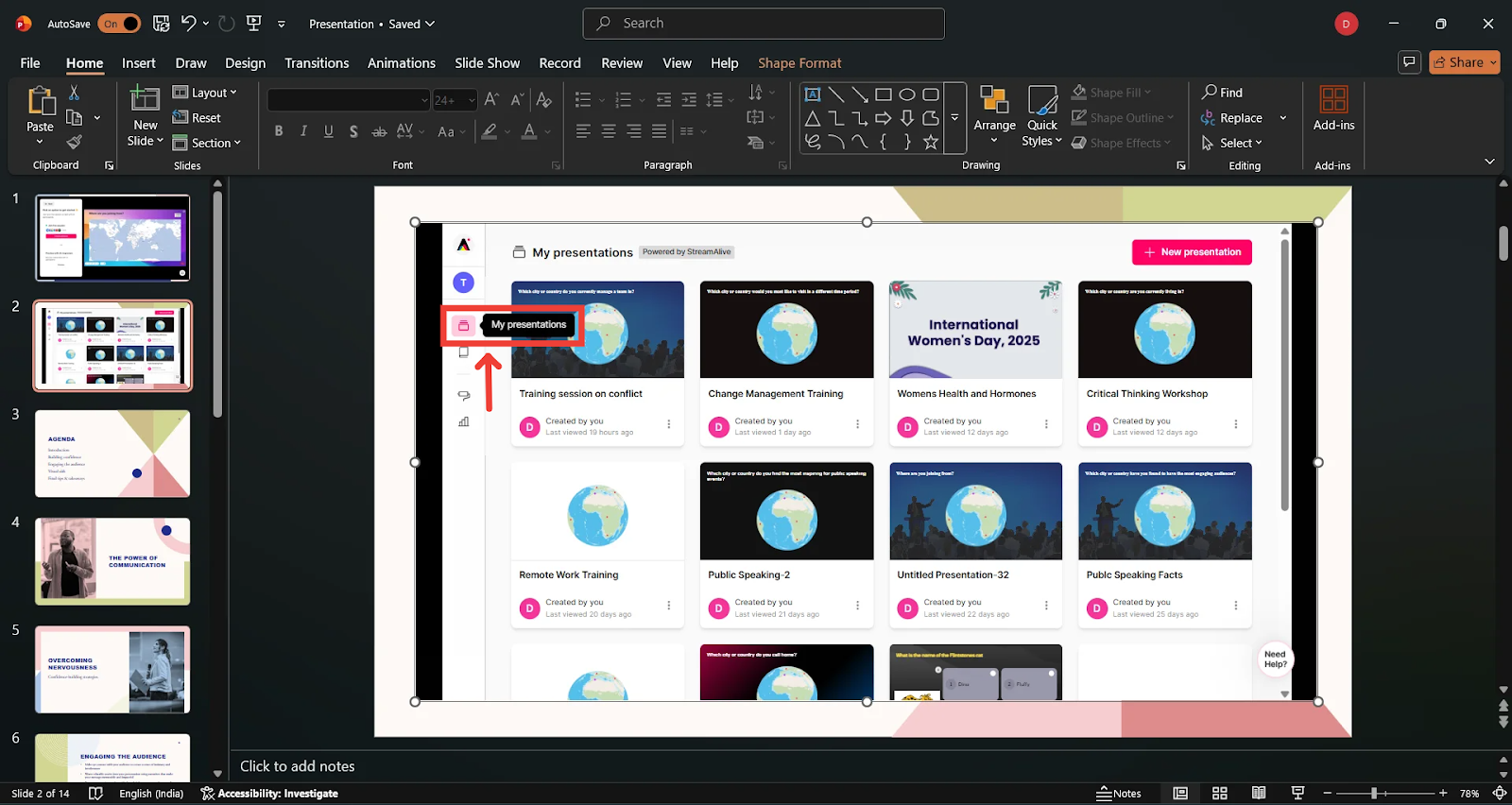
Go to My Presentations
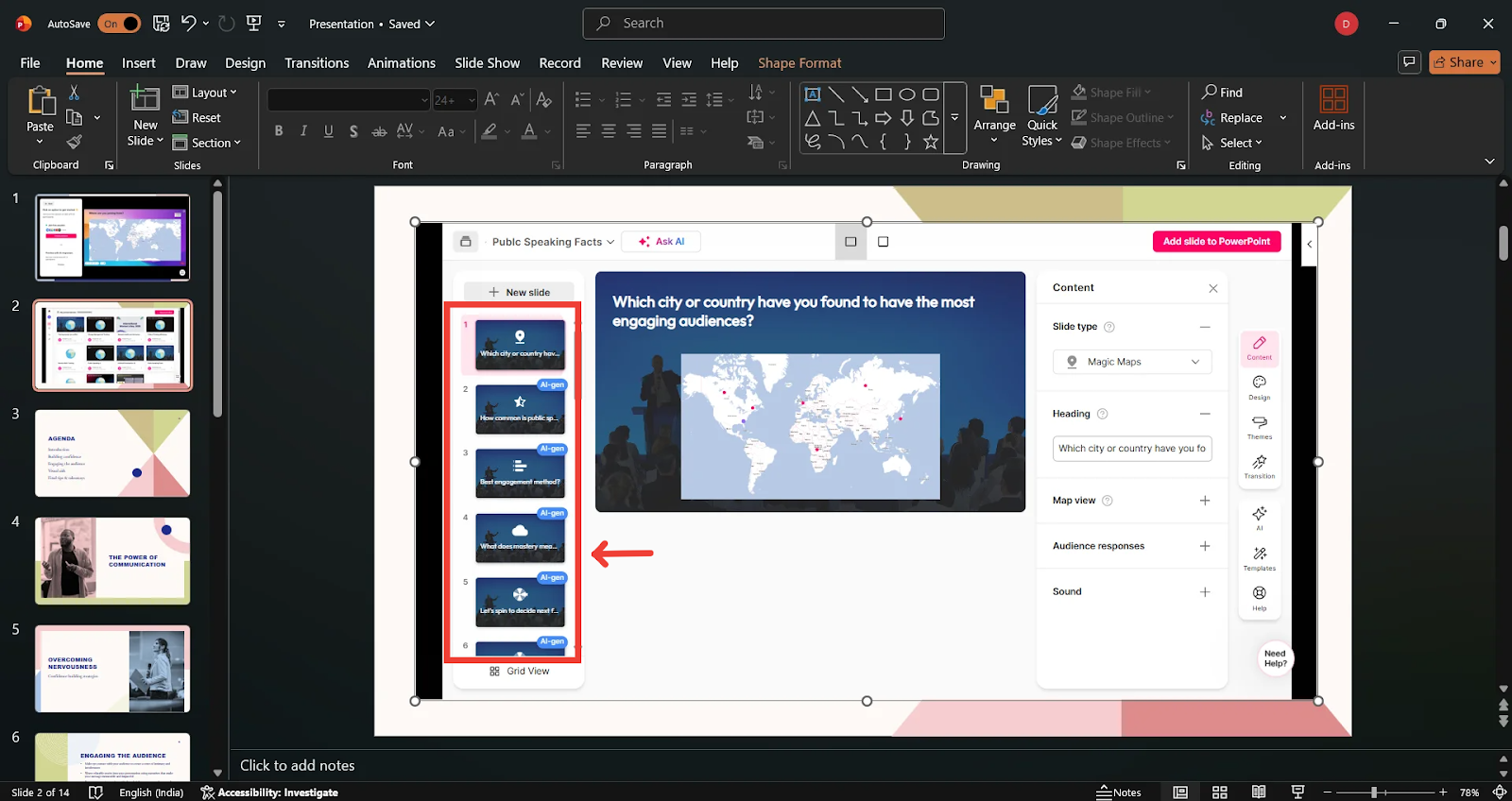
Select a slide from the left panel that you want to add
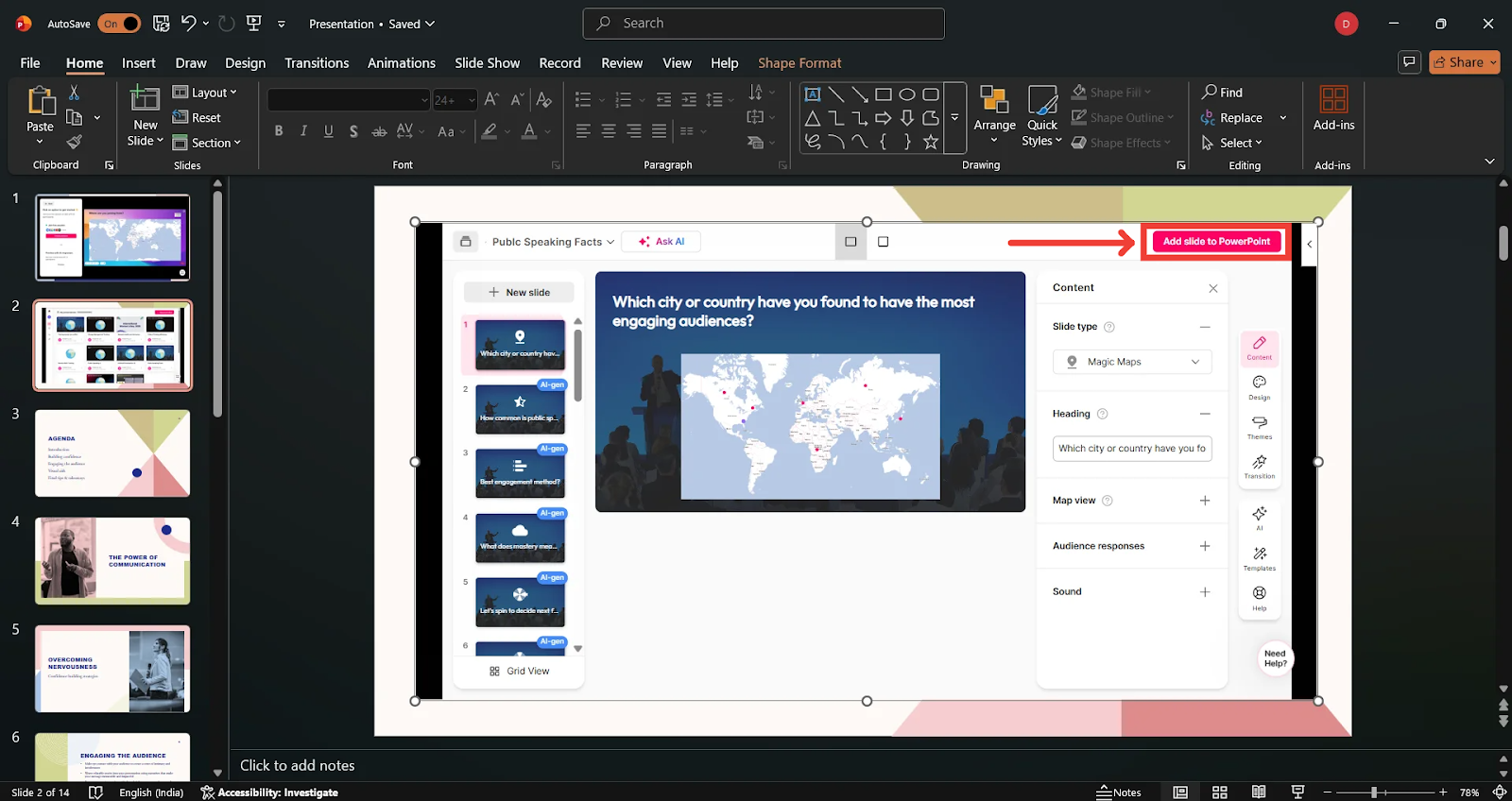
To embed a slide from your StreamAlive presentation, click the pink “Add Slide to PowerPoint” button (top right).
The interaction will now appear embedded directly on your slide.
Adding More Interactions
You can:
Reopen the StreamAlive add-in and choose a new interaction
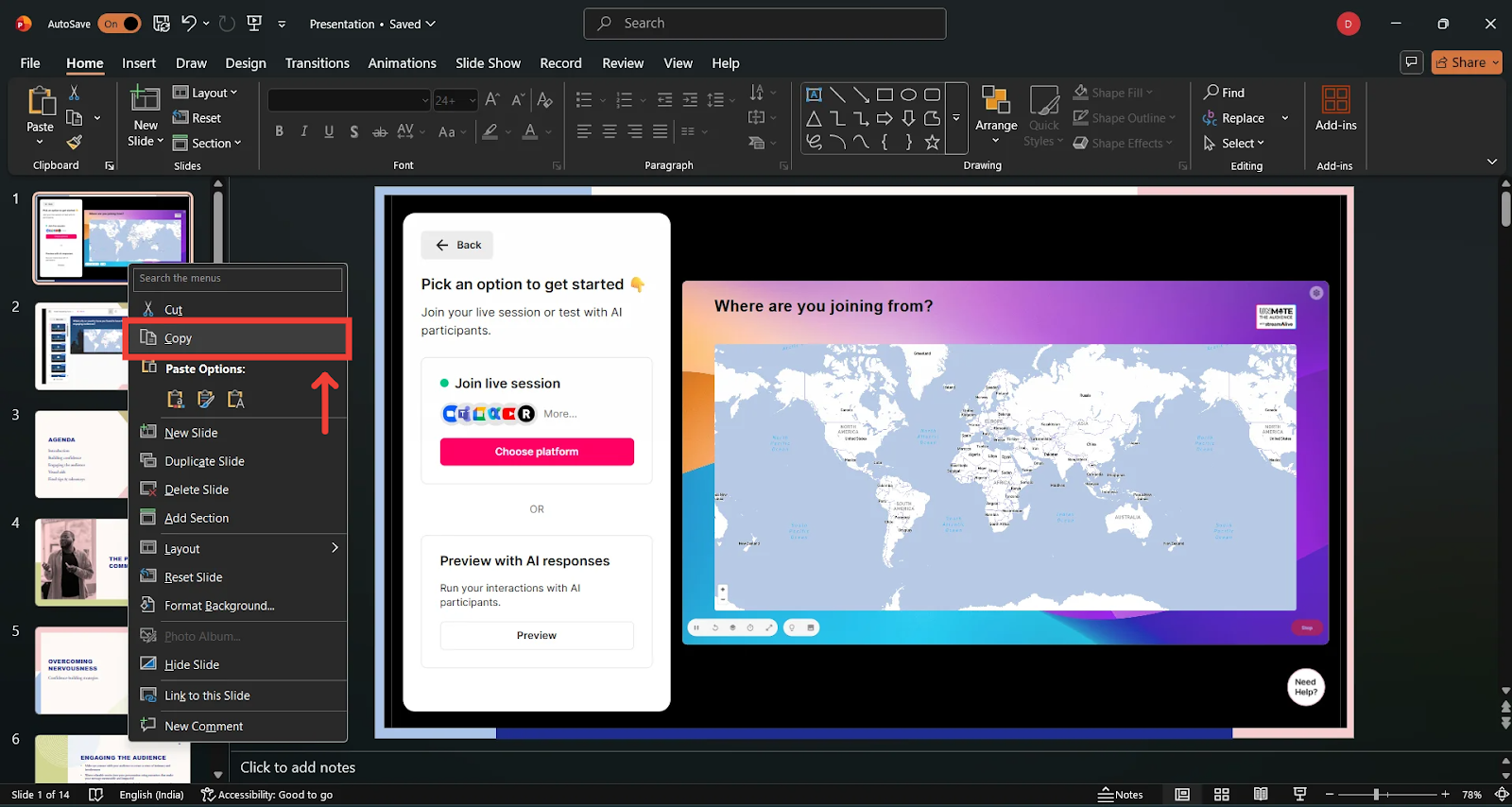
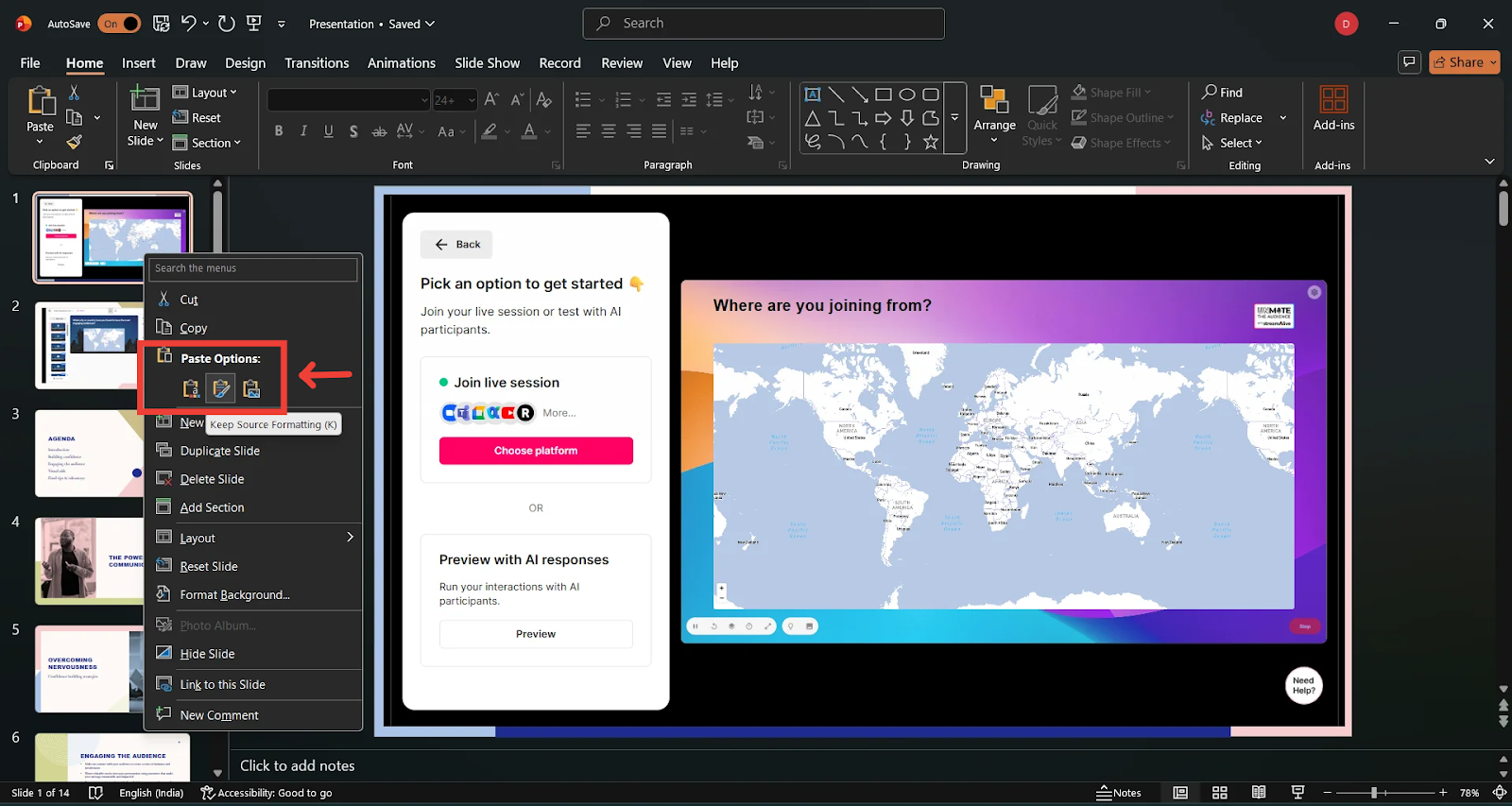
Copy and paste an existing StreamAlive slide
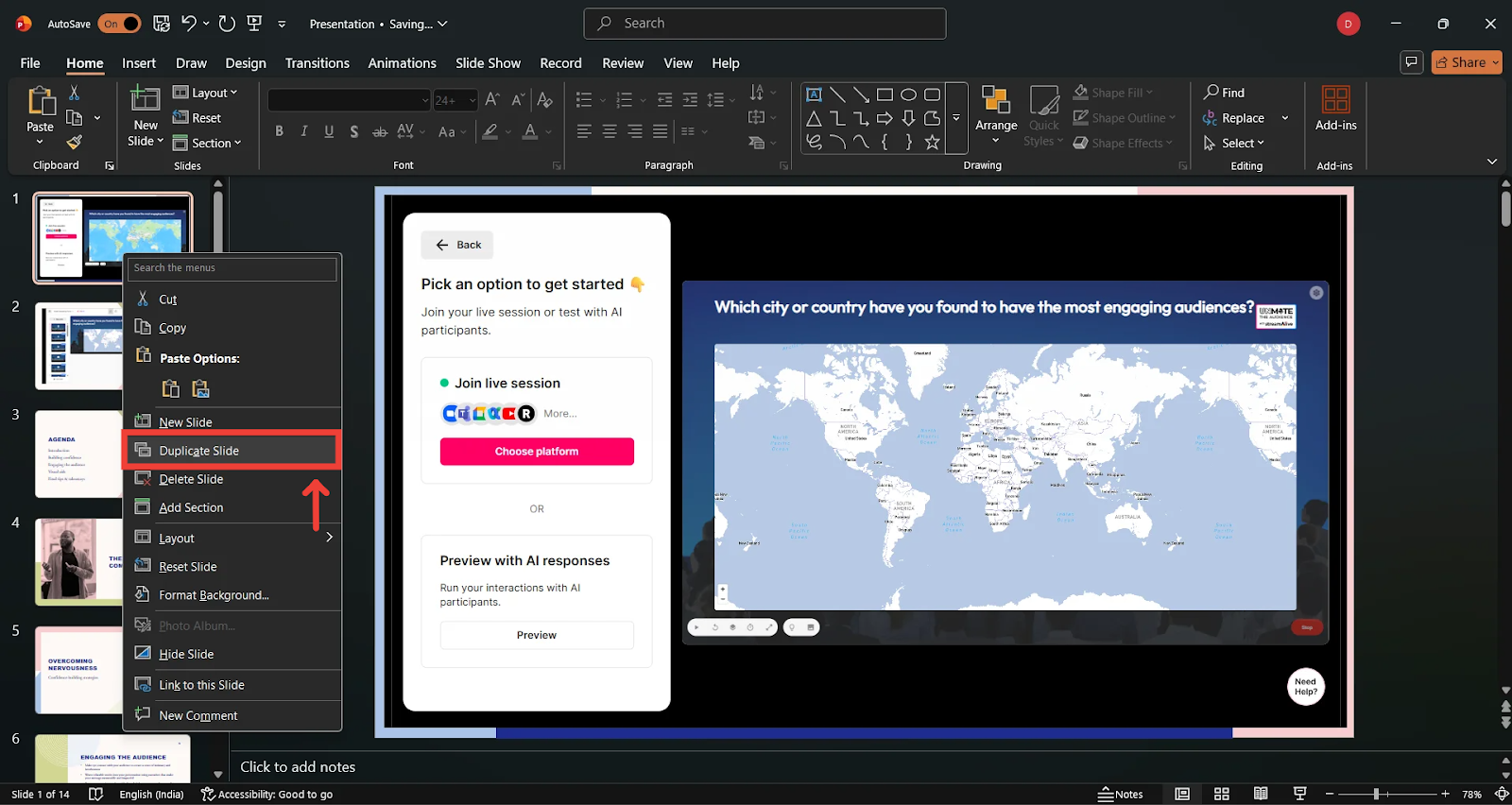
Or right-click a slide and click Duplicate Slide
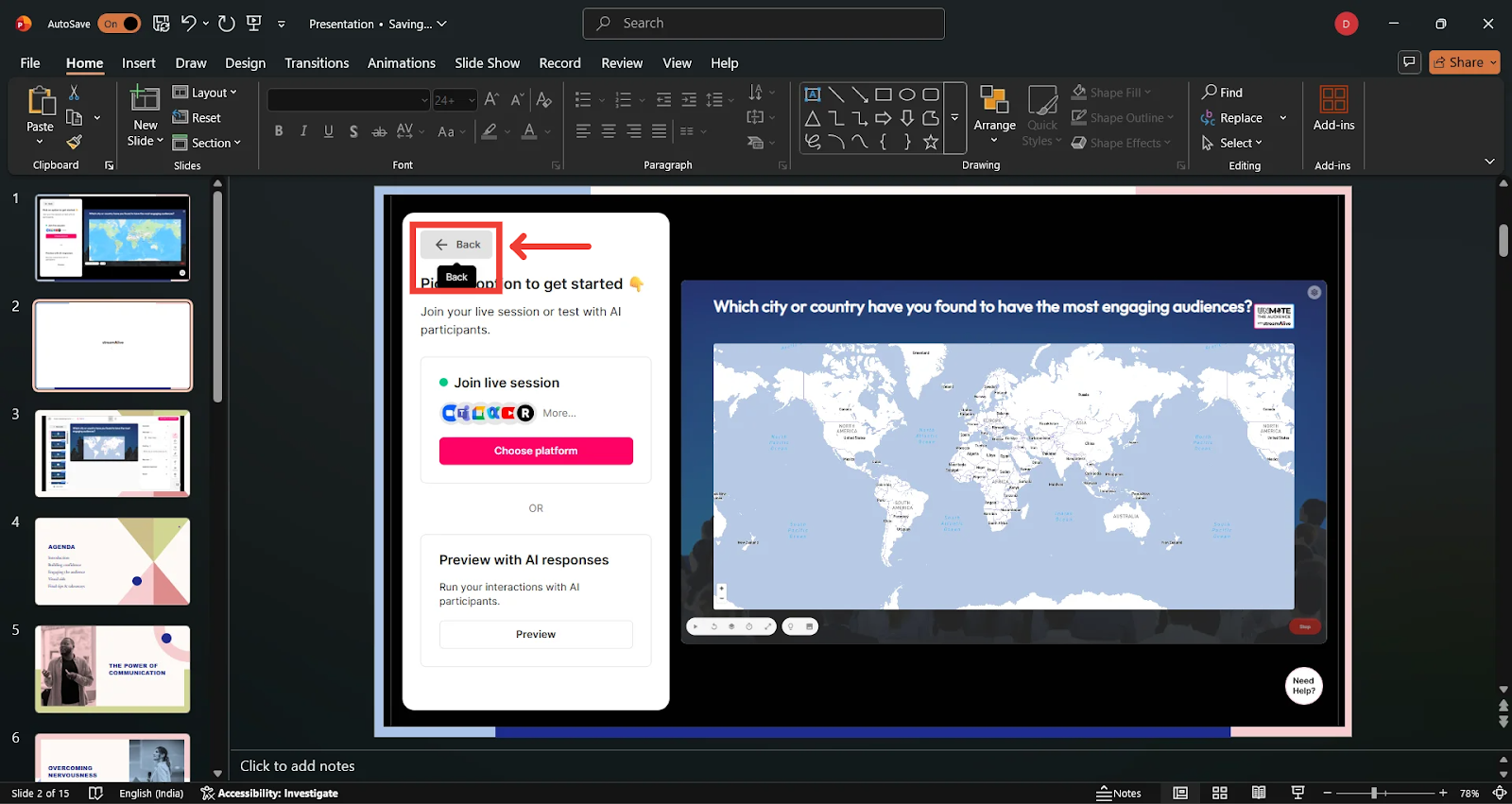
IMPORTANT NOTE: If you duplicate a slide, click the Back button in the add-in to return to the StreamAlive Presentation Editor/Single Interaction screen and select a different interaction.
Previewing Your StreamAlive Slides
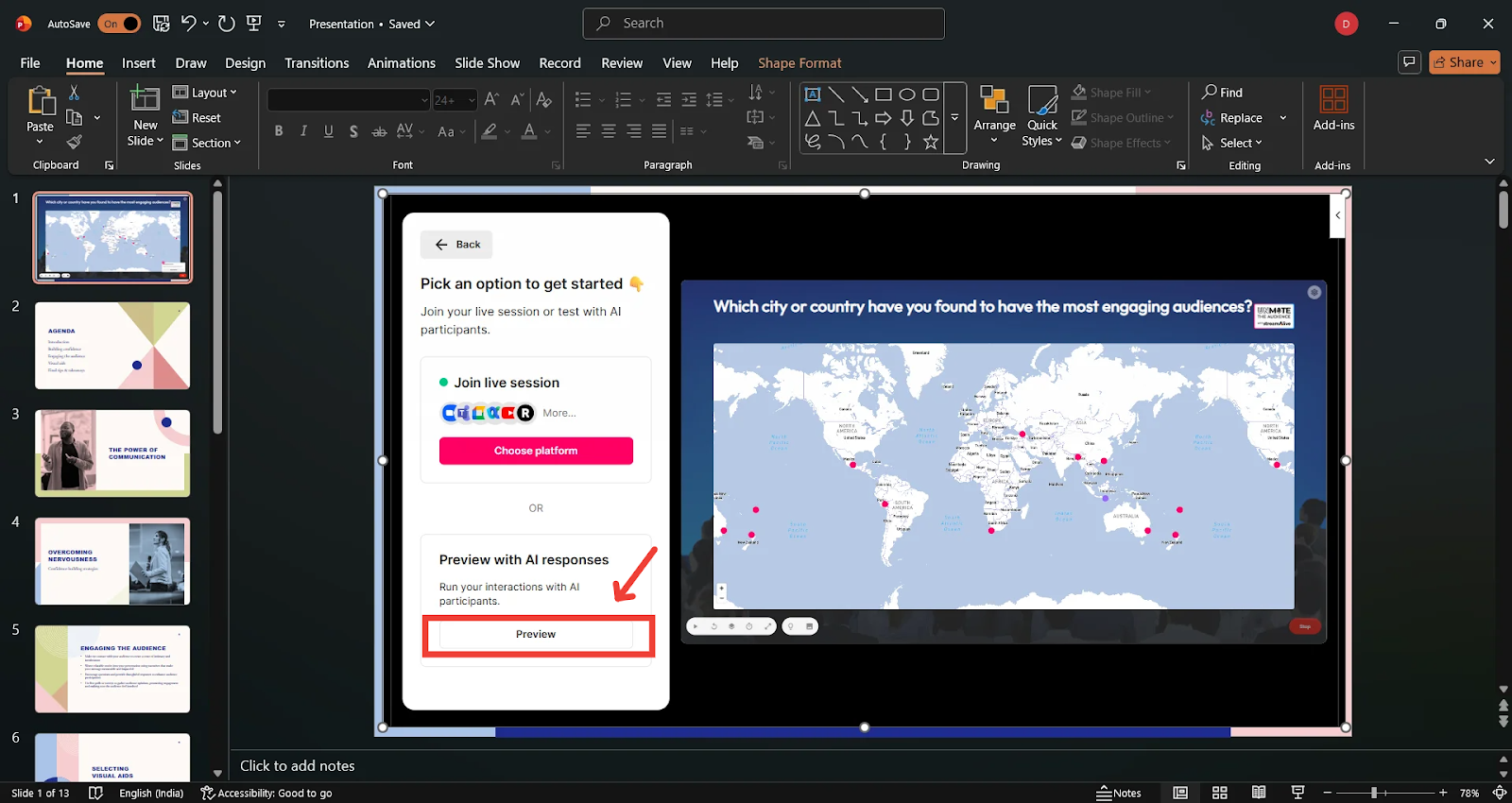
At any time after adding an interaction, you can click on Preview to simulate how your interactions will look during a live session.
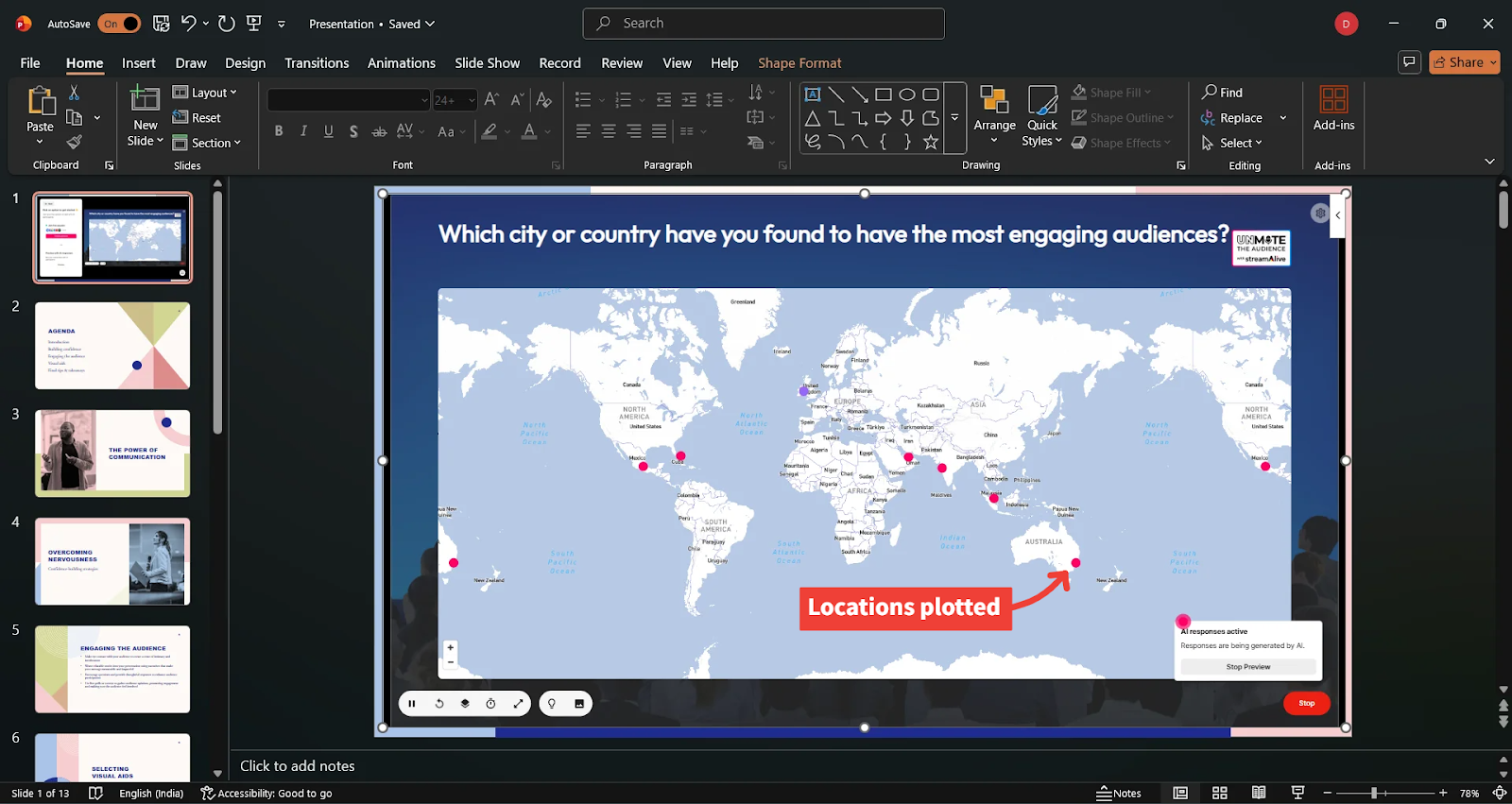
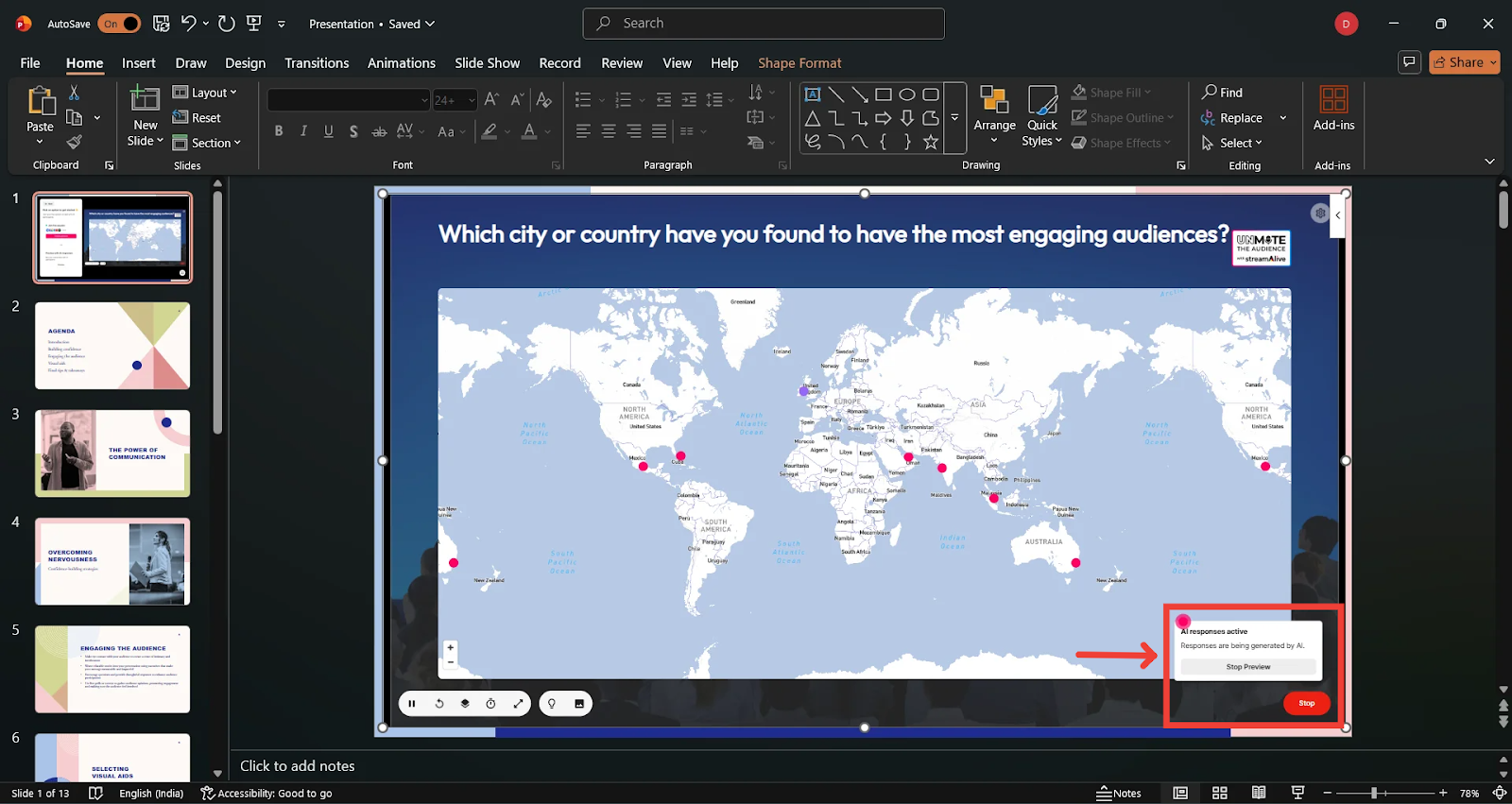
Click on Stop to end the simulation
Using StreamAlive’s AI Tools (OPTIONAL)
StreamAlive includes optional AI tools to help you plan or enhance your interactive presentation.
Access AI Features
In the Presentation Editor, click Ask AI.
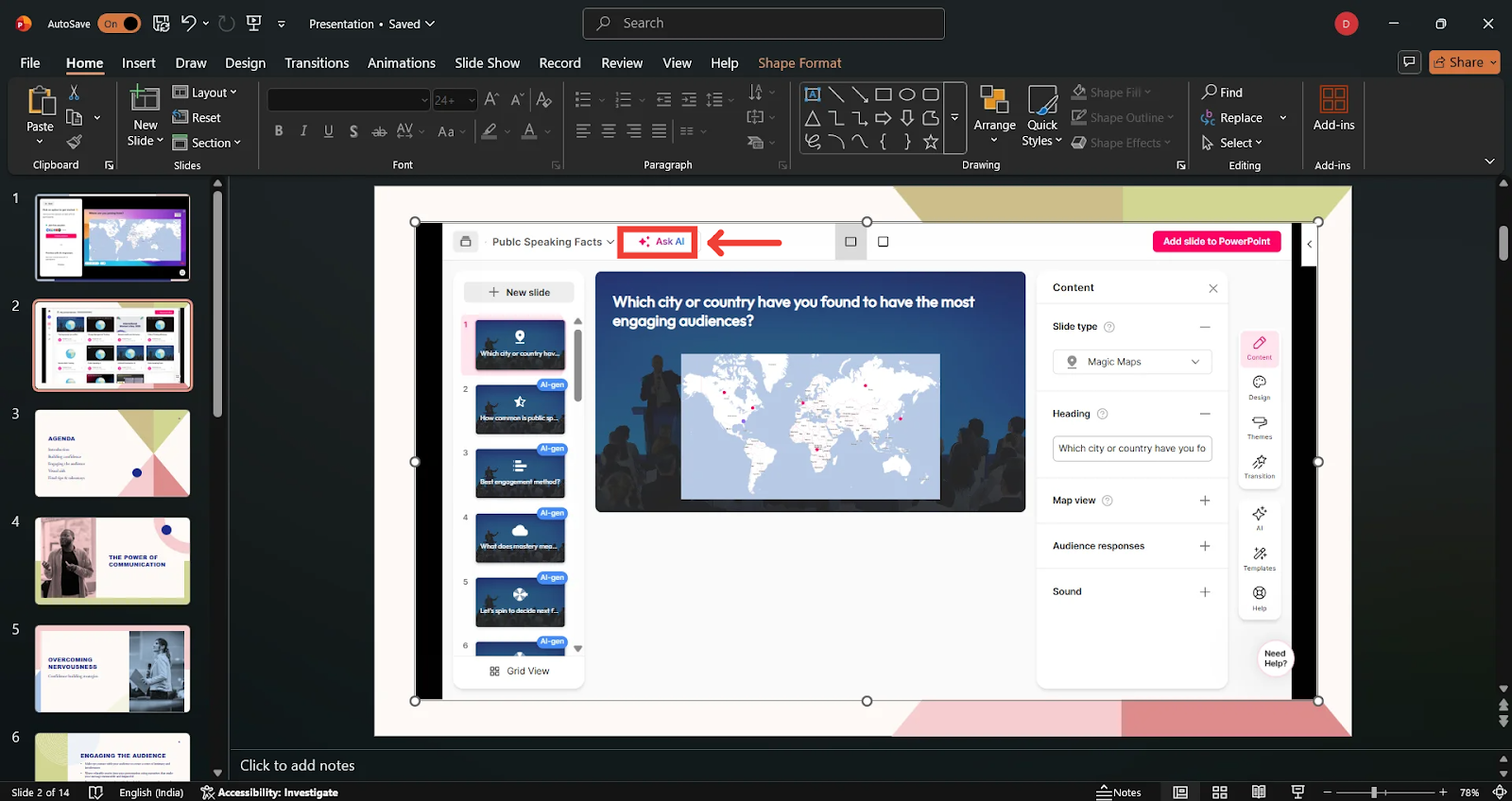
You’ll see two options: (Scroll to learn more)
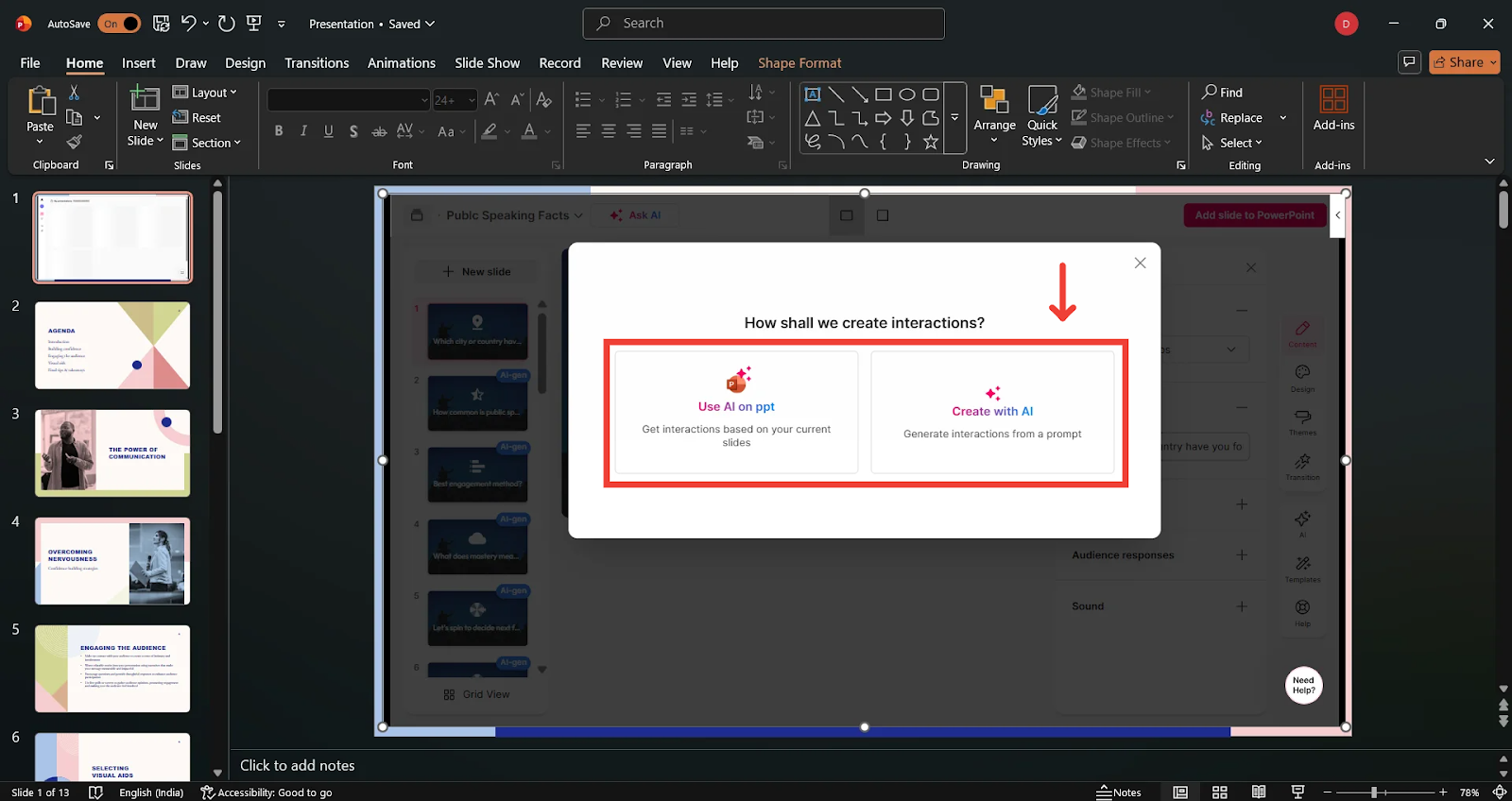
1. Create With AI
This feature helps you generate StreamAlive interactions based on:
A topic
Your target audience
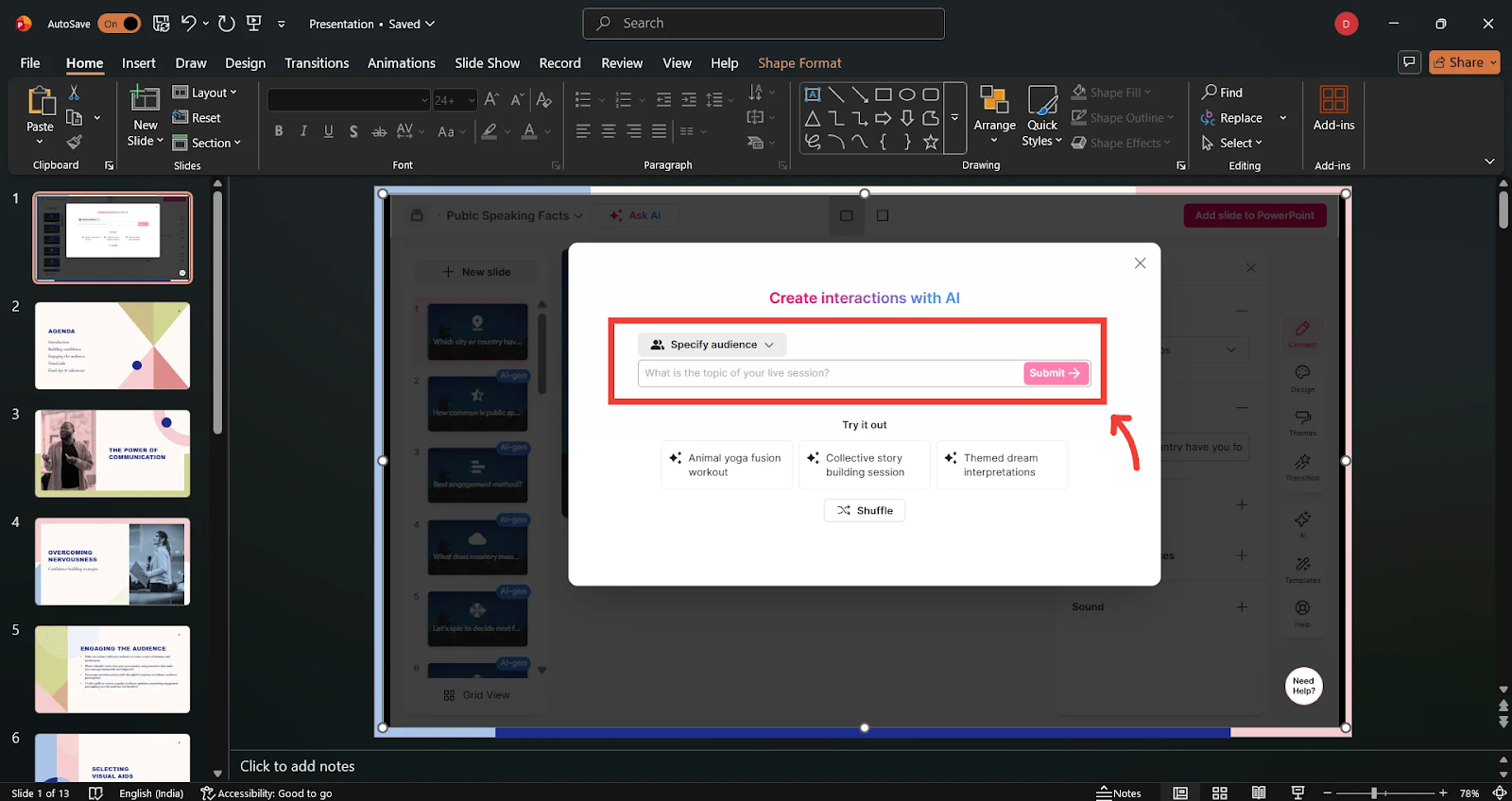
StreamAlive will build interactions automatically for your deck.
(For a detailed guide, check out our tutorial on creating a presentation.)
2. Use AI on PPT
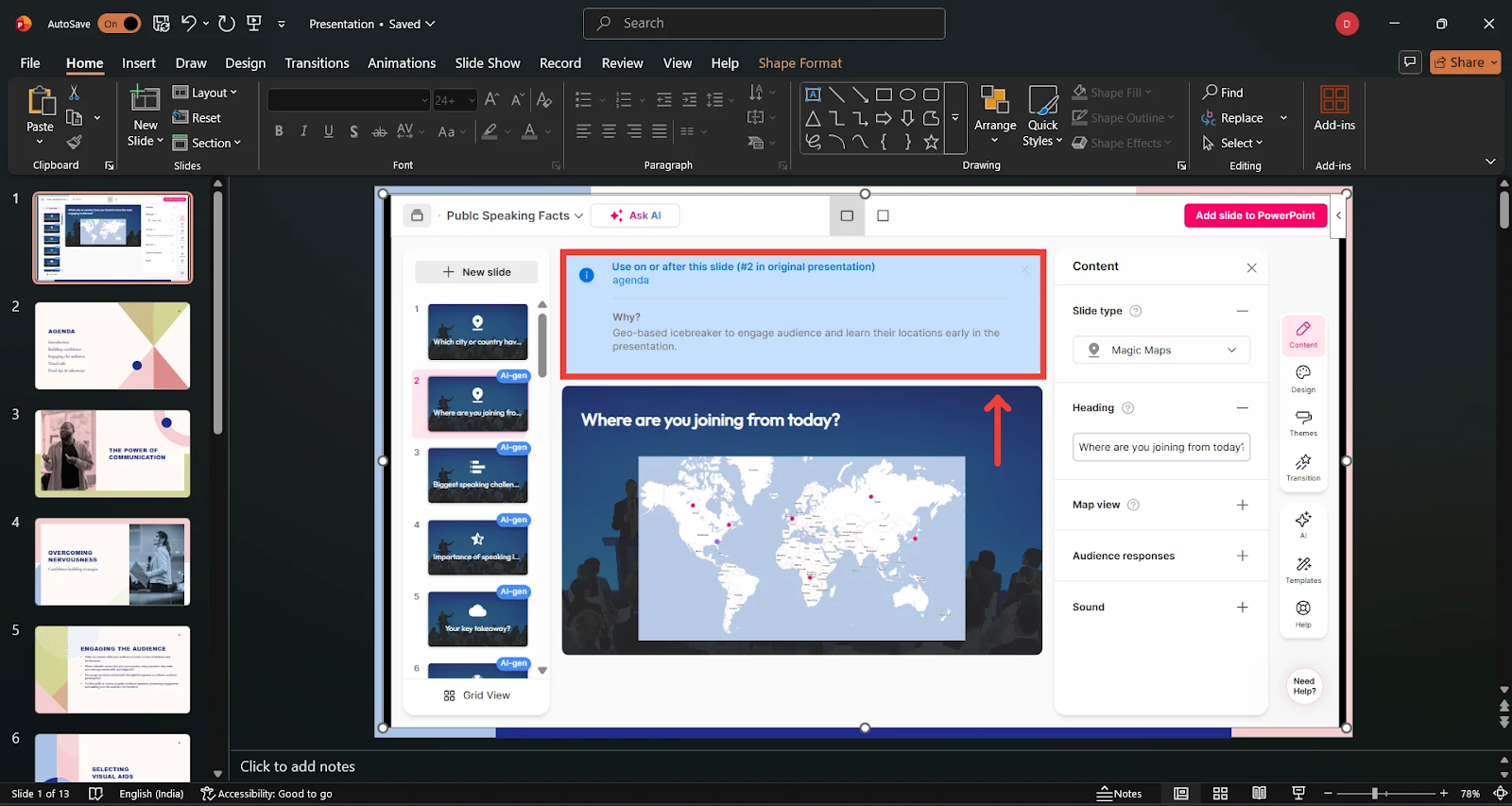
This feature scans your existing PowerPoint slides and suggests where StreamAlive interactions would fit naturally in your flow.
A blue suggestion box will appear for each interaction.
For example, AI might suggest placing a poll after your 9th slide because it matches the slide topic.
That’s everything you need to know to start building interactive PowerPoint slides using the StreamAlive add-in.
Related Articles
Was this helpful?
Still need help? Ask the team