Creating and Using Quiz Interaction
Written By Donkin Lyngdoh
Last updated 6 months ago
The Quiz interaction is the ultimate tool for gamifying your session. Unlike a standard Poll interaction, a Quiz adds the pressure of a countdown timer and the glory of a persistent leaderboard. It’s designed to turn knowledge checks into a competitive event that keeps your audience on the edge of their seats.
How a Quiz Works
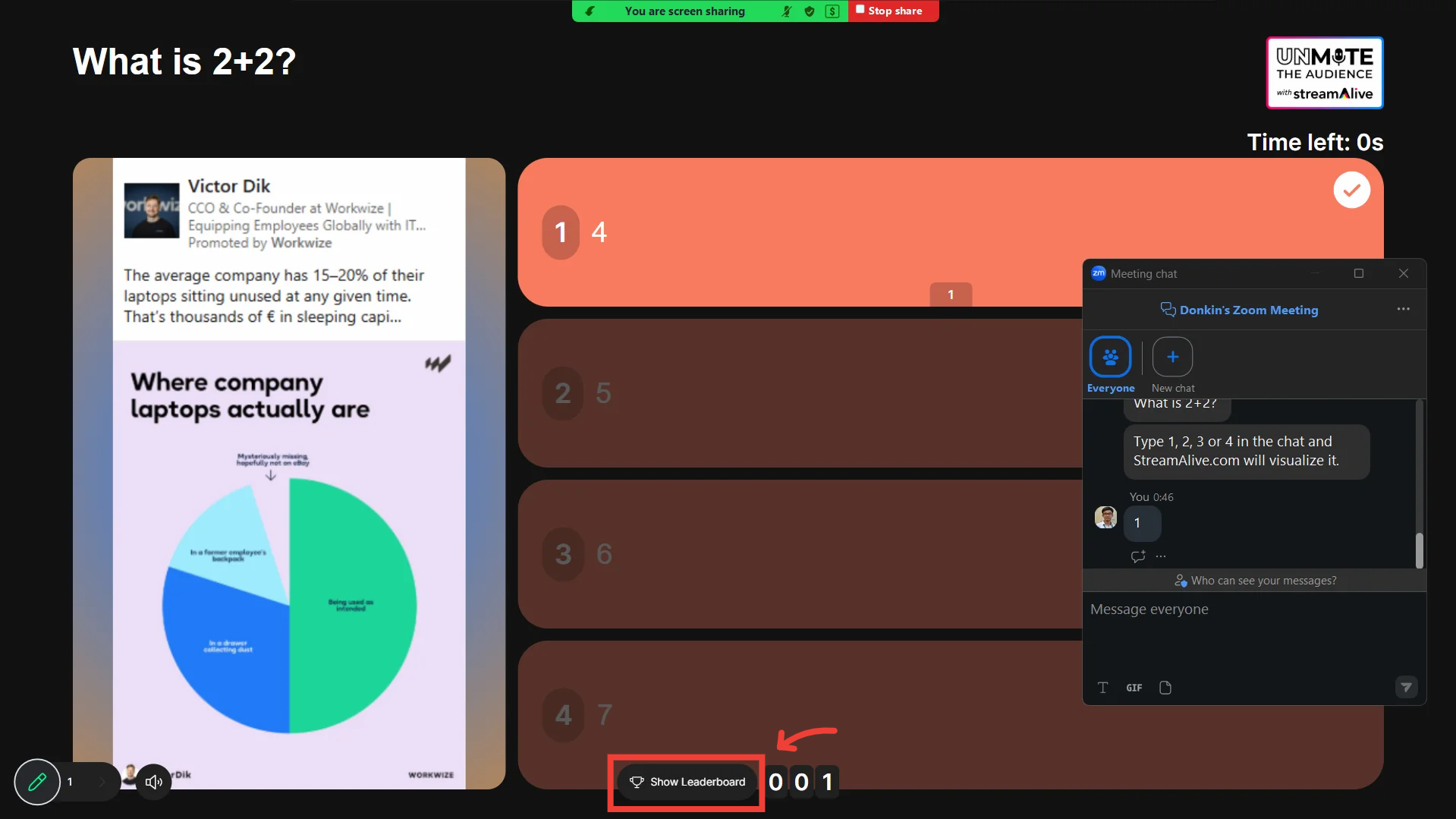
A Quiz is a timed event where participants race to submit the correct answer via chat. Once the timer hits zero, the interaction automatically closes, reveals the correct answer, and updates the session-wide leaderboard.
Key Features of the Quiz Interaction
Visual Engagement: You can upload an image to accompany your question to provide context or a visual clue.
Four-Option Limit: To keep the competition fast-paced and readable, Quizzes support up to 4 options.
The Countdown: You set a specific duration for the quiz. Audience members must type their choice (1, 2, 3, or 4) in the chat before time runs out.
Automatic Reveal: No need to click a button—the correct answer is revealed the moment the timer reaches 0s.
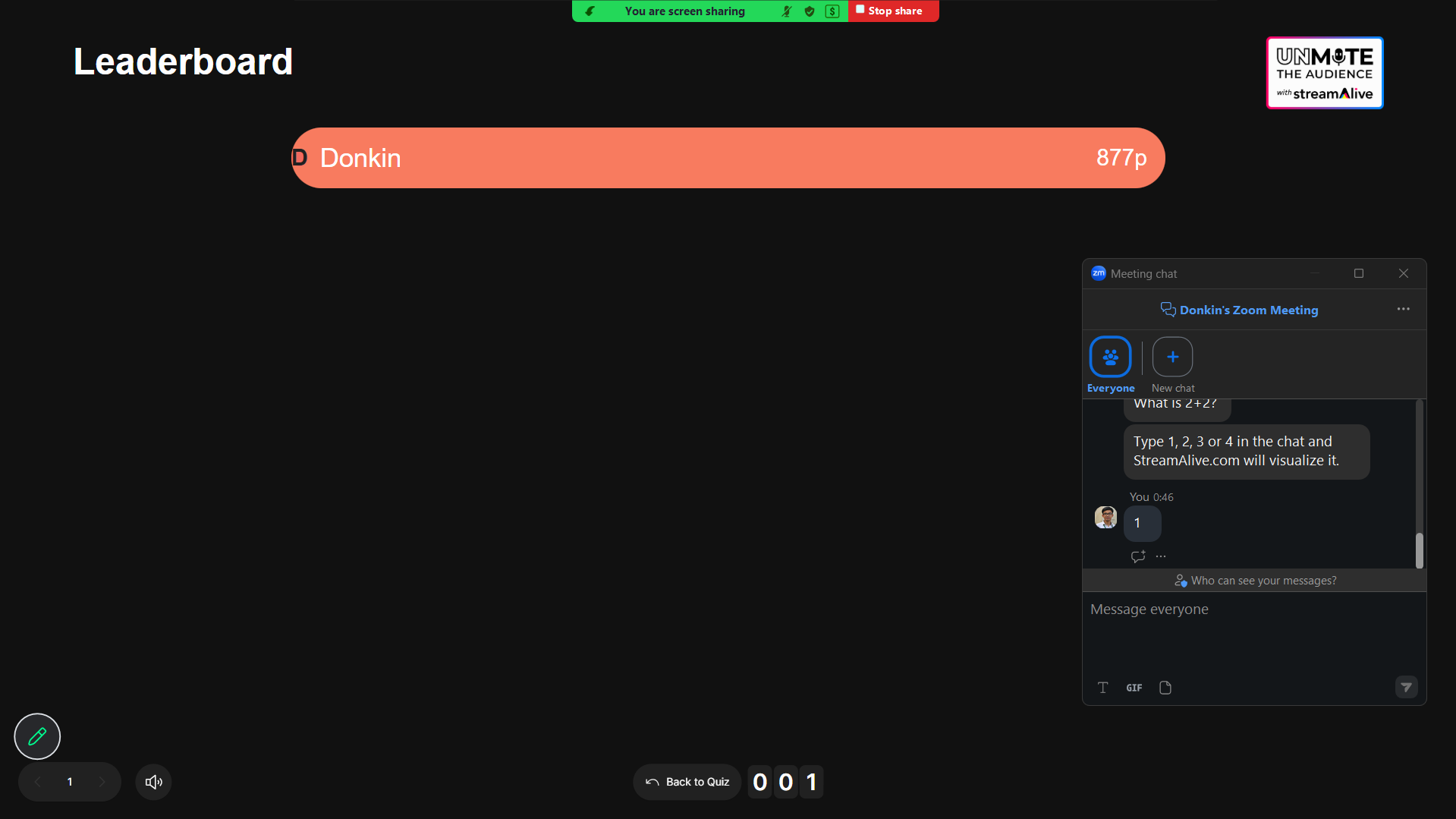
Session Leaderboard: Points are tracked across multiple quizzes, allowing you to crown an overall winner at the end of your session.
Frequently Asked Questions
How do participants join the leaderboard? Participation is automatic! As long as a user is in the chat and submits a correct response within the time limit, the system tracks their performance and adds them to the standings.
Can I run multiple quizzes in one session? Yes. Points earned in the first quiz will carry over to the next, creating a continuous competition throughout your event.
What happens if someone answers after the timer ends? The interaction stops accepting votes the second the timer reaches zero. Only responses captured during the "Live" window are counted toward the leaderboard.
Creating a Quiz Interaction
To run a Quiz interaction during your session, you can choose to:
Add it to your presentation before the session
Create an ad-hoc interaction during the session
Using Quick Interaction Links
Adding Quiz Interaction to your presentation
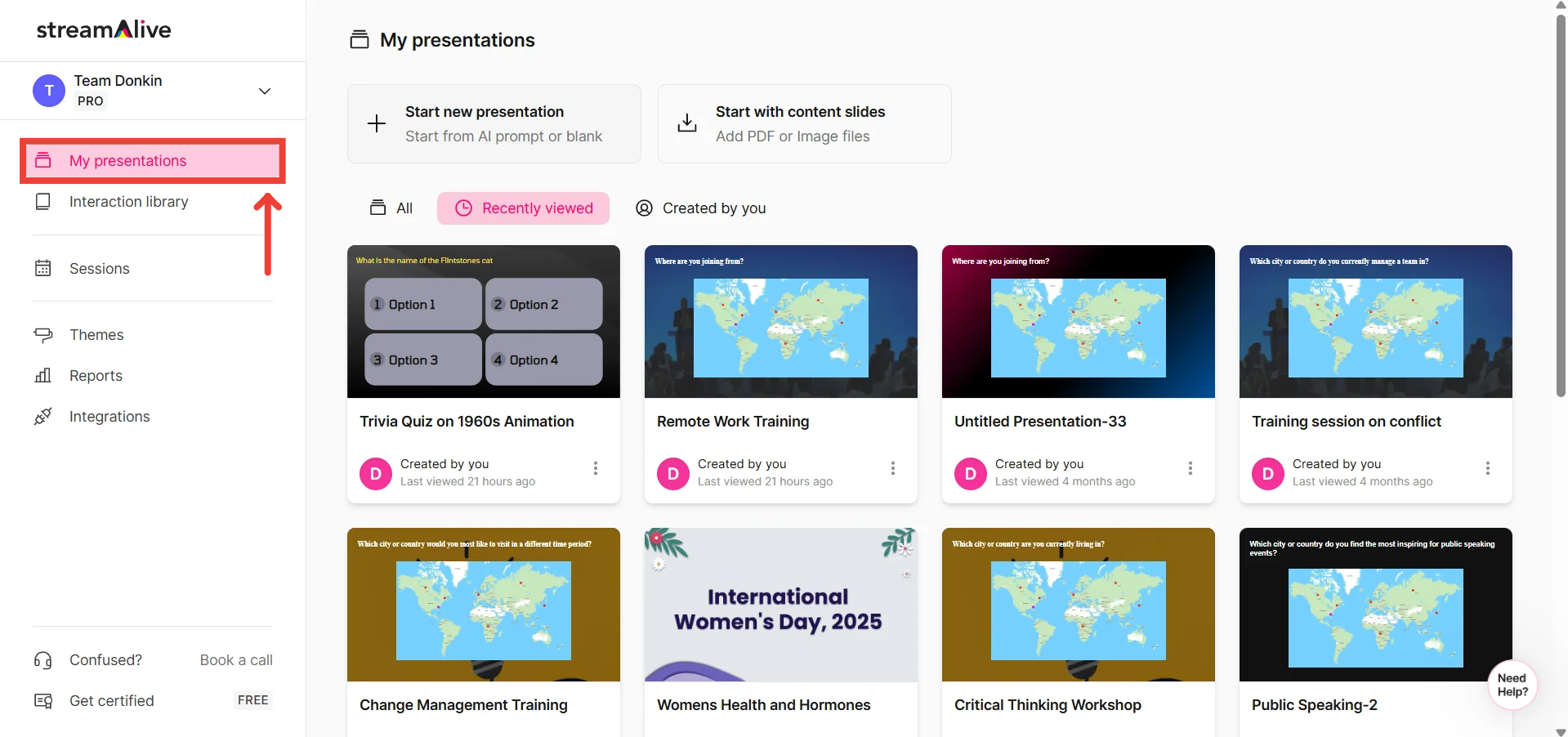
Go to My Presentations
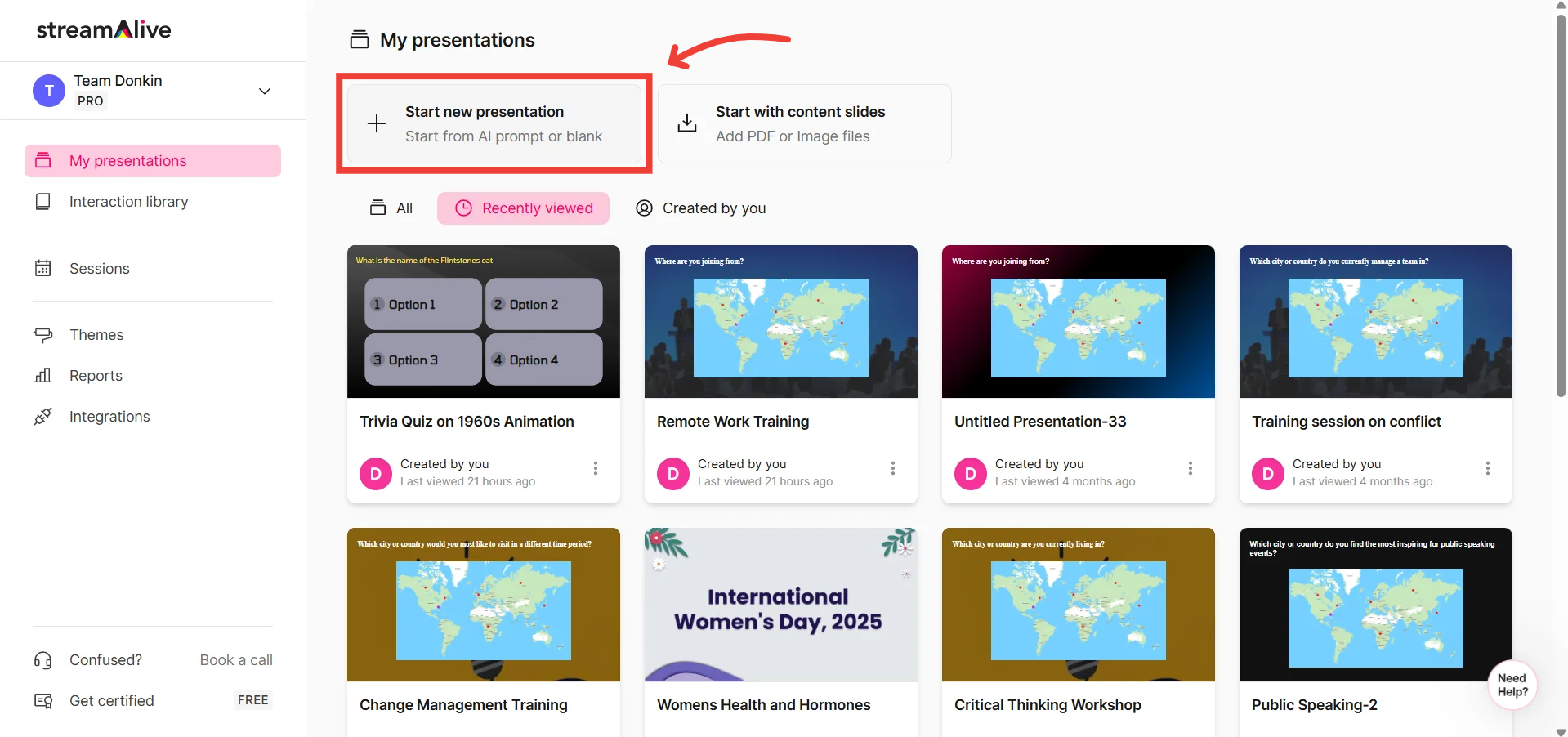
Click on “Start new presentation”
You’ll be asked to either create the presentation with AI or Start blank
In this help doc, we’ll be starting with a blank canvas, however, if you’re interested on how Create with AI works, click here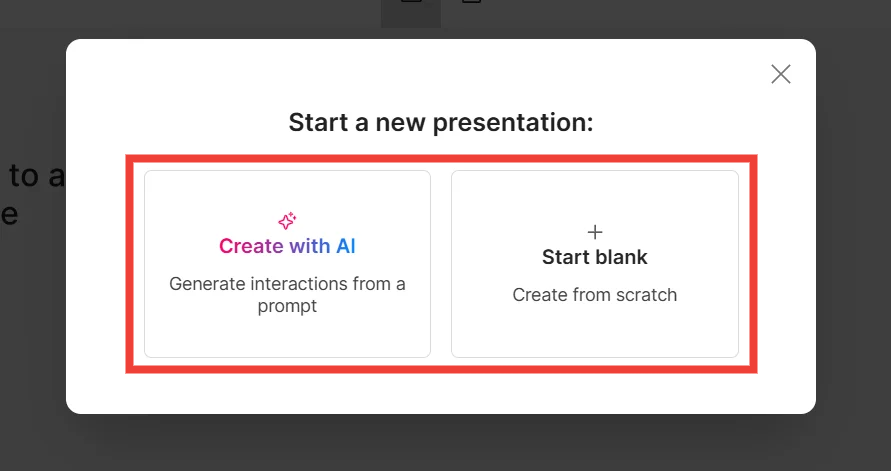
Click on New Slide
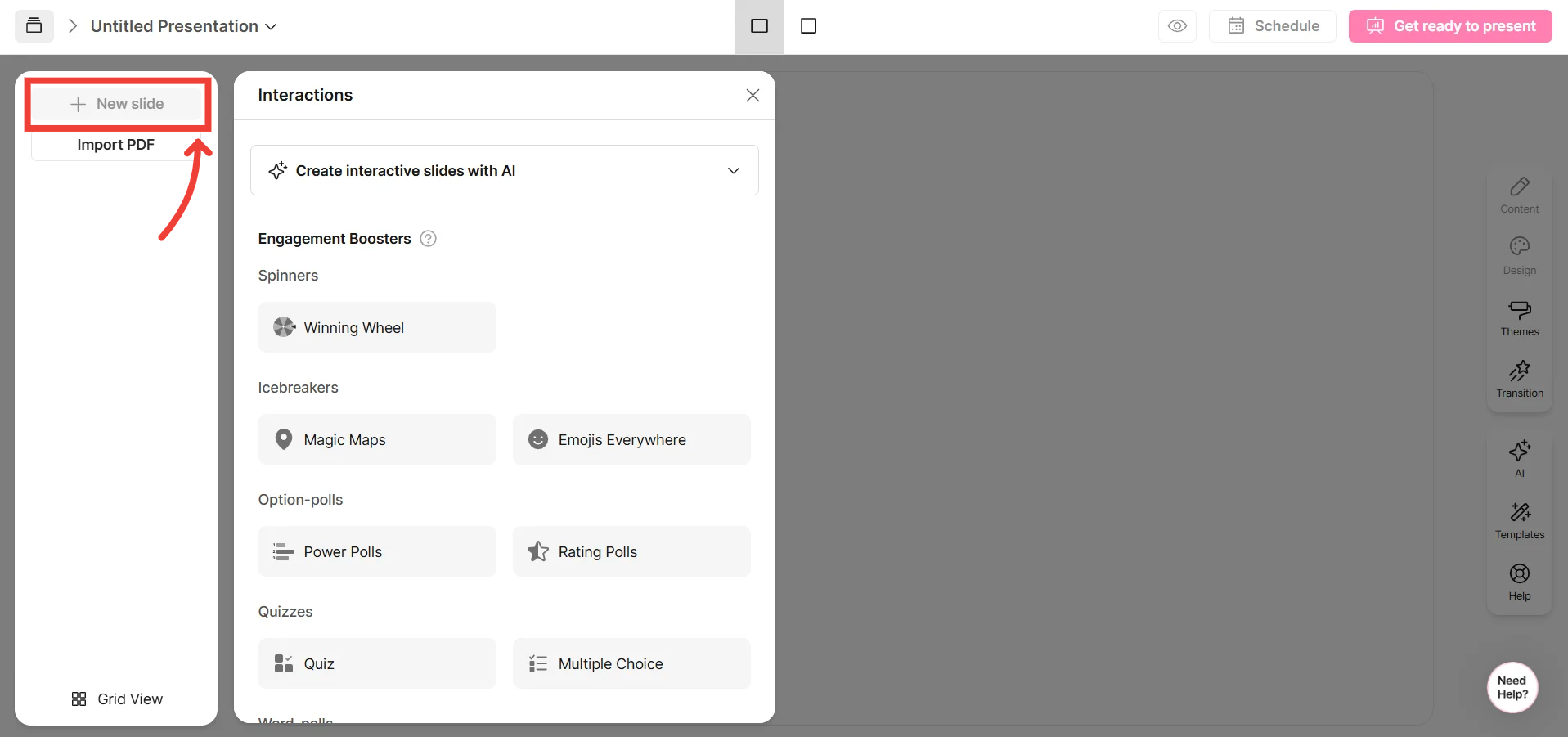
Add the Quiz Interaction
To learn more about how to create a presentation, click here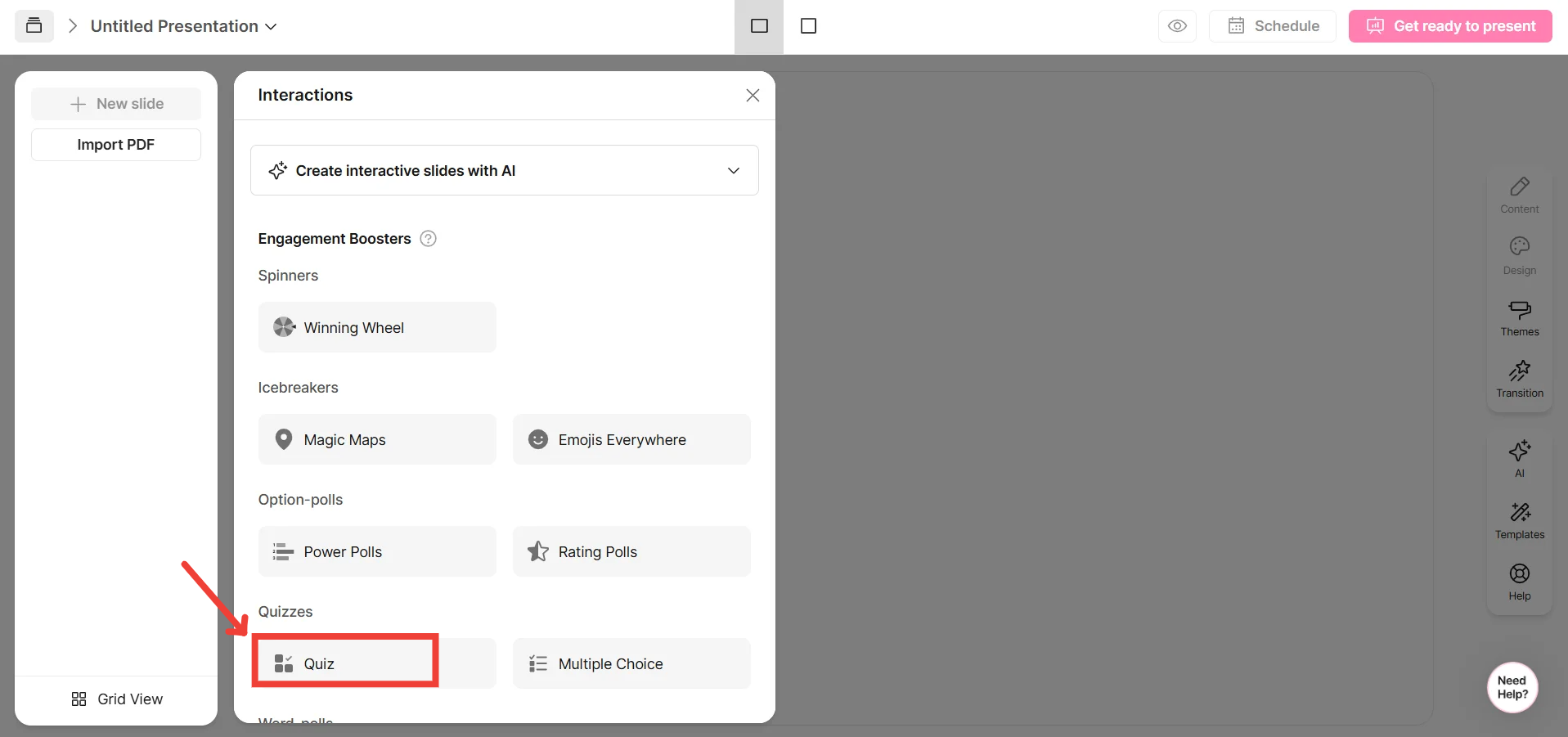
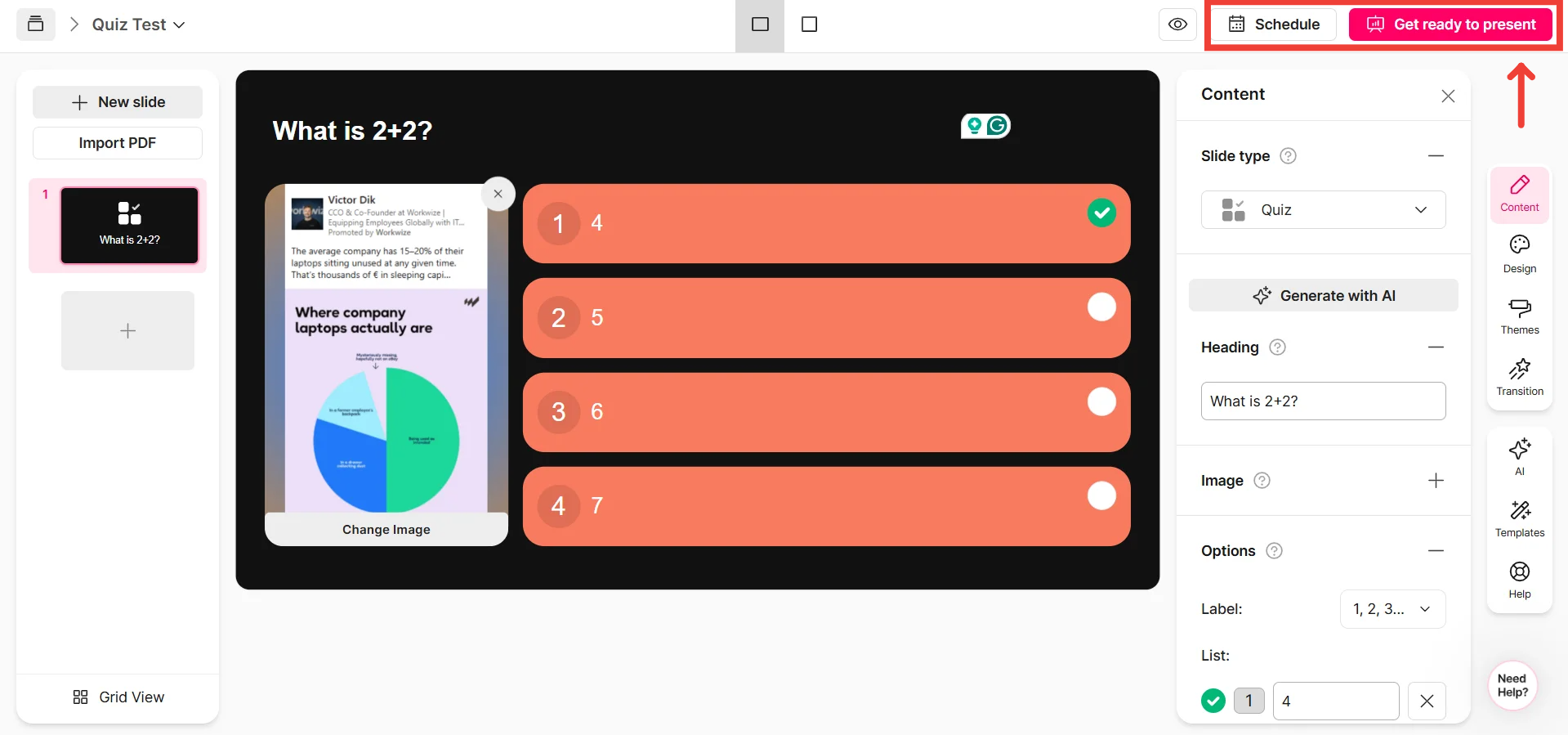
Once the interaction is added, customize the interaction using the tabs on the right-hand side.
Edit the heading, add the options/image and configure its settings in the Content tab.
You can also edit the design of the interactions, like the background color, background image, and heading color/font.
For a more in-depth guide on how to edit your presentation, click here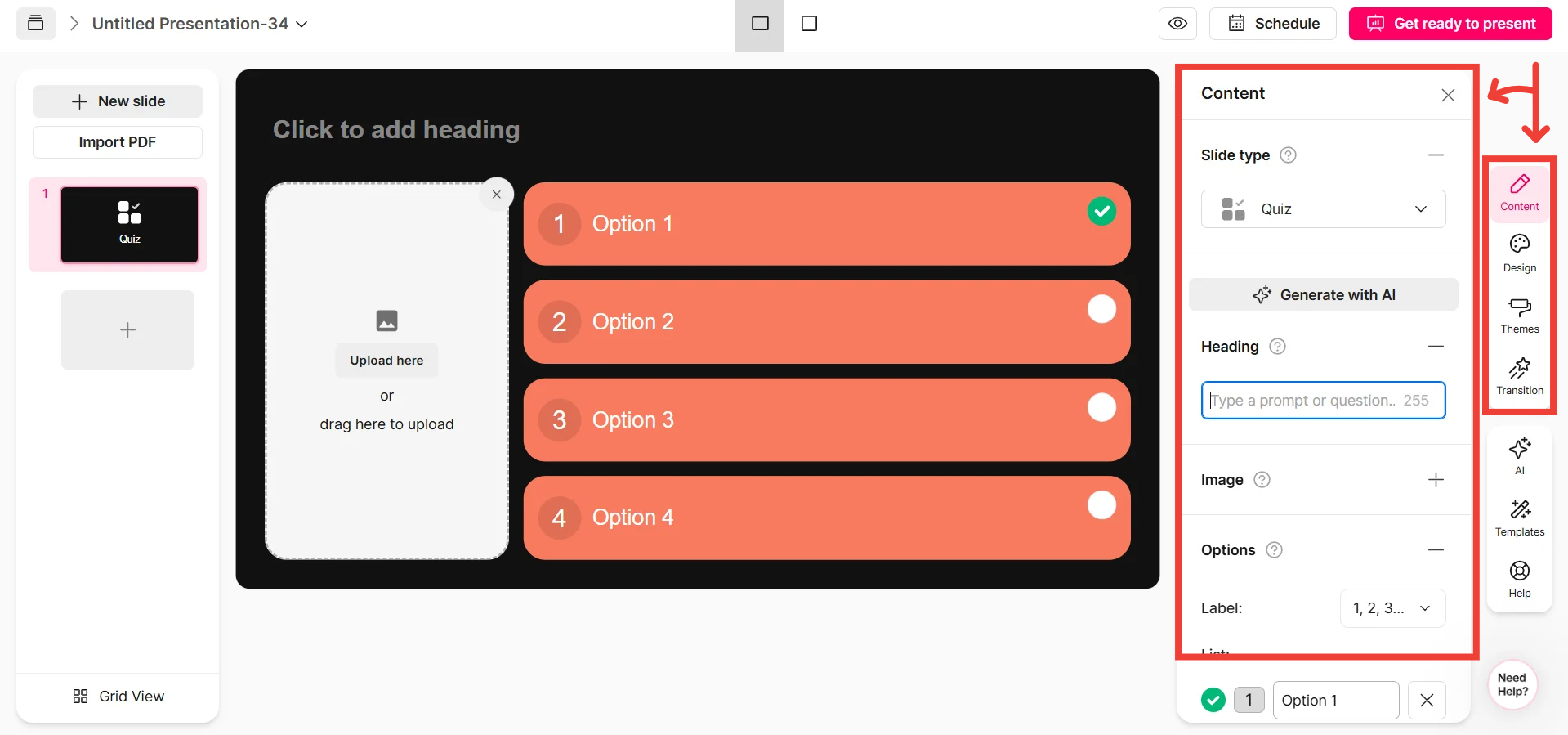
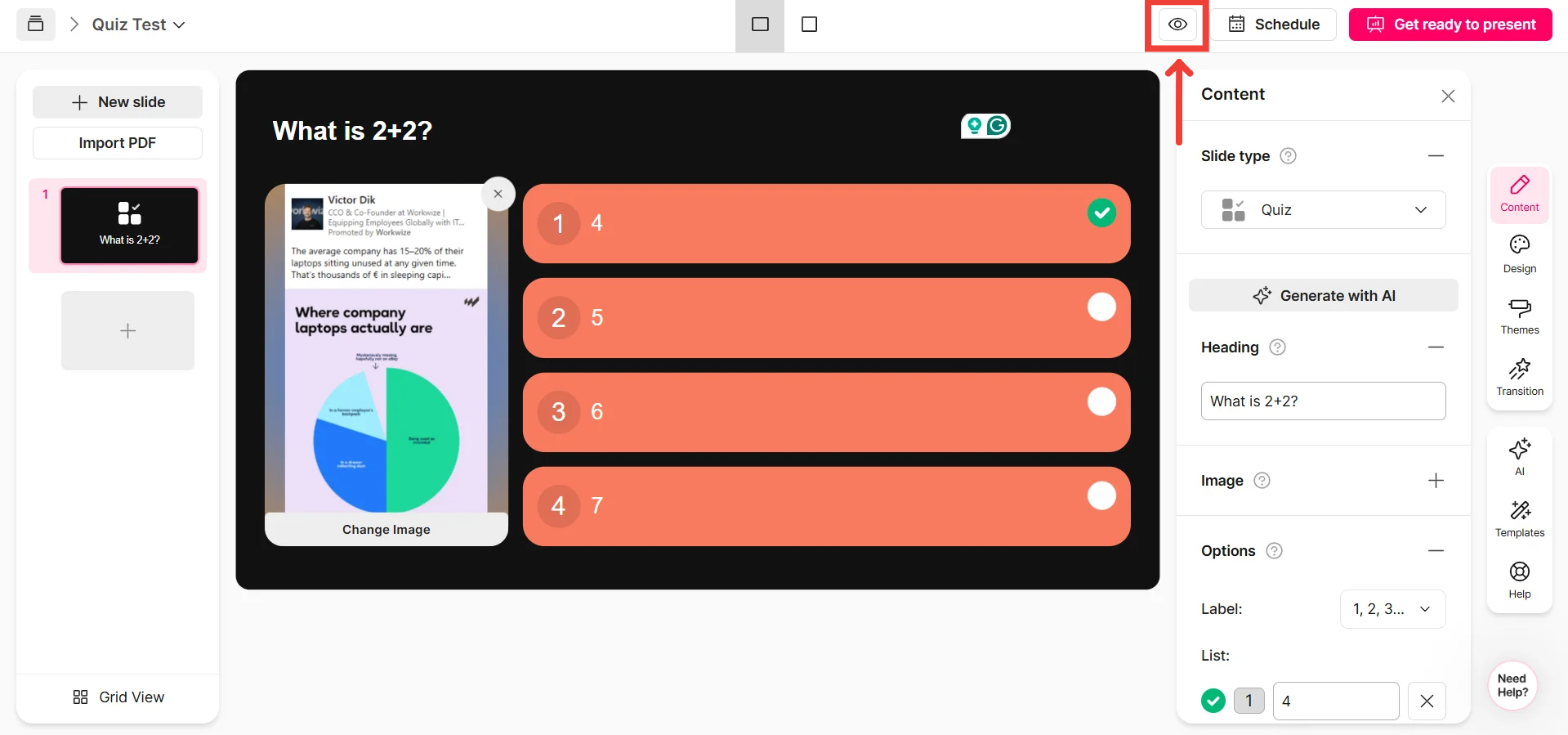
Click on Preview to see what it will look like during a session
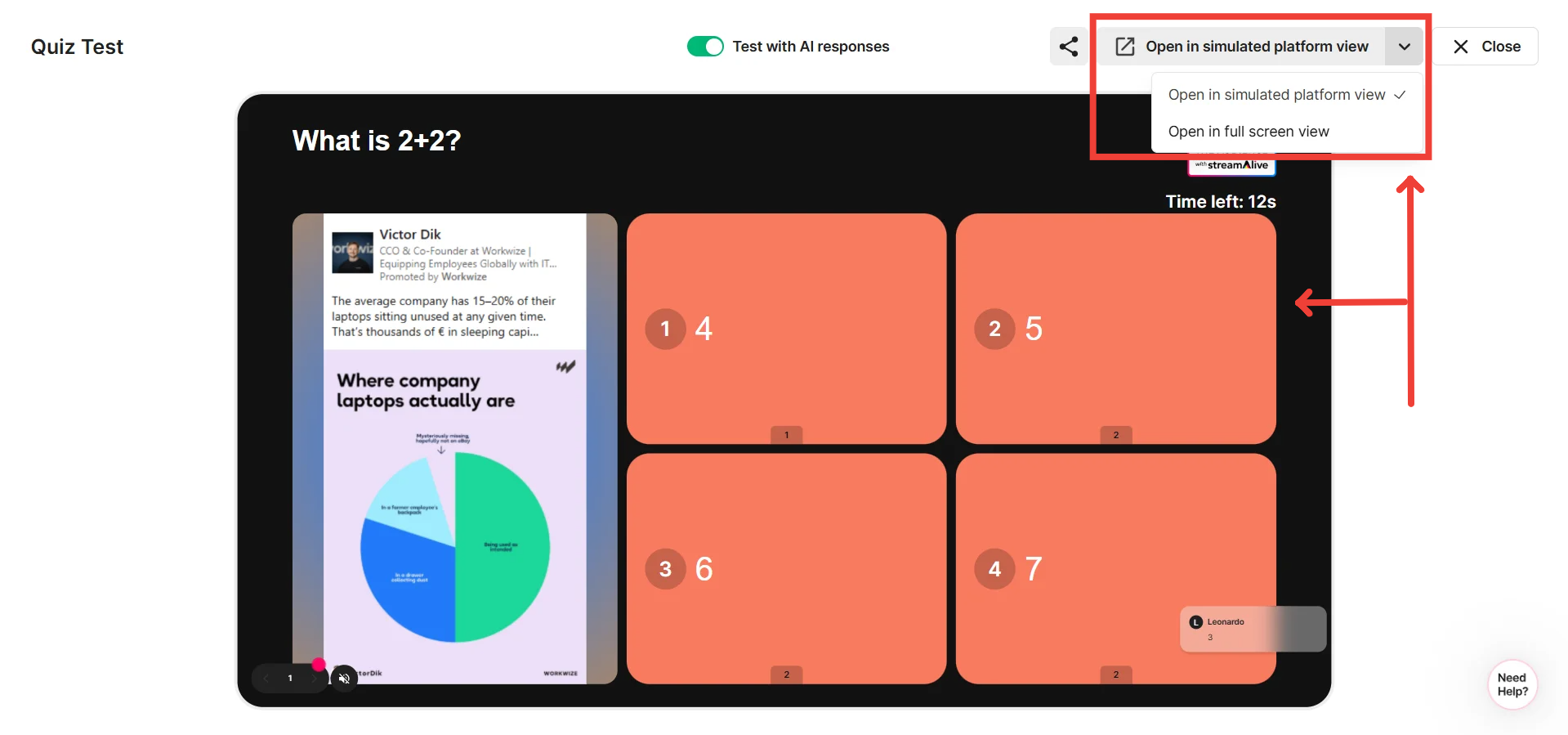
Now that your presentation is complete, you can present it immediately or schedule it for a future session
Follow the instructions on how to connect StreamAlive to your preferred meeting or streaming platform, or even use it for in-person events.
Click here to get an in-depth guide on connecting to your preferred platform
Creating an Ad-hoc Quiz Question Interaction
What’s the Purpose of Creating an Ad-hoc Quiz Interaction?
An ad-hoc interaction in StreamAlive allows you to launch audience engagement features instantly during your live session without planning them in advance. This is perfect for injecting high-energy gamification into your session by challenging your audience to a timed competition on the fly. (If you’re new to ad-hoc interactions, check out this help article for more details.)
Why Use an Ad-hoc Quiz Interaction?
While you can integrate a Quiz into your presentation ahead of time, running it as an ad-hoc interaction gives you the flexibility to test your audience’s knowledge exactly when the moment strikes.
For example, if you've just finished explaining a complex topic and want to see who was paying the closest attention, you can trigger a Quiz on the spot. Unlike a standard poll, the Ad-hoc Quiz introduces a countdown timer and an image slot to make the challenge more visual and urgent. Because the interaction tracks correct answers and speed, it automatically updates a session-wide leaderboard, allowing you to foster a spirit of friendly competition that adapts to the flow of your live session.
By using an ad-hoc Quiz interaction, you transform passive viewers into active competitors, creating a dynamic, interactive environment that provides instant feedback and rewards your top participants.
Connect StreamAlive to your session
To learn how to connect to your required platform, click here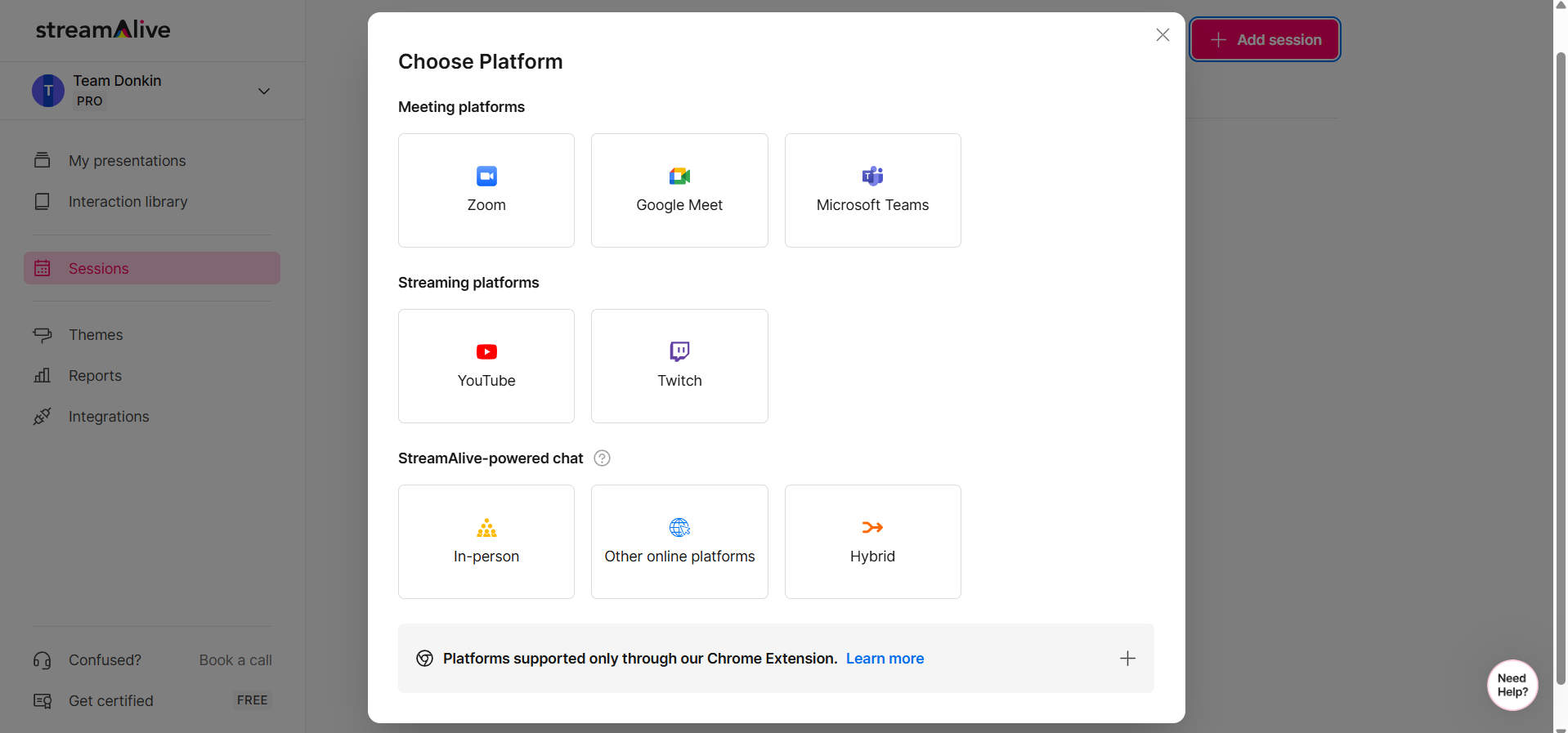
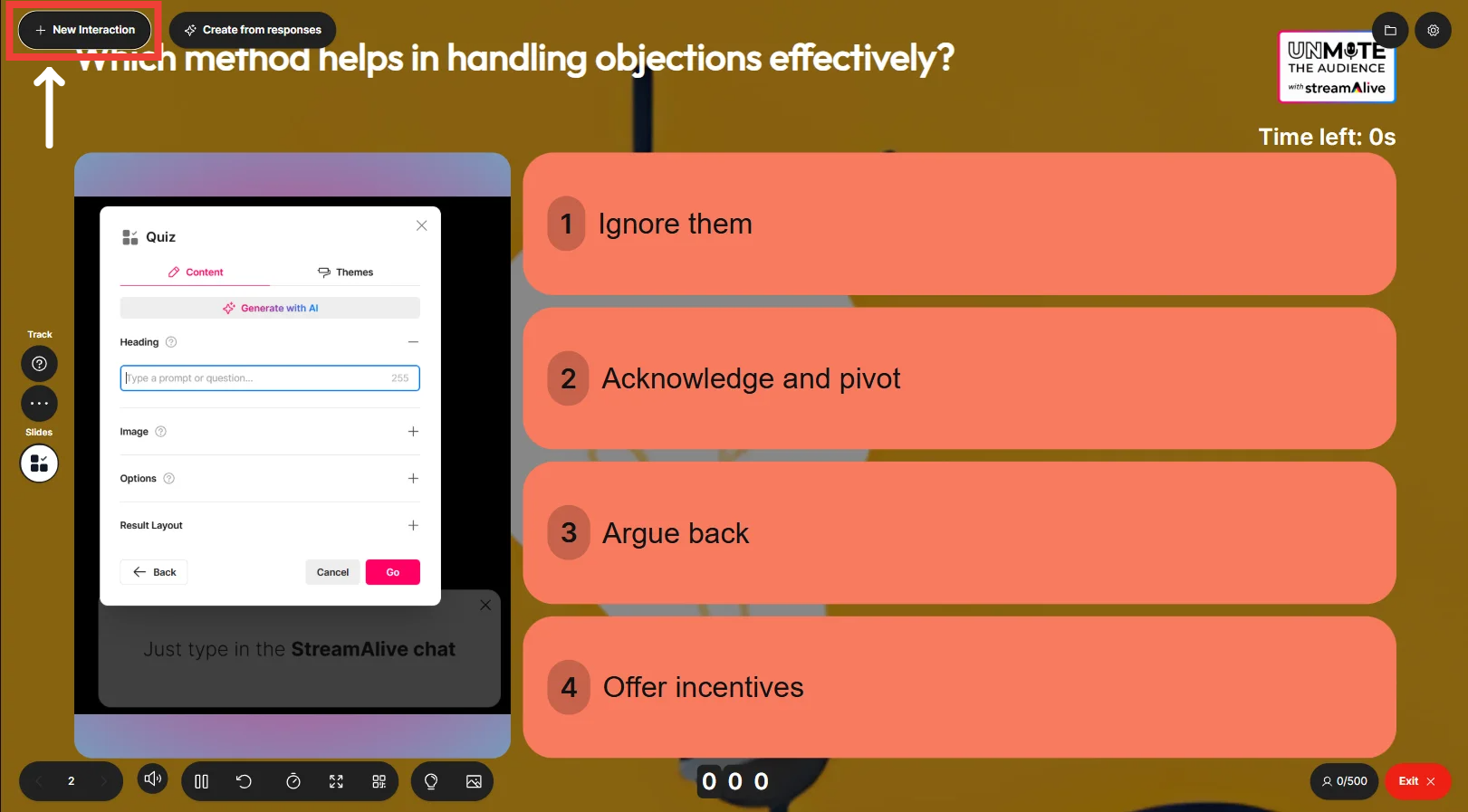
Once you’re connected and on the Presentation Live screen, click on the "+ New Interaction" button in the Top-Left corner.
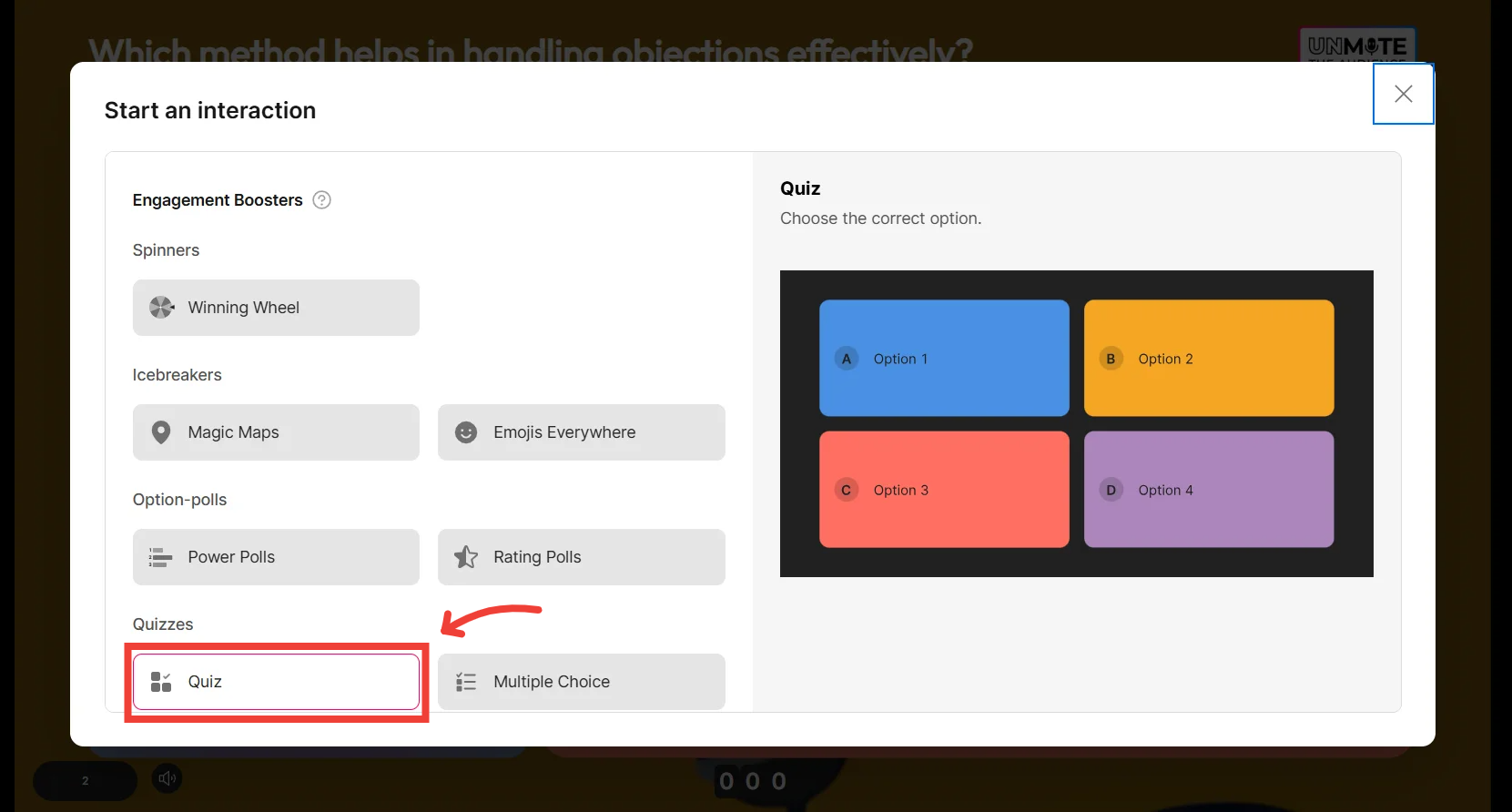
Click on the Quiz Interaction
Customize your interaction
Here, you can edit the heading, add the options and configure the poll settings.
Remember: Everyone can see your screen at this point so don’t spend too long on it. Alternatively, you can plan your interaction’s question and settings in advance using the presentation builder method discussed in the section above.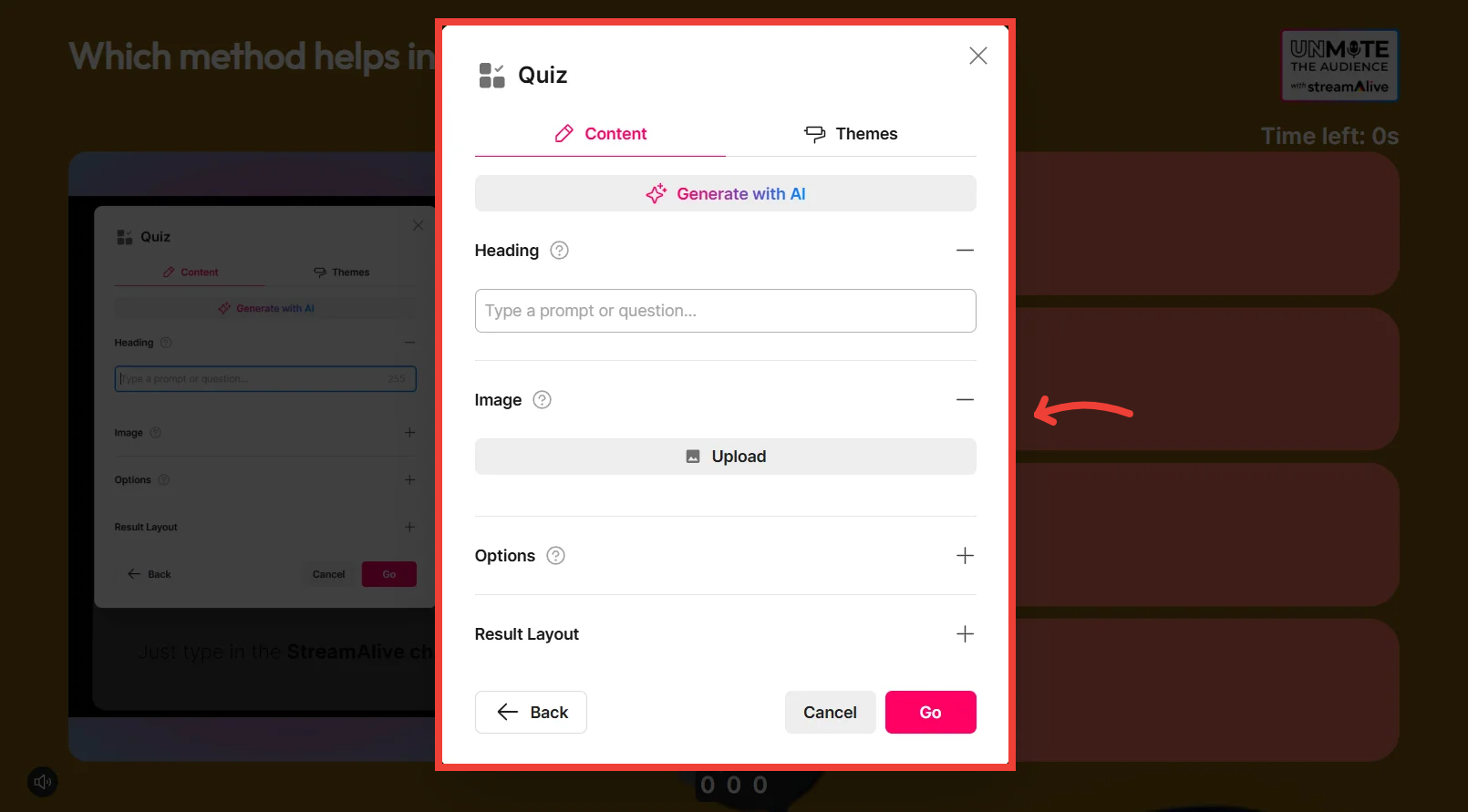
Choose a theme [Optional]
This step is optional, but if you choose to continue without choosing, the interaction will use your default theme.
Remember: Spending time customizing your design in the middle of your live session is likely to be an attention killer, so consider using the presentation builder to create your interactions in advance if you plan on customizing them.
Once ready, scroll down and click on Go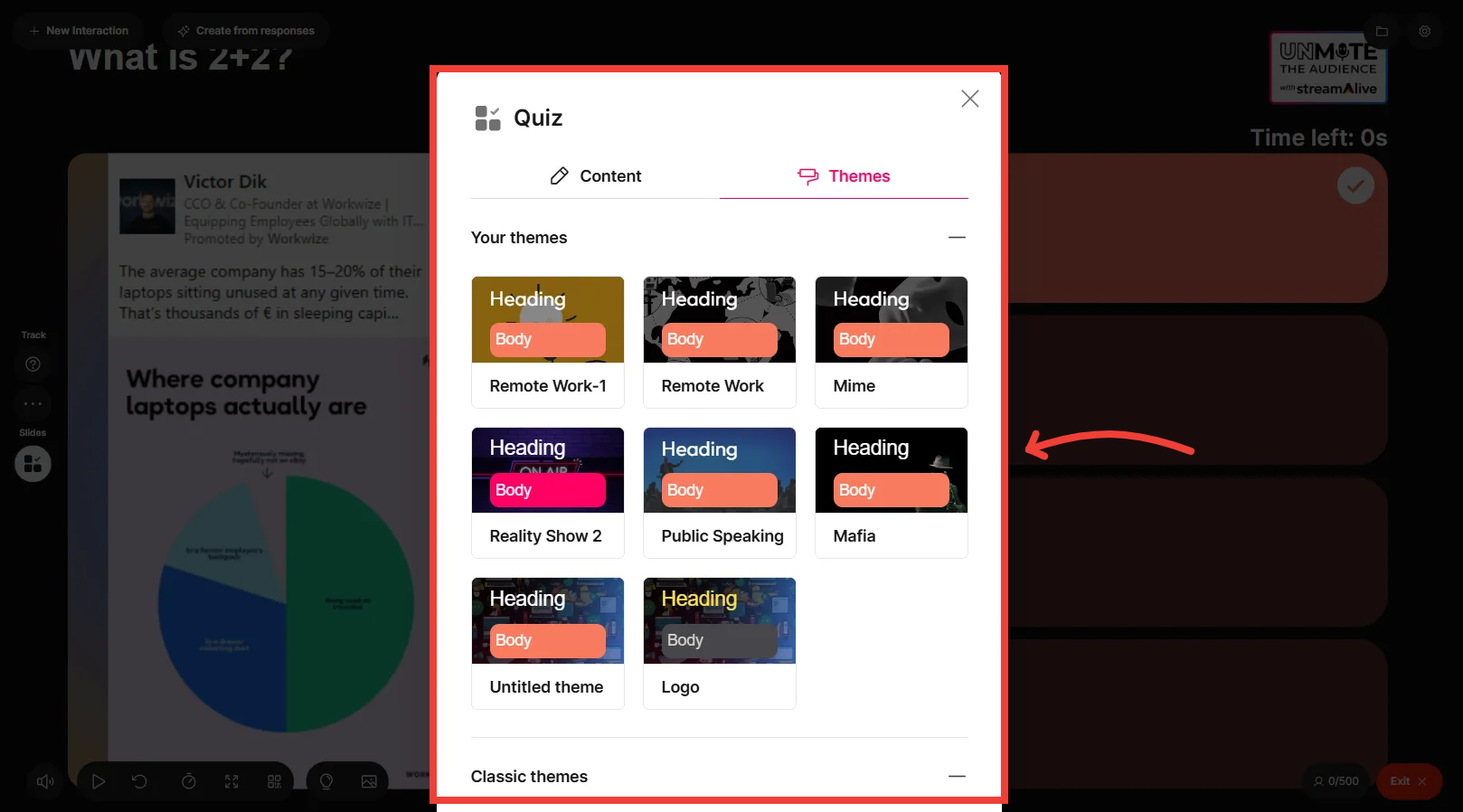
Share the StreamAlive window with your audience
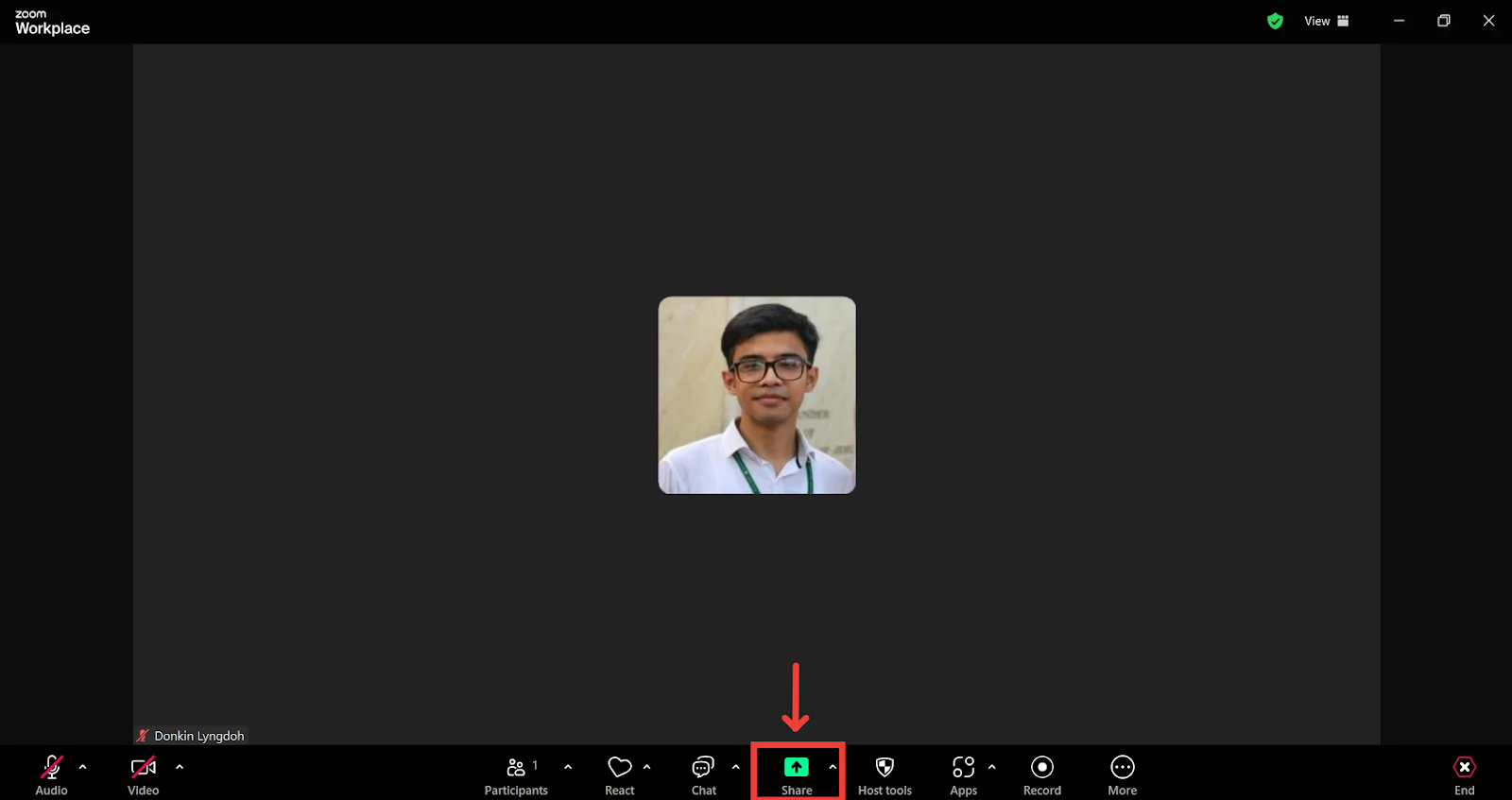
Ask your audience to start typing in answers in the chat
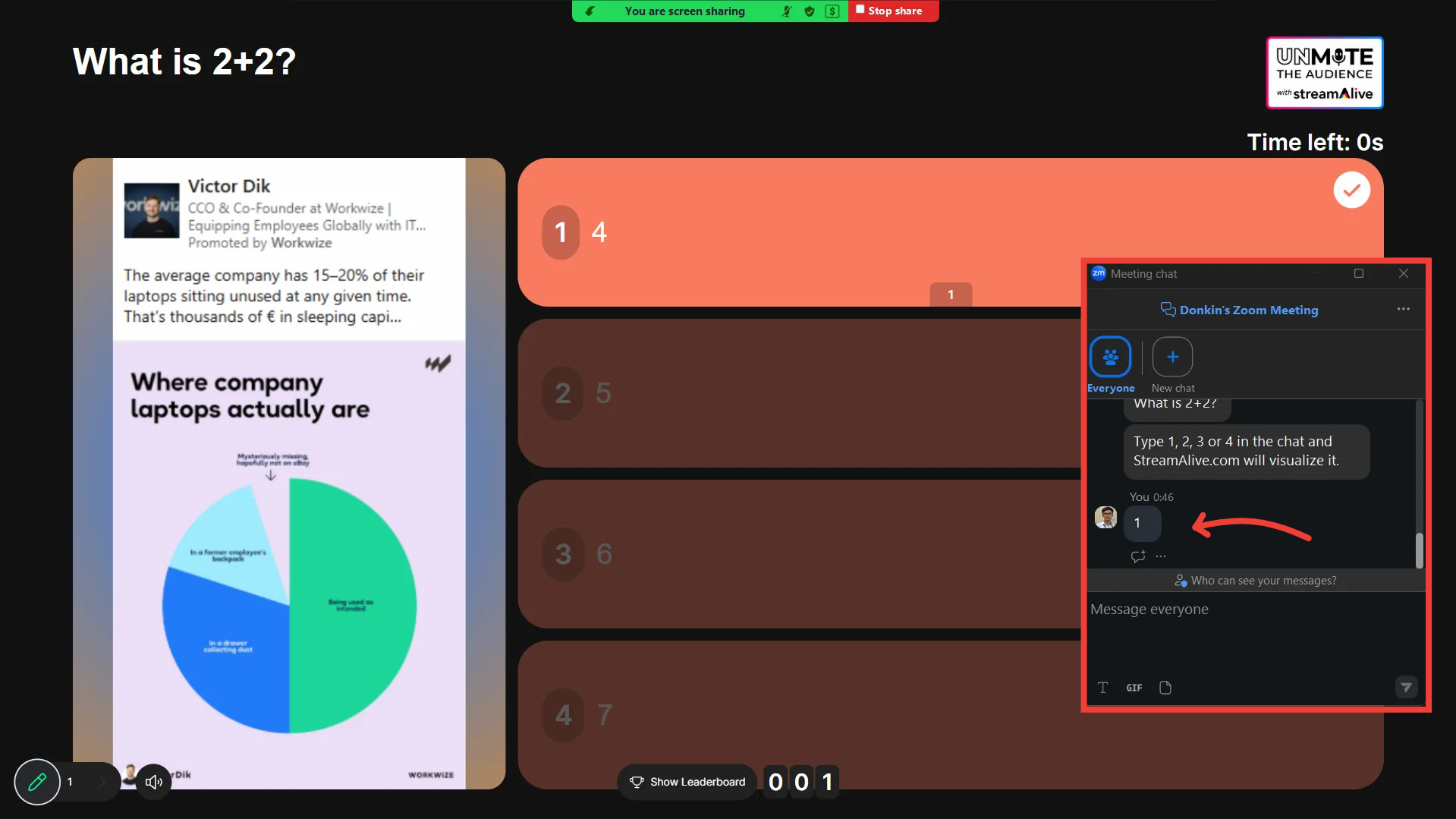
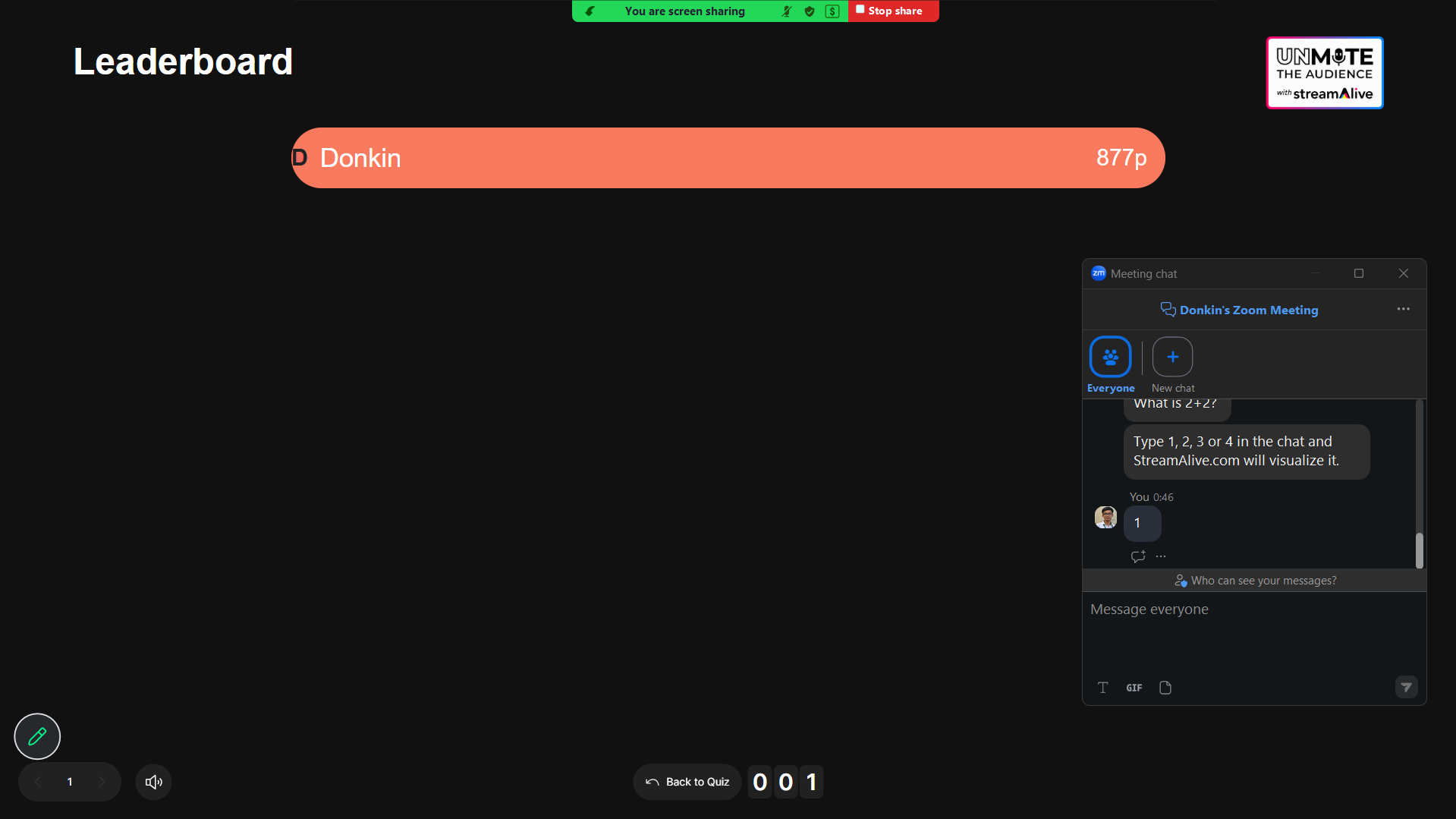
Click on “Show Leaderboard” to see who got it right
Using Quick Interaction Links for Quiz
What’s the Purpose of Using Quick Interaction Links for Quiz?
Quick Interaction Links in StreamAlive allow you to instantly launch audience engagement features without needing to pre-set them in a presentation. With a Quiz, this means you can activate a timed, competitive challenge with a single click, enabling participants to race against the clock by typing their chosen option in the chat and seeing the leaderboard update in real time. (If you’re new to quick interaction links, check out this help article for more details.)
Why Use Quick Interaction Links for Quiz?
While you can plan interactions in advance, Quick Interaction Links offer the flexibility to trigger a Quiz on the fly—perfect for moments when you want to gamify your session or run a spontaneous knowledge check without disrupting your flow.
For example, if you are conducting an internal training session and realize a specific concept needs a quick pulse-check, you can instantly launch a Quiz. By uploading a screenshot of a workflow or a technical diagram as the Quiz image, you can challenge the team to identify the next step under the pressure of a 30-second timer. As the bot captures the correct answers from the chat, the leaderboard immediately highlights the "Subject Matter Experts" in the room, turning a routine training moment into a high-energy competition.
By using Quick Interaction Links for Quiz, you ensure that audience contributions are captured and showcased in a high-stakes, engaging format that keeps your session interactive and
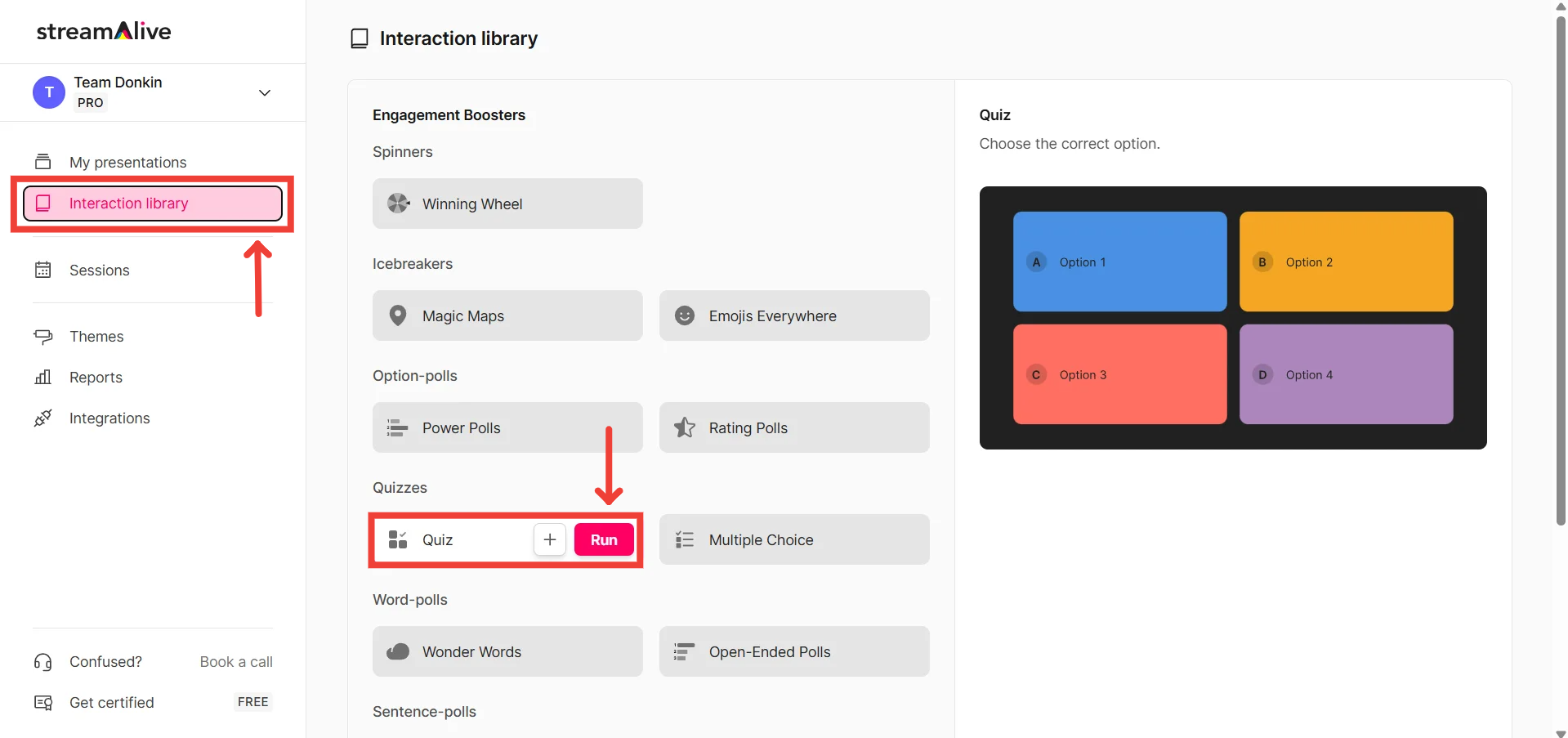
Go to the Interaction Library and click on “Run” next to Quiz
Customize your interaction
Here, you can edit the heading, add the options and configure the poll settings.
Remember: Everyone can see your screen at this point so don’t spend too long on it. Alternatively, you can plan your interaction’s question and settings in advance using the presentation builder method discussed in the section above.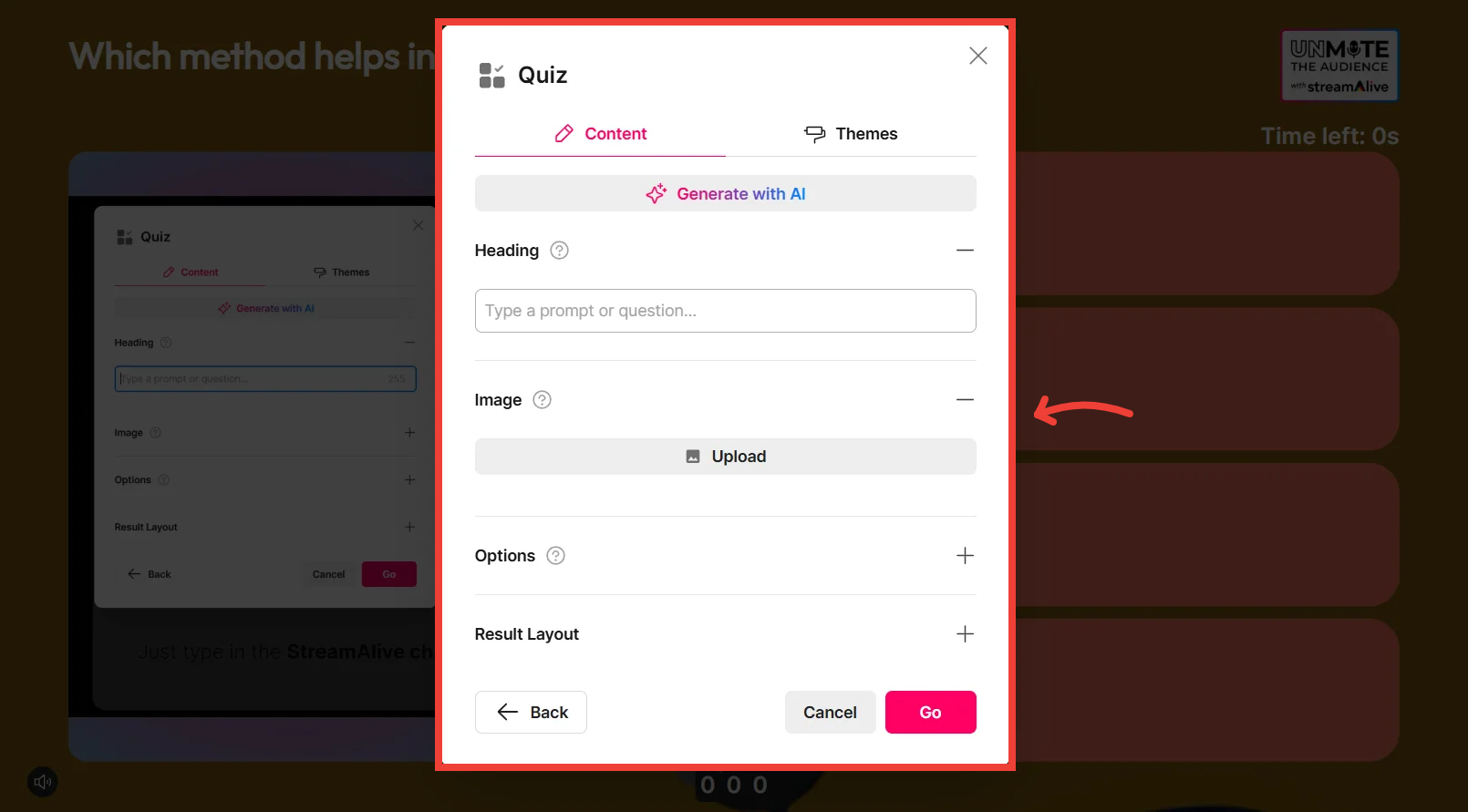
Choose a theme [Optional]
This step is optional, but if you choose to continue without choosing, the interaction will use your default theme.
Remember: Spending time customizing your design in the middle of your live session is likely to be an attention killer, so consider using the presentation builder to create your interactions in advance if you plan on customizing them.
Once ready, scroll down and click on Go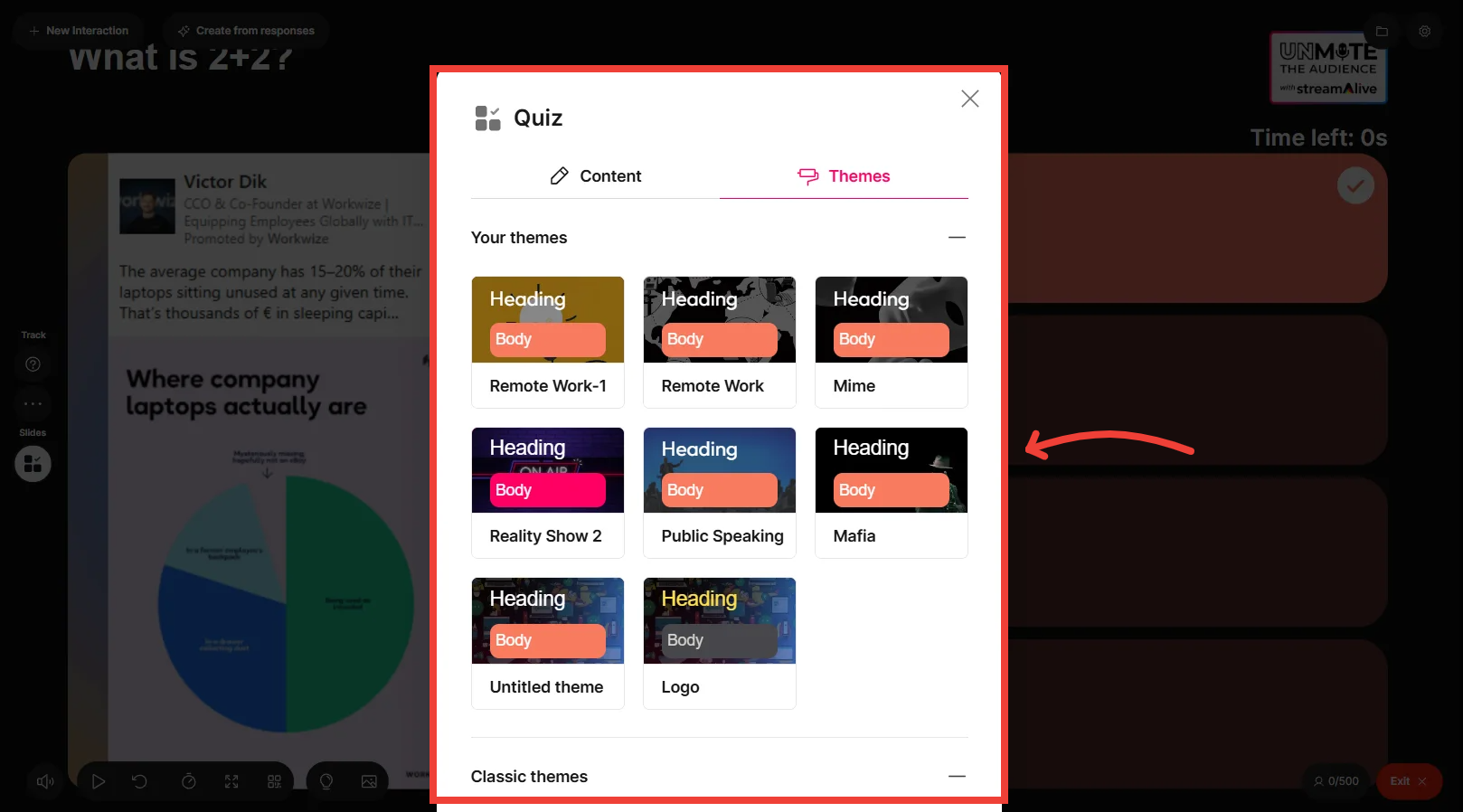
Connect StreamAlive to your session
To learn how to connect to your required platform, click here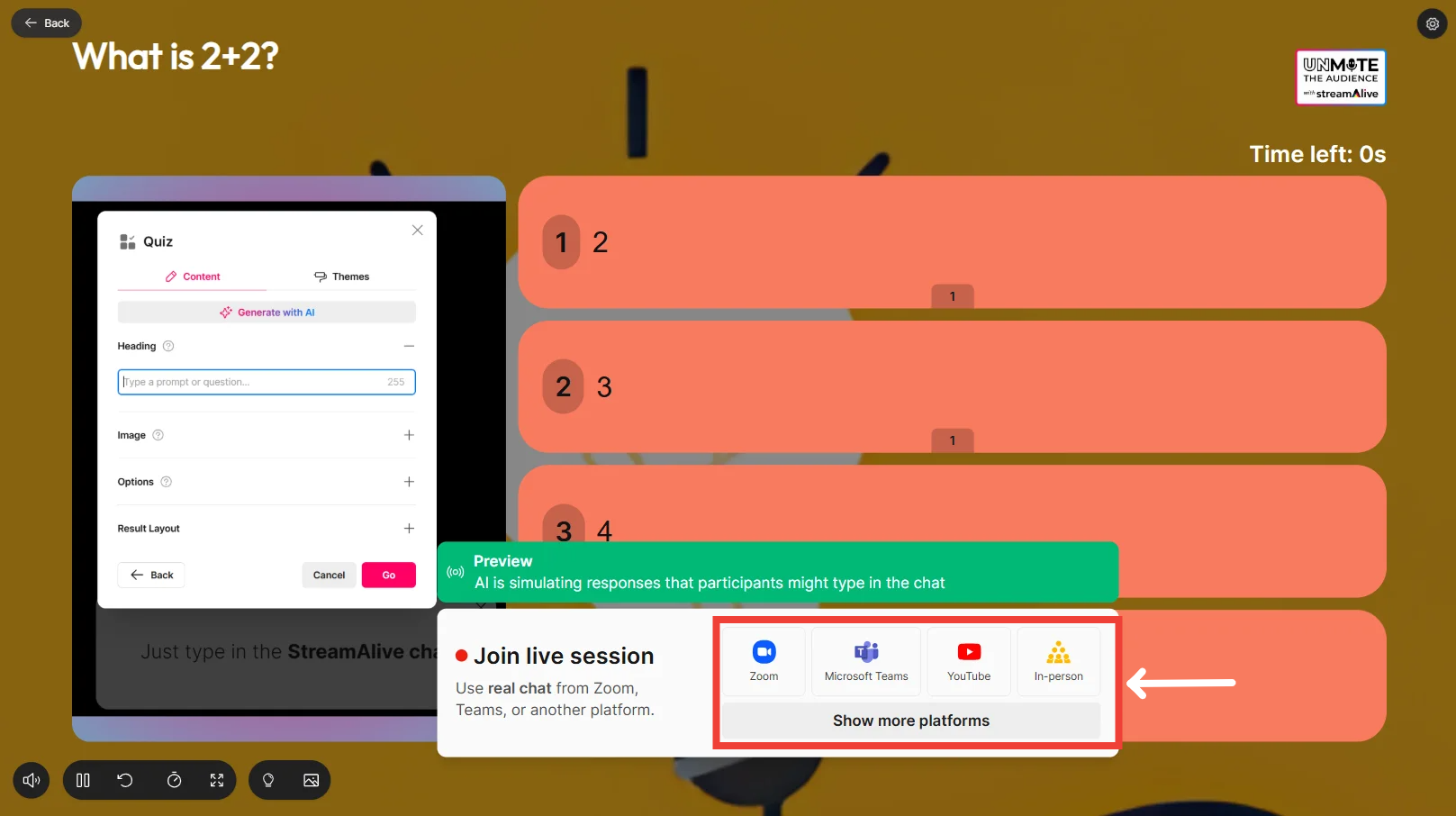
Enter your session details and click on Present when ready
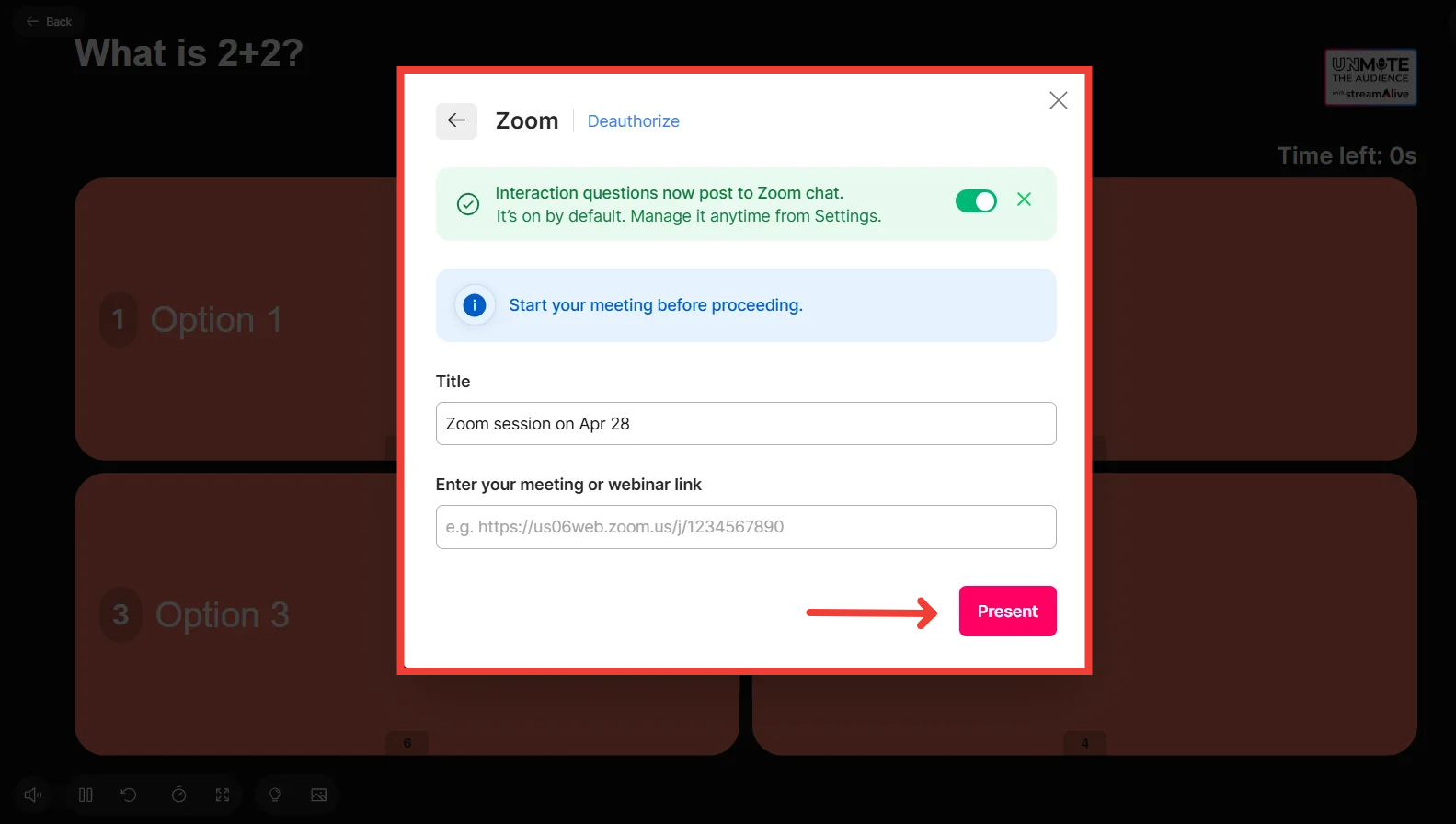
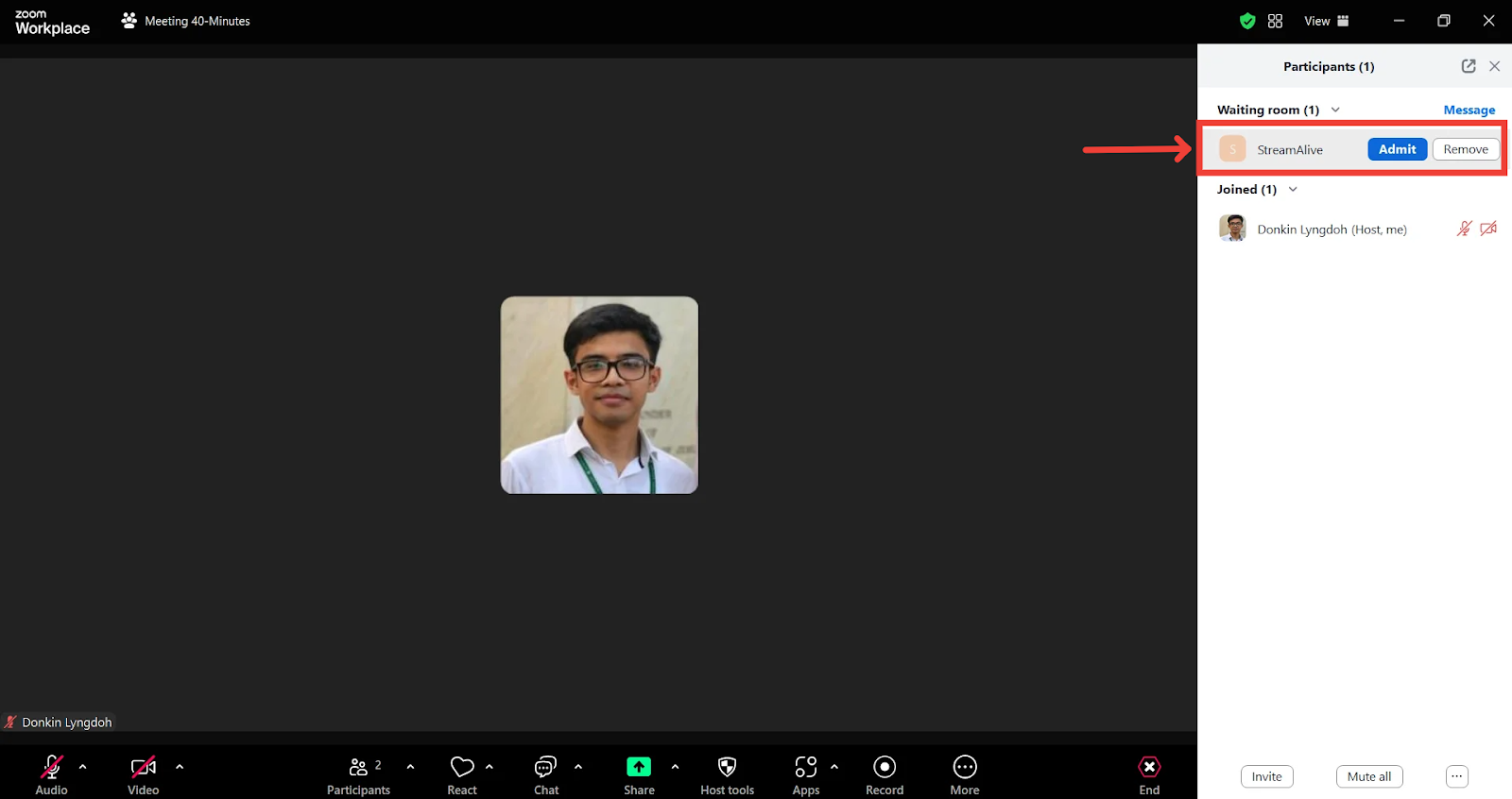
A pop-up asking you to admit the bot will appear (In cases like Zoom with the waiting room disabled, or YouTube/Twitch and similar platforms, it will join automatically)
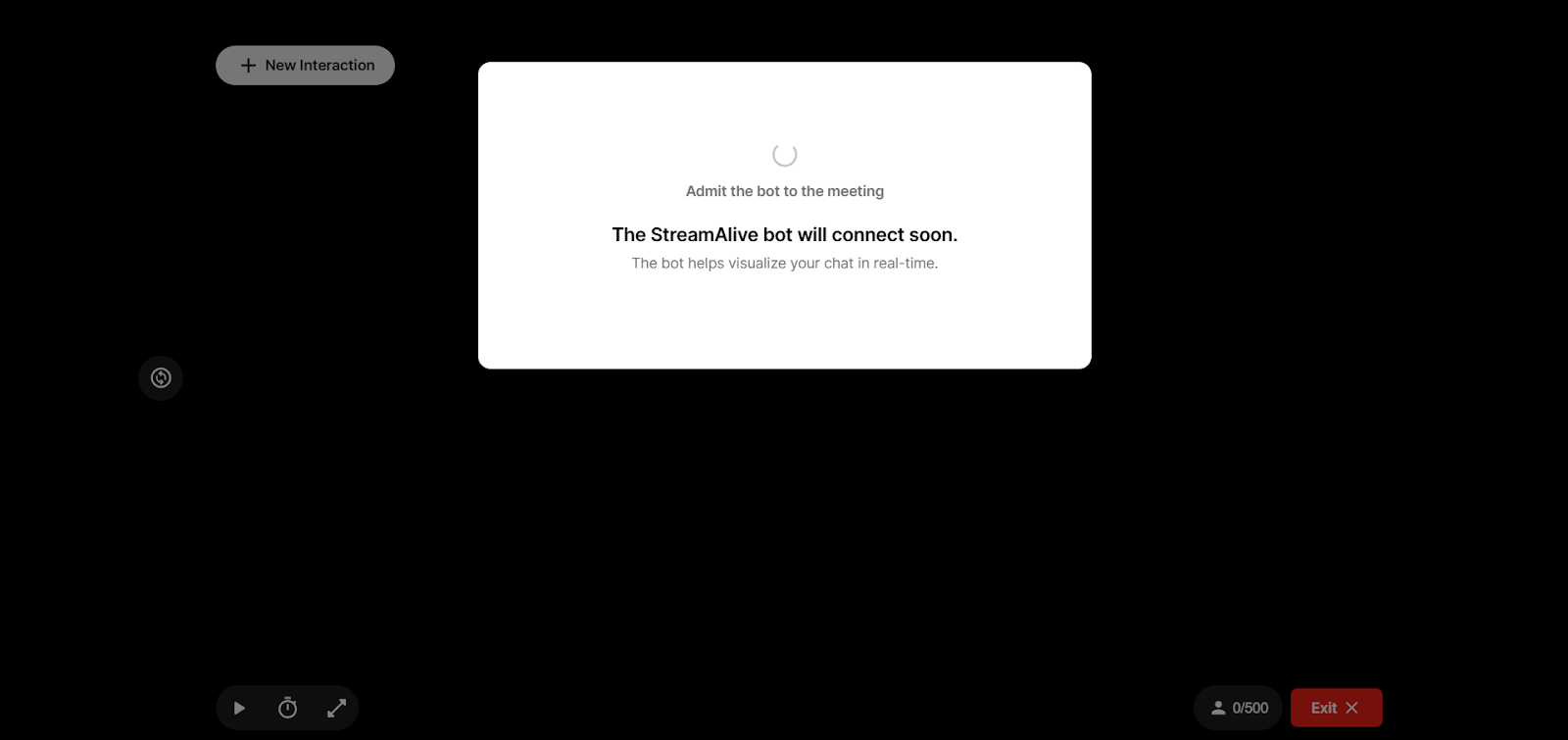
Go to your live session and admit the bot.
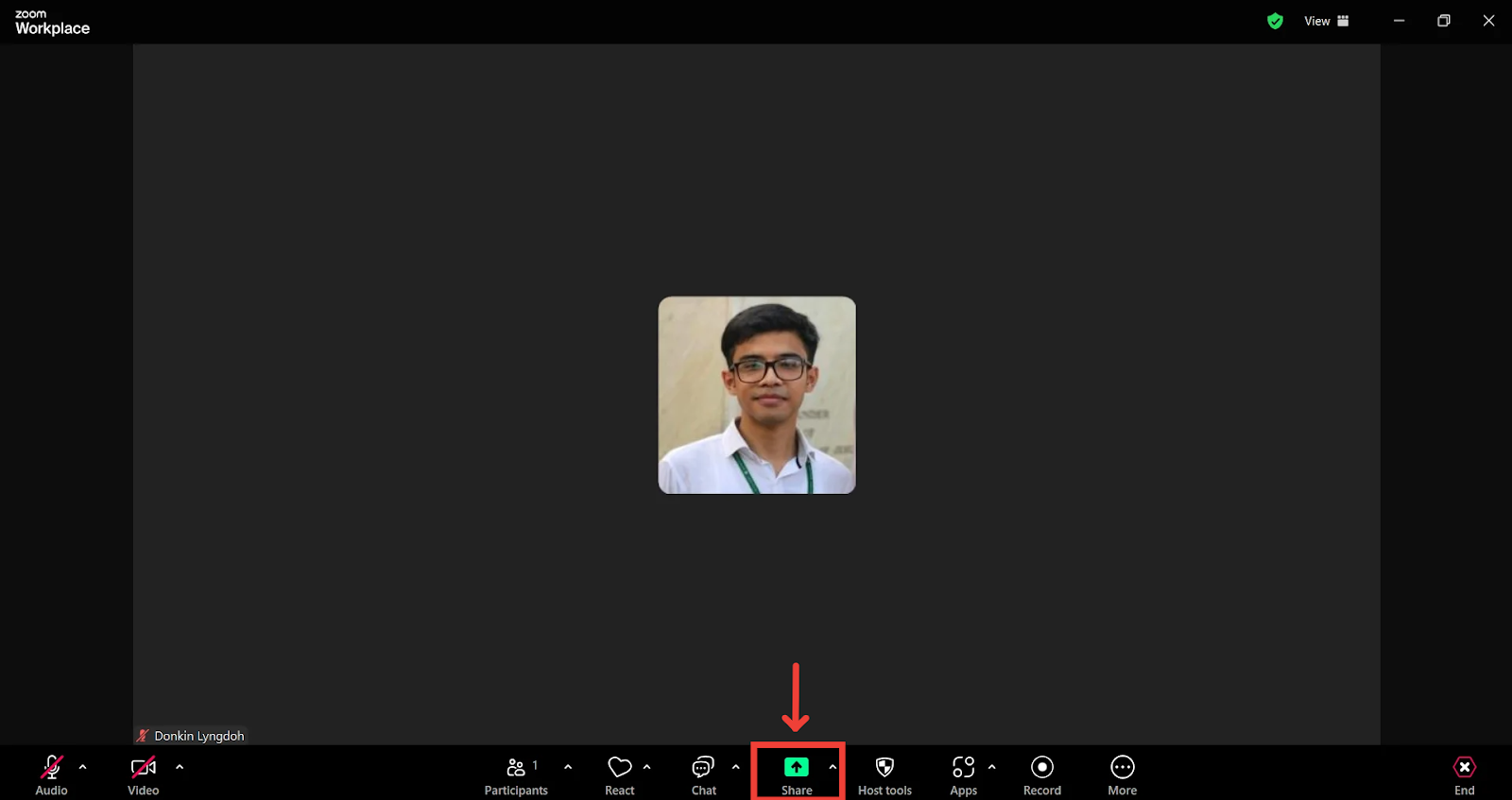
Share the StreamAlive window with your audience
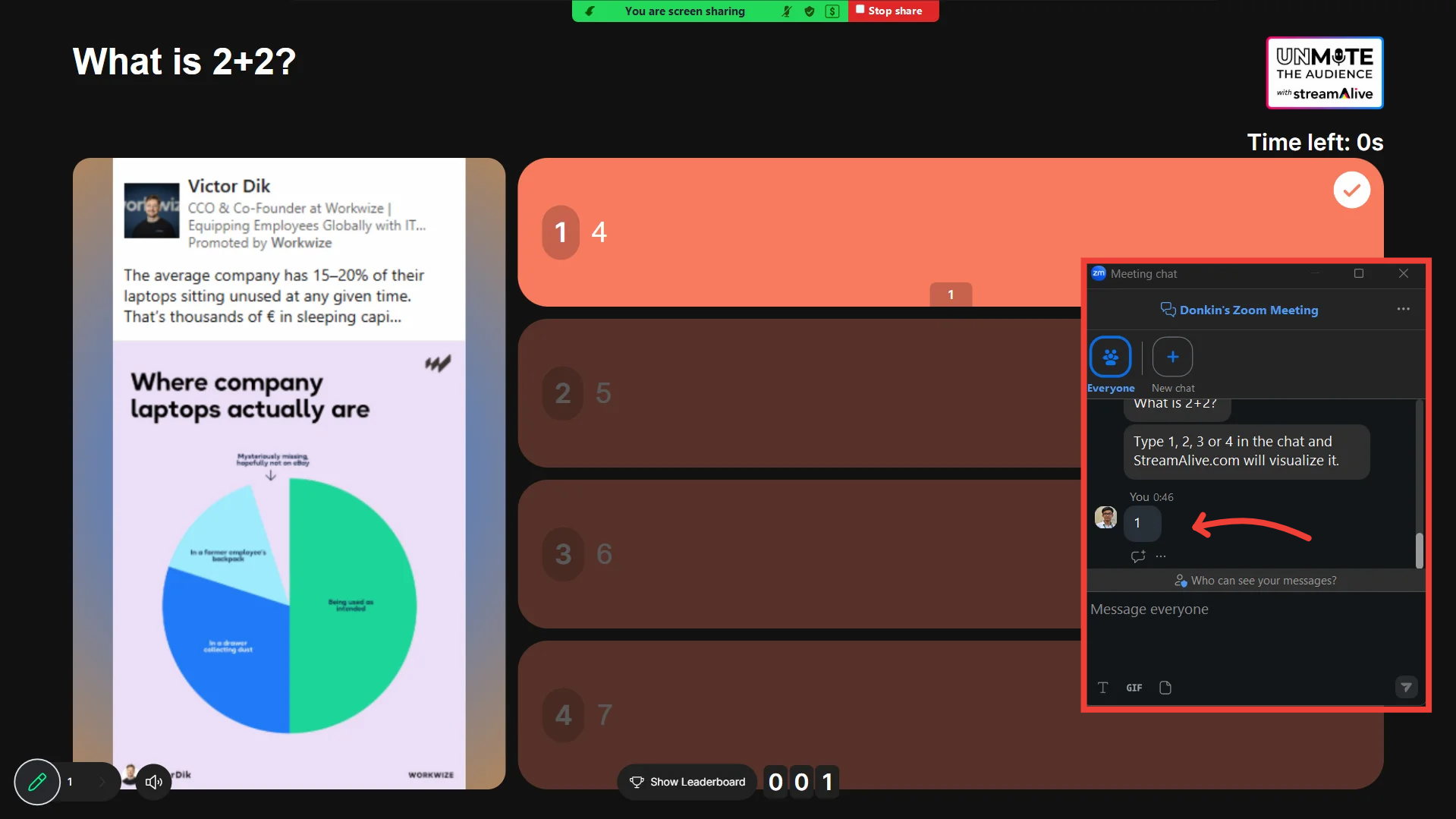
Ask your audience to start typing in answers in the chat
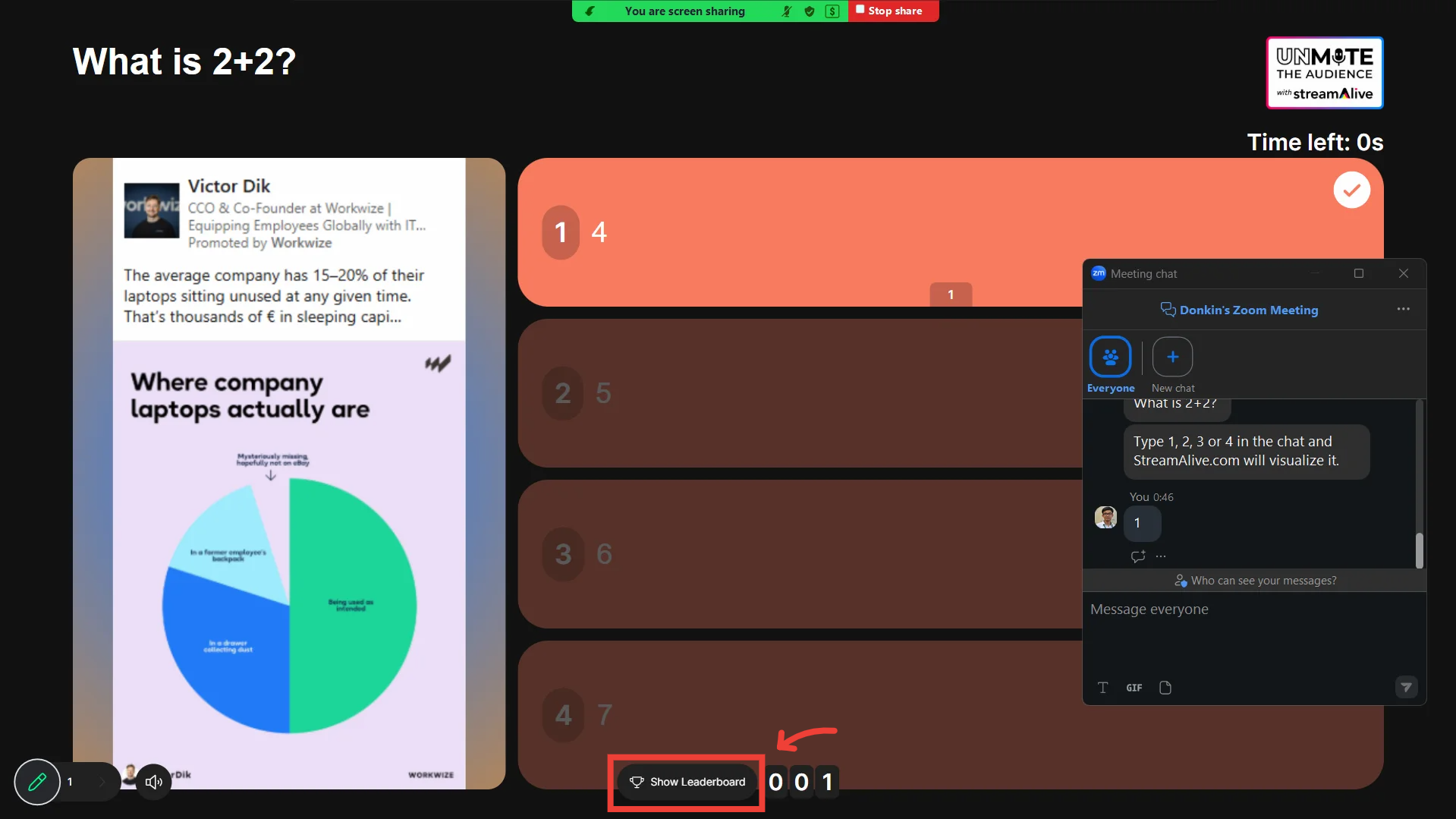
Click on “Show Leaderboard” to see who got it right
Learn how to use the Presentation Live screen to manage your interactions during your live session.
Was this helpful?
Still need help? Ask the team