Creating and Using Emojis Everywhere
Written By Team Streamalive
Last updated 22 days ago
Emojis Everywhere transforms audience emoji responses in the chat into a lively, animated emoji cloud on your screen, injecting fun and energy into your session. As participants send their favorite emojis in the chat, they appear in real time as vibrant, animated icons that capture the mood of your audience.
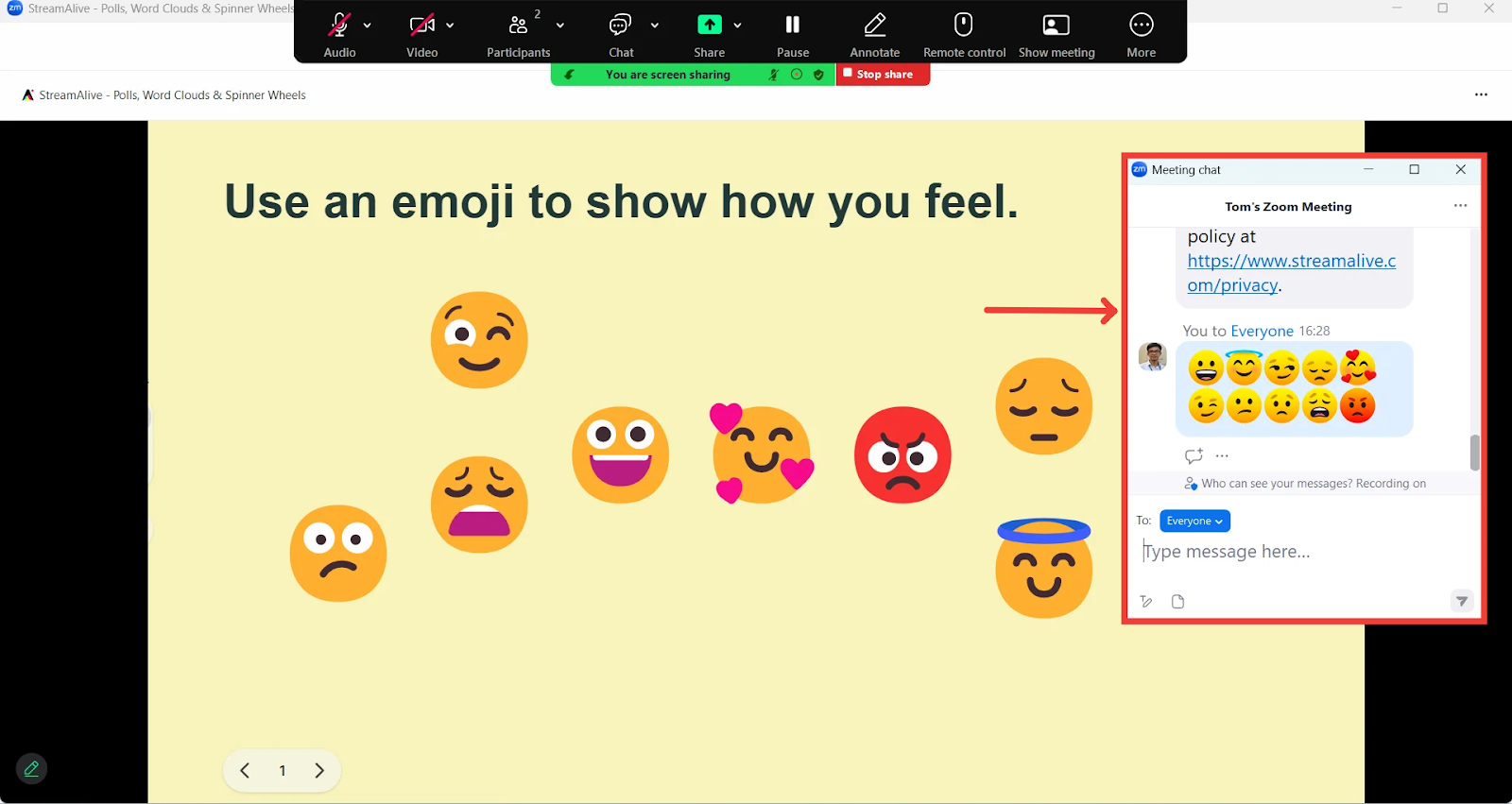
Inspired by the spontaneous nature of digital reactions, this interaction works across platforms like Zoom, YouTube, Teams, and more, ensuring that every emoji is showcased as it’s sent.
This interaction is ideal for highlighting moments of excitement, gauging audience sentiment, or simply adding a playful touch to your presentation. In this guide, we’ll explore how to set up Emojis Everywhere, customization options, how to run it, and frequently asked questions.
Frequently Asked Questions
How Do Emojis Everywhere Collect Responses?
Emojis Everywhere automatically detects emoji characters in chat messages from platforms such as Zoom, YouTube, and Teams, converting them into animated icons that appear on the screen in real time.
How Does It Work in the Presentation Live Screen?
Once activated, Emojis Everywhere displays incoming emoji responses as dynamic, animated icons that pop up on the Presentation Live Screen. The emojis animate as they appear and gradually fade out, ensuring the display remains lively yet uncluttered.
Can You Customize the Emoji Display?
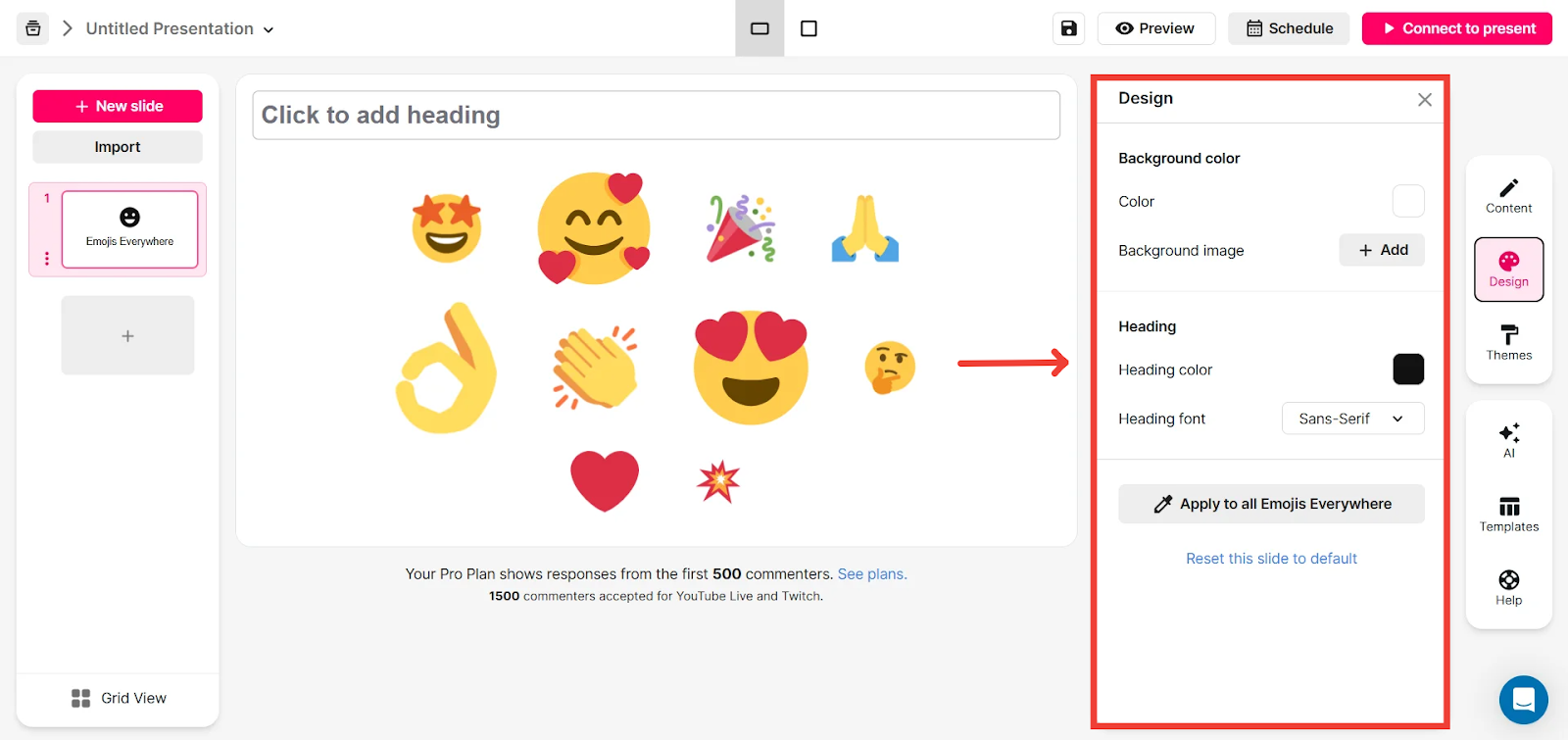
Yes! You can customize the background color of the emoji word cloud, or add a background image, and you can also customize the heading font and color.
What Happens if a Lot of Emoji Responses Come in at Once?
If multiple emoji responses are submitted simultaneously, the system dynamically arranges them on the screen. This ensures that each emoji is visible and that the overall display remains engaging without becoming overwhelming.
Creating an Emojis Everywhere Interaction
To run an Emojis Everywhere interaction during your session, you can choose to:
Add it to your presentation before the session
Create an ad-hoc interaction during the session
Using Quick Interaction Links
Adding Emojis Everywhere to your presentation
Go to My Presentations
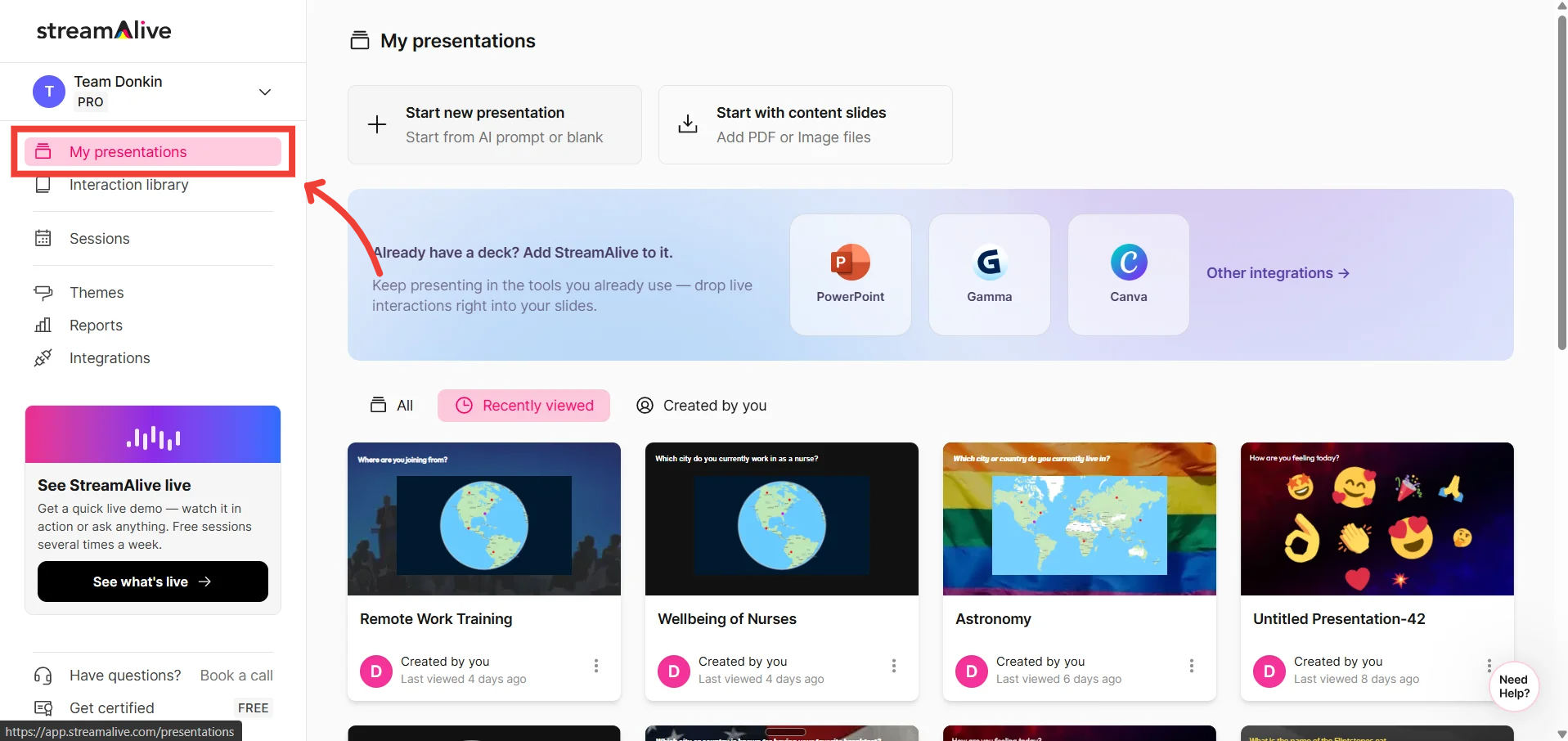
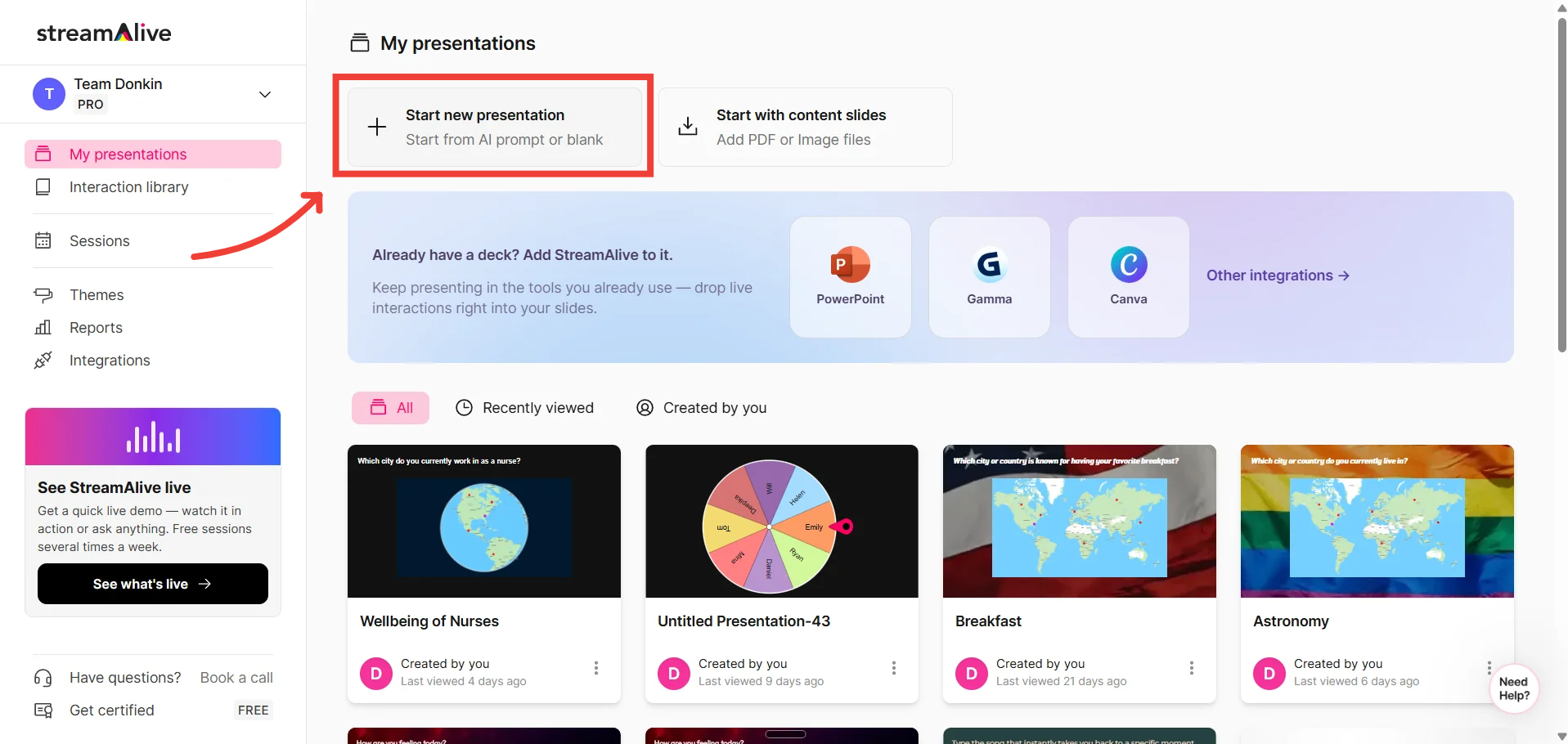
Click on New Presentation
Or click on one of your existing presentations
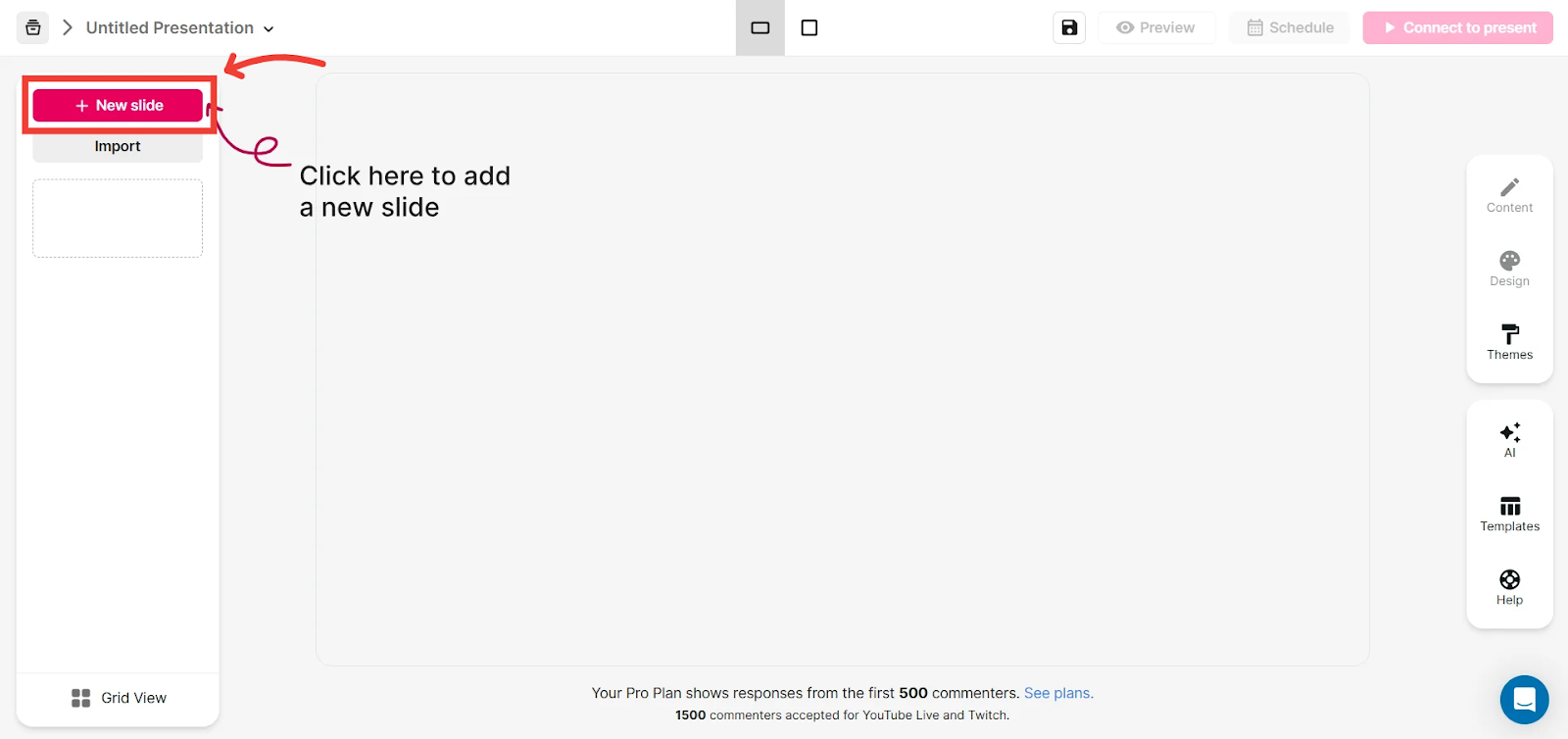
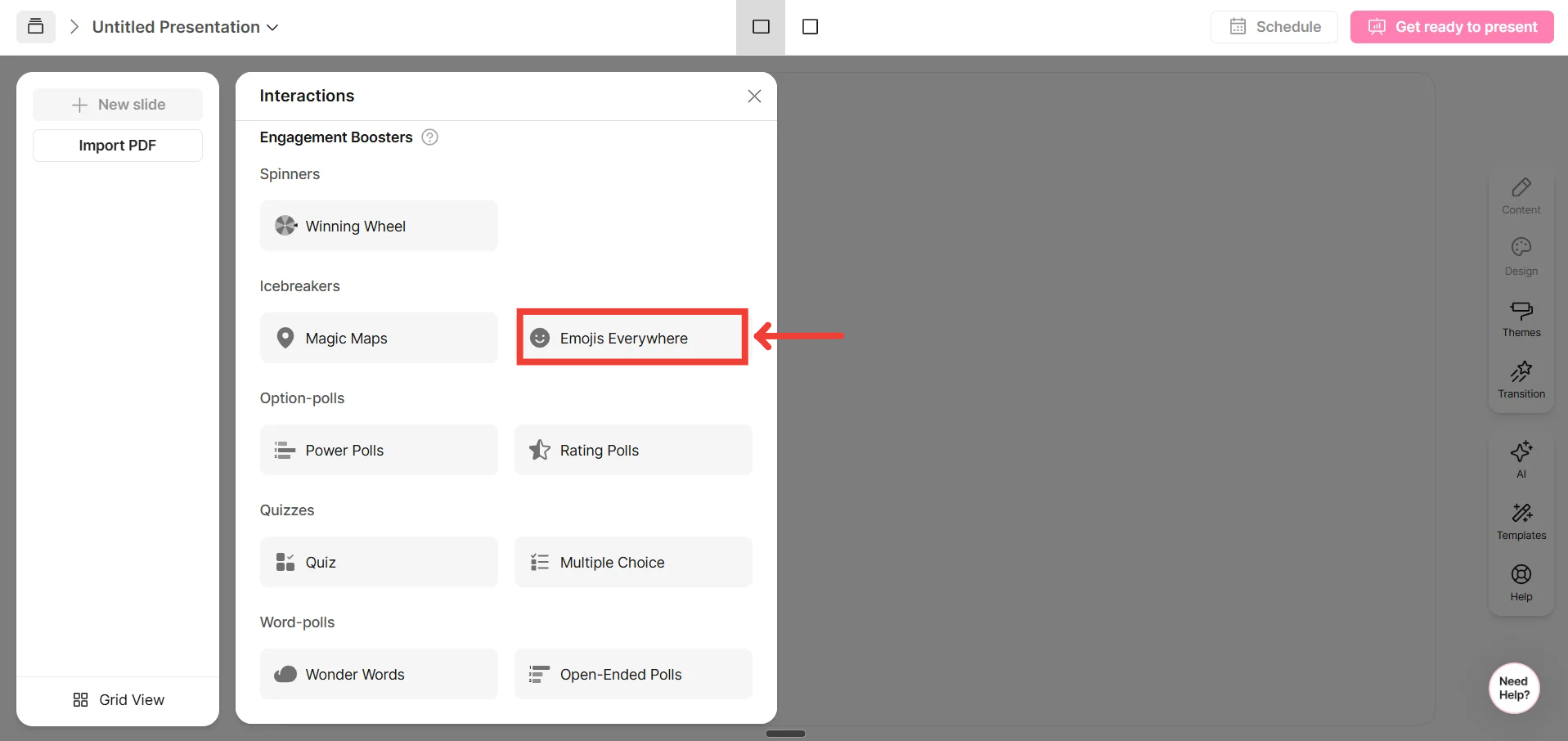
Click on New Slide
Add Emojis Everywhere
To learn more about how to create a presentation, click here
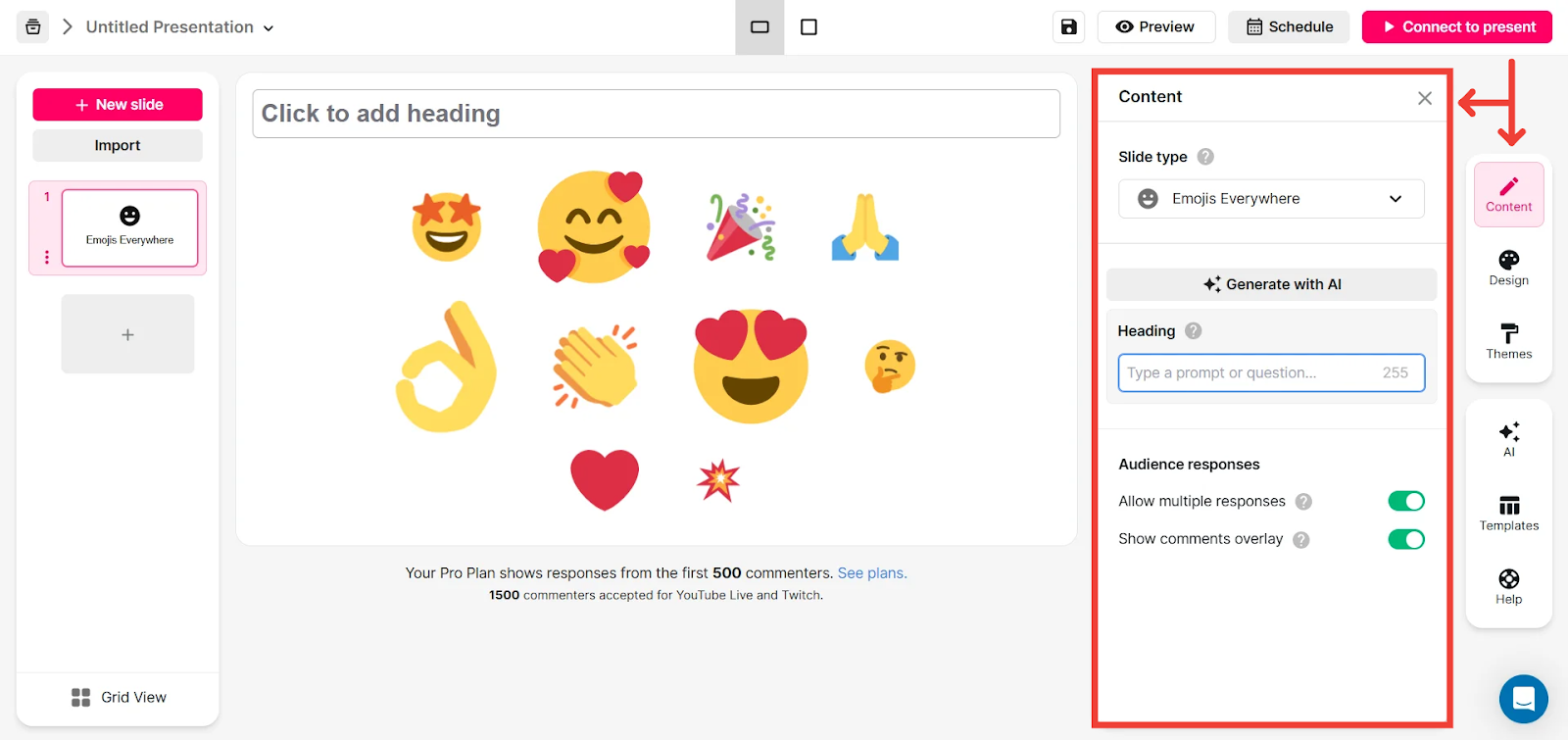
Once the interaction is added, customize the interaction using the tabs on the right-hand side.
Edit the heading and configure its settings in the Content tab.
You can also edit the design of the interactions, like the background color, background image, and heading color/font.
For a more in-depth guide on how to edit your presentation, click here
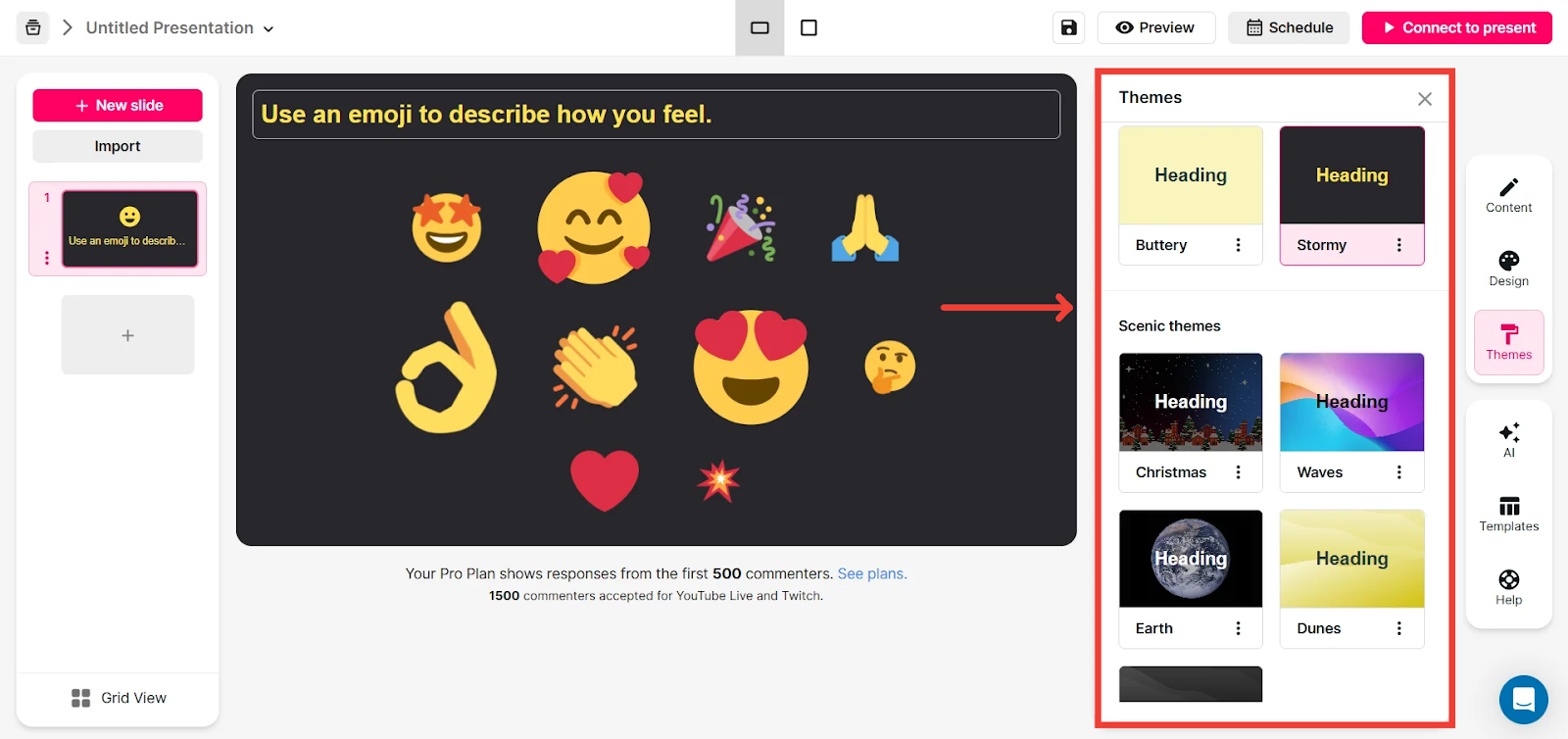
Alternatively, try our pre-designed Themes to completely change the look of your emojis cloud.
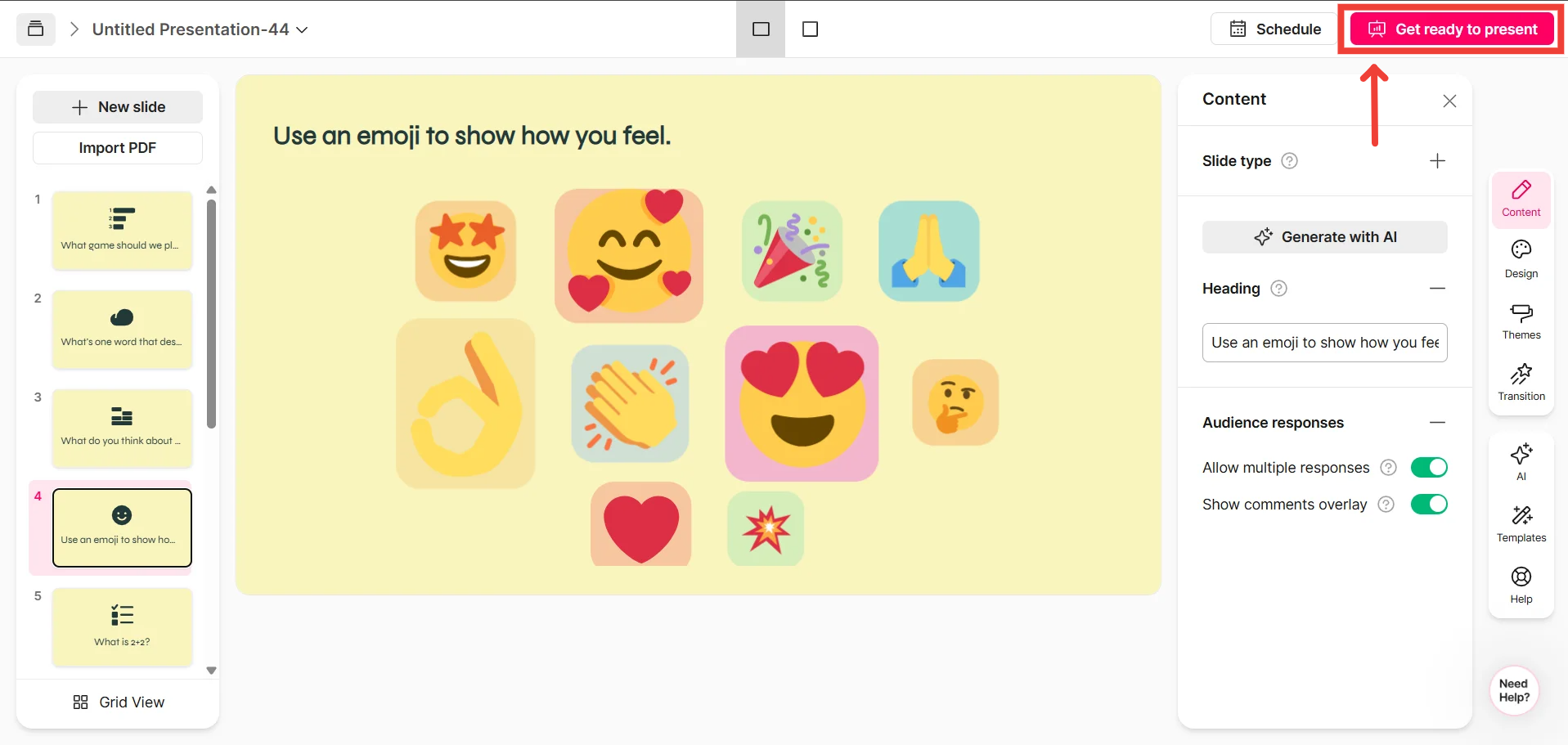
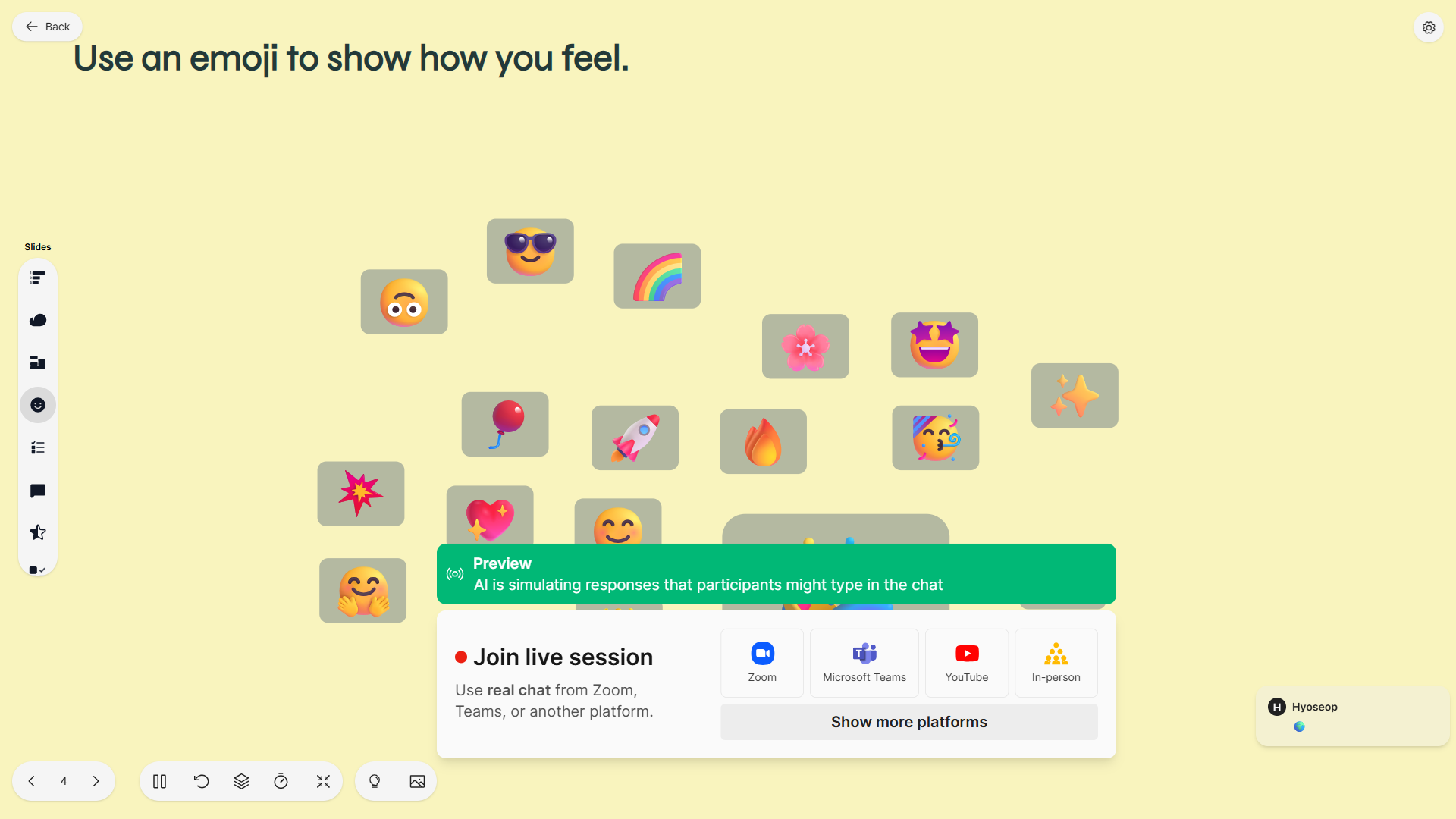
Click on “Get Ready to Present” to have a preview of your presentation or continue to connect to your session
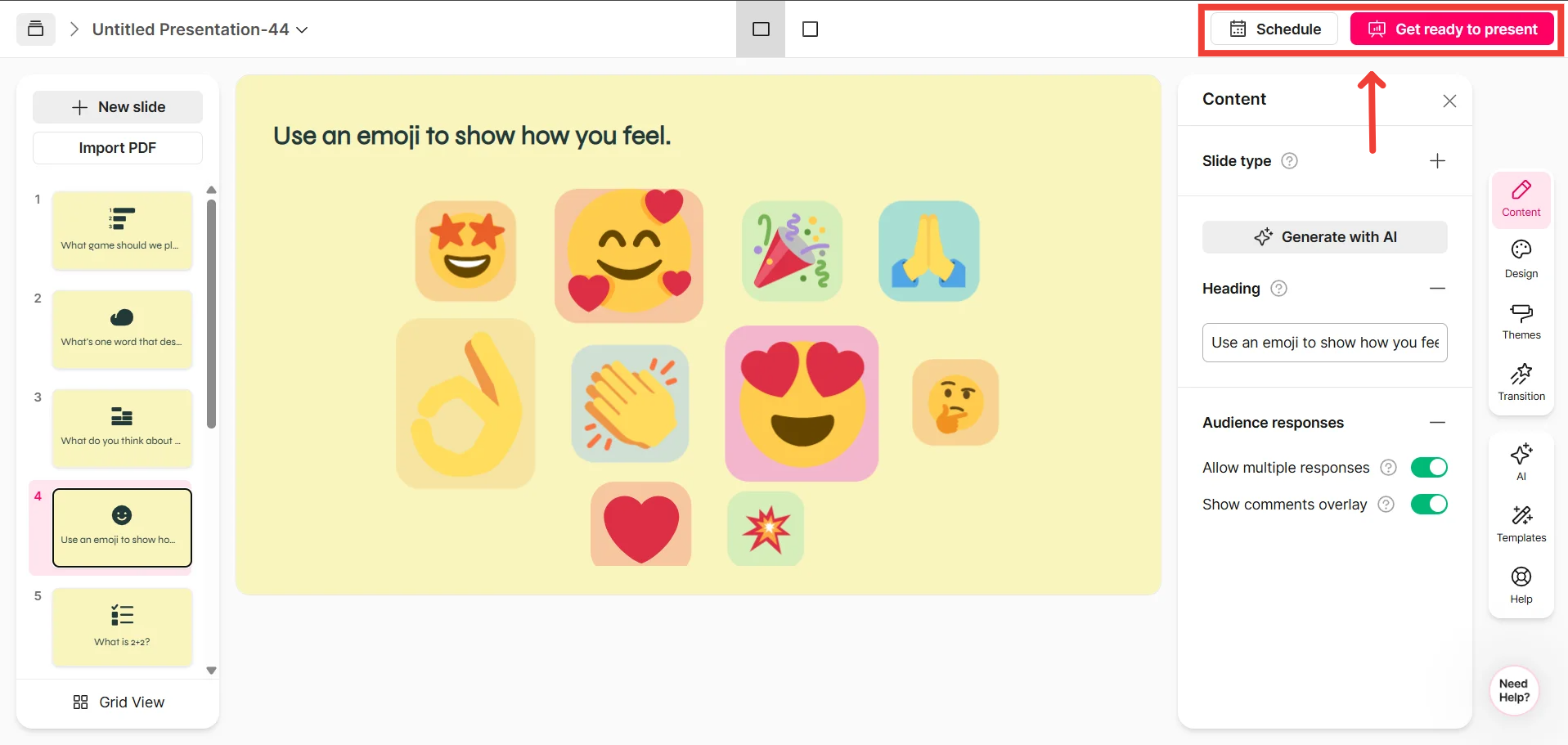
Now that your presentation is complete, you can present it immediately or schedule it with a future session
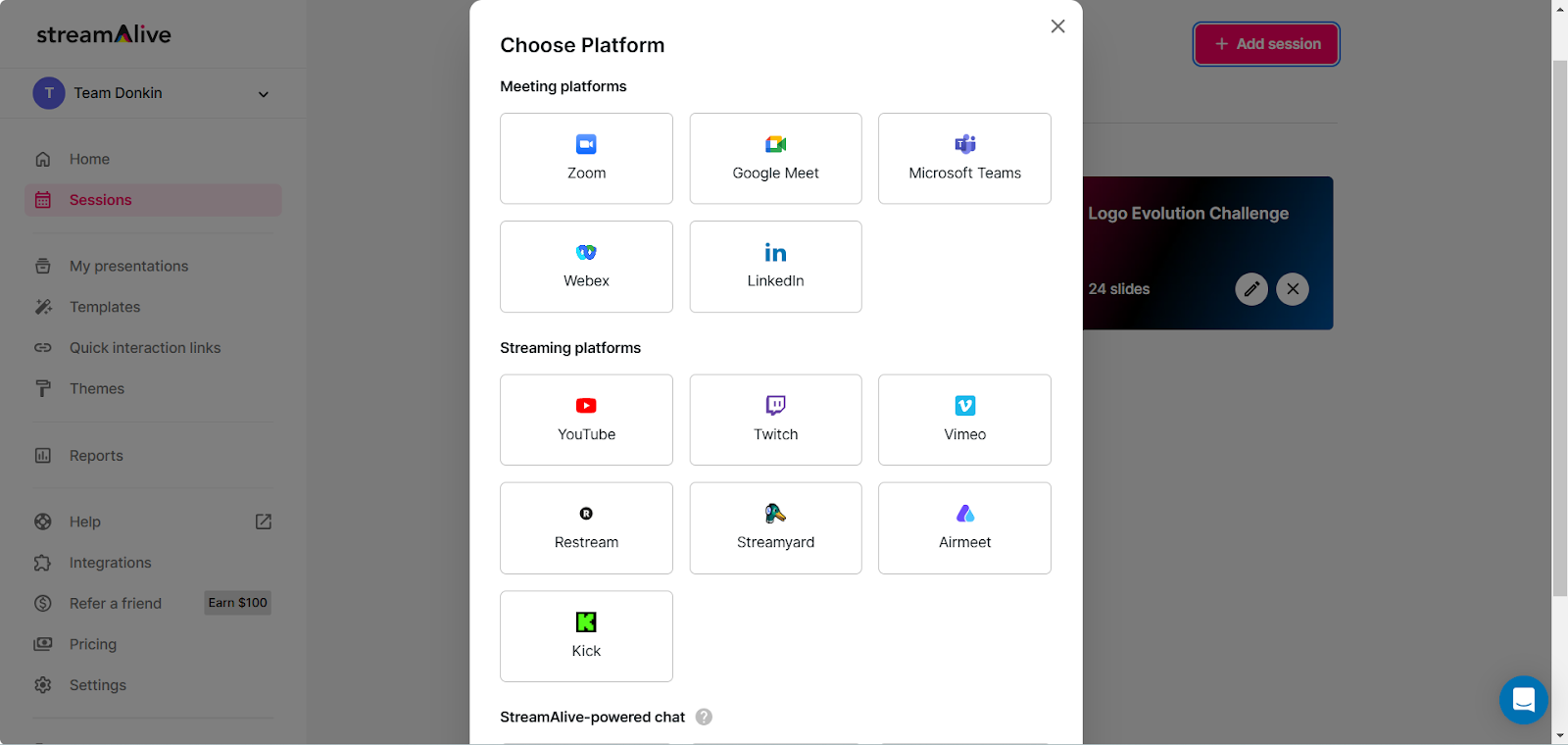
Follow the instructions on how to connect StreamAlive to your preferred meeting or streaming platform, or even use it for in-person events.
Creating an Ad-hoc Emojis Everywhere Interaction
What’s the Purpose of Creating an Ad-hoc Emojis Everywhere Interaction?
An ad-hoc interaction in StreamAlive allows you to launch audience engagement features instantly during your live session, without planning them in advance. This is perfect for capturing spontaneous input and adding an extra layer of fun to your session by displaying emoji reactions in real time. (If you’re new to ad-hoc interactions, check out this help article for more details.)
Why Use an Ad-hoc Emojis Everywhere Interaction?
While you can integrate Emojis Everywhere into your presentation ahead of time, running it as an ad-hoc interaction gives you the flexibility to capture live emoji responses precisely when you need them.
For example, if you’re discussing a lively or emotionally charged topic and want to gauge your audience’s reaction visually, you can trigger Emojis Everywhere on the spot. This ensures that the emoji display reflects the current sentiment and energy of your session, rather than relying on pre-set responses.
By using an ad-hoc Emojis Everywhere interaction, you engage your audience in a fun and spontaneous way, showcasing their real-time reactions as dynamic emoji visuals. This not only adds humor and energy to your presentation but also creates a more dynamic and emotionally resonant discussion.
Connect StreamAlive to your session
To learn how to connect to your required platform, click here
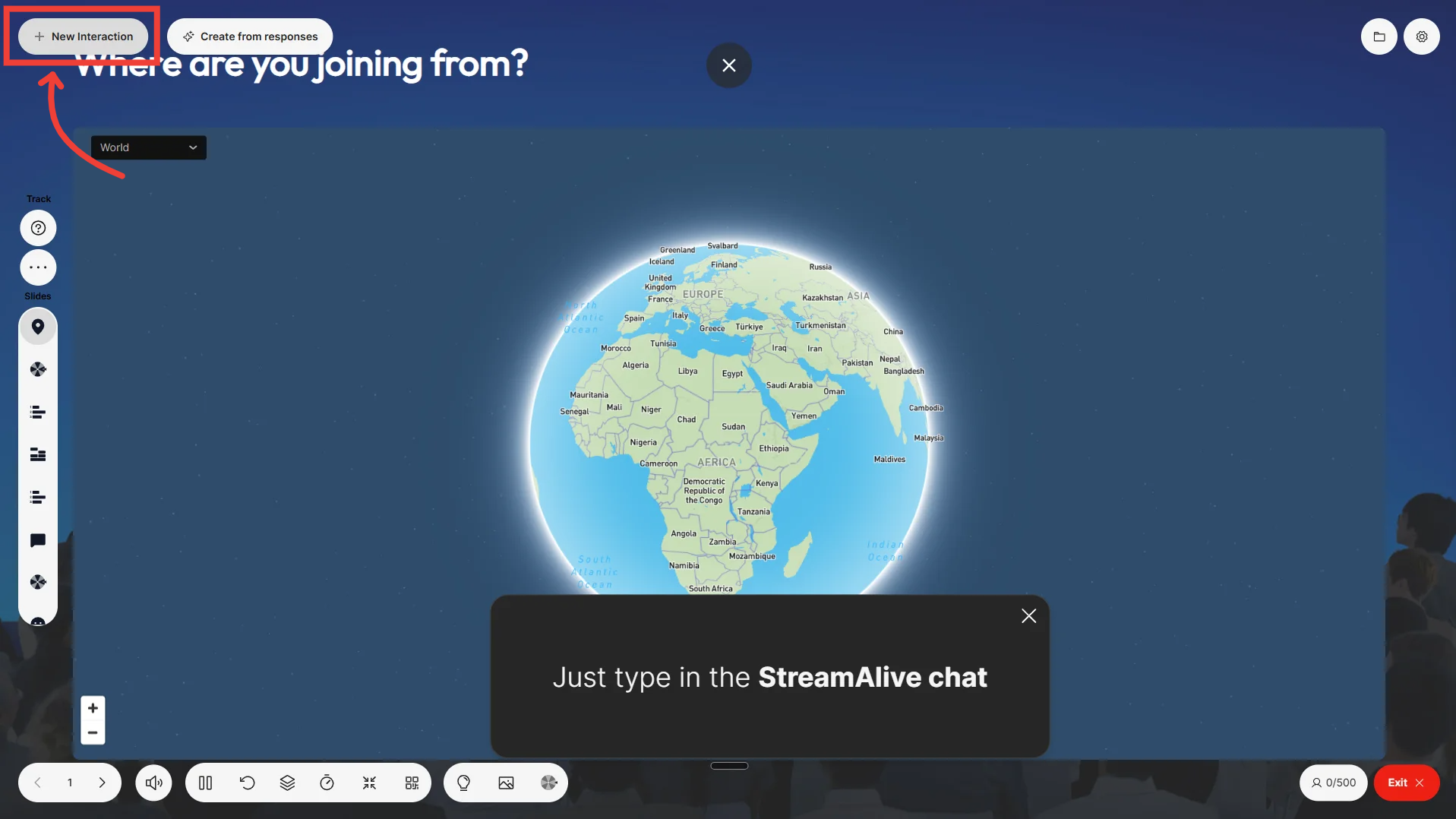
Once you’re connected and on the Presentation Live screen, click on the "+ New Interaction" button
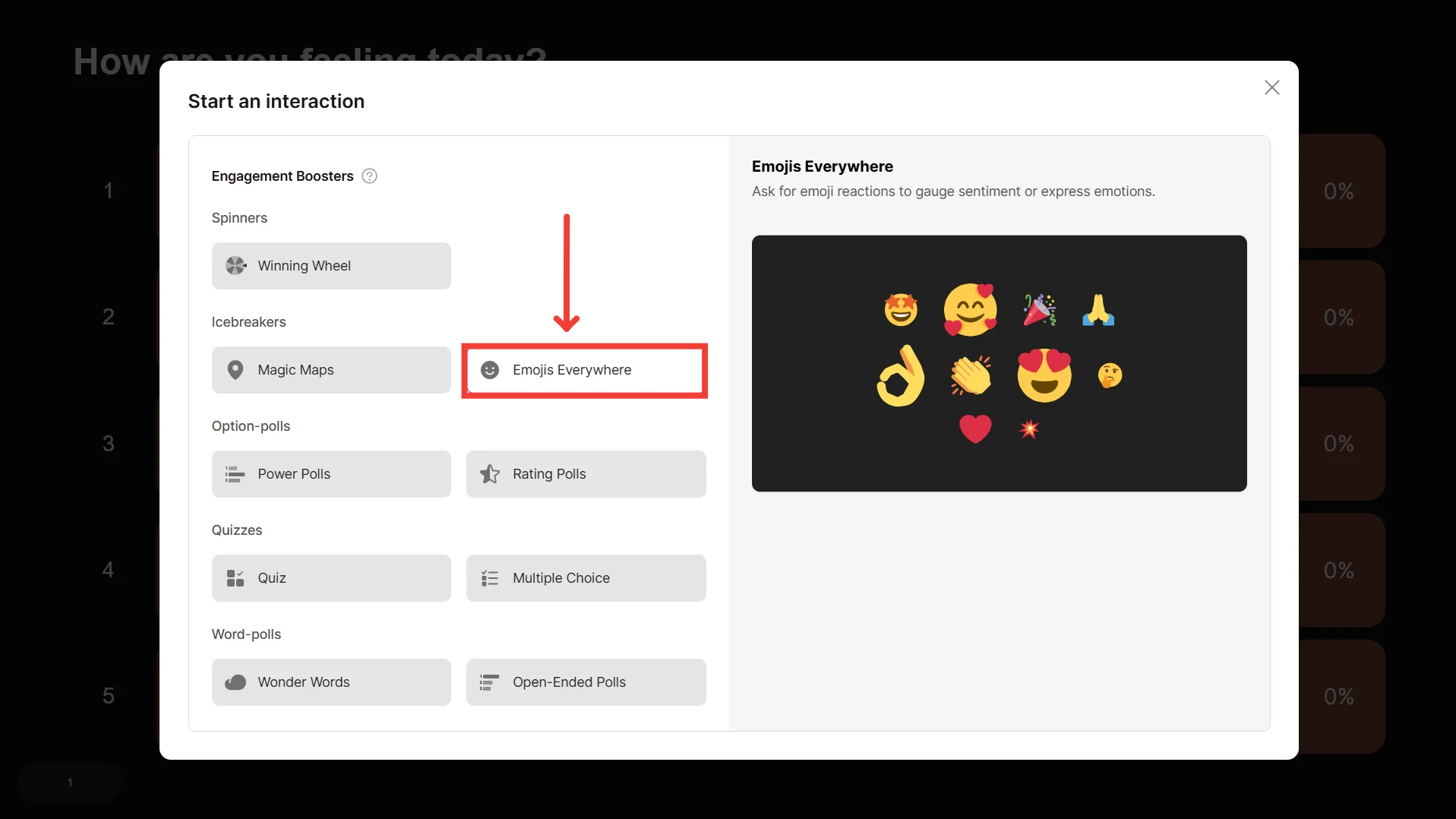
Click on the Emojis Everywhere interaction
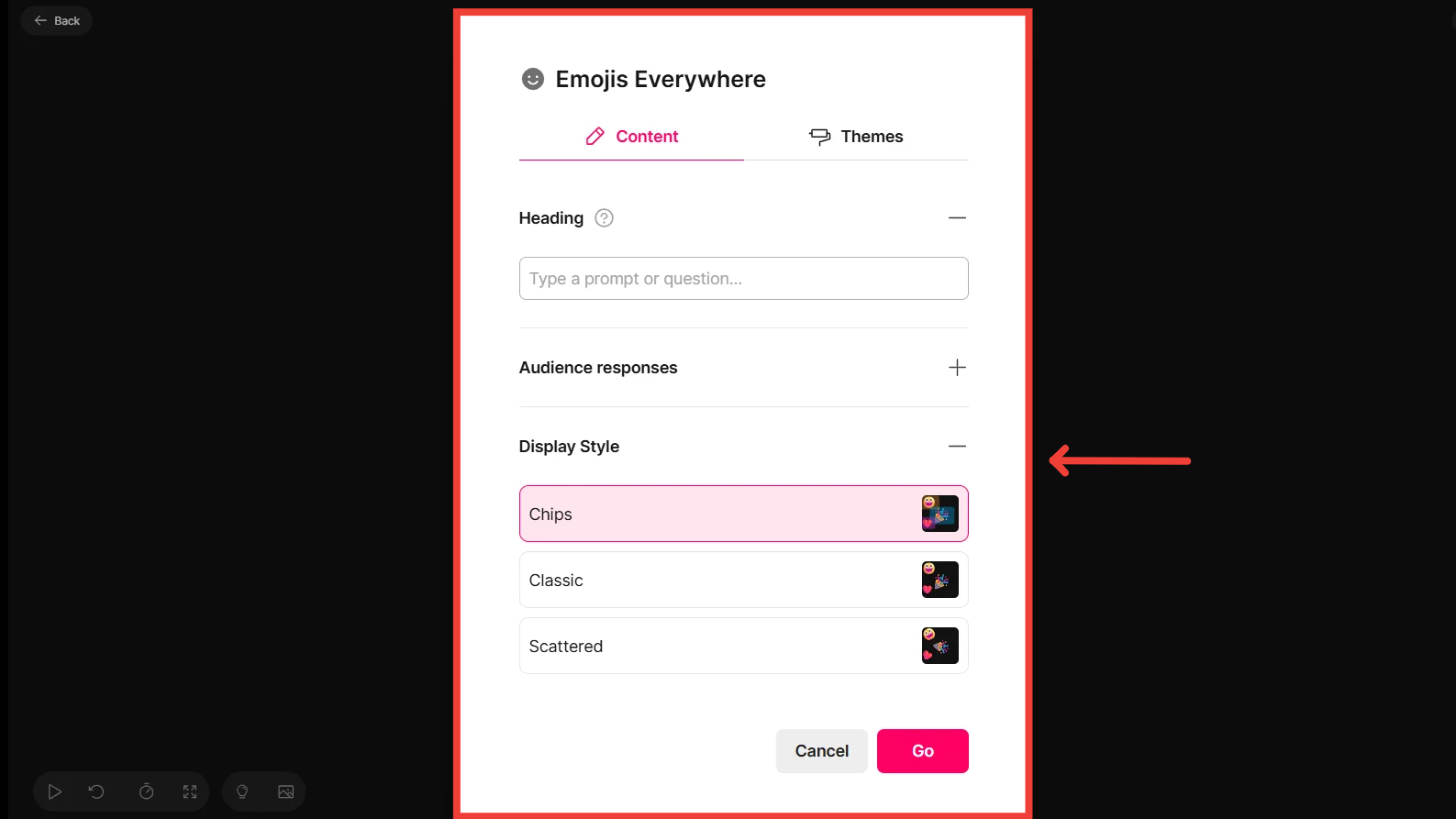
Customize your interaction [Optional]
Here, edit the heading, configure the word cloud settings, choose a theme, and so on.
Click on Go when done.
Remember: Everyone can see your screen at this point, so don’t spend too long on it. Alternatively, you can plan your map in advance using the presentation builder method discussed in the section above.
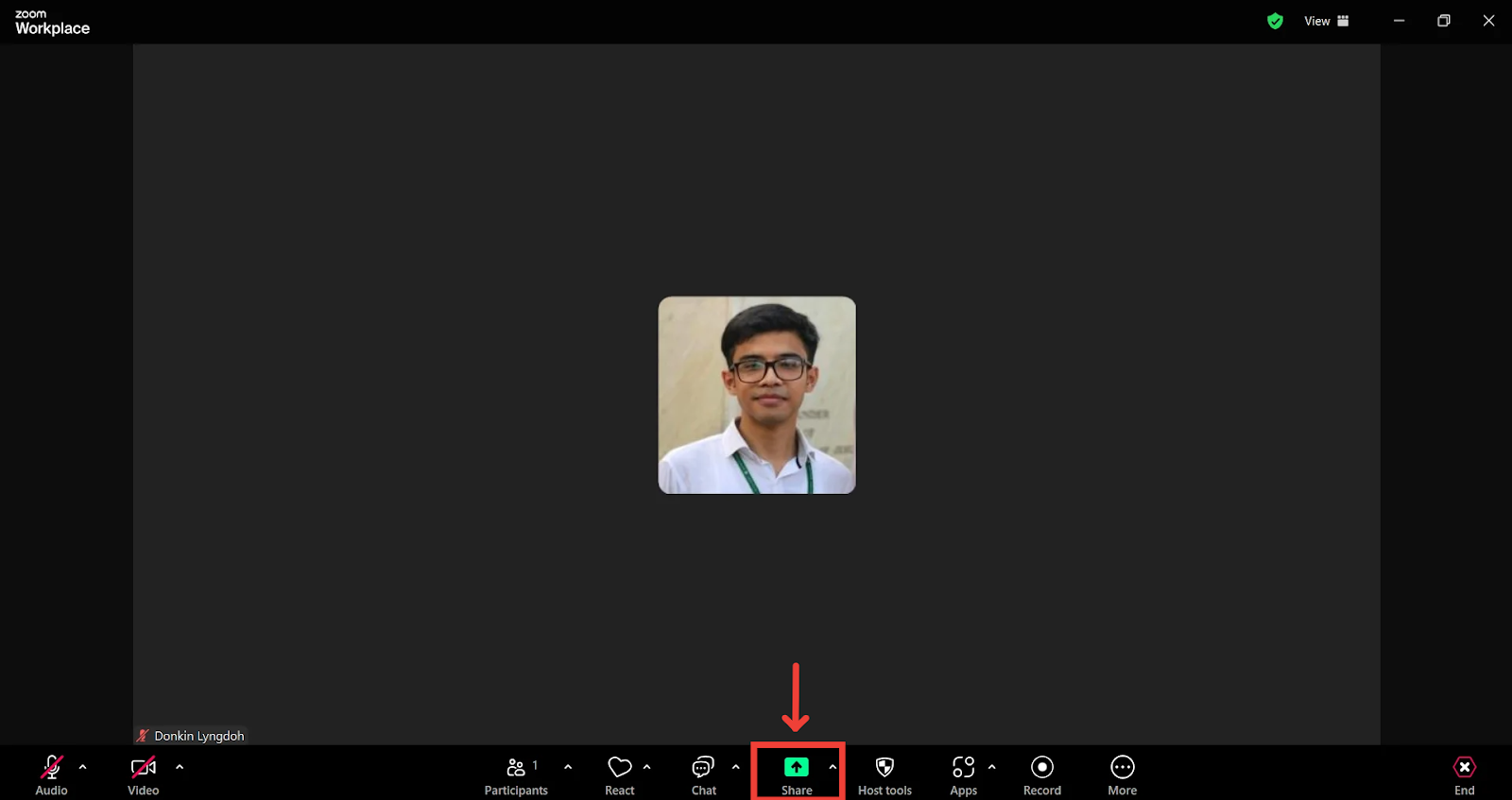
Share the StreamAlive window with your audience
Ask your audience to start typing in answers in the chat
StreamAlive picks up these answers and powers the interaction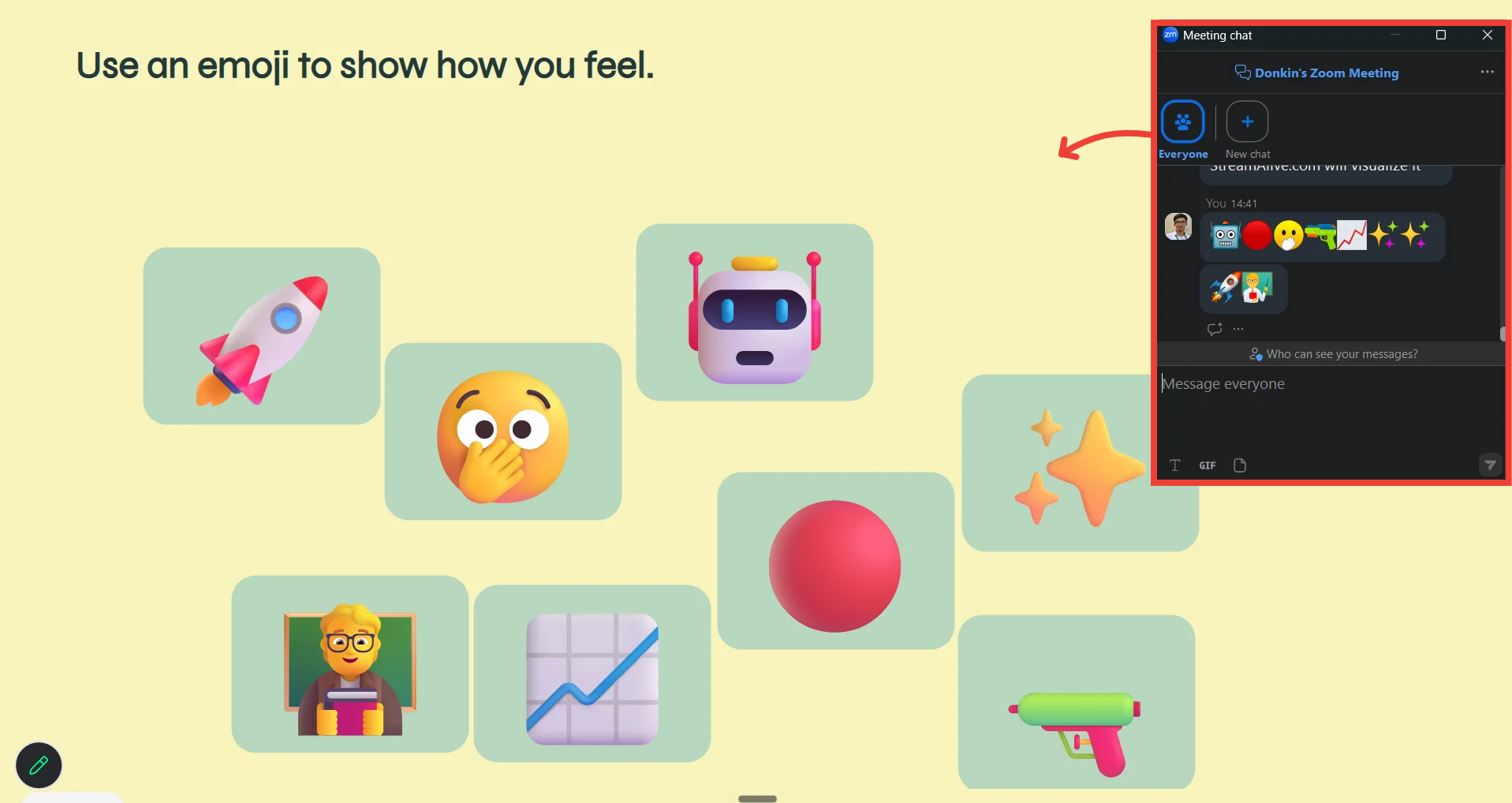
Using Quick Interaction Links for Emojis Everywhere
What’s the Purpose of Using Quick Interaction Links for Emojis Everywhere?
Quick Interaction Links in StreamAlive allow you to instantly launch audience engagement features without needing to pre-set them in a presentation. With Emojis Everywhere, this means you can activate the interaction with a single click, causing emoji reactions from your audience to appear on the screen in real time. (If you’re new to quick interaction links, check out this help article for more details.)
Why Use Quick Interaction Links for Emojis Everywhere?
While you can plan interactions in advance, Quick Interaction Links offer the flexibility to trigger Emojis Everywhere on the fly—perfect for moments when you want to capture and display audience sentiment instantly without disrupting your session’s flow.
For example, if you're hosting a live event and want to gauge the overall mood or excitement of your audience, you can instantly trigger Emojis Everywhere to showcase real-time emoji reactions. As participants share their feelings via emojis in the chat, their reactions will dynamically appear on the screen, creating a vibrant and interactive visual summary of the audience's sentiment.
By using Quick Interaction Links for Emojis Everywhere, you ensure that audience contributions are captured and showcased in real time, keeping your session interactive, engaging, and visually dynamic.
Go to the Interaction Library tab and click on "Run" next to Emojis Everywhere
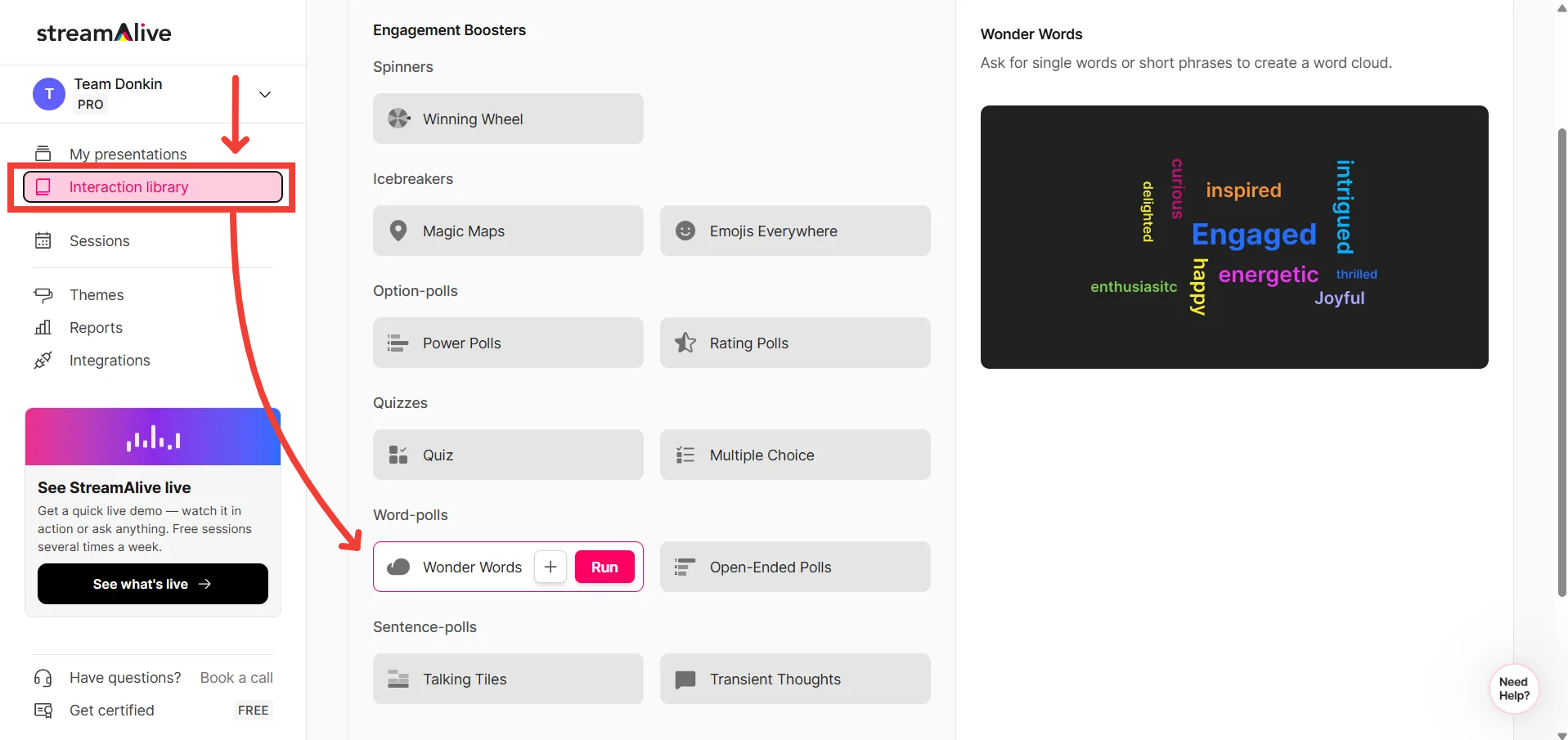
You’ll then be taken to the Presentation Live Screen where you can edit the word cloud interaction.
Here, edit the heading, configure the interaction settings, choose a theme, and so on.
Click on Go when done.
Remember: Everyone can see your screen at this point, so don’t spend too long on it. Alternatively, you can plan your map in advance using the presentation builder method discussed in the section above.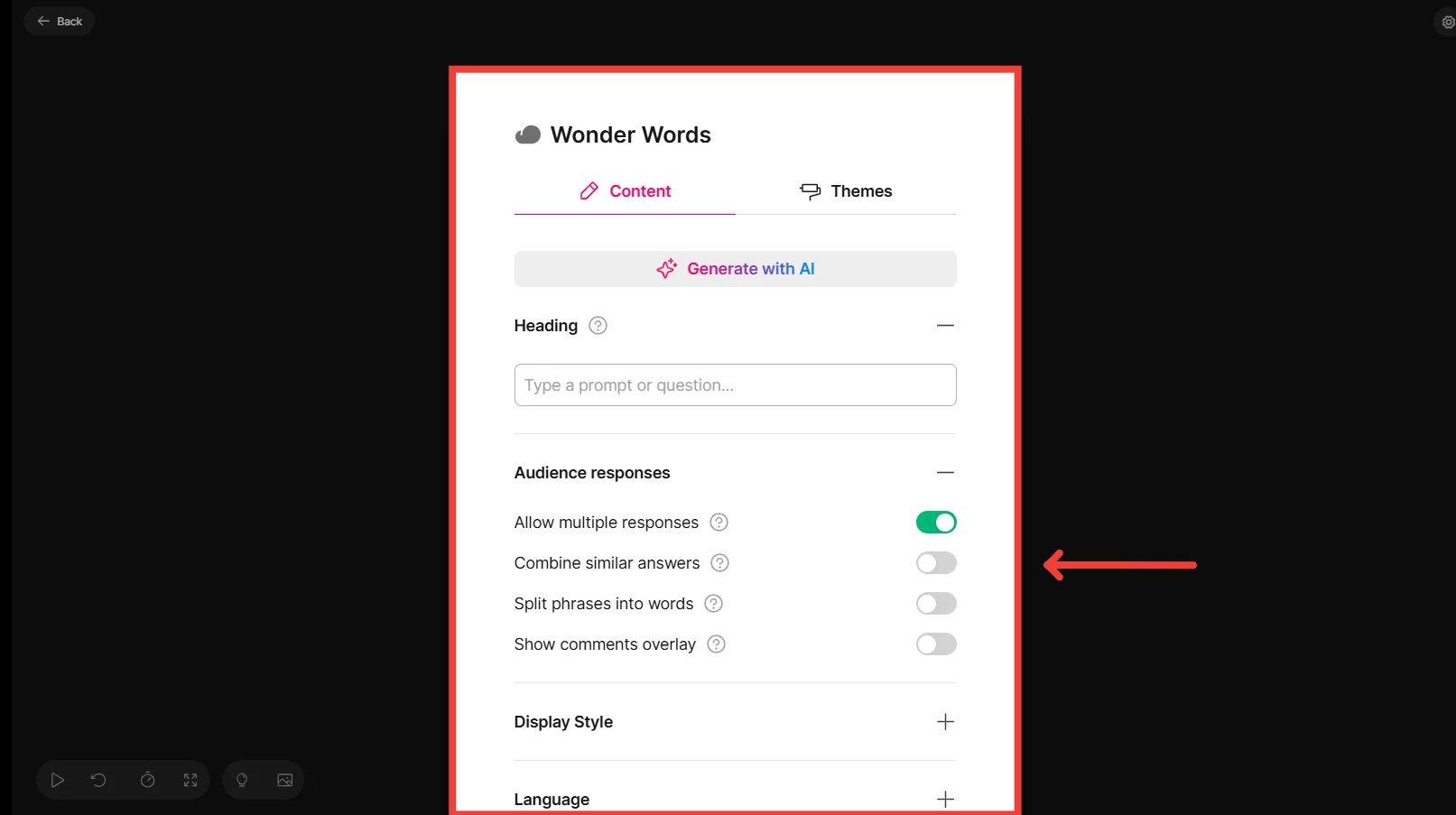
Now, connect StreamAlive to your session
To learn how to connect to your required platform, click here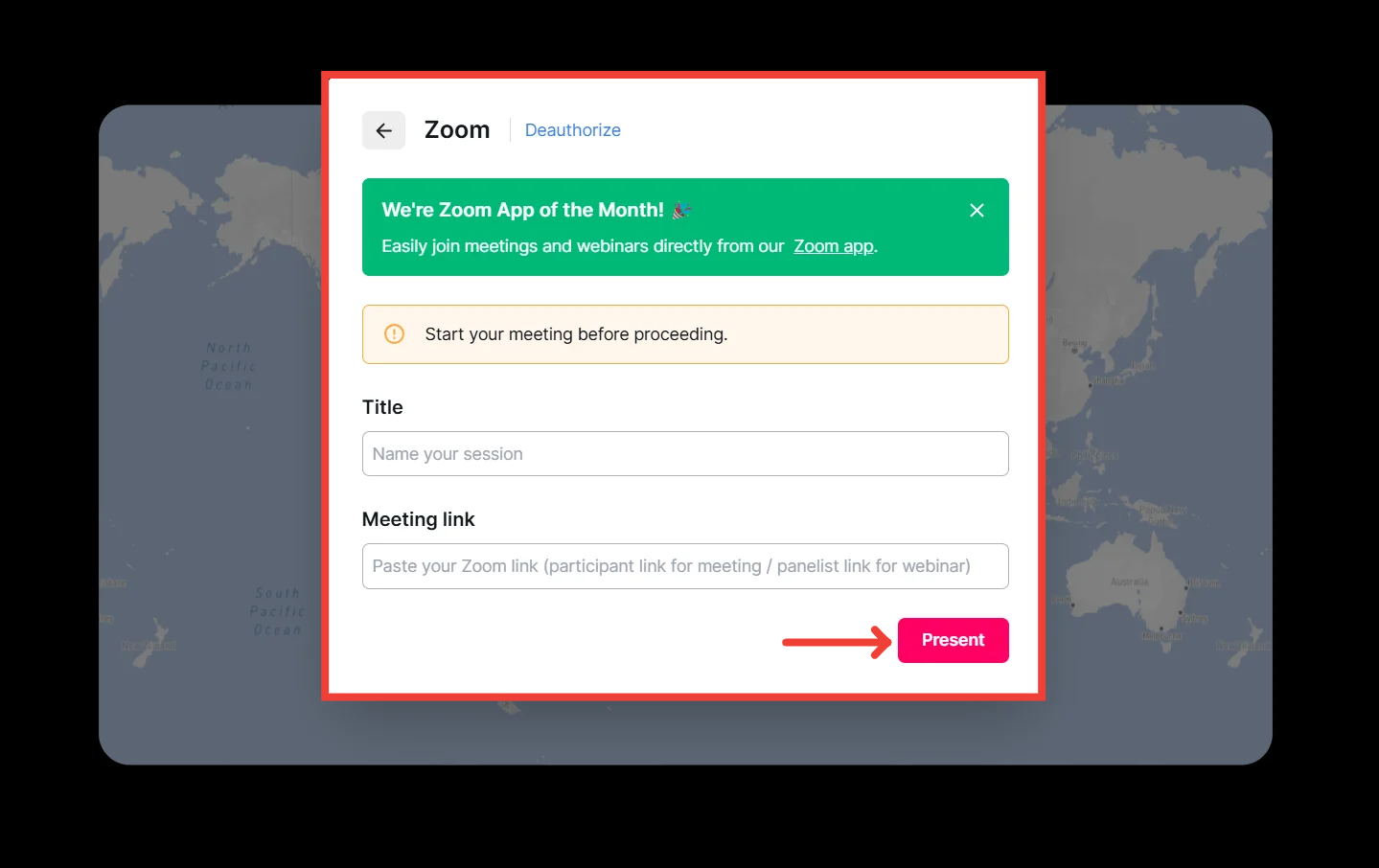
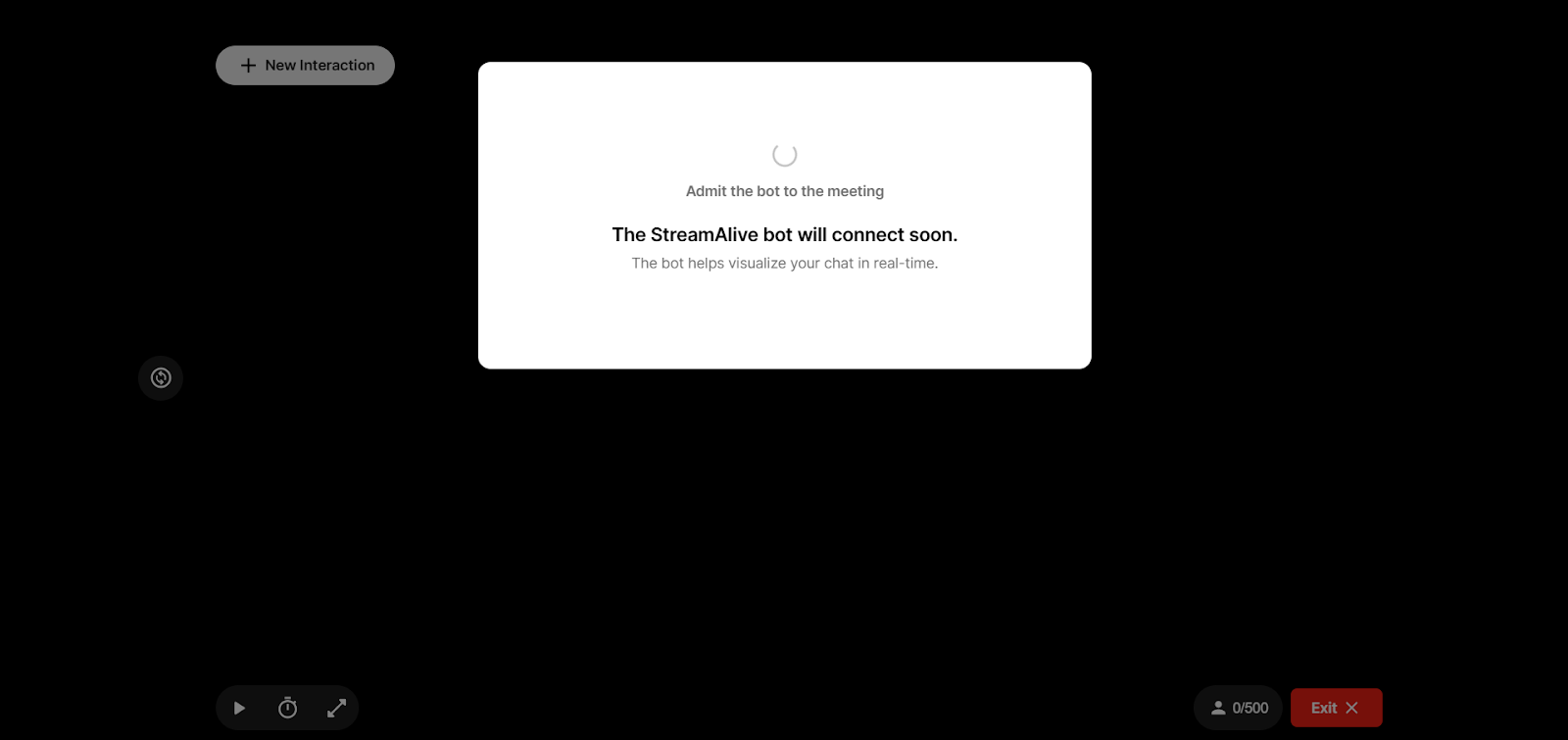
A pop-up asking you to admit the bot will appear (In cases like Zoom with the waiting room disabled, or YouTube/Twitch and similar platforms, it will join automatically)
Share the StreamAlive window with your audience
(if you haven’t already done so)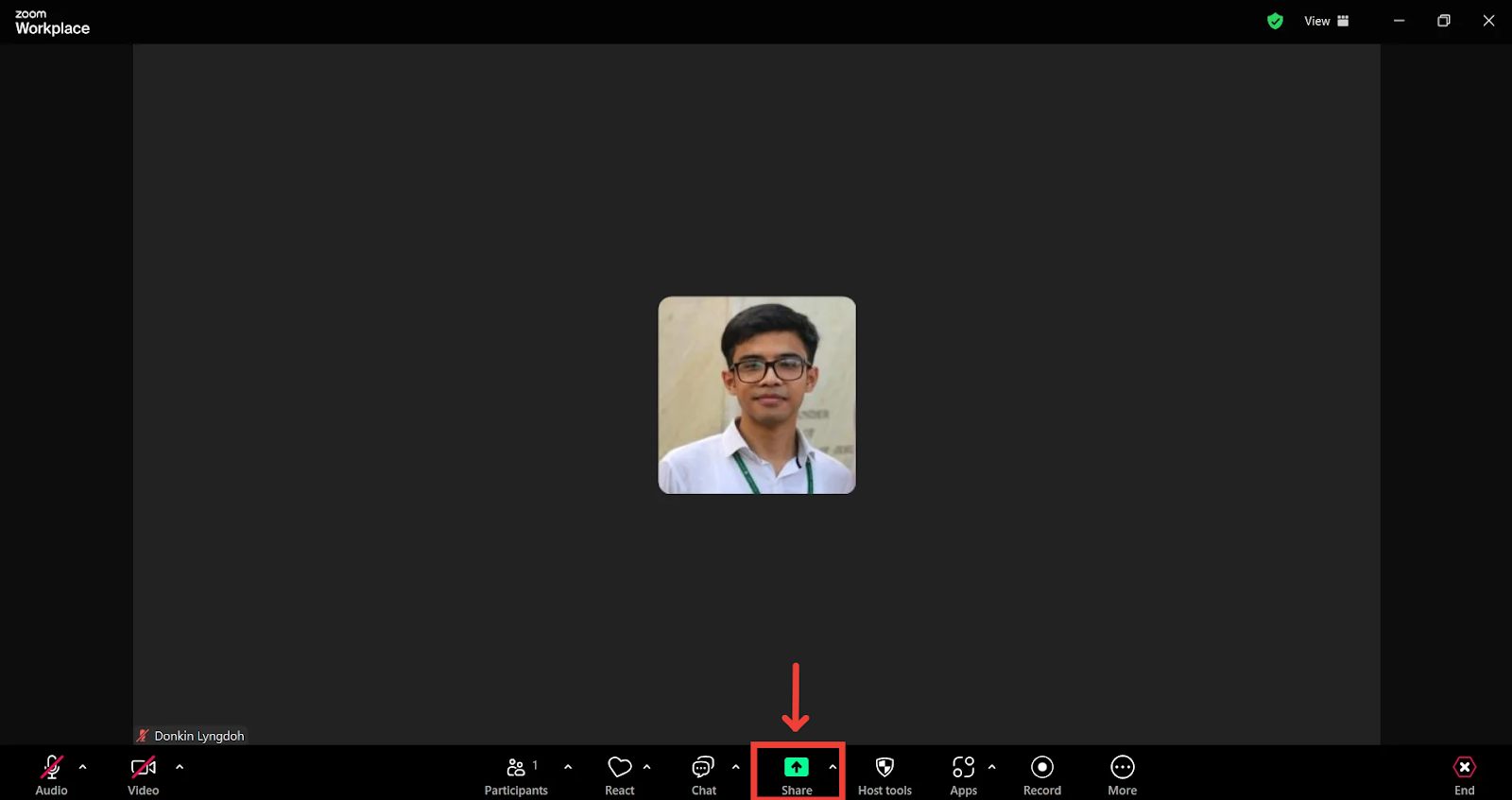
Ask your audience to start typing in answers in the chat
StreamAlive picks up these answers and powers the interaction in real time
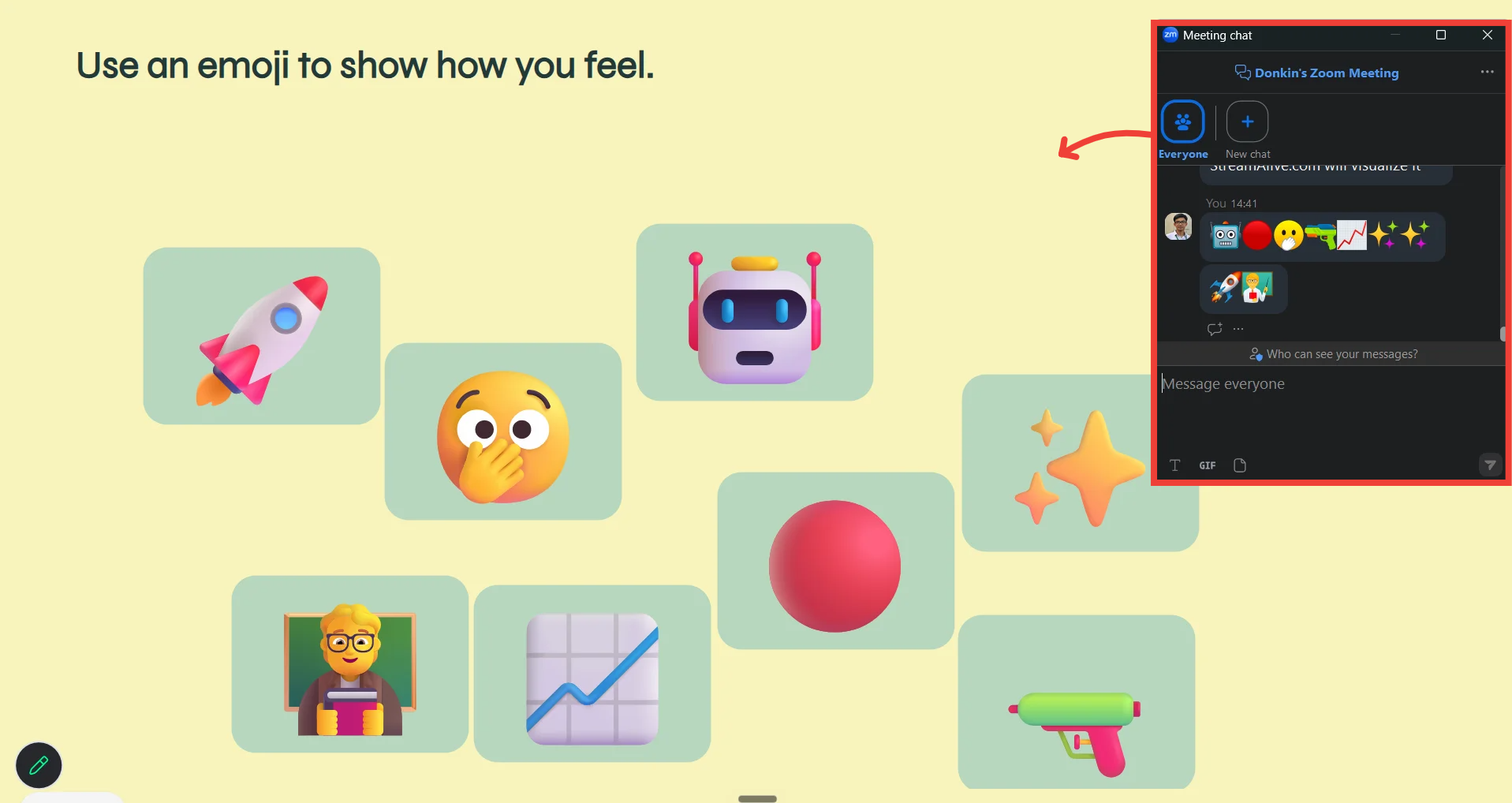
Learn how to use the Presentation Live screen to manage your interactions during your live session.
Was this helpful?
Still need help? Ask the team