Creating and using Winning Wheel
Written By Donkin Lyngdoh
Last updated 2 months ago
The Winning Wheel (formerly incorporating Choice Circle) is StreamAlive’s interactive spinner designed to pick random winners, choose topics, or select audience members live on screen.
Whether you want to populate the wheel automatically from audience chat activity or manually type in custom options beforehand, the Winning Wheel handles both seamlessly via the Content panel.
Modes of the Winning Wheel
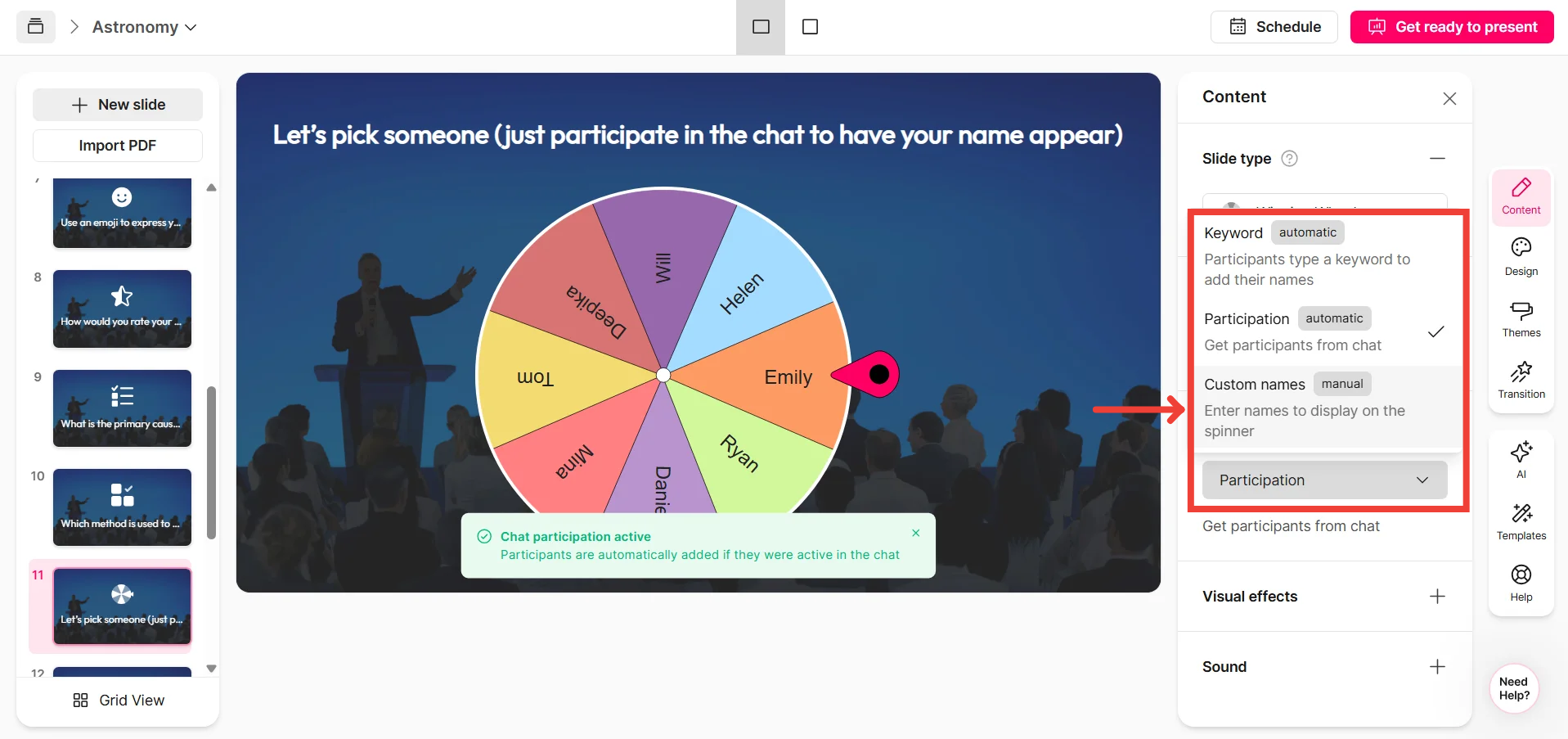
In the right-hand Content settings panel of your Winning Wheel slide, you can toggle between three distinct input types depending on how you want the wheel populated:
1. Participation (Automatic)
How it works: Automatically pulls names directly from anyone who types or engages in your live session chat (Zoom, Teams, YouTube, etc.).
Best for: Choosing a random winner from active participants, running surprise giveaways, or rewarding chat engagement without any manual setup.
2. Keyword (Automatic)
How it works: Populates names or entries only when participants type a specific designated keyword into the chat.
Best for: Exclusive raffles or targeted contests where participants must opt-in by typing a specific word (e.g., typing #Win or ENTER in the chat).
3. Custom Names / Custom Entries (Manual)
How it works: Replaces automatic chat tracking with a custom, pre-defined list of names, items, or options that you type in manually.
Best for: Pre-planned choices, picking between specific topics, selecting team members from a fixed roster, or running a traditional decision wheel.
Step-by-Step: How to Add and Set Up the Winning Wheel
Create a new presentation/Open your existing StreamAlive presentation and add a new interaction
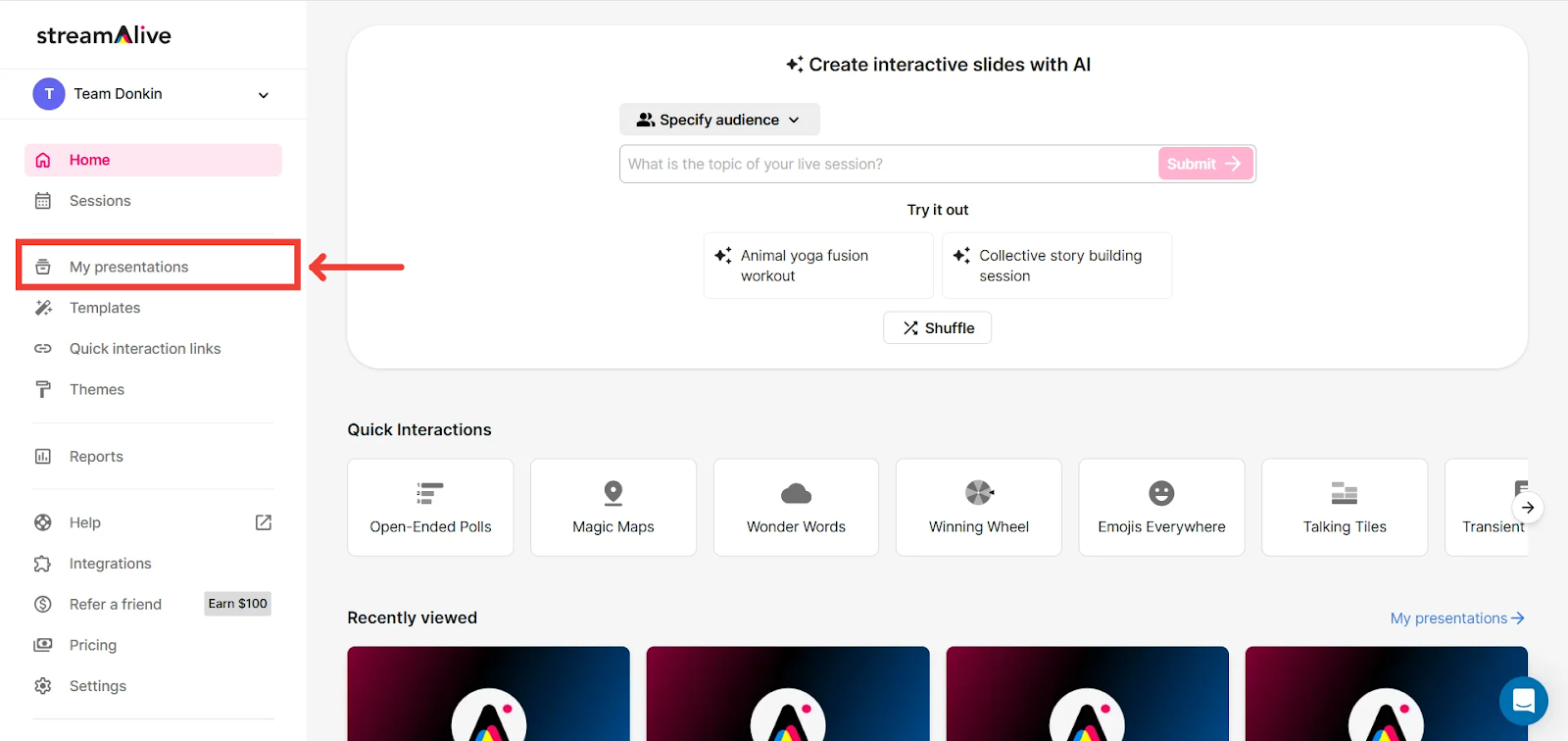
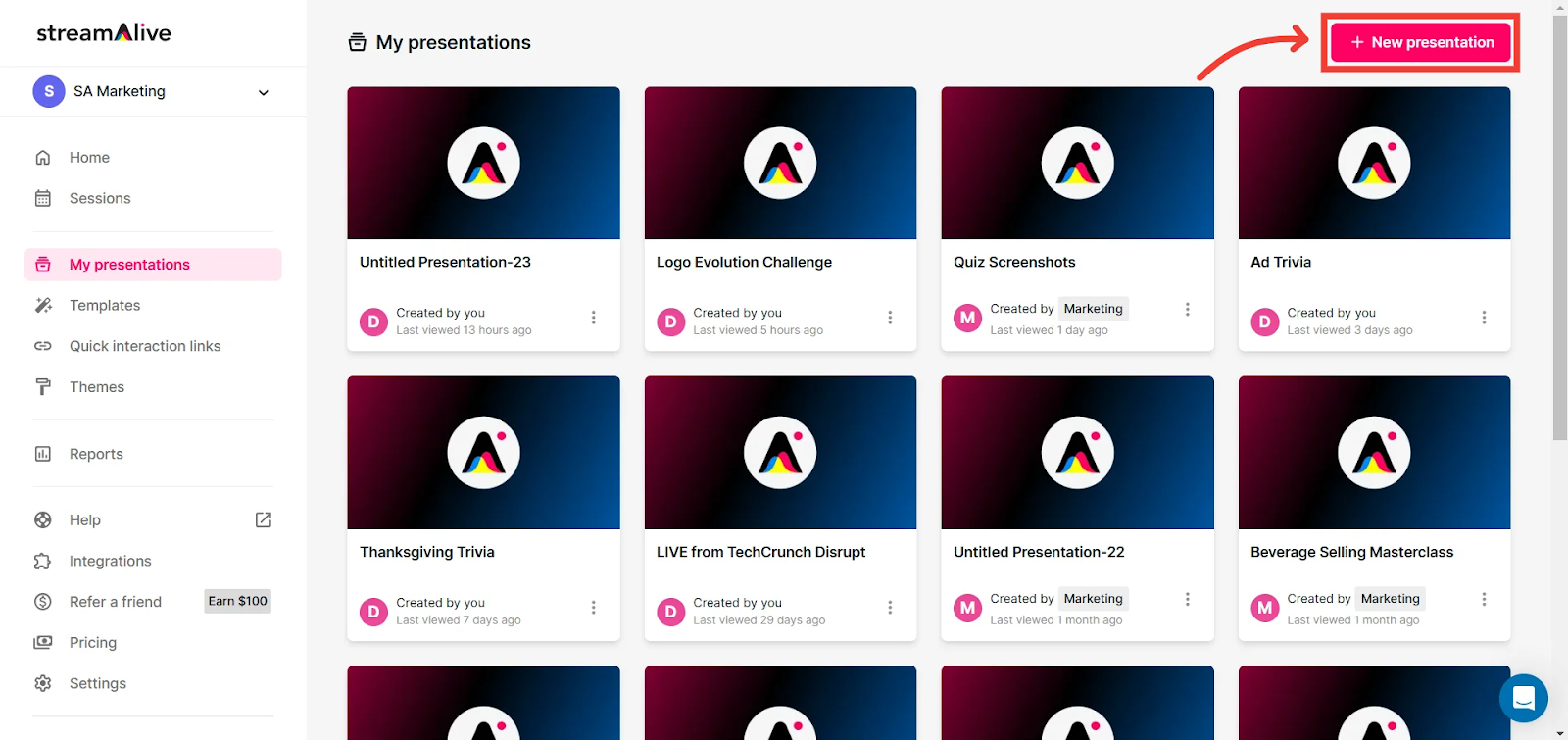
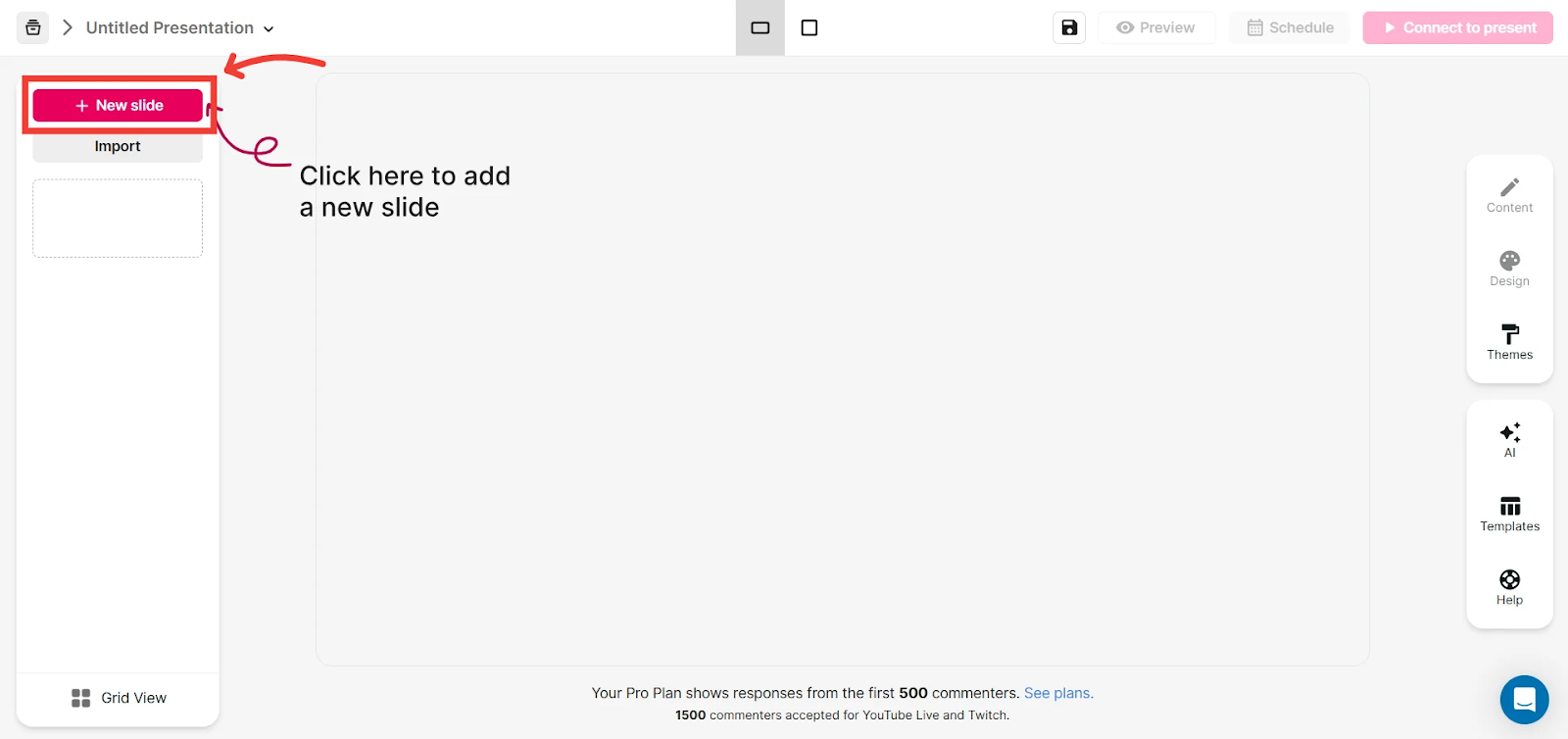
Choose Winning Wheel from the available interaction types
To learn more about how to create a presentation, click here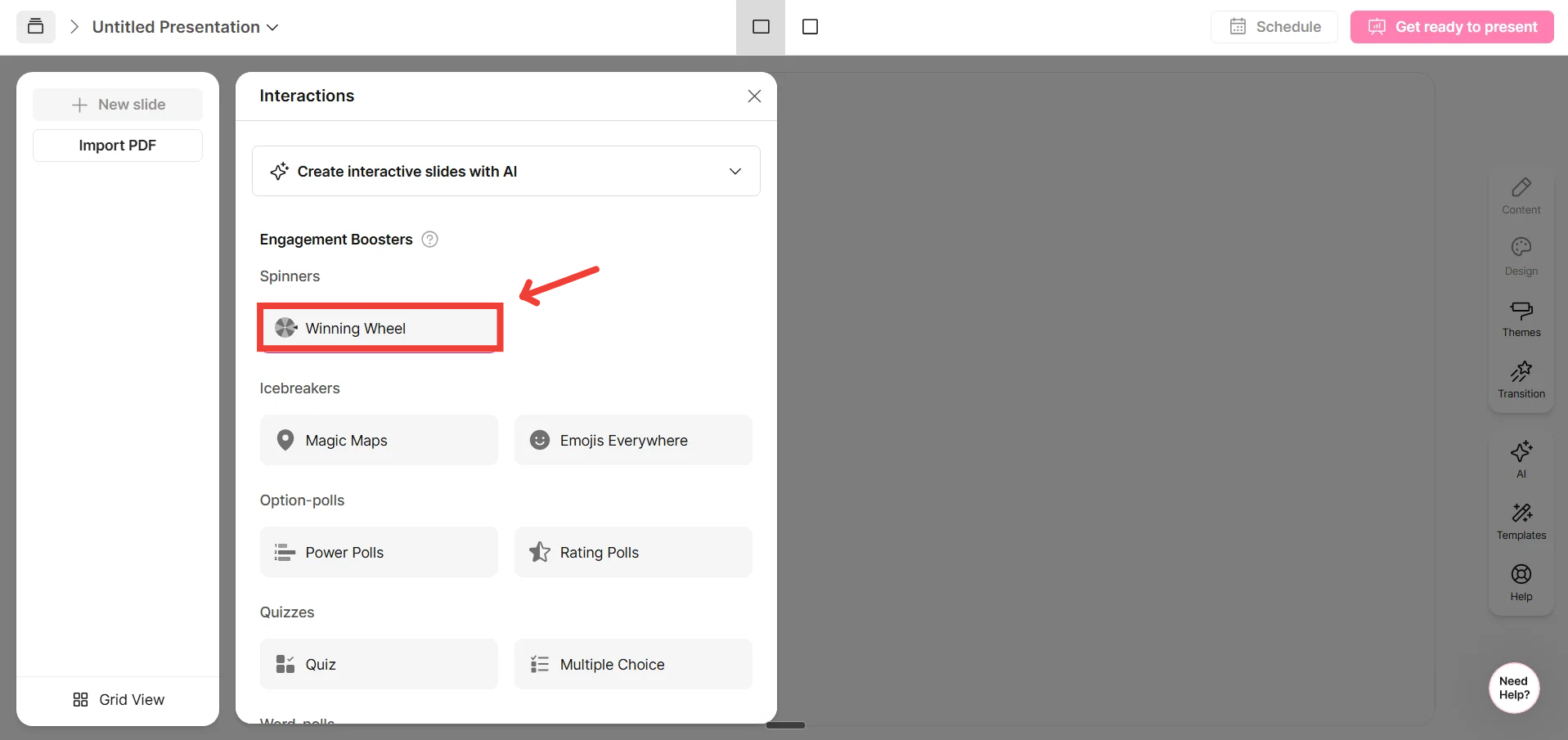
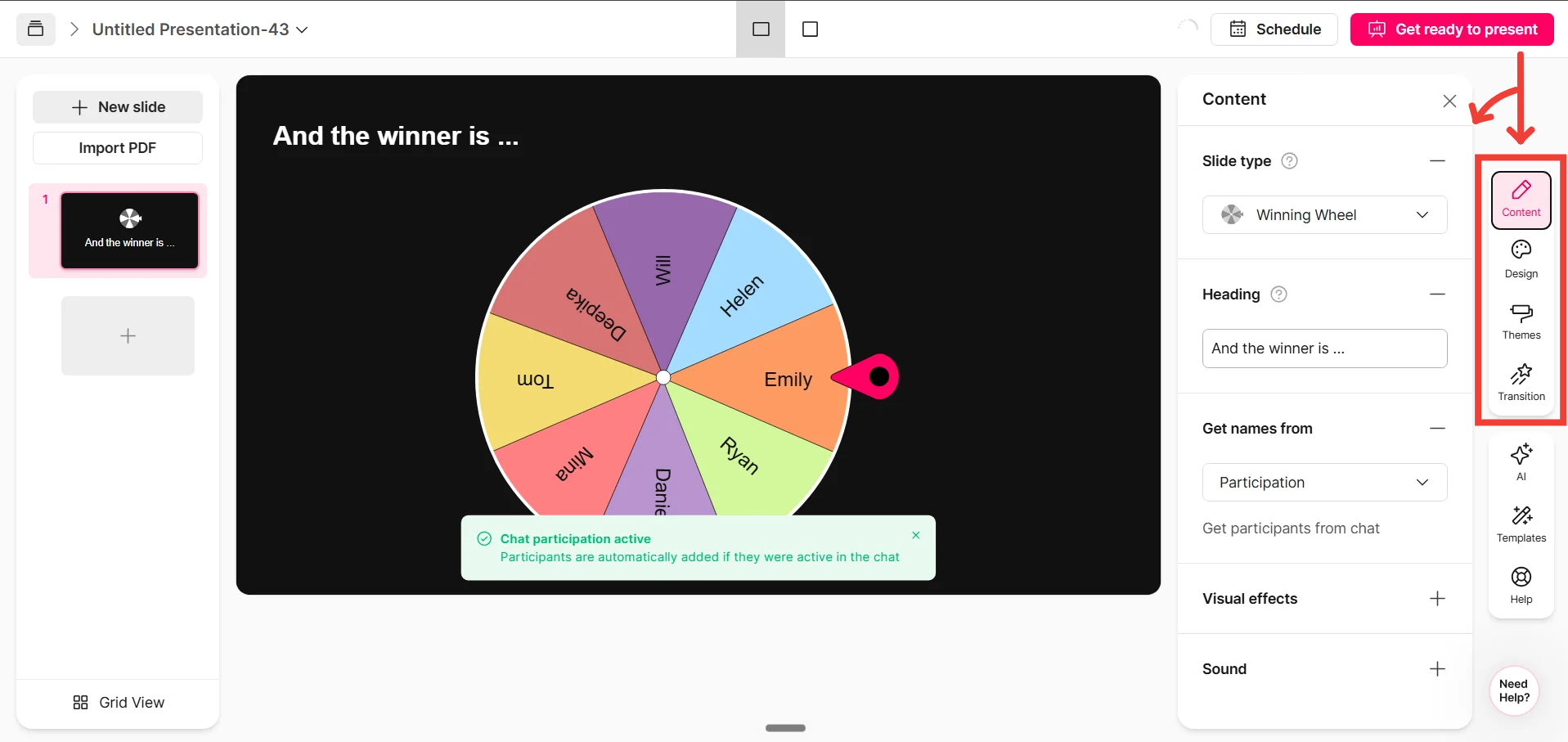
Once the wheel is added, customize the feature using the tabs on the right-hand side.
Content Tab
You can edit the heading, slide type (Get names from), visual effects, and sound effects
IMPORTANT: Under the slide type options, select your preferred entry mode: Keyword, Participation, or Custom names.
Please refer to “MODES OF WINNING WHEEL” at the start of this helpdoc for more information on slide types.Design Tab
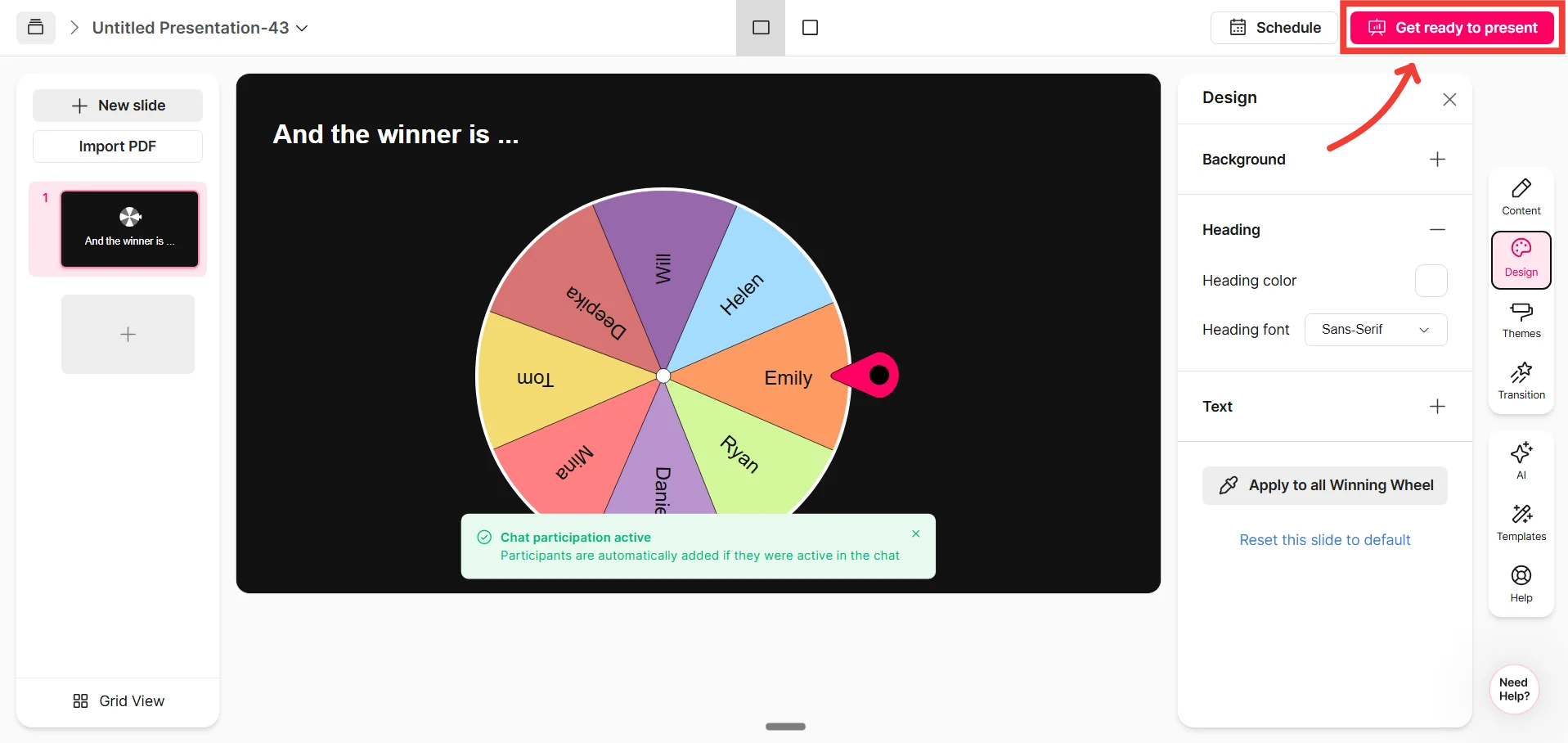
You can also edit the design of the interactions like the background color, heading color/font, and so on.Themes Tab
Choose a pre-created theme to design your presentation instantlyTransitions Tab
Set an entry transition for your winning wheel slide.
For a more in-depth guide on how to edit your presentation, click here
When ready, click on “Get ready to present” to preview your presentation/winning wheel interaction and continue with connecting to your live session
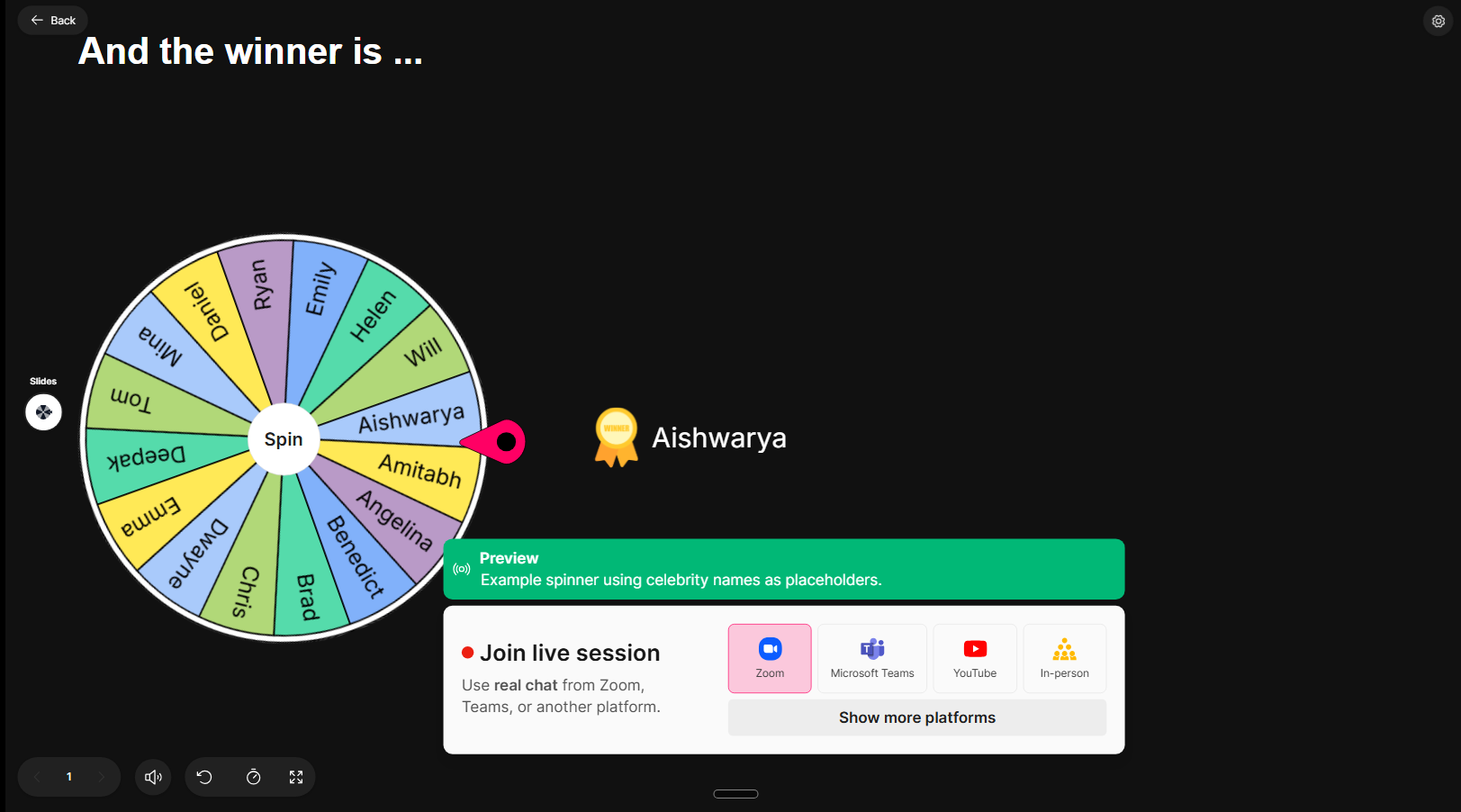
Presenting and Spinning the Wheel Live
Connect StreamAlive to your meeting or live stream platform (Zoom, Teams, YouTube, etc.).
For a more detailed guide on how to connect to your live session, click here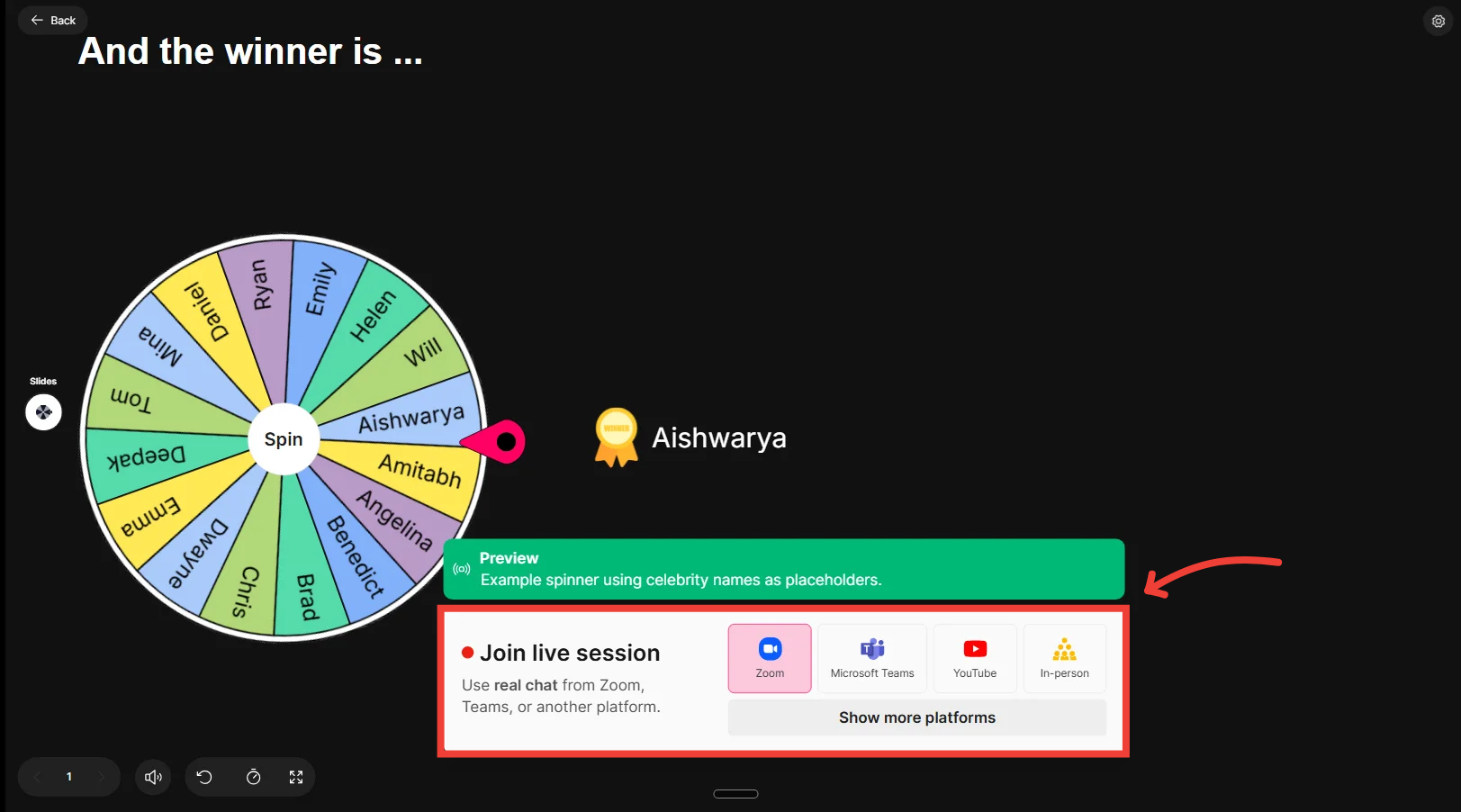
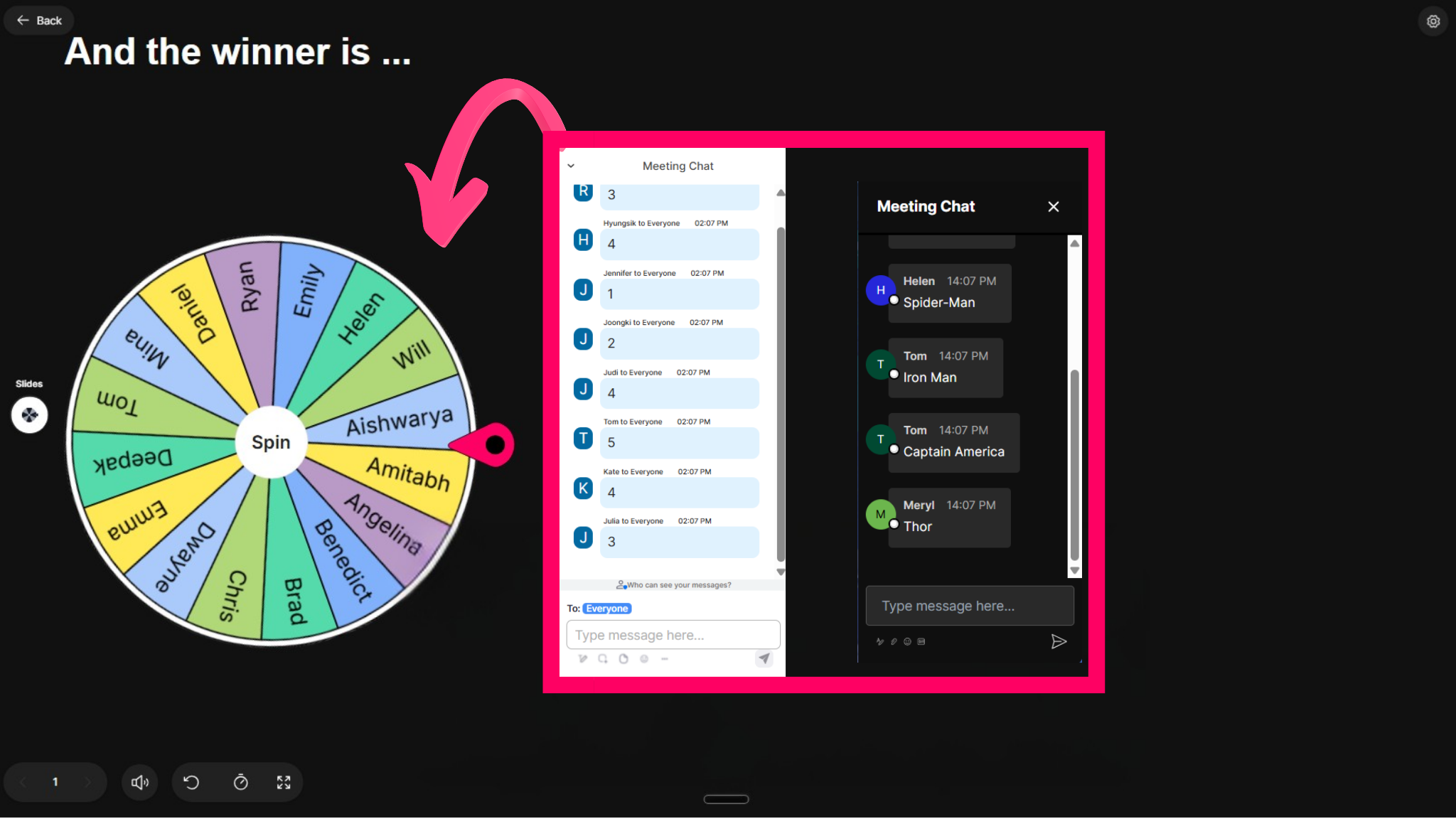
Populate the Wheel:
If using Participation, names will appear automatically as participants chat.
If using Keyword, instruct your audience to type the trigger word in the chat.
If using Custom names, your pre-entered options will display automatically.
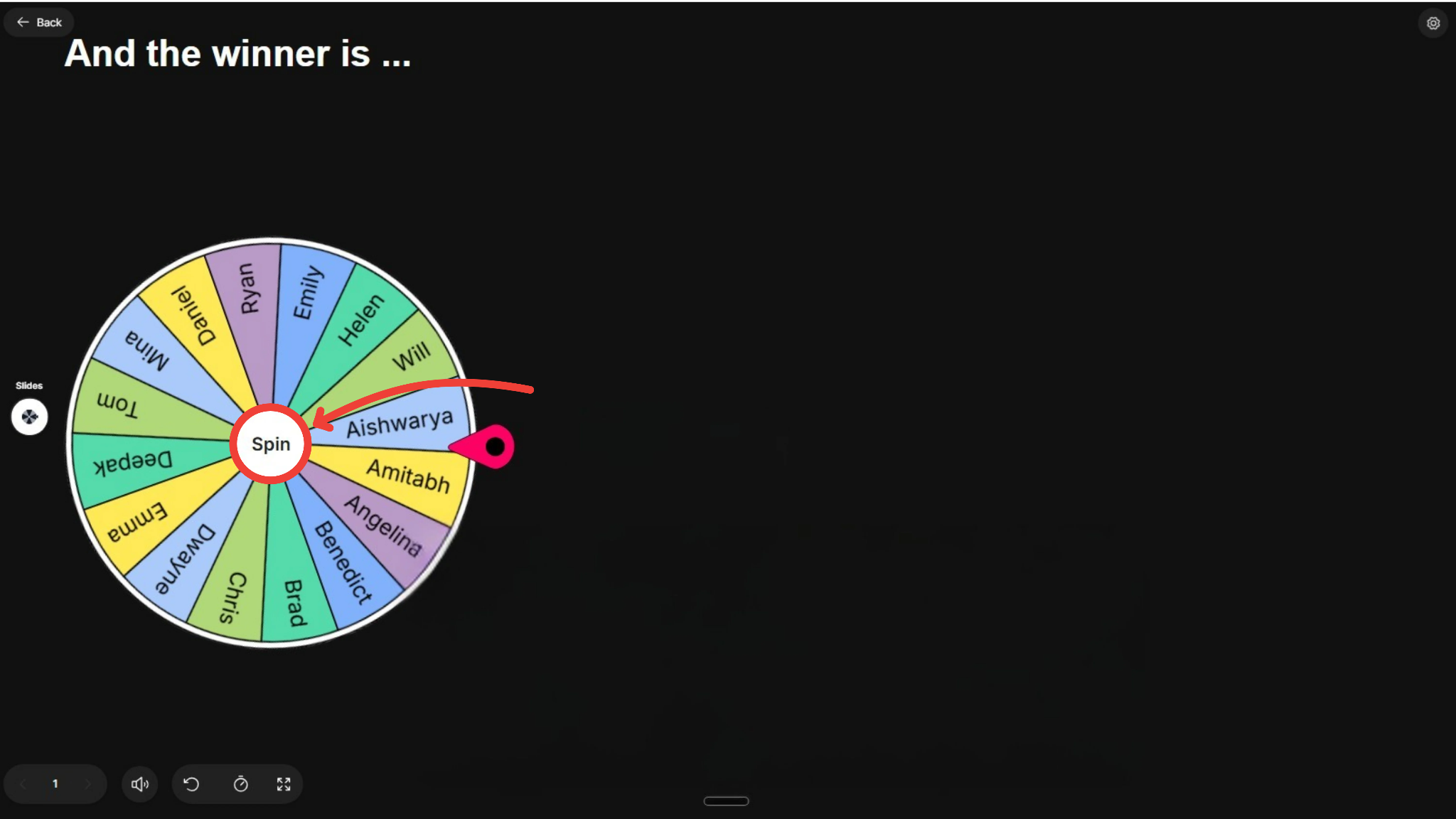
Spin the Wheel: Click the center or trigger button to spin the wheel. Watch the animation land on the winning segment!
Was this helpful?
Still need help? Ask the team