Connecting StreamAlive Chrome Extension to Kick
Written By Donkin Lyngdoh
Last updated 3 months ago
StreamAlive brings live, interactive elements straight into your Kick broadcasts.
This guide walks through using the StreamAlive Chrome extension to pull chat messages from your Kick stream and turn them into on-screen interactions like polls and word clouds.
Here's how to get the Chrome extension set up so you can start running interactive Kick streams:
Install the StreamAlive extension in Chrome
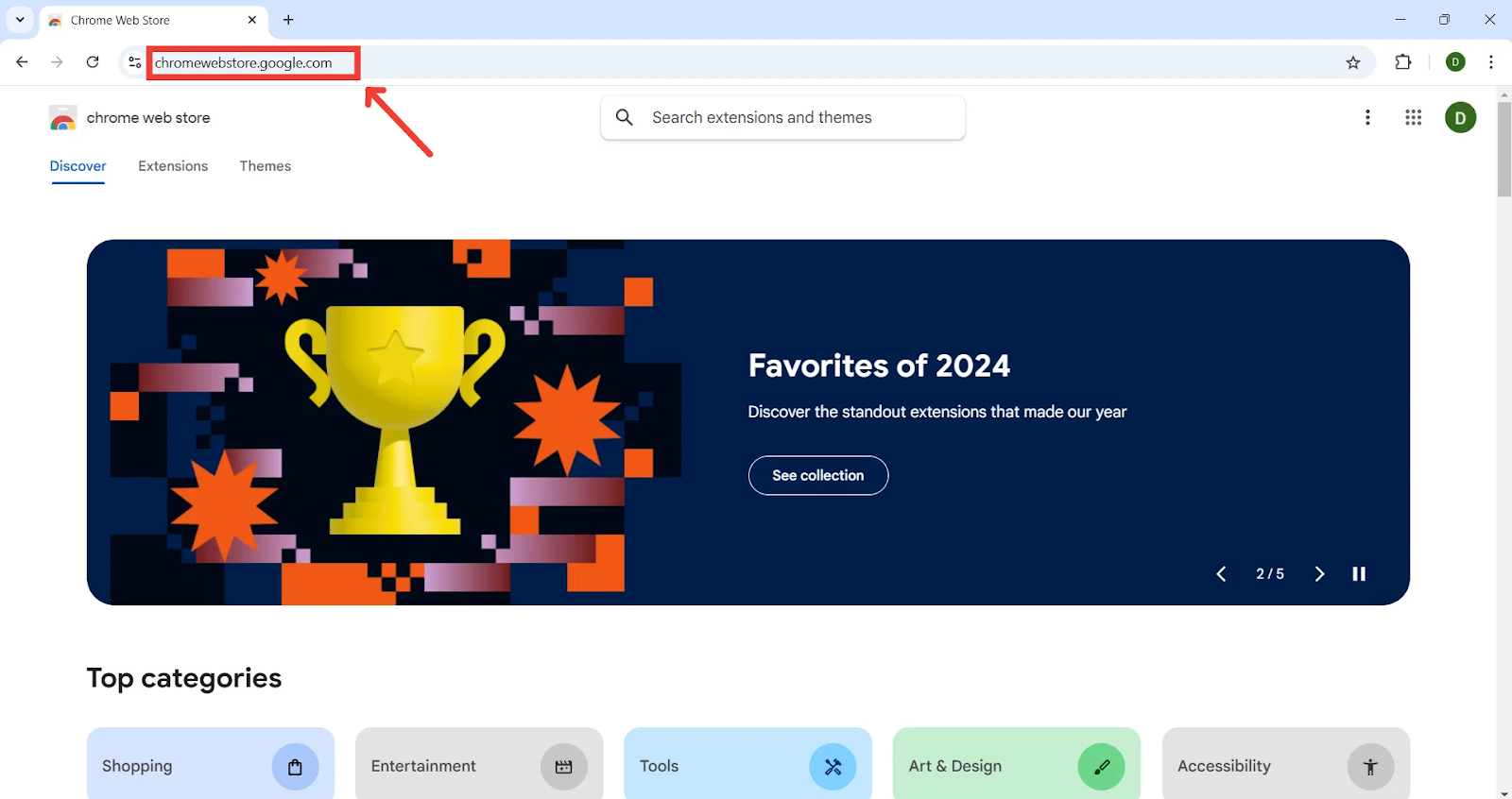
Head to the Chrome Web Store
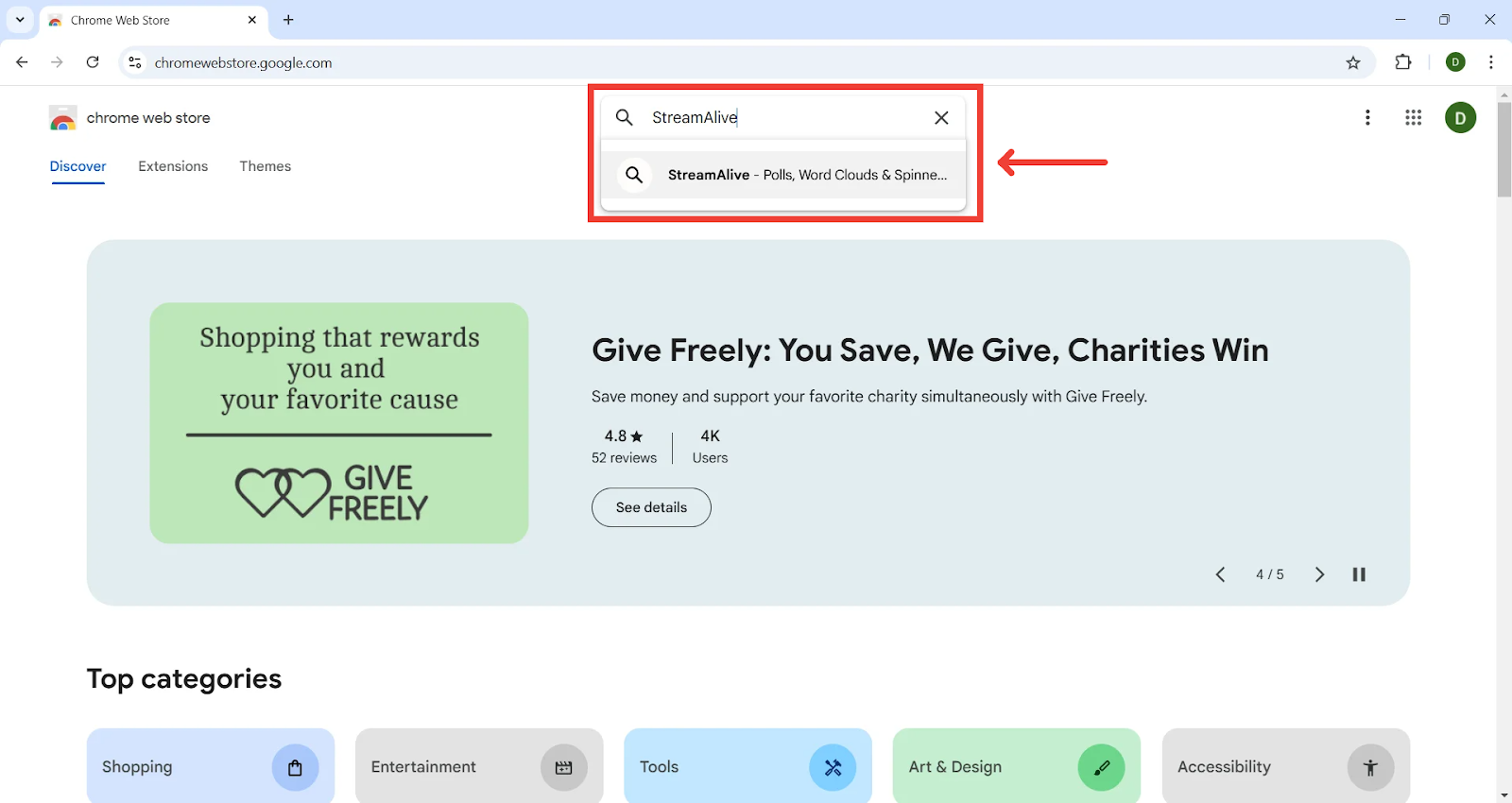
Search "StreamAlive" in the store's search bar
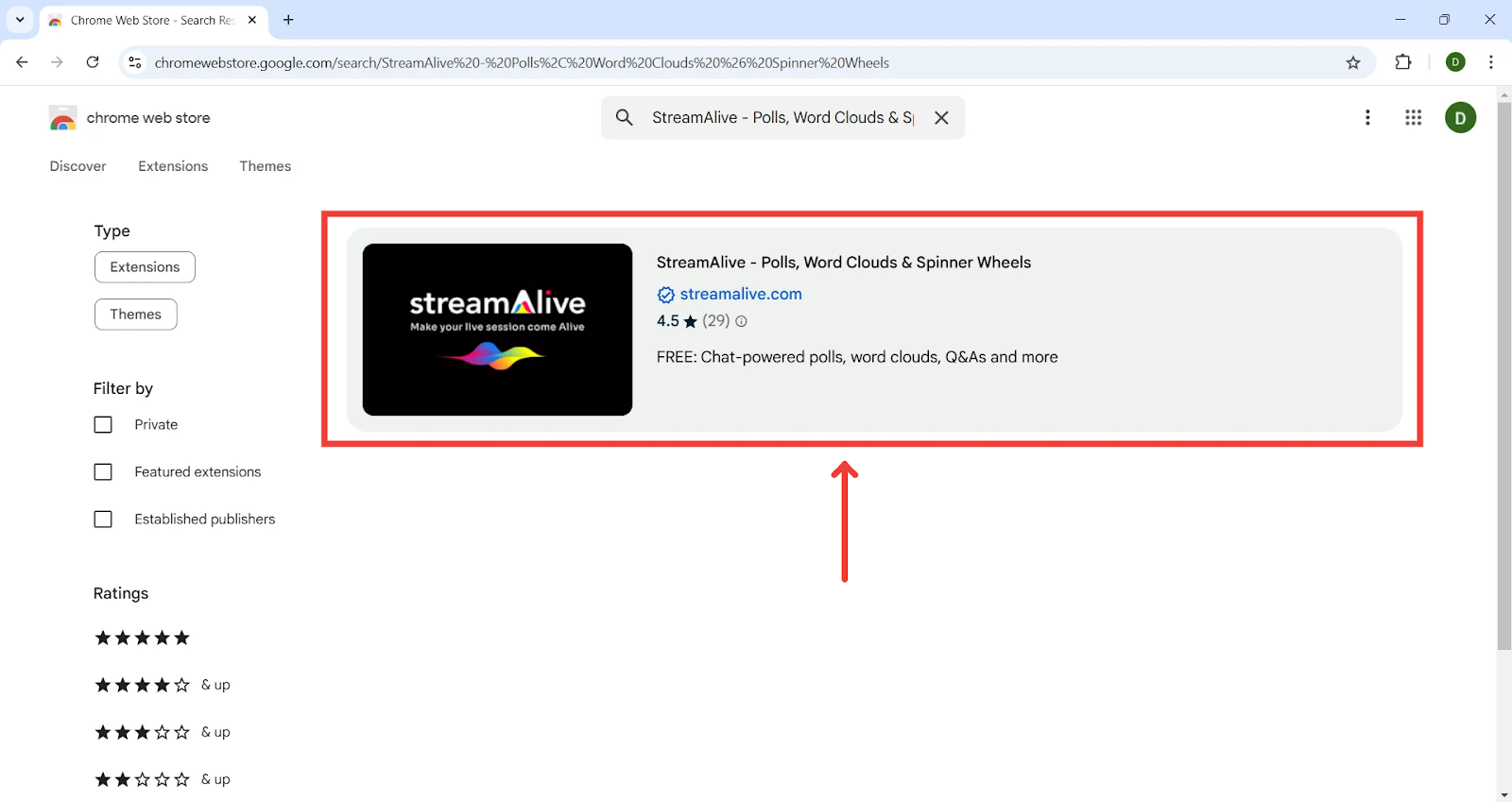
Open the StreamAlive listing
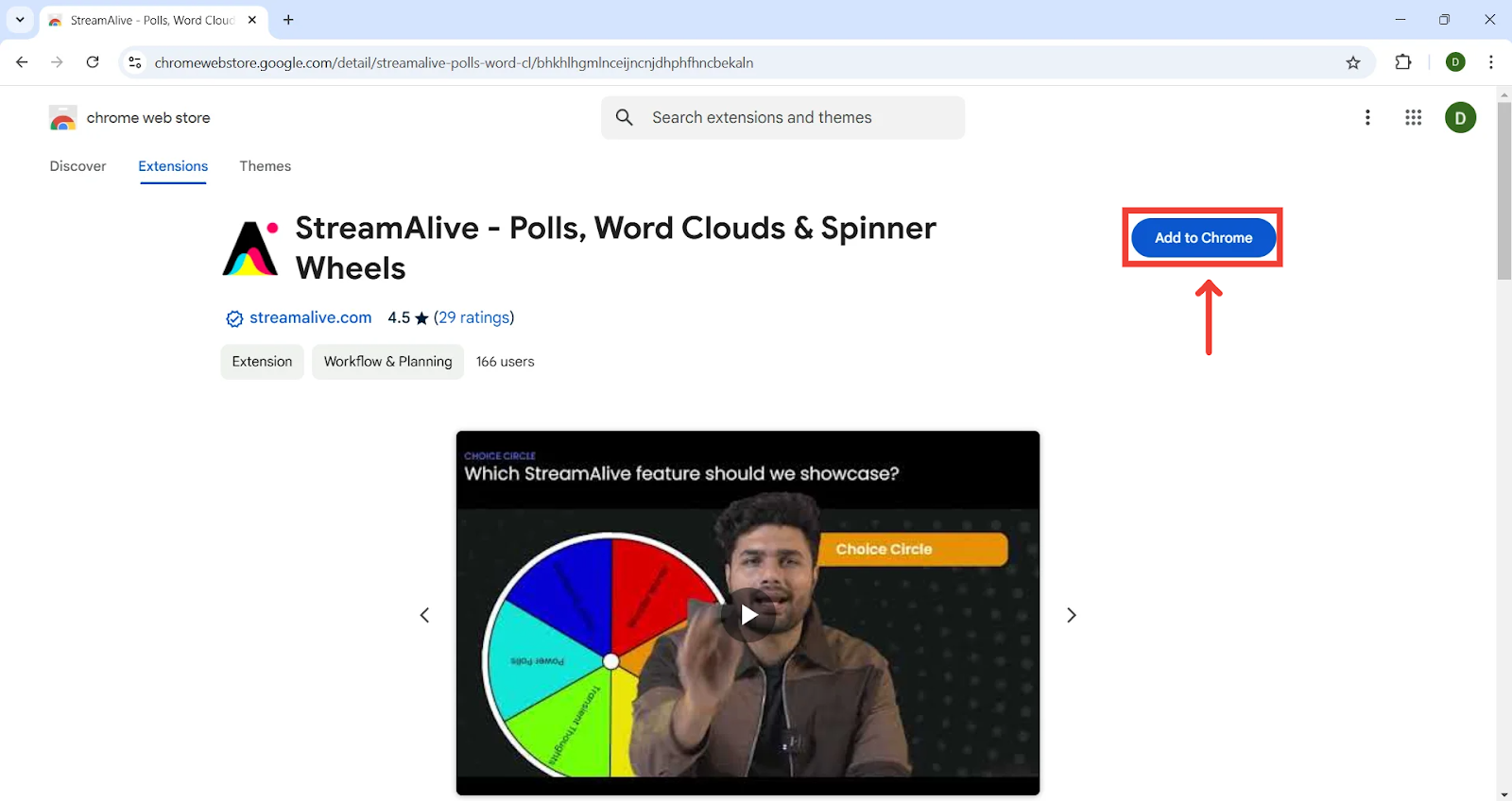
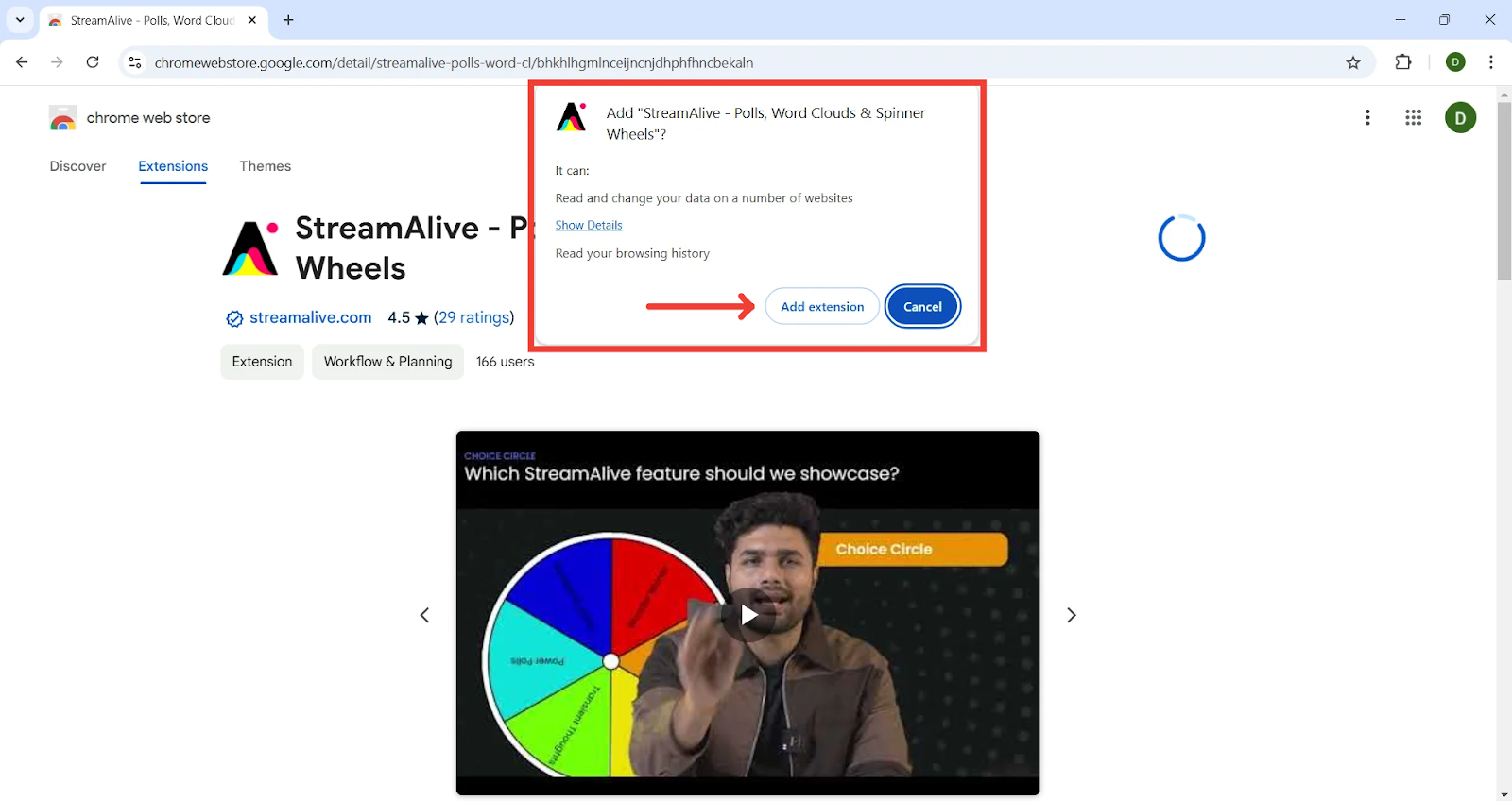
Select Add to Chrome
Confirm the installation by clicking on Add Extension
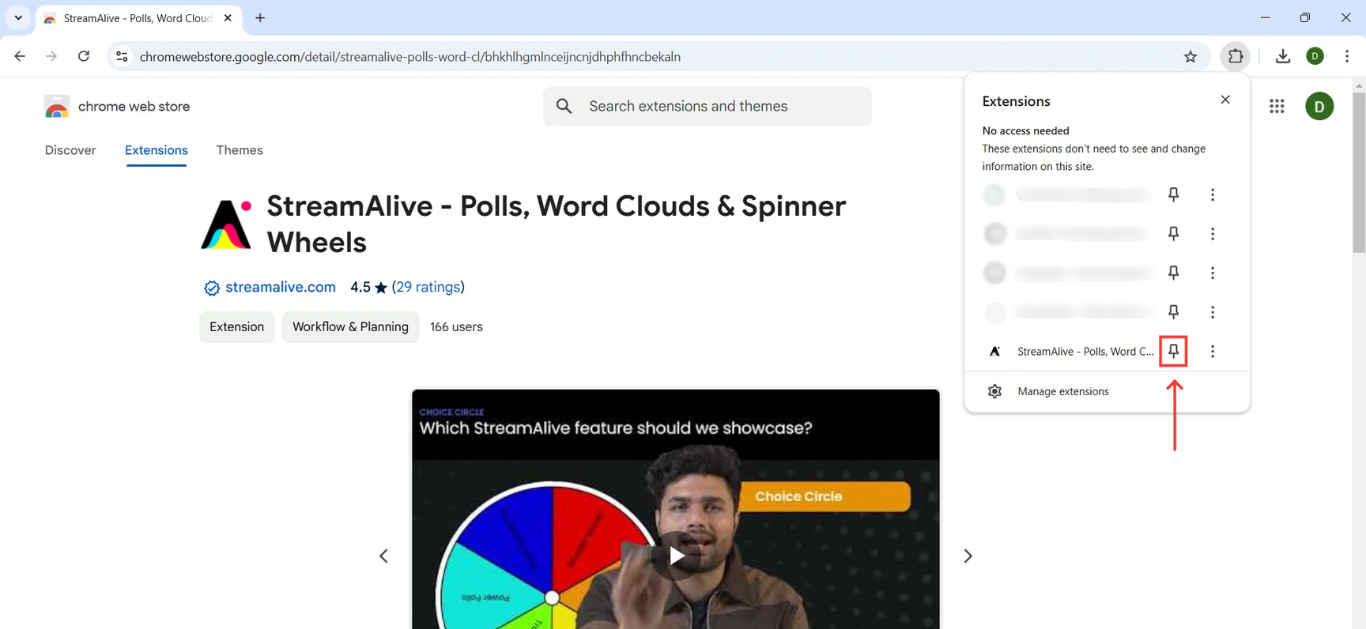
Pin the extension to your toolbar so it's easy to reach
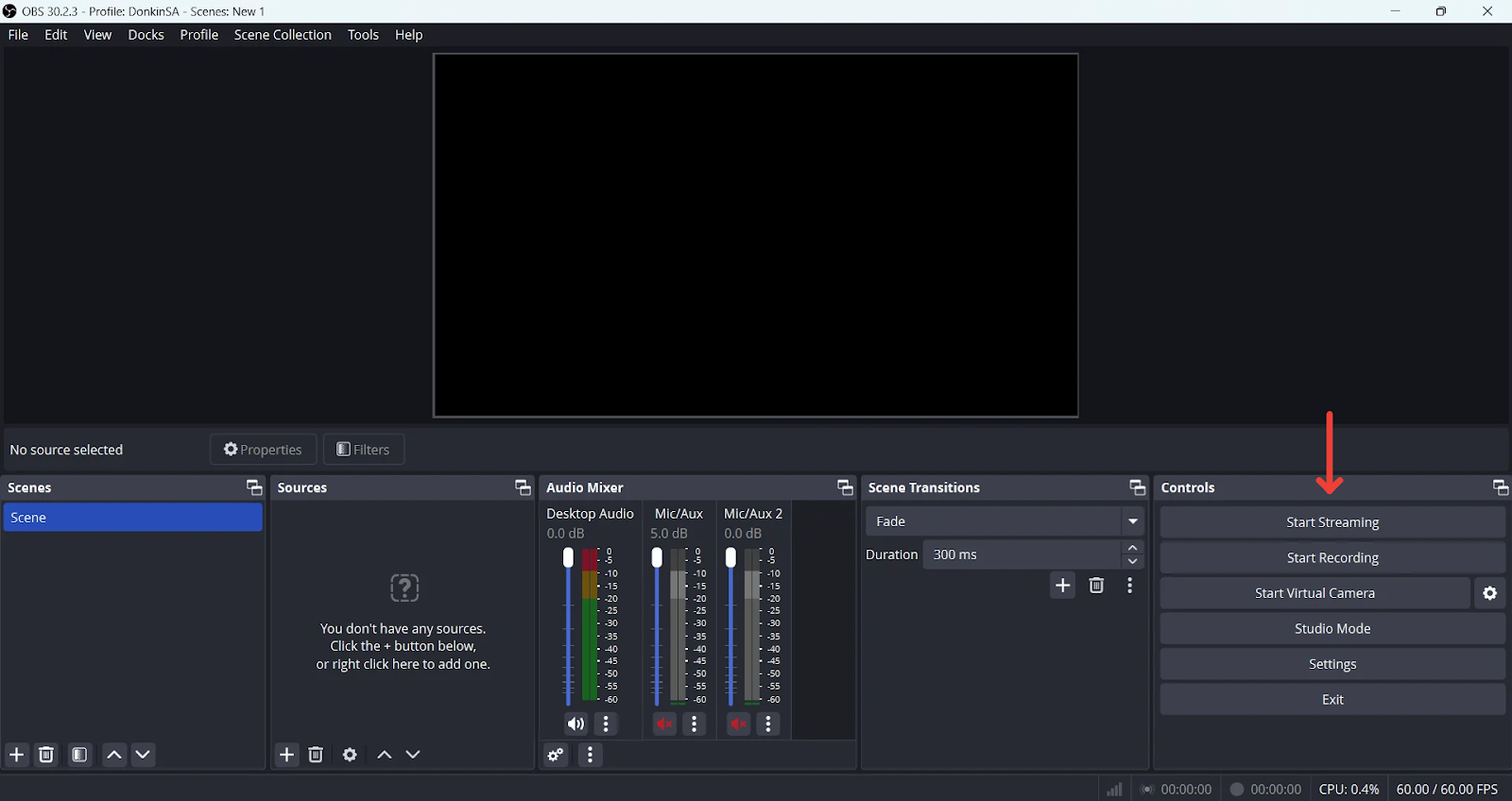
Get your Kick stream live
Fire up your streaming software of choice — OBS works well here — and start broadcasting on Kick.
Launch the extension from your live Kick page
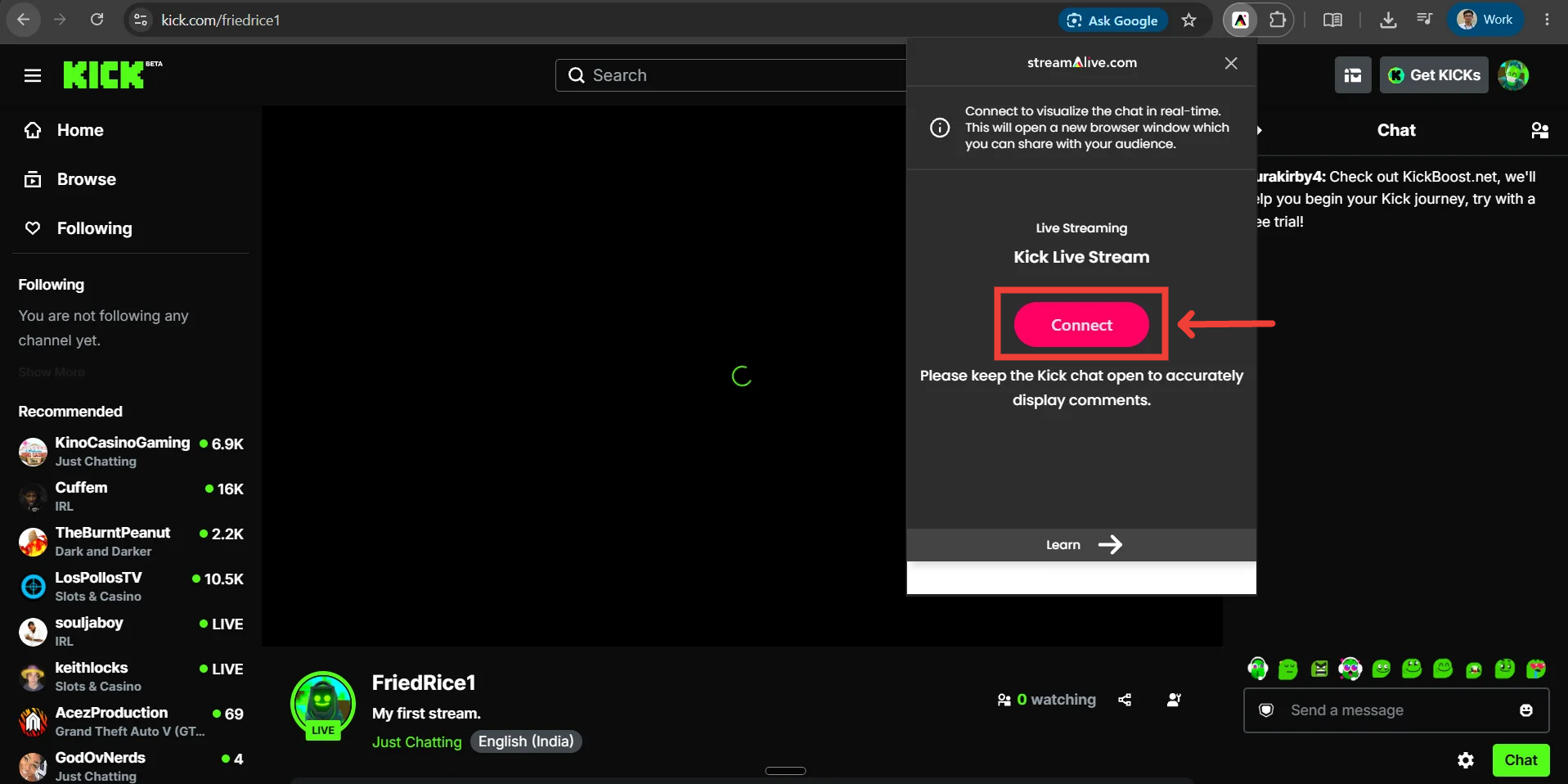
With your stream running, navigate to your Kick channel page and click the StreamAlive extension in your browser toolbar.
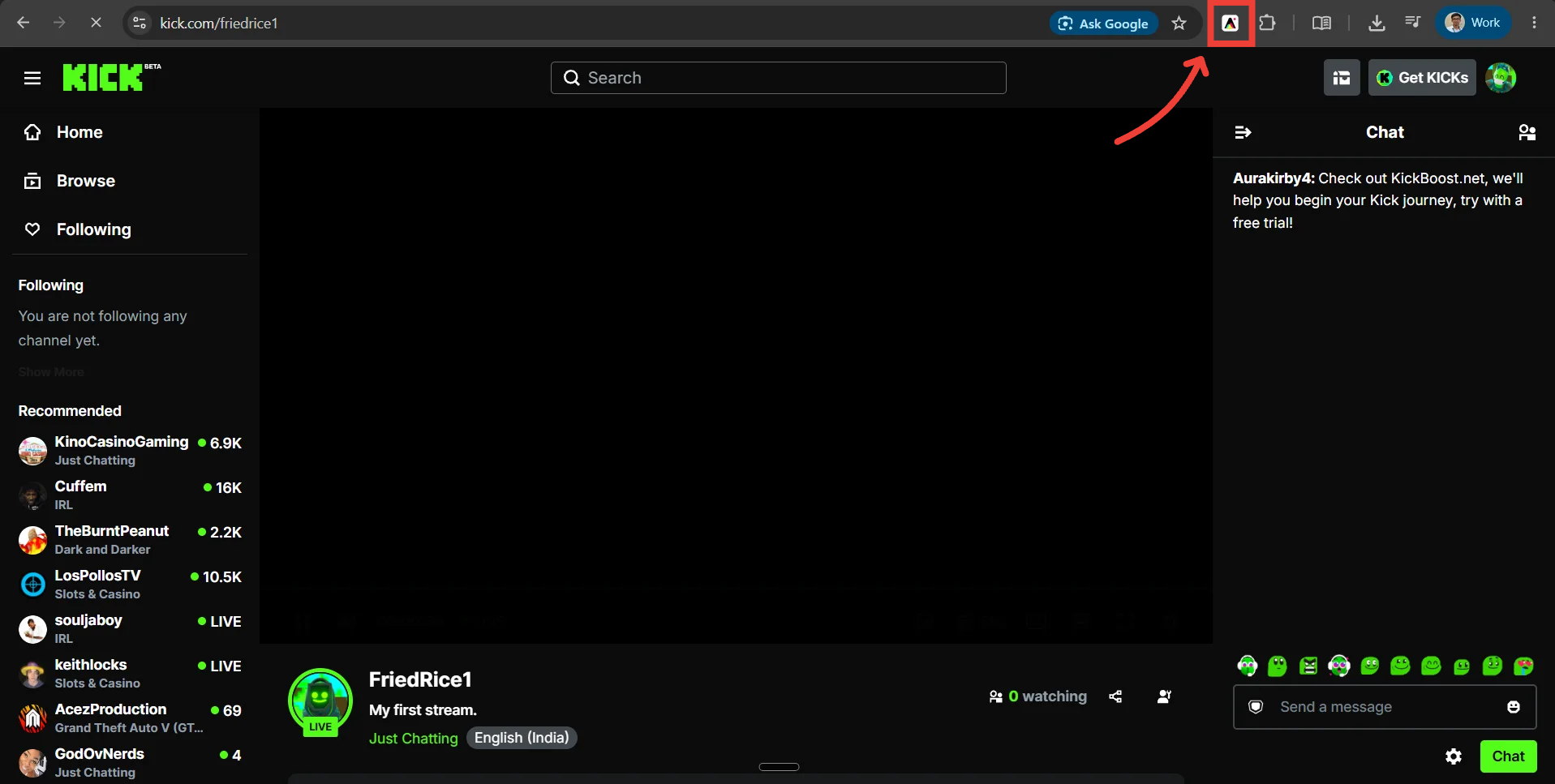
A prompt will appear asking whether to link StreamAlive to your Kick stream. Select Connect.
Open StreamAlive and load your content
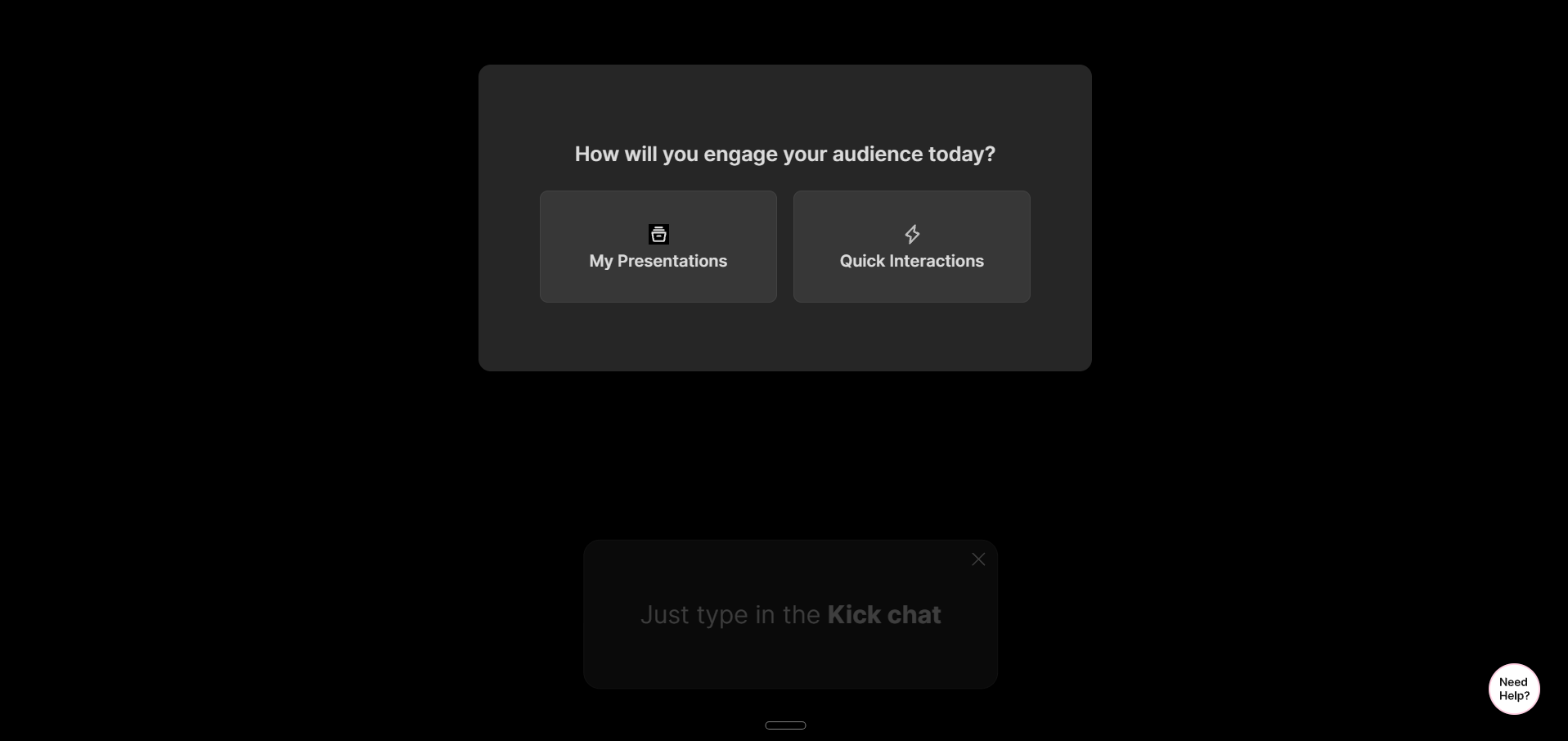
Selecting Connect opens a new browser tab with the StreamAlive Go Live Presentation screen.
From here, you can either jump straight into quick interactions (handy if you haven't built a presentation) or pull in a presentation you've already put together within StreamAliveFor this tutorial, we will be continuing with a presentation we created earlier.
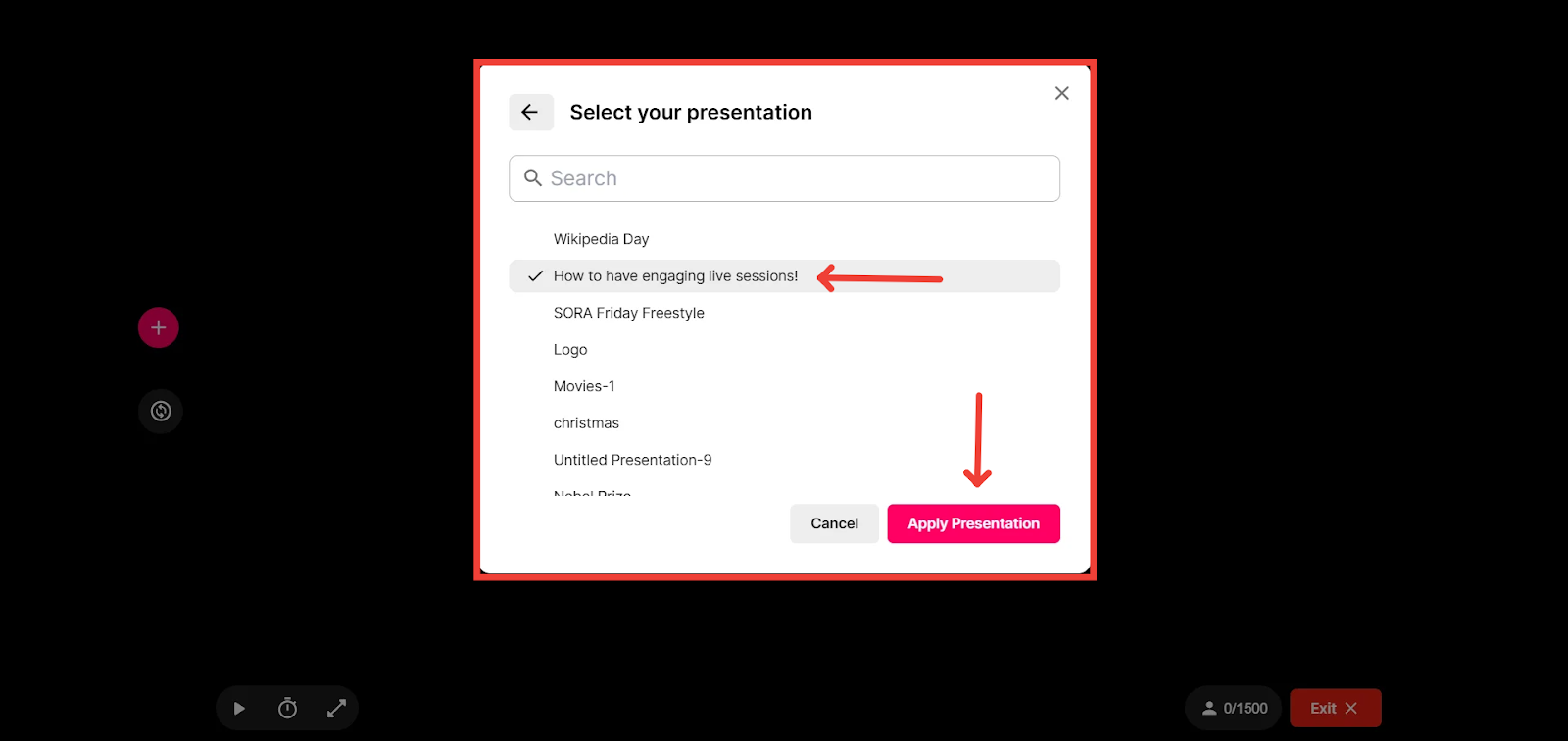
Pick your saved presentation and select Apply Presentation.
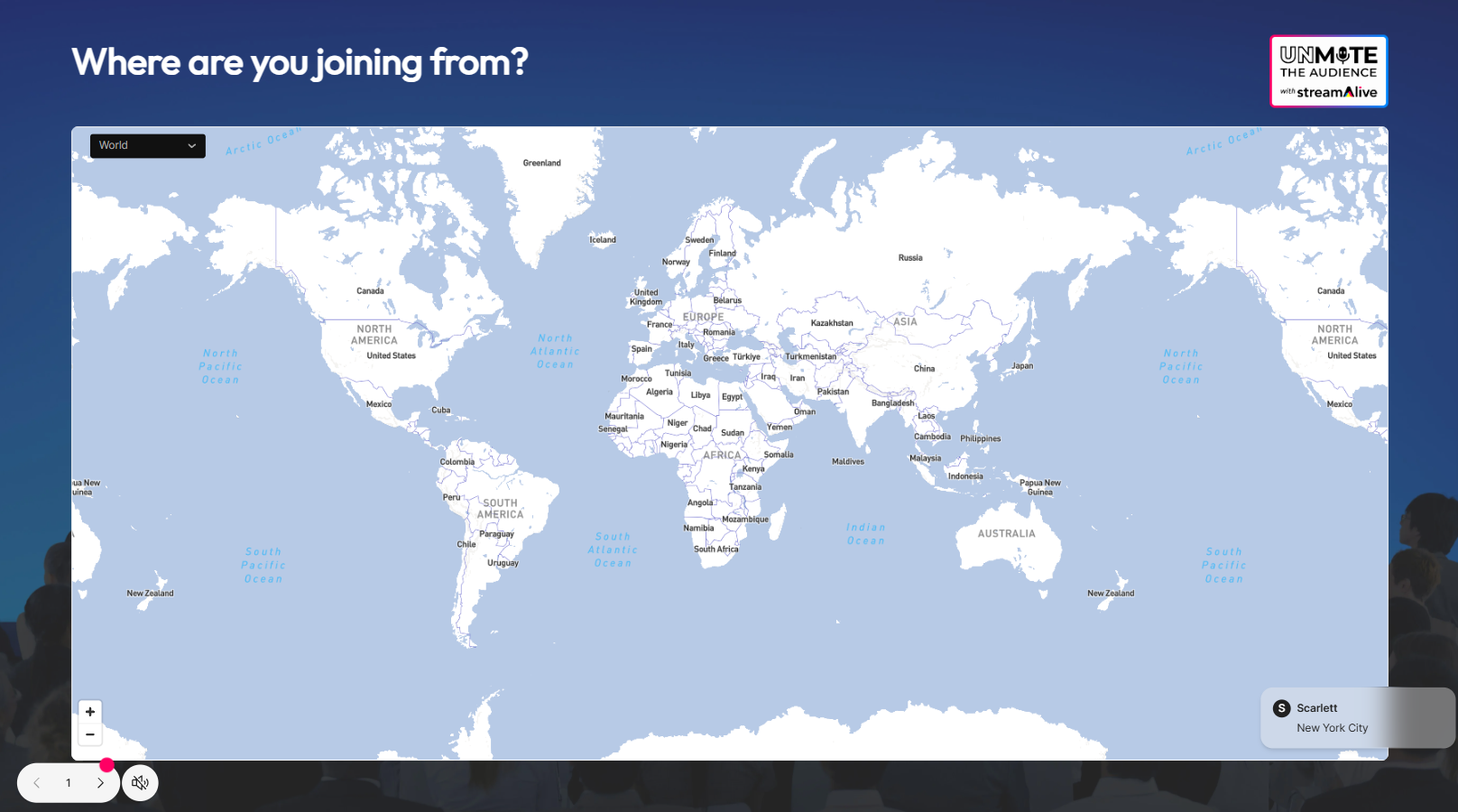
Your slides will now be loaded into the live presentation screen, ready to run.
Bring the StreamAlive tab into your stream
In OBS (or whichever software you're using), add a new source — either a Window Capture or Browser Source — that points to the StreamAlive tab, so it appears in your Kick stream layout.
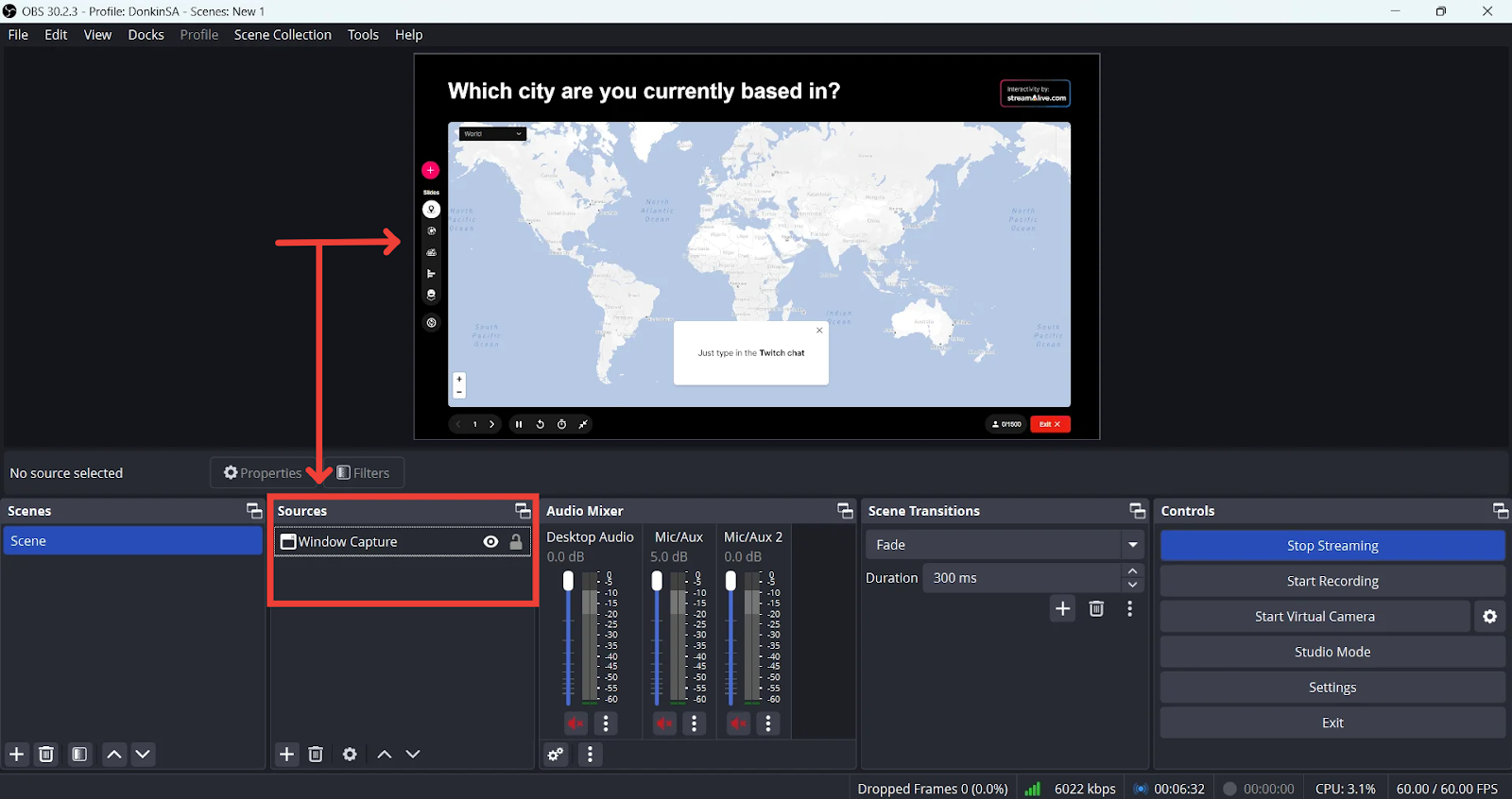
Prompt your viewers to respond in chat
Once an interaction appears on screen, let your audience know to type their responses into the Kick chat. If you haven't used the live presentation screen before, it's worth getting familiar with it first.
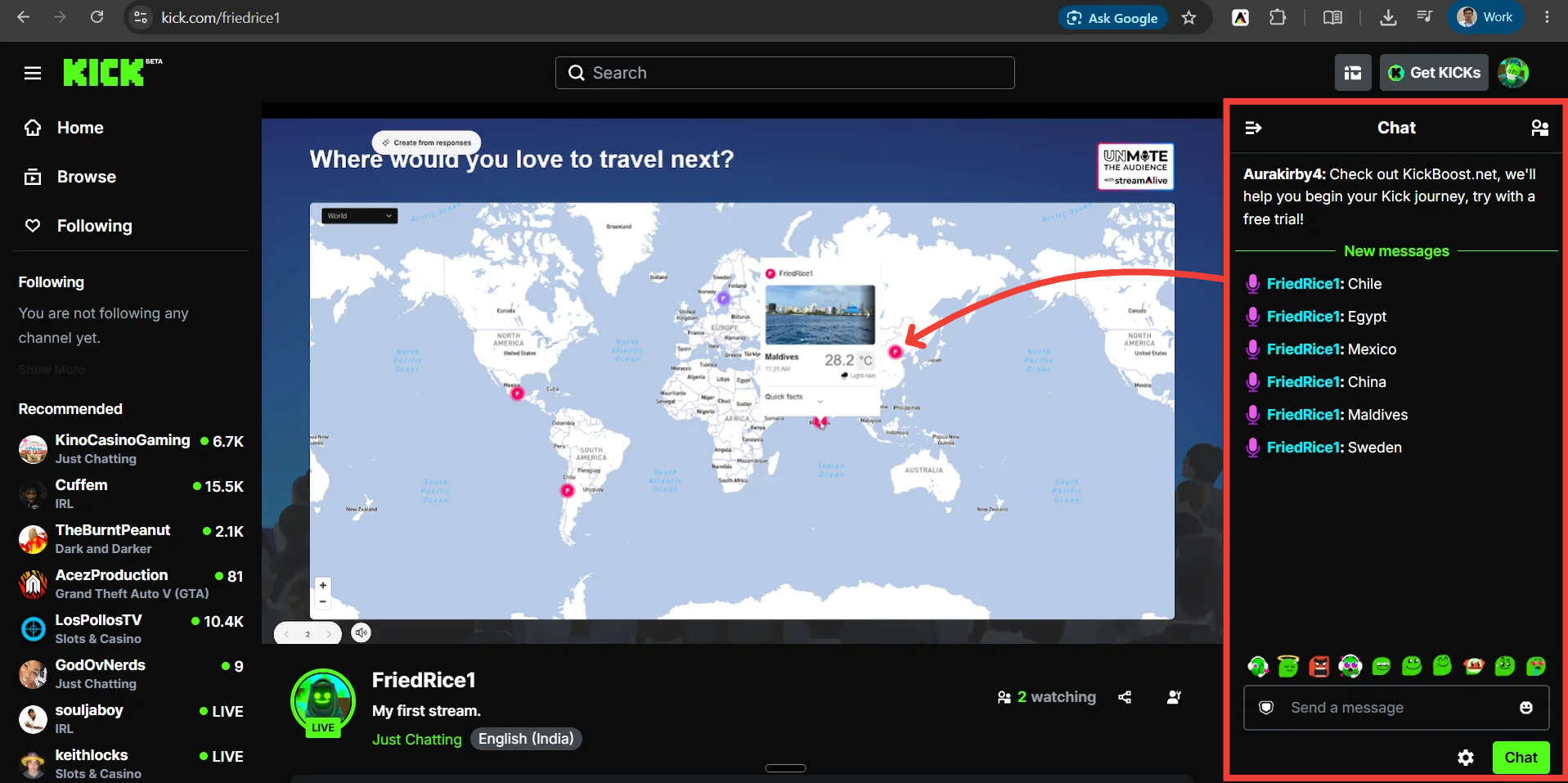
Watch StreamAlive turn chat replies into live results
StreamAlive reads those chat responses and updates your poll, word cloud, or other interaction on screen automatically.
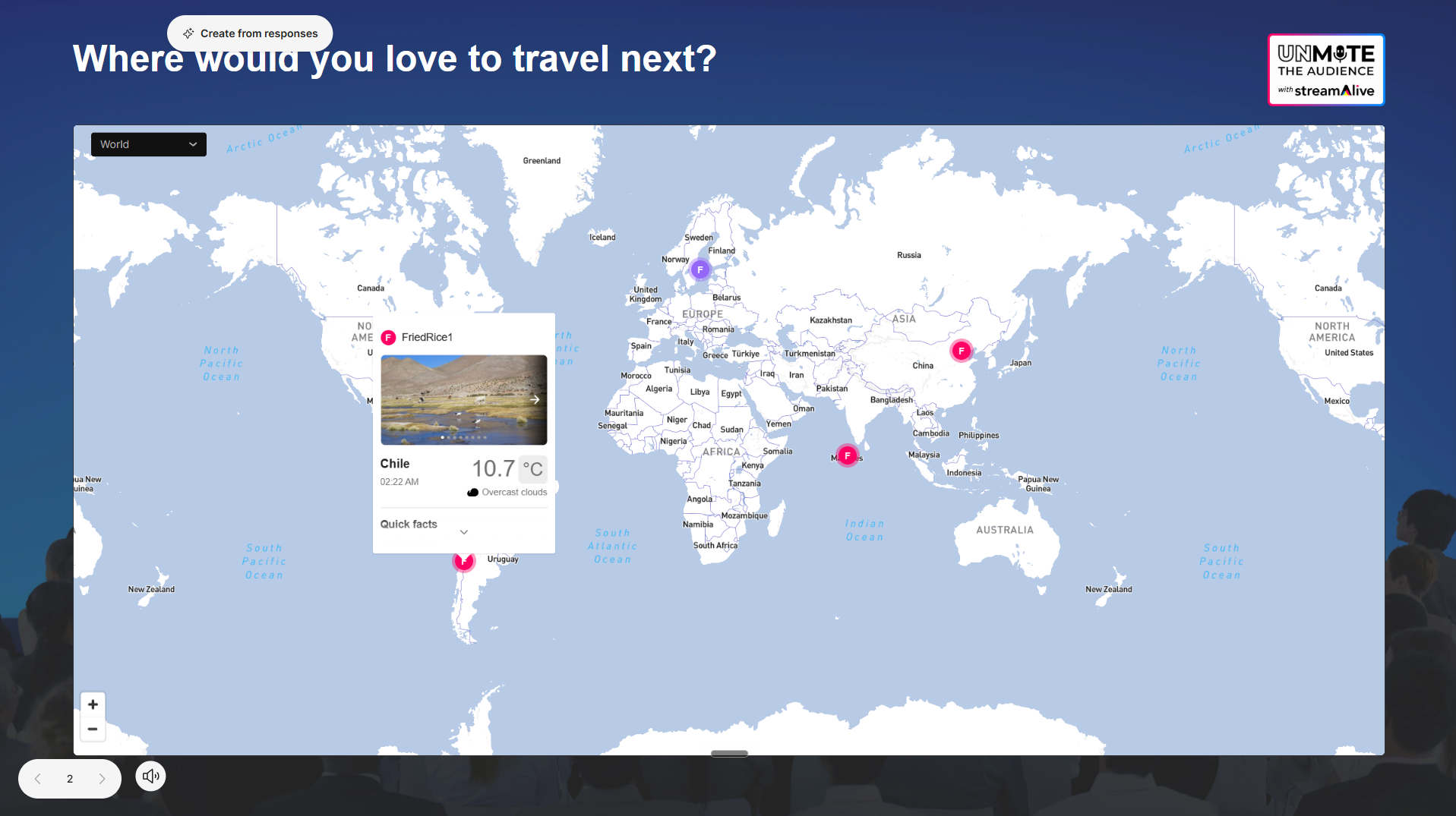
Nice work — your Kick stream is now wired up with StreamAlive.
A few extra pointers:
Keep the StreamAlive Chrome extension updated to the latest version.
Running into trouble? Try refreshing the StreamAlive tab or double-checking your connection.
Want more details on building and managing presentations? Check the StreamAlive presentations guide.
That's all it takes to run interactive, audience-driven Kick streams with StreamAlive.
Was this helpful?
Still need help? Ask the team